
Published by PixeLift · · 8 min read
Upscale Low Resolution Image Online — Fast, Free & Clear in 2026
Upscale low resolution image online with Pixelift AI. Sharpen blurry photos, restore old pictures, and boost detail in seconds — no download or editing...
This article is part of our guide to upscaling low-resolution images with AI.

Recommended next
Upscale Low Resolution Image Online — The 2026 Shortcut That Actually Works
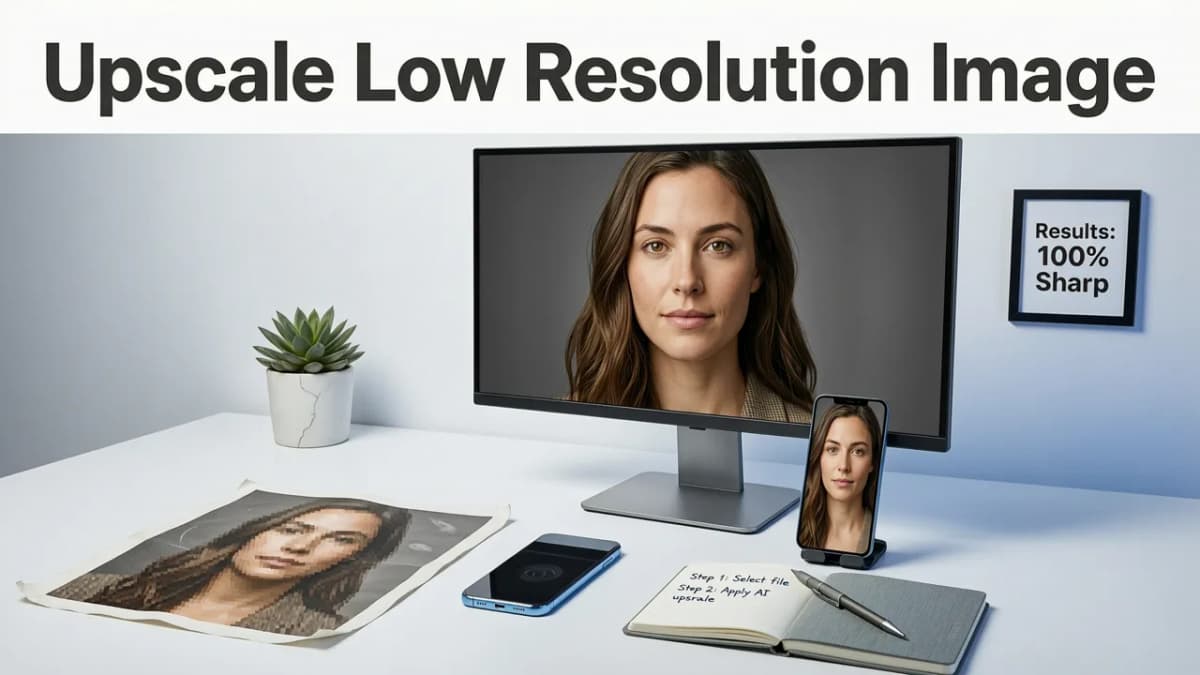
If you have a tiny, pixelated photo and need it to look sharp in seconds, the fastest way to upscale low resolution image online in 2026 is with an AI-powered enhancer like Pixelift. Just drag, drop, and let the model reconstruct missing pixels, clean up noise, and restore facial detail — no Photoshop, no plugins, no design experience required.
Whether you're rescuing a grainy screenshot, enlarging a product shot for your store, or breathing new life into a scanned family portrait, this guide walks you through exactly how modern AI upscaling works, what to expect from the results, and why Pixelift has become the go-to tool for everyday users who want clear, print-ready images without the learning curve.
Why Upscaling Low-Resolution Images Still Matters in 2026
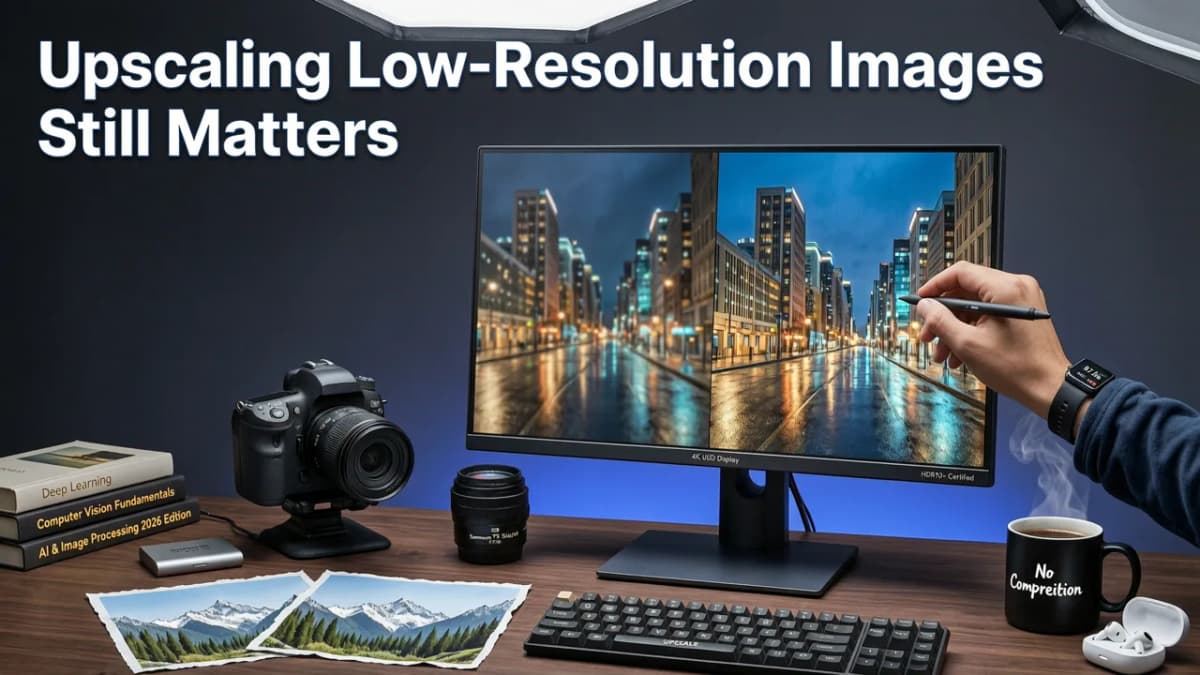
Even though smartphone cameras shoot at 48 MP and beyond, millions of images online are still stuck at low resolution. Old JPEGs from the early 2010s, compressed WhatsApp photos, screenshots, and scanned prints all suffer from the same problem: too few pixels to look good on today's Retina and 4K displays.
Here's what's driving the demand for online upscalers right now:
- Social media standards have risen. Platforms like Instagram and TikTok now favor high-resolution media in their algorithms, meaning blurry images get less reach.
- E-commerce requires clarity. Shoppers zoom in on product photos. A pixelated image is a lost sale.
- Family archives are going digital. People are scanning decades of prints and need them enlarged for frames, albums, and gifts.
- AI models have matured. In 2026, diffusion-based upscalers can reconstruct realistic texture — not just sharpen edges.
The result? You no longer need to accept "that's just a low-res photo" as a dead end. Tools like Pixelift make it possible to upscale images with real-world quality that holds up to scrutiny.
What "Upscale Low Resolution Image Online" Actually Means
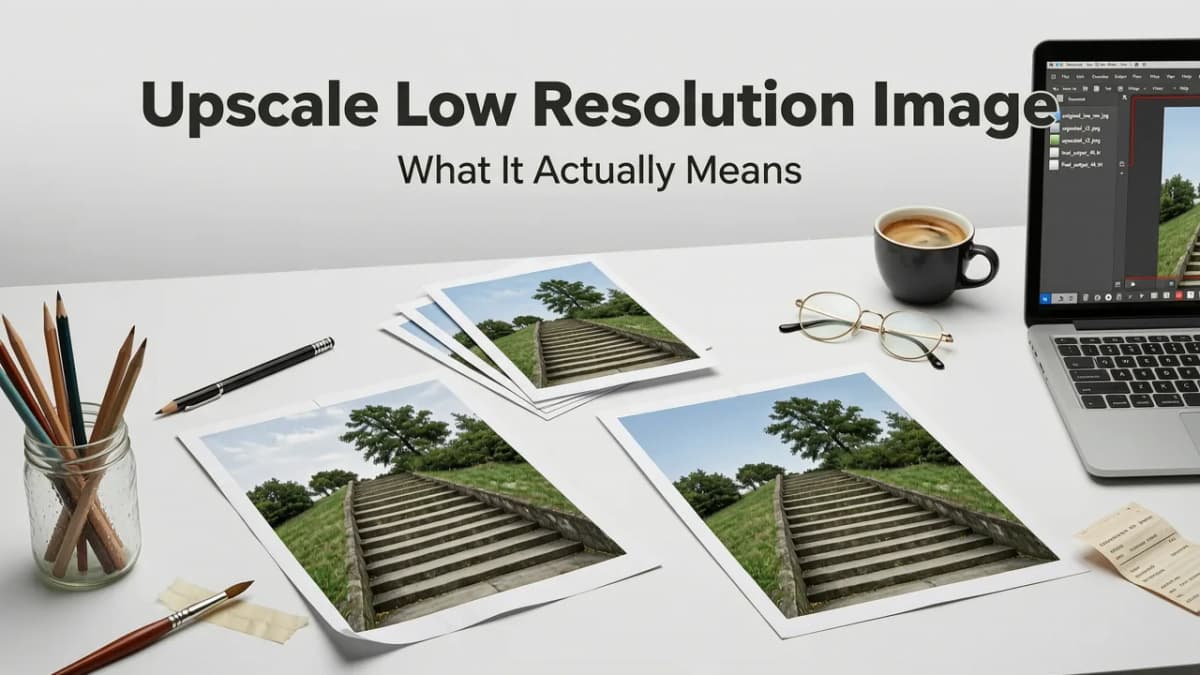
Before we dive into the how-to, let's clear up a common misconception. Upscaling isn't the same as stretching an image in Paint. Traditional resizing simply duplicates existing pixels, which makes everything look soft and blocky. AI upscaling is fundamentally different.
Traditional Resize vs. AI Upscale
| Feature | Traditional Resize | AI Upscale (Pixelift) |
|---|---|---|
| Method | Interpolation (bilinear, bicubic) | Diffusion-based pixel reconstruction |
| Detail recovery | None — just stretches existing data | Generates plausible new detail |
| Face quality | Blurry, smeared | Sharp, natural-looking features |
| Noise handling | Amplifies noise | Reduces noise while adding detail |
| Speed | Instant | Seconds (cloud-processed) |
| Editing skill needed | Minimal | None |
The key takeaway: AI upscaling doesn't just make the image bigger — it makes it better. It fills in the gaps that the original camera or scanner missed.
How to Upscale a Low Resolution Image Online with Pixelift
Pixelift was built for people who don't want to learn photo editing software. The entire process takes about 10 seconds from upload to download. Here's the step-by-step:
Step 1: Open Pixelift in Your Browser or iOS App
Head to aienhancephoto.com on any device — desktop, tablet, or phone. There's nothing to install. If you prefer a native experience, the iOS app is also available.
Step 2: Upload Your Low-Resolution Image
Click the upload area or drag and drop your file. Pixelift accepts JPEG, PNG, WebP, and HEIC formats. If you're working with a scanned print, make sure the scan itself is at least 300 DPI for best results.
Step 3: Choose Your Enhancement Level
Pixelift offers multiple upscale options depending on how much enlargement you need — typically 2×, 4×, or higher. For most use cases, 2× or 4× delivers excellent results without introducing artifacts.
Step 4: Review and Download
Within seconds, you'll see a before-and-after comparison. If the result looks good, hit download. That's it — no watermark, no signup wall for your first test.
Pro tip: If your photo has heavy damage — scratches, tears, severe fading — pair the upscaler with Pixelift's restoration tools. You can find a full walkthrough in our guide on the best AI photo restorer for family pictures in 2026.
What Types of Images Benefit Most from AI Upscaling?
Not every low-res image is created equal. Some categories see dramatic improvements, while others need a slightly different approach. Here's a quick breakdown:
Portraits and Selfies
Pixelift's face-aware AI reconstructs skin texture, eye detail, and hair strands with remarkable accuracy. This is especially useful for old group photos where faces have become indistinct over time.
Product Photos
If you're selling online, upscaled product images can mean the difference between a bounce and a buy. Pixelift sharpens edges, enhances lighting, and removes background noise — all without a studio reshoot.
Scanned Family Pictures
This is where AI upscaling truly shines. Decades-old prints that were never high-resolution to begin with get a second life. Combined with faded photo restoration techniques, you can turn yellowed, soft scans into vivid, frame-worthy prints.
Screenshots and Digital Art
Screenshots taken on older devices or compressed through messaging apps often look terrible when enlarged. AI upscaling recovers text sharpness and clean lines, making them usable in presentations or social posts.
Common Mistakes People Make When Trying to Upscale Images
Even with great tools, a few beginner errors can tank your results. Avoid these pitfalls:
- Starting with a terrible source. If the original is extremely blurry or heavily compressed, even the best AI can only do so much. Try to find the highest-quality version available before upscaling.
- Over-upscaling. Jumping straight to 8× or 16× on a tiny thumbnail often produces uncanny results. Start with 2× or 4× and evaluate.
- Ignoring color and lighting. Upscaling fixes resolution, but a dark or washed-out image still needs enhancement. Pixelift's color and lighting improvements handle this in the same pass.
- Forgetting to remove distractions first. If there's a photobomber or an ugly watermark in the shot, use the Magic Remover before upscaling so the AI doesn't accidentally "enhance" the distraction.
- Assuming one tool does everything. Sometimes a photo needs restoration and upscaling. Understanding when to use each tool — or both together — saves time and frustration. Our guide on restoring blurry photos covers when different approaches make sense.
Pixelift vs. Other Ways to Upscale Low Resolution Images
The market is crowded with upscaling tools. Here's how Pixelift stacks up against the alternatives people typically consider:
| Method | Quality | Speed | Cost | Difficulty |
|---|---|---|---|---|
| Pixelift AI Upscaler | Excellent — face-aware, detail-rich | Seconds | Free tier available | Zero — drag and drop |
| Desktop software (Photoshop, Topaz) | Very good to excellent | Minutes | $$$ — license or subscription | High — steep learning curve |
| Free online converters | Low to mediocre | Seconds | Free | Easy, but limited control |
| Mobile apps (generic) | Variable — often over-sharpened | Seconds | Freemium | Easy, but inconsistent |
| Running open-source models locally | Excellent (with tuning) | Minutes to hours | Free (but needs GPU) | Very high — command line |
For the vast majority of users — people who just want their photo to look good without a PhD in machine learning — Pixelift hits the sweet spot of quality, speed, and simplicity.
Tips for Getting the Best Results When You Upscale
A few practical pointers can push your results from "good" to "wow":
- Clean the source first. If you're scanning a physical print, wipe the glass and use a matte background. Dust and reflections get amplified by upscaling.
- Use the right file format. Save your final image as PNG for maximum quality, especially if you plan to print it.
- Batch similar photos. If you have a stack of family scans, process them in one session so the results look consistent across the set.
- Combine tools wisely. Use Magic Remover for distractions, Creative Presets for style, and the upscaler for resolution — in that order for best results.
- Check at 100% zoom. Don't judge the result by looking at a tiny preview. Zoom in to verify detail before downloading.
Is It Safe to Upload Personal Photos to an Online Upscaler?
This is a fair concern, especially when working with family portraits or sensitive images. Pixelift is built by Devsrank with privacy in mind. Uploaded images are processed in the cloud and are not used to train models without consent. For users who want total control, the iOS app processes images with the same AI engine while keeping everything on-device where possible.
As a general rule, avoid uploading anything you wouldn't want stored temporarily on a server — but for everyday photos, screenshots, and product images, online AI upscalers in 2026 are designed with privacy as a baseline expectation, not an afterthought.
Who Should Use an Online AI Upscaler?
The short answer: almost anyone with a low-resolution image. But here are the groups that get the most value:
- Parents and grandparents digitizing and enlarging old family photos for gifts and albums.
- Small business owners who need crisp product images but can't afford a professional shoot.
- Content creators repurposing old content for higher-resolution platforms.
- Students and professionals who need clean, enlarged images for presentations and reports.
- Anyone restoring memories — because a blurry photo shouldn't mean a lost memory.
The Bottom Line on Upscaling Low Resolution Images in 2026
The days of accepting pixelated, blurry photos as "just the way they are" are over. AI upscaling technology has reached the point where everyday users can get results that rival what used to require expensive software and hours of manual editing. Pixelift makes that technology accessible in seconds — right in your browser or on your phone.
Whether you're enlarging a cherished family snapshot, polishing a product photo, or simply making a screenshot look presentable, the ability to upscale low resolution image online is now a basic utility — not a luxury. Give it a try and see the difference for yourself.
Ready to turn your blurry photos into sharp, high-resolution images? Head to Pixelift and upscale your first image in under 10 seconds — no account required to start.
Related Articles
More on upscaling images
The other articles on this topic are listed in the upscaling guide.

2026-10-07
How to Upscale Low Resolution Images for Print (2026 Guide)
Learn how to upscale low resolution images for print without losing quality. Discover the best AI methods to get crisp, high-DPI results for physical media.

2026-08-24
Upscale Low Resolution Image Without Quality Loss (2026 Guide)
Learn how to upscale low resolution image files in 2026 using AI. Sharpen blurry photos, restore old pictures, and boost clarity without editing skills.

2026-07-18
Best AI Tool to Upscale Low Resolution Photo in 2026
Looking to upscale low resolution photo AI-style in 2026? Pixelift delivers photorealistic, one-click upscaling — no editing skills needed. Try it free...
Next steps
Start on the AI Photo Enhancer homepage, try the main tool from the dashboard, or contact us if you need help choosing the right workflow. You can also explore localized pages like United Kingdom or Germany.