2026-10-13 · 7 min read
How to Unblur a Picture on iPhone Using AI in 2026
Learn how to unblur a picture on iPhone using AI in 2026. Discover simple ways to sharpen, upscale, and restore blurry photos instantly without editing skills.
Recommended next
Why Your iPhone Photos Get Blurry (And Why It Matters)
We have all been there. You take a photo on your iPhone, and it looks perfect in the moment, but when you open it later, it is a blurry mess. Whether it is a fast-moving pet, a shaky hand in low light, or a slightly out-of-focus portrait, blur happens to everyone. But you do not have to delete those memories or settle for subpar images.
If you are wondering how to unblur a picture on iphone, the good news is that AI technology has completely changed the game in 2026. You no longer need expensive desktop software or hours of editing experience to fix soft, blurry, or low-resolution images. In this guide, we will show you exactly how to unblur a picture on iPhone using both built-in tools and advanced AI enhancers, so you can rescue your favorite shots in seconds.
Common Causes of Blur on iPhone Photos
Before fixing the issue, it helps to understand why your photos are blurry in the first place. Identifying the type of blur can help you choose the right enhancement method.
Motion Blur and Camera Shake
This is the most common culprit. If your subject is moving quickly, or if your hands are unsteady while shooting in dim lighting, the camera shutter stays open slightly longer, capturing movement as a soft smear. Native editing tools struggle to fix this because the original pixel data is simply not there.
Focus Misses
Sometimes the iPhone autofocus locks onto the background instead of your subject. This leaves the main subject soft and undefined. While slight focus misses can be improved with sharpening tools, heavy focus misses require AI to reconstruct the missing facial features or textures.
Low Light and Digital Noise
When you shoot in the dark, the iPhone increases its ISO, which introduces digital noise. To combat this, the phone applies heavy noise reduction, which often smears fine details and makes the image look blurry or painted.
Dirty Lenses and Smudges
It sounds simple, but a fingerprint on your iPhone lens will scatter light and create a hazy, soft-focus effect across the entire image. Always wipe your lens with a microfiber cloth before shooting!
How to Unblur a Picture on iPhone: The 3 Best Methods
Now that we know what causes the blur, let us look at how to fix it. Depending on the severity of the blur, you can use native iOS tools or step up to a dedicated AI photo enhancer.
Method 1: Use the Built-in iOS Photos App (For Minor Fixes)
If your photo is only slightly soft, you might not need a third-party app. The native Photos app has basic sharpening tools that can enhance edge contrast.
- Open the Photos app and tap on your blurry picture.
- Tap Edit in the top right corner.
- Tap the dial icon at the bottom to access adjustment sliders.
- Scroll to find Sharpen and Definition. Increase these slightly to bring out edge details.
- Tap Done to save.
Note: This method only enhances existing pixels. It cannot recreate missing details or fix heavy motion blur. If you push the sharpening slider too far, you will just introduce ugly digital artifacts and noise.
Method 2: Use an AI Photo Enhancer (For Real Unblurring)
For actual blur removal, you need an AI photo enhancer. Unlike traditional sharpening, AI uses deep learning models trained on millions of images to guess and reconstruct missing details. It understands what a human face, a pet's fur, or a building's architecture should look like, and rebuilds the pixels accordingly.
Tools like Pixelift are designed specifically for this. They can sharpen blurry photos, upscale low-resolution images, and improve lighting without making the image look artificially crunchy. You can access these tools directly through your iPhone's web browser or via the dedicated iOS app, meaning no complex desktop software is required.
Method 3: Upscale and Restore (For Old or Low-Res Pics)
If your blurry photo is an old family picture scanned from a physical print, or a heavily cropped image, you need to upscale it. AI upscaling increases the resolution of the image while simultaneously filling in the gaps with predicted textures. This is the best way to restore old pictures and make them look crisp on modern high-resolution iPhone displays.
How to Unblur a Picture on iPhone Using AI: Step-by-Step
Using an AI tool is incredibly straightforward and requires zero editing experience. Here is how you can fix your images in just a few taps:
- Open the Tool: Launch the Pixelift web tool in Safari or open the iOS app.
- Upload Your Image: Tap the upload button and select the blurry photo from your iPhone camera roll.
- Select Your Enhancement: Choose the 'Enhance' or 'Sharpen' option. The AI will automatically analyze the image and detect faces, objects, and backgrounds.
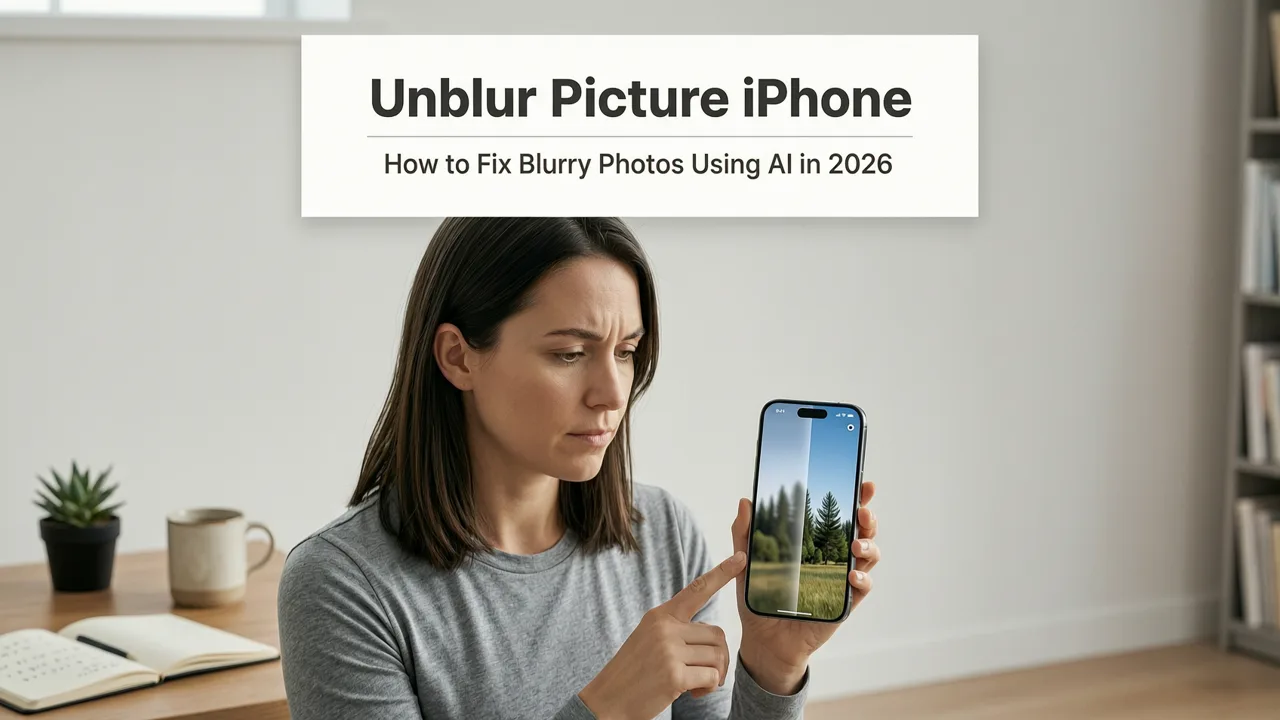
- Process and Review: Wait a few seconds for the AI to reconstruct the pixels. Compare the before and after sliders to see the difference.
- Download: Save the newly sharpened, high-resolution image back to your iPhone.
Beyond Unblurring: Cleaning Up the Rest of Your Photo
Often, a blurry photo is just the beginning of the problem. Maybe there is a photobomber in the background, a distracting trash can, or an unwanted watermark. Once you have sharpened your image, you might want to clean it up.
This is where the Magic Remover feature comes in handy. If you have ever searched for a magic remover gel for photos, you already know the frustration of trying to find a simple way to erase distractions. The Magic Remover uses AI to identify unwanted objects and seamlessly fill the background, making it the best AI tool to remove objects from photos without leaving behind blurry smudges. You can also use it to remove watermarks from photos free online, ensuring your restored images look completely natural.
Native iOS Editing vs. AI Enhancement: Which Should You Choose?
To help you decide which route to take, here is a quick comparison of native iPhone editing versus using a dedicated AI photo enhancer.
| Feature | Native iOS Photos App | AI Photo Enhancer (Pixelift) |
|---|---|---|
| Fix minor softness | Yes | Yes |
| Fix heavy motion blur | No | Yes |
| Reconstruct missing facial details | No | Yes |
| Upscale low-resolution images | No | Yes |
| Restore old, damaged pictures | No | Yes |
| Remove background objects | Limited (Clean Up tool) | Yes (Magic Remover) |
| Learning curve | Very Low | Very Low |
As the table shows, while the native app is great for quick color corrections and minor sharpening, an AI enhancer is the only way to truly rescue heavily blurred or low-resolution images.
Tips for Taking Sharper Photos in the First Place
While AI is fantastic at saving your photos, prevention is always better than the cure. Here are a few quick tips to ensure your iPhone captures sharp images right out of the camera:
- Tap to Focus: Always tap the screen on your main subject to lock the focus and exposure before taking the shot.
- Use the Volume Button: Tapping the screen can sometimes cause micro-movements that lead to blur. Use the physical volume buttons on the side of your iPhone as a shutter release.
- Avoid Digital Zoom: Pinching to zoom on an iPhone crops the image and reduces resolution. Instead, walk closer to your subject or use the dedicated telephoto lens if your model has one.
- Steady Your Hands: In low light, tuck your elbows into your ribs or lean against a wall to stabilize your phone and prevent camera shake.
Final Thoughts on Fixing Blurry iPhone Photos
Blurry photos used to mean a trip to the digital trash bin, but in 2026, they are just a starting point. Knowing how to unblur a picture on iphone gives you the power to salvage those fleeting, imperfect moments and turn them into high-quality memories. Whether you use the built-in sliders for a quick touch-up or rely on an AI photo enhancer to completely reconstruct missing details, you no longer have to let a little bit of motion blur ruin a great shot.
Ready to bring your blurry photos back to life? Try using the Pixelift web tool or download the iOS app today to start sharpening, upscaling, and restoring your favorite images in seconds. No editing skills required!