2026-10-01 · 6 min read
How to Restore Old Family Photos with AI in 2026
Learn how to restore old family photos with AI in 2026. Discover simple steps to fix scratches, enhance colors, and bring cherished memories back to life.
Recommended next
What Does It Mean to Restore Old Family Photos with AI in 2026?
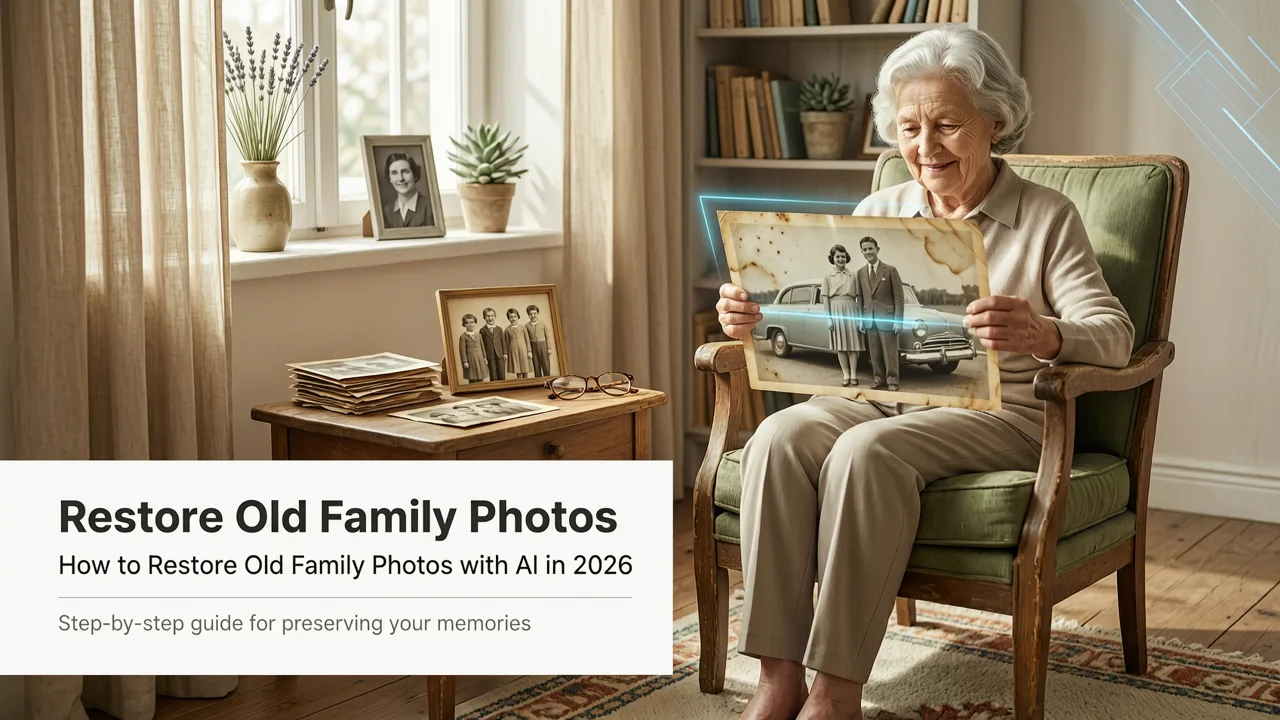
Finding a shoebox of faded, torn, or water-damaged pictures in the attic is a magical moment, but seeing those precious memories trapped in low quality is incredibly frustrating. If you are wondering how to restore old family photos with AI, the process in 2026 is remarkably simple: digitize the image, upload it to an AI-powered platform like Pixelift, and let neural networks automatically repair scratches, enhance faces, and revive faded colors in seconds.
Restoring old family photos with AI means leveraging advanced machine learning models that understand the context of an image. Unlike traditional software that merely blurs out a scratch or applies a blanket color filter, modern AI analyzes the semantic structure of the photograph. It recognizes that a specific pixel cluster is part of a facial feature, a fabric pattern, or a background landscape, and reconstructs the missing or damaged information with stunning accuracy.
Why 2026 Is the Best Year Yet to Repair Damaged Photographs
The landscape of digital photo repair has evolved dramatically. What once required hours of meticulous manual cloning in complex desktop software can now be accomplished in a single click. Here is why 2026 stands out as the premier year for vintage photo enhancement.
1. Context-Aware Face Reconstruction
Early AI restoration tools were notorious for making faces look waxy, overly smooth, or entirely different from the original subject. Today, generative models are trained on vast, diverse datasets and aligned with responsible development practices, such as those outlined in the Google AI guidance on ethical and accurate image generation. This ensures that facial details are reconstructed naturally, preserving the unique characteristics and historical authenticity of your ancestors.
2. Seamless Cloud and Local Processing
Privacy and convenience are paramount when handling intimate family memories. Modern platforms utilize a hybrid architecture, allowing heavy processing to occur securely in the cloud while offering local processing options for sensitive files. Furthermore, many tools now act as a direct iCloud Photo Enhancer, meaning you can restore images directly from your cloud library without needing to download, edit, and re-upload them manually.
How to Restore Old Family Photos with AI Step-by-Step
Bringing a damaged photograph back to life does not require a degree in graphic design. By following a structured approach, you can ensure the highest quality results for your cherished memories.
Step 1: Digitize Your Physical Prints
The quality of your digital restoration is only as good as your initial scan. Use a flatbed scanner set to at least 600 DPI (dots per inch) for standard prints, or 1200 DPI for smaller photographs like wallet-sized portraits. Ensure the scanner glass is clean, and place a heavy, dark cloth over the scanner lid to prevent light leaks and glare. If you are using a smartphone to capture the photo, ensure the lighting is even and avoid casting a shadow over the image.
Step 2: Upload to an AI Photo Restorer
Once you have a high-quality digital file, upload it to a dedicated web tool or iOS app like Pixelift. These platforms are specifically designed to handle the unique artifacts found in older photographs, such as silvering, foxing (brown spots), and crease lines.
Step 3: Apply Automatic Enhancements and Repairs
With a single click, the AI will analyze the image and apply a multi-layered restoration process. It will simultaneously repair physical damage, remove noise, and correct color balance. If the original scan was slightly out of focus or suffered from camera shake during digitization, the system will also sharpen blurry photo details automatically, ensuring crisp edges and clear textures.
Step 4: Refine with Magic Remover and Creative Presets
After the automatic pass, review the image. If there are specific distractions—like a date stamp, a stray piece of lint caught in the scan, or an unwanted background object—use the Magic Remover tool to erase them seamlessly. Finally, you can apply Creative Presets to give the photo a stylistic finish, whether you want a true-to-life color correction, a classic black-and-white finish, or a warm vintage tone that matches the era the photo was taken.
Traditional Editing vs. AI Photo Restoration in 2026
To truly appreciate the leap in technology, it helps to compare modern AI restoration with the traditional manual methods of the past.
| Feature | Traditional Photo Editing | AI Photo Restoration (2026) |
|---|---|---|
| Time Required | Hours to days per photo | Seconds per photo |
| Skill Level | Advanced (Requires knowledge of cloning, masking, and color theory) | Beginner (No editing experience needed) |
| Scratch Removal | Manual cloning stamp (can leave repetitive artifacts) | Semantic reconstruction (generates missing texture contextually) |
| Face Detail Recovery | Extremely difficult; often looks painted or artificial | Highly accurate; preserves natural facial structures and expressions |
| Colorization | Requires manual painting layer by layer | Instant, historically informed AI color mapping |
Understanding the Technology Behind Vintage Photo Enhancement
The magic behind these instant transformations relies on sophisticated neural networks. When you upload an image, the AI first performs semantic segmentation, dividing the photo into distinct zones like skin, hair, clothing, and background. It then applies specialized algorithms to each zone.
For instance, the algorithms governing image generation and processing, similar to the foundational concepts detailed in OpenAI documentation, use diffusion models to predict and reconstruct missing pixels. Instead of just guessing what a torn edge should look like, the model references millions of similar textures and structures to generate a highly probable, photorealistic replacement. This is also why finding the best AI tool to upscale low resolution photo in 2026 is so critical; upscaling works hand-in-hand with restoration to ensure the final image is large enough for high-quality printing.
Preserving family history is no longer about just storing physical prints in a dark box; it is about actively reviving those memories so they can be shared, printed, and enjoyed by future generations in stunning clarity.
Tips for Getting the Best Results When You Fix Faded Pictures
While AI is incredibly powerful, a few best practices will ensure your final images are absolutely flawless.
- Always keep the original scan: Before applying any AI enhancements, save a raw, unedited copy of your initial scan. This gives you a fallback point if you want to try different restoration settings later.
- Address structural damage first: If a photo has deep creases or large tears, use the primary restoration tool to fix the physical damage before applying color correction or upscaling. Fixing the geometry first ensures the AI doesn't accidentally enhance a crack or fold.
- Batch process for consistency: If you are restoring an entire album from the same decade, process a few photos first to find the ideal Creative Preset. Applying the same stylistic preset to the whole batch ensures your digital album looks cohesive and uniform.
- Consider the final output: If your goal is to print the restored photo for a frame, ensure you use the upscaling feature to match the required resolution for your desired print size. A beautifully restored image will still look poor if printed at a low resolution.
Conclusion
Learning how to restore old family photos with AI has never been more accessible. The tools available in 2026 have completely democratized photo restoration, removing the need for expensive software and years of technical training. Whether you are repairing a single torn portrait or revitalizing an entire box of faded childhood memories, AI provides a fast, accurate, and beautifully natural result.
Ready to bring your cherished memories back to life? Explore the full capabilities of Pixelift today. If you have other images that need a quick fix, be sure to check out our complete guide on how to sharpen blurry photos with AI to ensure every picture in your collection is crystal clear.