2026-08-31 · 10 min read
Sharpen Blurry Photo Online Free – Instant AI Fix (2026)
Sharpen blurry photo online free with Pixelift's AI in 2026. Fix low-res, old, and out-of-focus images in seconds — no signup, no editing skills needed.
Recommended next
Sharpen Blurry Photo Online Free – Your Instant AI Fix in 2026
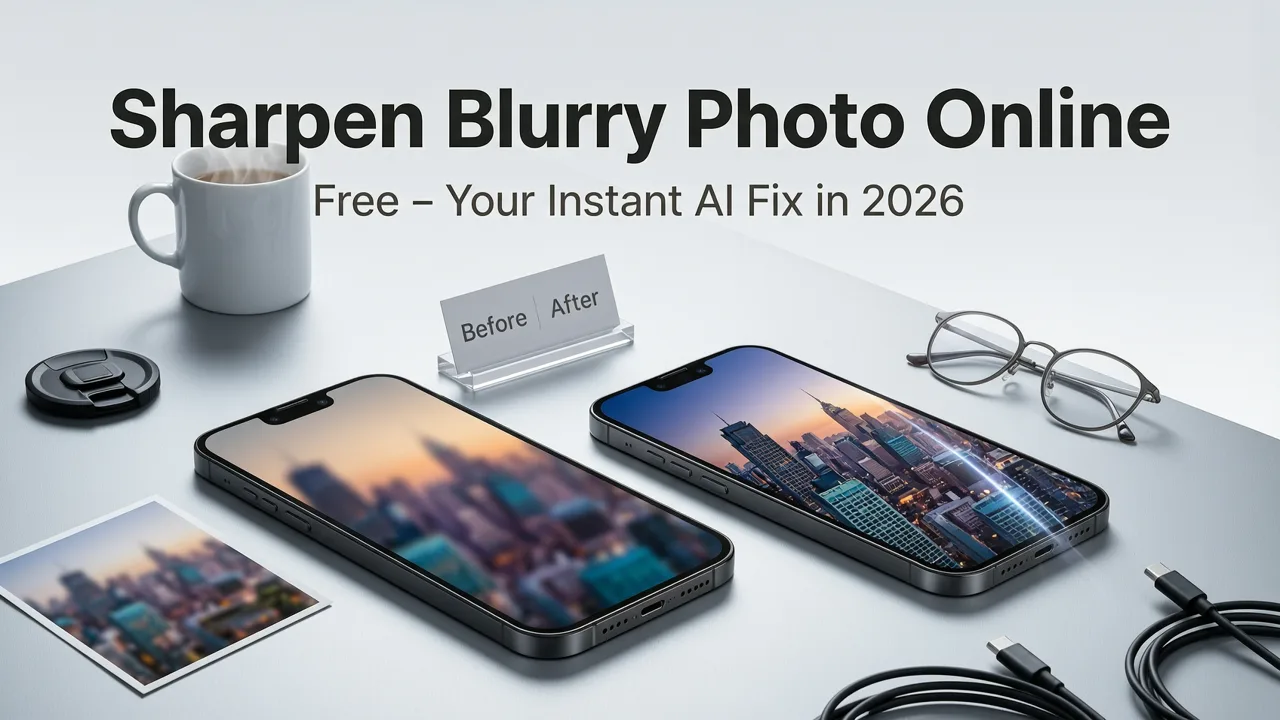
If you've ever stared at a treasured photo that's just slightly too soft, grainy, or out of focus — and wished you could make it crisp without downloading heavy software — you're not alone. The good news is that in 2026, you can sharpen blurry photo online free using AI-powered tools that do the heavy lifting in seconds, no editing skills required.
This guide walks you through exactly how to sharpen a blurry photo online for free, what's actually happening under the hood when AI sharpens your image, and why tools like Pixelift have made this process faster and more accurate than ever before.
Why Blurry Photos Are So Frustrating (and Why 2026 Changes Everything)
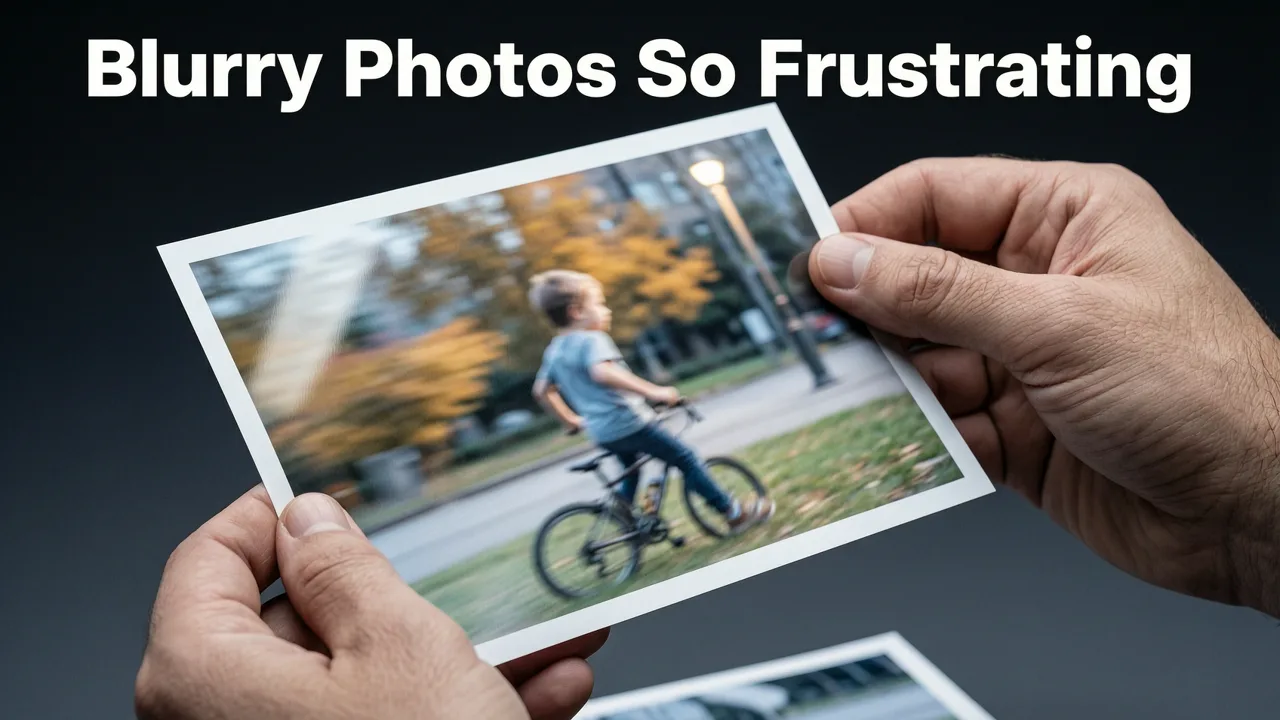
Blurry photos happen for dozens of reasons: camera shake, low light, wrong focus point, aggressive compression from social media, or simply the passage of time on old film scans. For years, fixing blur meant opening Photoshop, tweaking unsharp masks, and hoping for the best. The results were usually underwhelming — you'd sharpen the noise right along with the details.
In 2026, AI-based sharpening works fundamentally differently. Instead of just boosting edge contrast (the old-school method), modern AI models analyze the content of your image and reconstruct plausible detail. Faces get natural skin texture. Text becomes legible. Landscapes regain crisp foliage and architectural lines. It's not magic — it's deep learning trained on millions of sharp reference images.
And the best part? You no longer need a powerful computer, a subscription to expensive software, or any technical knowledge. You upload, the AI processes, and you download a sharper photo. That's it.
How Pixelift Sharpens Blurry Photos Online (The AI Behind the Fix)
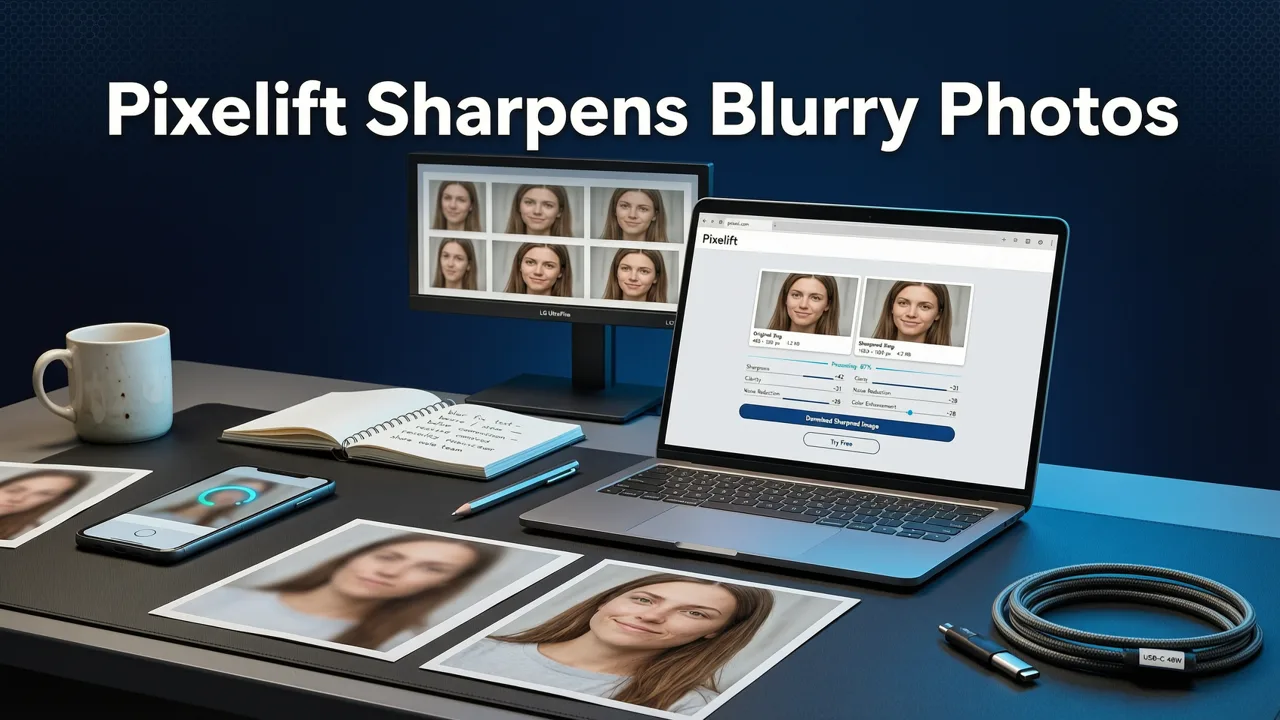
Pixelift is an AI photo enhancer built by Devsrank that handles everything from mild softness to heavily degraded images. Here's what happens when you use it to sharpen a blurry photo:
Step 1: Intelligent Blur Detection
When you upload your image, Pixelift's AI first classifies the type of blur present — motion blur, out-of-focus blur, compression artifacts, or general softness. Different blur types require different recovery strategies, and the model adapts its approach accordingly.
Step 2: Adaptive Super-Resolution
Next, the system applies adaptive super-resolution. This means it doesn't just stretch pixels — it generates new, contextually accurate pixel data. If your blurry photo contains a face, the AI knows what human features should look like at higher resolution and reconstructs accordingly. If it's a product shot, it preserves clean edges and accurate color.
Step 3: Detail Enhancement and Noise Reduction
After the structural rebuild, Pixelift fine-tunes micro-contrast, reduces any remaining noise, and balances color and lighting. The result is a photo that looks naturally sharp — not over-processed or artificially crunchy.
Step-by-Step: How to Sharpen Blurry Photo Online Free with Pixelift
Ready to fix your blurry image? Here's the exact process:
- Open Pixelift — Visit the Pixelift web tool on your browser (works on desktop, tablet, or mobile).
- Upload your blurry photo — Drag and drop or click to select from your device. Pixelift accepts JPG, PNG, WEBP, and most common formats.
- Select the enhancement mode — Choose "Sharpen & Enhance" for general blur fix, or pick a specific preset if you're working with a portrait, product photo, or old family picture.
- Wait a few seconds — The AI processes your image in the cloud. Typical processing time is under 10 seconds.
- Compare and download — Use the before/after slider to see the difference. If you're happy, download the enhanced version in full resolution.
No account needed. No watermark. No credit card. That's what makes it genuinely free to try.
What Types of Blurry Photos Can You Fix Online?
Not all blur is created equal. Here's a breakdown of common blurry photo scenarios and how well AI sharpening handles each one:
| Blur Type | Common Cause | AI Fix Quality in 2026 |
|---|---|---|
| Mild out-of-focus | Slight miss on autofocus | Excellent — near-perfect recovery |
| Motion blur | Camera shake or subject movement | Very good — especially for faces and text |
| Compression artifacts | Social media or messaging app resizing | Excellent — AI reconstructs lost detail |
| Low-resolution softness | Small image scaled up or old digital camera | Very good — see our low-res upscaling guide |
| Old photo degradation | Decades of fading, scratches, and loss of sharpness | Good to excellent — explore our old photo restoration guide |
| Severe motion blur | Extreme camera shake or fast-moving subjects | Moderate — significant improvement but not perfect |
Pixelift vs. Other Free Online Photo Sharpeners
There are plenty of tools that claim to sharpen blurry photos online for free. Here's how Pixelift compares to the typical alternatives in 2026:
| Feature | Pixelift | Typical Free Alternatives |
|---|---|---|
| AI-powered detail reconstruction | Yes — adaptive super-resolution | Often basic edge sharpening only |
| No signup required | Yes | Varies — many require email |
| Portrait-specific enhancement | Yes — skin, eyes, hair detail | Rarely |
| Old photo restoration | Yes — full restoration pipeline | Usually separate tool or not available |
| Object removal (Magic Remover) | Yes — built-in | Almost never included |
| Mobile app availability | Yes — iOS app available | Mostly web-only |
| Batch processing | Yes | Rarely free |
Beyond Sharpening: What Else Can You Do with Pixelift?
Sharpening is just the entry point. Once you start using an AI photo enhancer like Pixelift, you'll quickly discover it handles a wide range of image improvements:
- Upscale low-resolution images — Turn small, pixelated photos into large, print-ready files. If you're on Android, check out our guide to upscaling low-res photos on Android.
- Restore old family pictures — Bring faded, scratched, or damaged photos back to life with color correction and detail recovery. Our best AI photo restorer for iPhone guide covers this in depth.
- Remove unwanted objects — Use the Magic Remover to clean up photobombers, power lines, or clutter from your shots. Try the AI object remover — no signup required.
- Apply creative presets — Restyle portraits and social media images with one-click creative looks that go beyond basic enhancement.
- Improve lighting and color — Fix underexposed, washed-out, or color-shifted photos automatically.
Tips for Getting the Best Results When You Sharpen Blurry Photos Online
AI sharpening is powerful, but you'll get even better outcomes if you follow a few simple best practices:
Upload the Highest Quality Source You Have
AI can work miracles, but it can't invent information that was never captured. If you have multiple versions of the same photo — say, a compressed WhatsApp copy and the original camera file — always upload the original. The more data the AI has to work with, the better the result.
Use the Right Enhancement Mode
Pixelift offers different modes optimized for different content. A portrait sharpening preset handles skin and eyes differently than a landscape preset handles foliage and sky. Choosing the right mode matters more than most people realize.
Don't Over-Sharpen
It's tempting to run the enhancement multiple times, thinking more is better. In practice, a single pass with the right settings almost always produces the most natural result. Over-processing can introduce halos or an unnatural "crispy" look.
Combine Tools for Complex Fixes
If your photo has both blur and unwanted objects, use the Magic Remover first, then sharpen. The order of operations matters — removing objects on a clean, sharp image gives you better precision.
Is It Really Free? Understanding Pixelift's Pricing in 2026
Pixelift offers a genuinely free tier that lets you sharpen blurry photos online without entering payment details. The free version includes watermark-free downloads and access to core AI enhancement features. For users who need batch processing, higher resolution outputs, or priority processing, Pixelift offers affordable plans that scale with your needs.
The key differentiator is that you can test the tool on your actual photos before committing to anything. Upload a blurry image, see the result, and decide if it meets your needs. No surprises.
Who Benefits Most from Online AI Photo Sharpening?
While anyone with a blurry photo can benefit, certain use cases stand out:
- E-commerce sellers — Product photos that are slightly soft lose clicks and conversions. A quick AI sharpen can make the difference between a sale and a scroll-past.
- Families preserving memories — Old printed photos scanned at low resolution or damaged over time can be restored and shared with relatives in crisp digital form.
- Social media creators — Photos that get compressed by Instagram, WhatsApp, or other platforms often come out softer than intended. A post-upload sharpen restores the intended quality.
- Real estate agents — Interior and exterior shots taken in challenging lighting conditions can be sharpened and enhanced to look professional without hiring a retoucher.
- Everyday smartphone photographers — We've all taken a photo that was almost perfect except for a slight blur. Now you can fix it in seconds instead of deleting it.
The Science Behind AI Photo Sharpening (Simplified)
Traditional sharpening tools work by increasing contrast along edges in your image. This is called "unsharp masking" and it's been around since the film darkroom days. It makes edges appear more defined, but it doesn't actually recover lost detail — and it amplifies noise and artifacts along the way.
AI sharpening, by contrast, uses neural networks trained on vast datasets of high-quality images. When the AI encounters a blurry region, it doesn't just boost contrast. It predicts what the sharp version of that region should look like based on patterns it learned during training. For faces, it understands bone structure, skin texture, and hair patterns. For text, it understands letter shapes. For landscapes, it understands natural textures like leaves, clouds, and water.
This is why AI-sharpened photos look dramatically better than traditionally sharpened ones — the AI is reconstructing plausible detail, not just exaggerating existing edges.
Privacy and Security: What Happens to Your Photos?
When you upload a photo to any online tool, privacy is a legitimate concern. Pixelift processes images on secure cloud servers and is designed to handle your photos with care. Images are processed and made available for download, and the platform follows standard data protection practices. If privacy is a top priority for a particular project, consider whether the content is appropriate for cloud processing.
Frequently Asked Questions
Can I really sharpen a blurry photo online for free?
Yes. Pixelift offers a free tier that lets you upload and sharpen blurry photos without payment or signup. You can download the enhanced result directly.
Will AI sharpening work on very old, damaged photos?
It depends on the extent of damage. For faded or softly degraded old photos, AI sharpening and restoration can produce remarkable results. Heavily torn or missing sections may require additional manual work.
Does sharpening a blurry photo reduce its quality?
No — when done with AI-based tools like Pixelift, sharpening actually improves perceived quality by reconstructing detail. Traditional sharpening can sometimes introduce artifacts, but modern AI methods avoid this.
Can I sharpen photos on my phone?
Yes. Pixelift is available as a web tool (works in any mobile browser) and as an iOS app, so you can sharpen blurry photos directly from your phone.
What's the difference between sharpening and upscaling?
Sharpening improves the clarity and detail of an existing image. Upscaling increases the resolution (pixel dimensions) of an image. Pixelift does both — and they often work best when combined.
Final Thoughts: Sharpening Blurry Photos Has Never Been Easier
The days of accepting blurry photos as permanent losses are over. Whether you're fixing a slightly soft portrait, recovering detail from a compressed social media image, or restoring a cherished family photo from decades ago, AI-powered tools like Pixelift make it possible to sharpen blurry photo online free — with results that would have required professional retouching just a few years ago.
Head over to Pixelift, upload your blurriest photo, and see the difference for yourself. Your photo library will thank you.