2026-08-27 · 10 min read
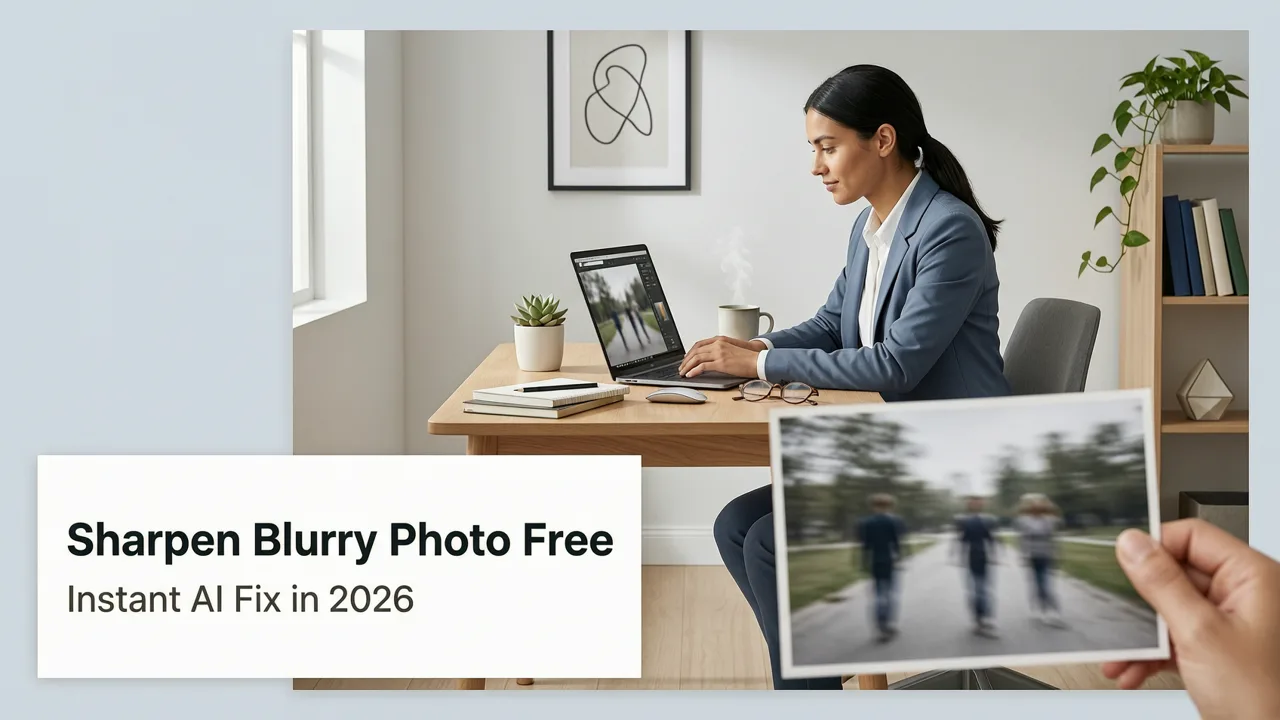
Sharpen Blurry Photo Free — Instant AI Fix in 2026
Sharpen blurry photo free with Pixelift's AI enhancer. Fix out-of-focus, pixelated, and low-res images in seconds — no editing skills required. Try it now.
Recommended next
What Does It Mean to Sharpen Blurry Photo Free in 2026?
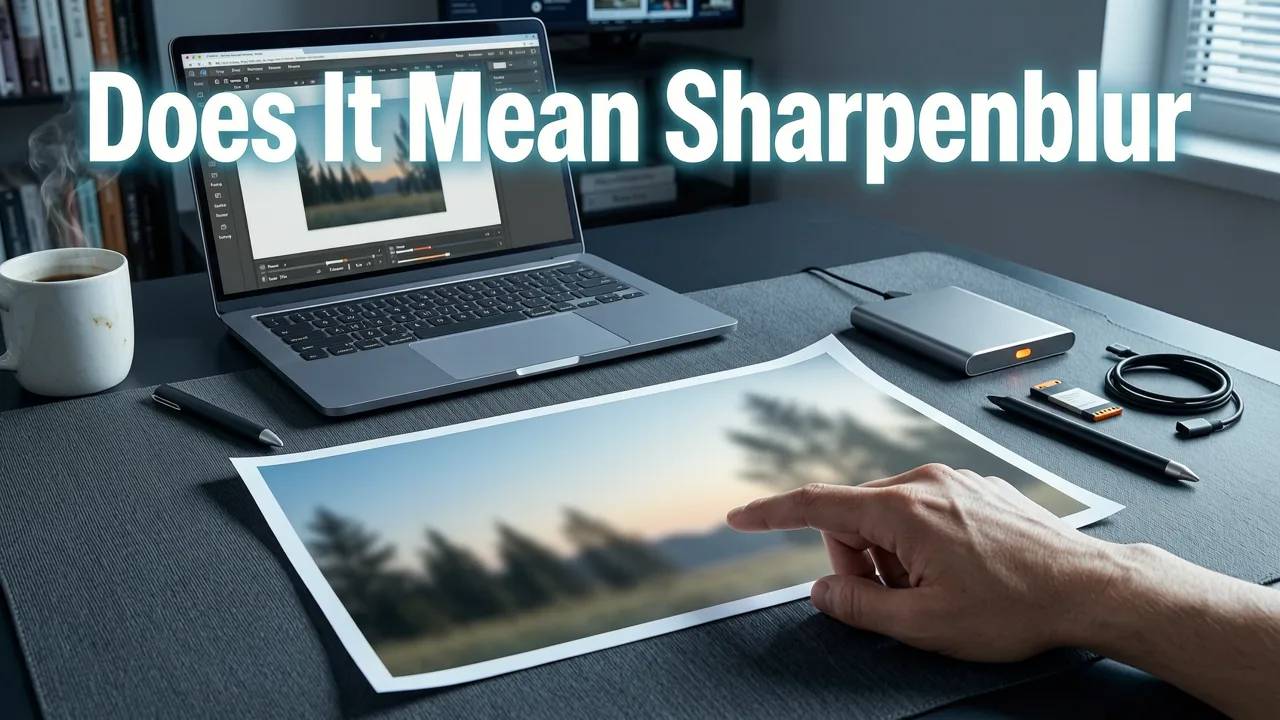
If you've ever squinted at a photo on your phone wishing the subject was just a little crisper — your kid's school portrait, a product shot for your Etsy shop, or that one vacation selfie that came out soft — you're not alone. Blurry photos happen to everyone, and until recently, fixing them meant expensive software, hours of manual tweaking, or hiring a retoucher. Today, you can sharpen blurry photo free using AI-powered tools that analyze your image, reconstruct lost detail, and deliver a crisp result in under ten seconds.
Pixelift, built by Devsrank, is one of the most popular free AI photo enhancers available right now. It sharpens out-of-focus images, upscales low-resolution pictures, restores old family photos, and improves color, lighting, and facial detail — all without requiring a single Photoshop skill. Whether you're working from the web or the iOS app, the process is as simple as uploading your photo and letting the AI do the rest.
Why 2026 Is the Best Year Yet to Sharpen Blurry Photos Free
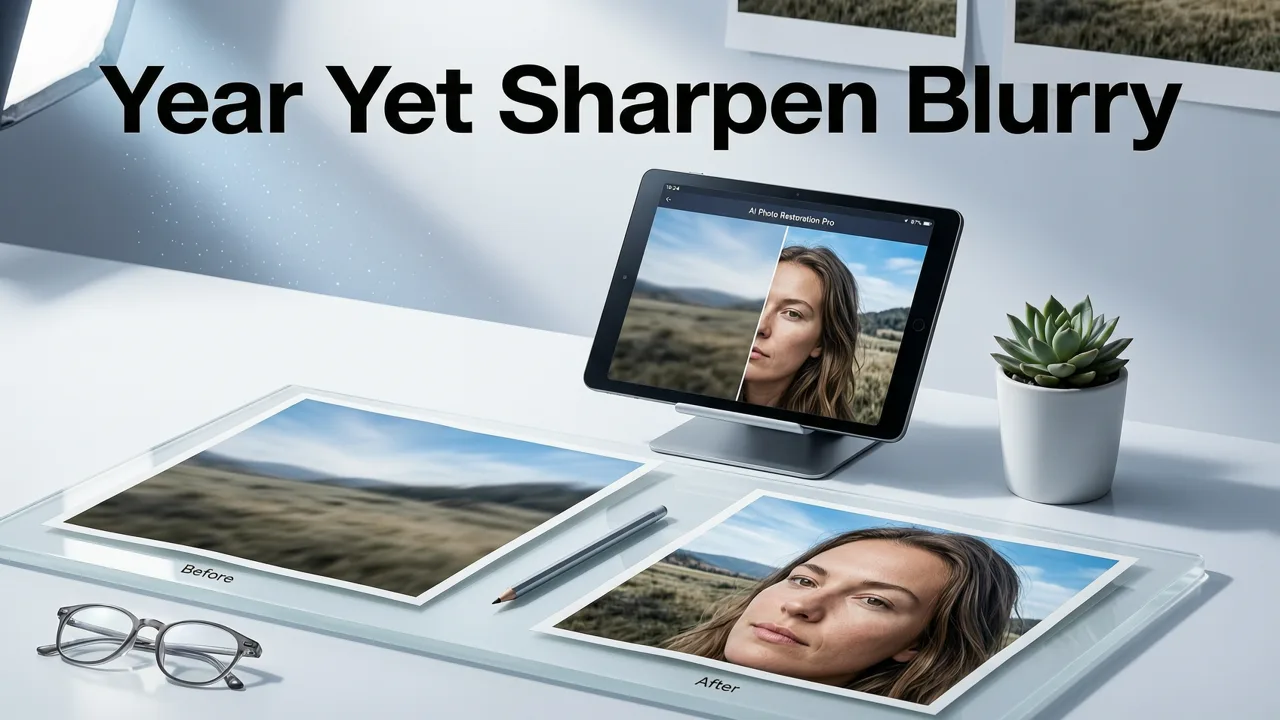
AI image enhancement has matured significantly over the past few years. The models powering tools like Pixelift are now trained on billions of real-world images, including common degradation patterns like motion blur, lens softness, compression artifacts, and sensor noise. Here's what makes sharpening blurry photos in 2026 fundamentally different from even two years ago:
- Smarter neural networks. Today's AI doesn't just apply a basic sharpening filter. It understands the structure of faces, textures, and edges, reconstructing detail that traditional tools could never recover.
- Faster processing. Cloud-based inference means your photo is analyzed and enhanced in seconds, not minutes.
- No download required. Web-based tools like Pixelift let you sharpen blurry photo free directly in your browser — no software installation, no plugin, no account needed to get started.
- Mobile-first workflows. The Pixelift iOS app brings the same AI engine to your phone, so you can fix photos right after you take them.
- Free tier access. You can test the sharpening and enhancement features at no cost before deciding to upgrade for batch processing or higher-resolution exports.
How Pixelift Sharpens Blurry Photos — A Step-by-Step Breakdown
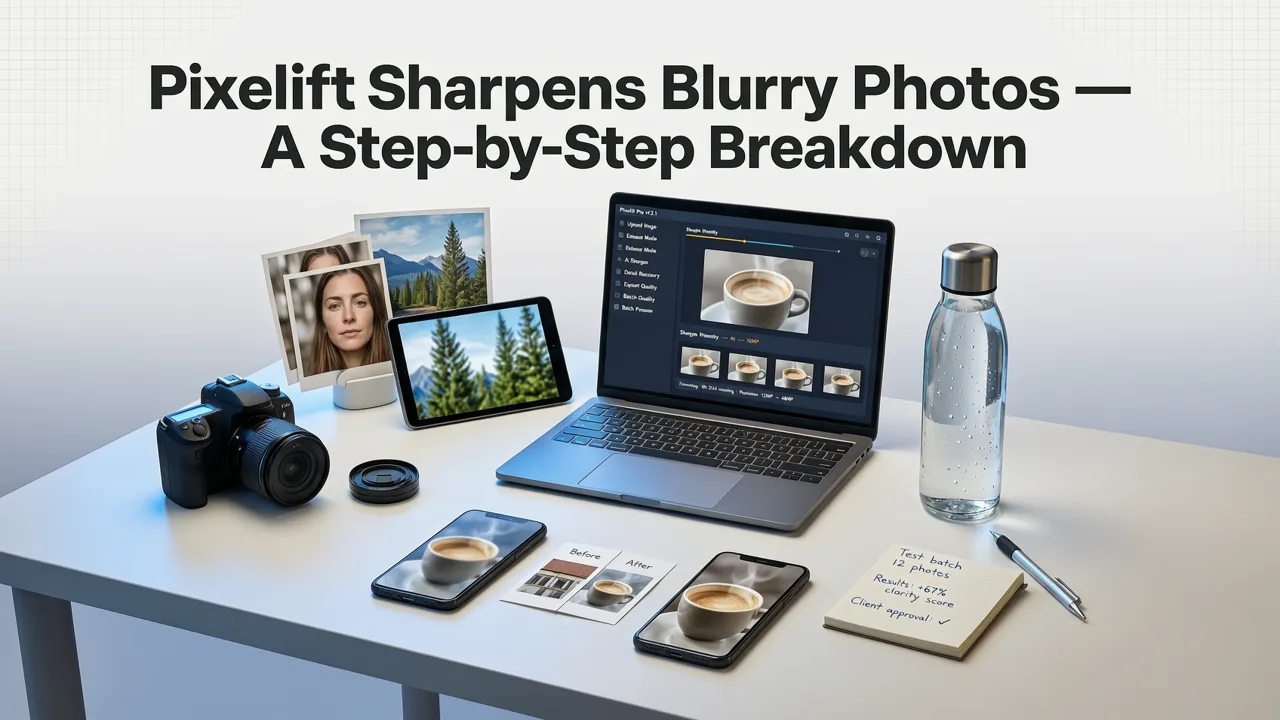
Let's walk through exactly how the process works when you use Pixelift to sharpen a blurry photo. The entire workflow takes less than a minute from upload to download.
Step 1: Upload Your Blurry Photo
Head to the Pixelift web tool or open the iOS app. Tap or click to upload the image you want to fix. Pixelift accepts all common formats including JPEG, PNG, HEIC, and WebP. There's no file-size hassle — the tool handles everything from small phone snapshots to large DSLR exports.
Step 2: AI Auto-Diagnosis
Once uploaded, Pixelift's AI engine scans your image and identifies the specific types of degradation present. Is it motion blur? Lens softness? Compression artifacts from a screenshot or social media download? Low resolution from an old camera? The AI builds a diagnostic profile tailored to your photo.
Step 3: Intelligent Enhancement
Based on the diagnosis, Pixelift applies the right combination of sharpening, noise reduction, detail reconstruction, and color correction. For portraits, it pays special attention to facial features — eyes, skin texture, and hair strands all get targeted refinement. For product photos, edges and textures are prioritized. For old family pictures, the AI works to restore old photos online by removing scratches, fading, and discoloration alongside sharpening.
Step 4: Preview and Download
You'll see a before-and-after comparison so you can confirm the result looks right. If you're happy, hit download. Your enhanced photo is saved in full resolution, ready to share, print, or use however you need.
What Types of Blur Can Pixelift Fix?
Not all blur is created equal. Some types are easy for AI to correct, while others present a bigger challenge. Here's a breakdown of the most common blur categories and how well Pixelift handles each one:
| Blur Type | Common Cause | Pixelift Fix Quality |
|---|---|---|
| Motion Blur | Camera shake or subject movement | Excellent — AI reconstructs edges and recovers detail |
| Out-of-Focus Blur | Missed autofocus or shallow depth of field | Very Good — sharpens subject while preserving background |
| Compression Blur | Low-quality downloads, social media saves, screenshots | Excellent — rebuilds lost texture and reduces blocky artifacts |
| Low-Resolution Blur | Old camera sensors, small thumbnails, upscaled images | Excellent — upscales up to 4× with natural-looking detail |
| Environmental Blur | Fog, haze, smoke, or underwater distortion | Good — reduces haze and improves clarity significantly |
| Severe Motion Blur | Extreme camera shake or fast-moving subjects | Moderate — improves clarity but may not fully recover all detail |
Pixelift vs. Other Free Sharpening Methods in 2026
If you've tried to sharpen a blurry photo before, you've probably run into a few different approaches. Let's compare how Pixelift stacks up against the alternatives people commonly use.
Traditional Photo Editors (Photoshop, GIMP, Lightroom)
Classic editors offer sharpening tools like Unsharp Mask and Smart Sharpen. These work by increasing contrast along edges, which can make an image look sharper — but they also amplify noise, create halos, and can't recover detail that was never captured in the first place. They also require significant editing knowledge and time investment.
Phone Gallery Built-In Sharpening
Most phone galleries include a basic sharpen slider. It's quick, but the results are often subtle at best and oversharpened at worst. There's no AI intelligence behind it — it's a blanket filter applied uniformly across the entire image.
Other Online Sharpening Tools
There are plenty of free online sharpeners out there. Many of them apply simple convolution filters that boost edge contrast without actually understanding image content. The result can look artificially sharp with weird halos around text and faces.
Pixelift's AI-Powered Approach
Pixelift goes beyond basic filters. Its AI models understand what a face should look like, what fabric texture should look like, what architectural edges should look like. It reconstructs missing information rather than just amplifying what's already there. That's why the results look natural instead of overprocessed.
Who Benefits Most from Free AI Photo Sharpening?
Pixelift is designed for everyday users, but it's surprisingly powerful for professional use cases too. Here are the people who get the most value from being able to sharpen blurry photo free:
- Parents and families who want to rescue those irreplaceable candid moments that came out slightly soft.
- E-commerce sellers who need crisp product photos without hiring a photographer or retoucher.
- Social media creators who want their content to look polished even when shot in less-than-ideal conditions.
- Genealogy enthusiasts working to restore faded family photos from iCloud and bring old memories back to life.
- Real estate agents who need to make property photos look sharp and inviting.
- Students and professionals who need to enhance screenshots, scanned documents, or presentation images quickly.
Extra Features That Go Beyond Sharpening
While sharpening is the headline feature, Pixelift offers a full suite of AI enhancement tools that work alongside it. Understanding these can help you get even more value from the platform.
Image Upscaling
If your photo isn't just blurry but also too small, Pixelift can upscale it up to 4× the original resolution while adding realistic detail. This is perfect for printing photos that were originally taken at low resolution or cropped heavily.
Old Photo Restoration
Pixelift specializes in bringing damaged, faded, and deteriorated photos back to life. It removes scratches, tears, water damage, and discoloration while simultaneously sharpening and enhancing the image. If you have a box of old family prints sitting in a drawer, this feature alone is worth exploring. Learn more in our guide on how to restore old photos online in seconds.
Magic Remover
Got a photobomber, a distracting background object, or an unwanted blemish? The Magic Remover lets you clean up distractions with a few taps. The AI fills in the removed area with contextually appropriate content so the result looks seamless.
Creative Presets
For those who want to go beyond restoration and into creative territory, Pixelift offers a library of presets that can restyle portraits and social images with different color grades, lighting moods, and artistic effects.
Tips for Getting the Best Sharpening Results
While Pixelift's AI is remarkably good at working with challenging images, a few simple practices can help you get even better results when you sharpen blurry photo free:
- Upload the highest quality source you have. Even if the photo is blurry, the original file will always produce better results than a re-compressed copy from messaging apps or social media.
- Crop before enhancing. If only part of the image matters, crop it first so the AI can dedicate more processing power to the area you care about.
- Try both the web tool and the iOS app. Sometimes the mobile app's on-device processing produces slightly different results than the cloud version — experiment to see which you prefer.
- Use Magic Remover first for distracting elements. If there are objects you plan to remove, do that before sharpening so the AI doesn't waste effort enhancing something you'll delete anyway.
- Batch similar photos together. If you have a whole album of blurry photos from the same event, process them in one session for consistent results.
Is It Really Free to Sharpen Blurry Photos with Pixelift?
Yes. Pixelift offers a free tier that lets you sharpen and enhance photos at no cost. You can upload your image, see the AI-enhanced result, and download it without entering payment information. The free tier is designed to give you a genuine sense of what the tool can do before you decide whether to upgrade for additional features like batch processing, higher resolution exports, or priority processing.
There are no watermarks on free downloads, and the enhancement quality is the same whether you're on the free plan or a paid plan. The paid tiers simply unlock higher volume and additional convenience features.
Privacy and Data Security
When you upload a photo to any online tool, privacy matters. Pixelift processes your images securely and does not store them permanently on its servers. Your photos are used solely for the enhancement process and are deleted after processing. This is especially important if you're working with personal family photos, sensitive documents, or product images that haven't been publicly released yet.
Getting Started in Under 30 Seconds
Ready to try it? Here's the fastest path from blurry photo to sharp result:
- Open Pixelift in your browser or launch the iOS app.
- Tap "Upload" and select your blurry photo.
- Wait a few seconds while the AI analyzes and enhances your image.
- Compare the before and after.
- Download your sharpened photo.
That's it. No account required for the first enhancement, no software to install, no tutorials to watch. The tool is designed so that anyone — regardless of technical skill — can get professional-quality results immediately.
Final Thoughts on Sharpening Blurry Photos Free in 2026
The days of accepting blurry photos as permanent losses are over. Whether your image suffered from camera shake, missed focus, heavy compression, or just low resolution, AI-powered tools like Pixelift can recover detail and produce a sharp, natural-looking result in seconds — and you can do it completely free. With the added capabilities of upscaling, old photo restoration, object removal, and creative presets, Pixelift has become a one-stop solution for anyone who wants better-looking photos without the learning curve of traditional editing software.
Don't let another great moment stay trapped in a blurry photo. Head over to Pixelift, upload your image, and see what AI can do in 2026.