2026-08-23 · 7 min read
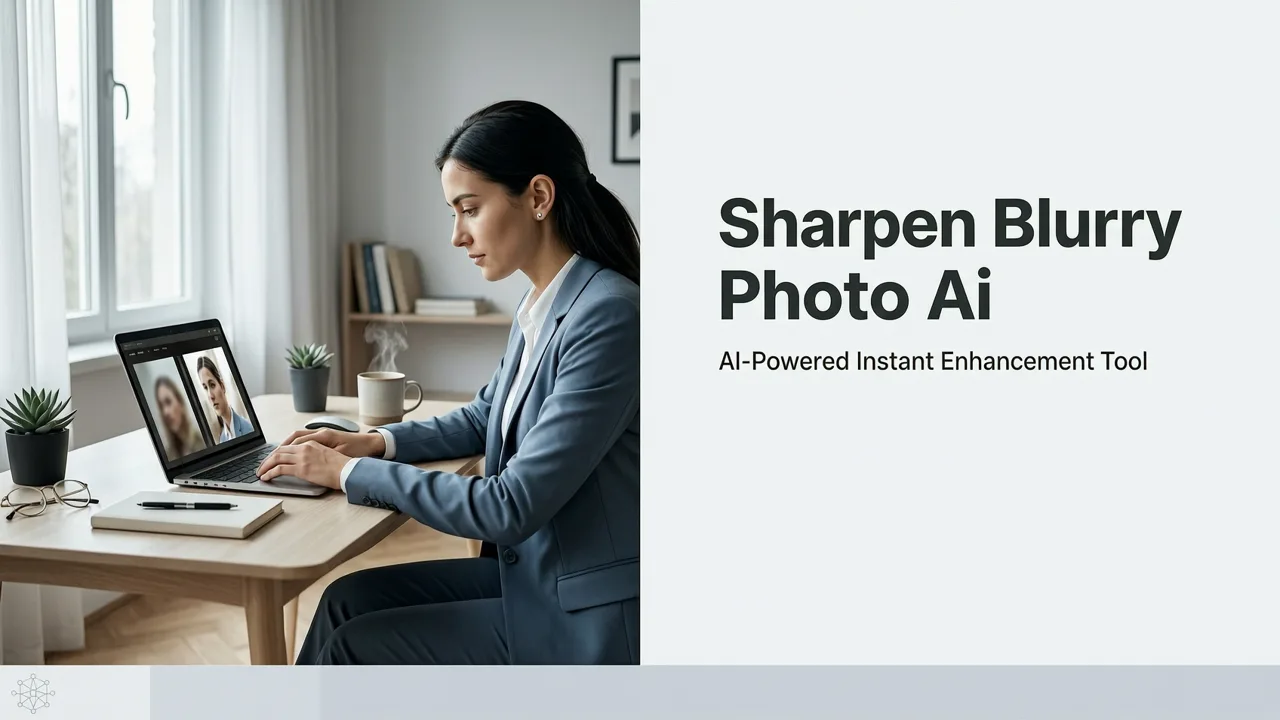
How to Sharpen Blurry Photo with AI in Seconds (2026 Guide)
Learn how to sharpen blurry photo AI tools like Pixelift can fix soft, pixelated, and out-of-focus images in seconds. A clear 2026 guide for any skill level.
Recommended next
What Does It Mean to Sharpen a Blurry Photo with AI in 2026?
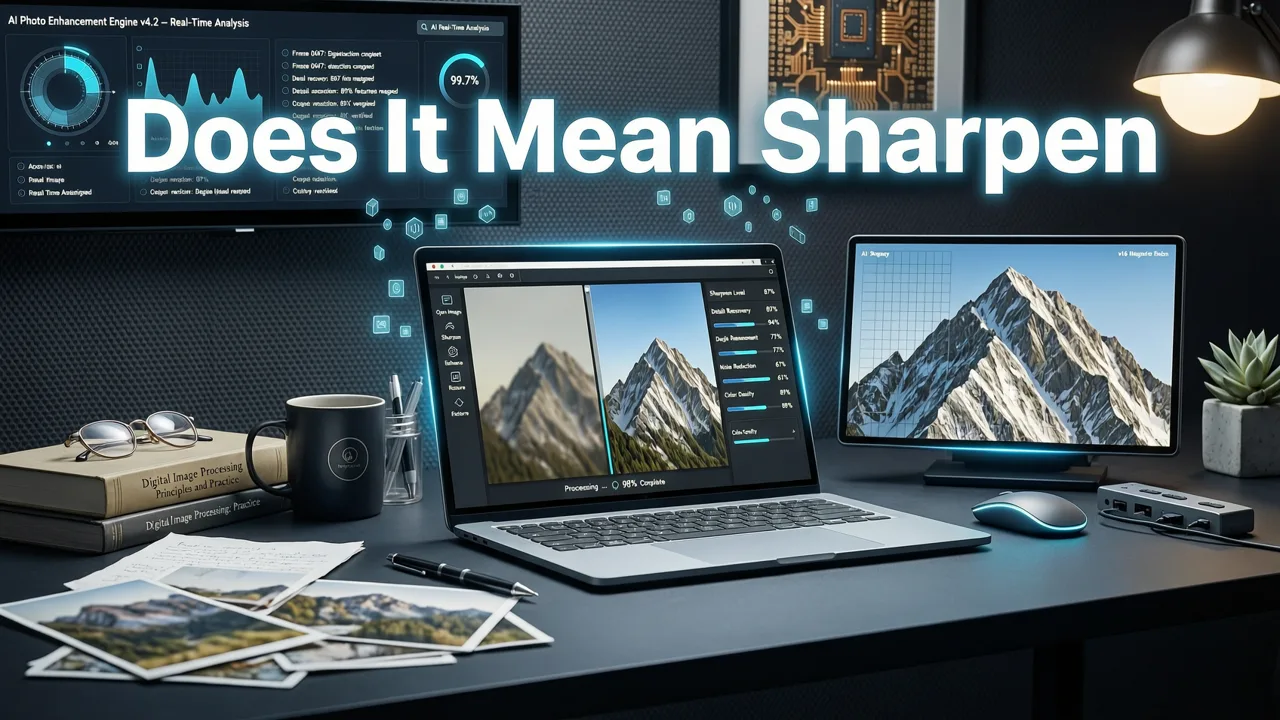
If you've ever zoomed into a photo only to find faces smeared, text unreadable, and edges mushy — you already know the frustration. The good news is that a sharpen blurry photo AI tool can now reconstruct lost detail, not just apply a crude filter. In 2026, AI-driven sharpening understands exactly why an image is blurry (motion, focus miss, compression, or low resolution) and applies a tailored fix in seconds.
This guide walks you through what AI sharpening actually does, why 2026 is the best year yet to try it, and how to get crisp, print-ready results without opening Photoshop. We'll also show you how Pixelift's restoration workflow handles everything from soft product shots to faded family pictures.
Why 2026 Is the Best Year Yet to Sharpen Blurry Photos with AI
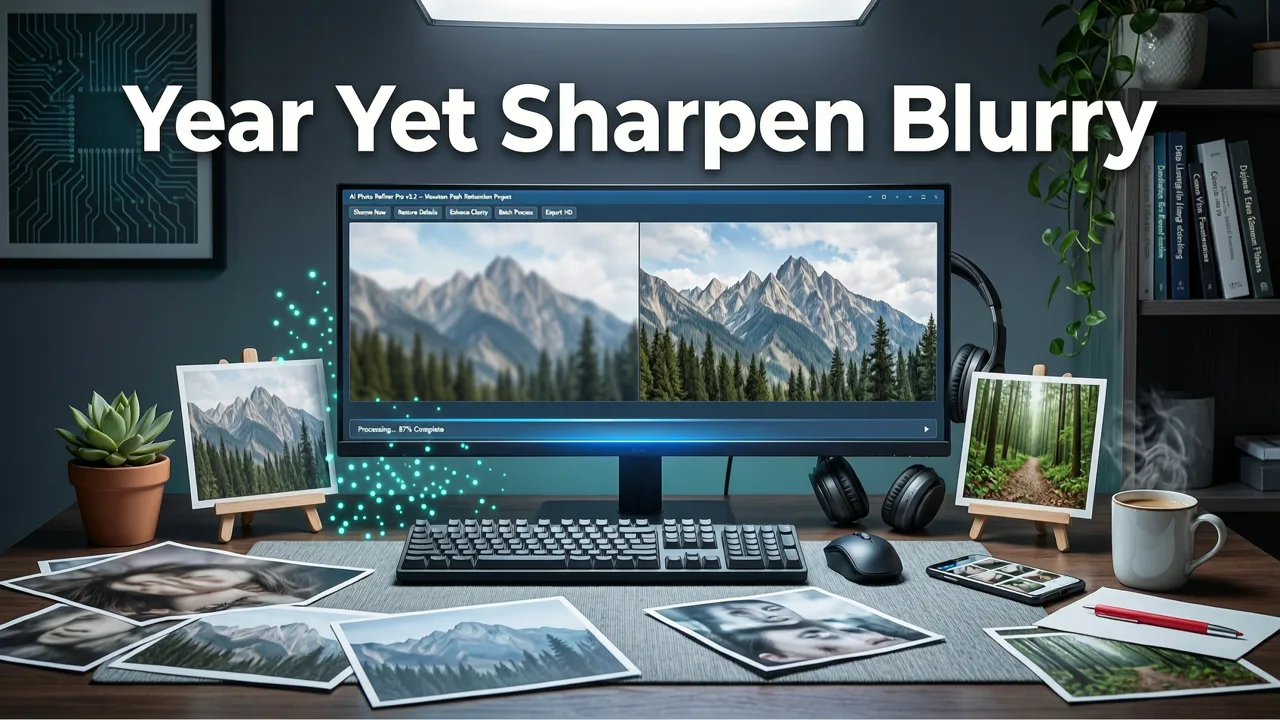
AI image enhancement has moved well past the old "unsharp mask" era. Three shifts in 2026 make this the moment to finally clean up your blurry library:
- Diffusion-based detail synthesis. Modern models don't just sharpen edges — they reconstruct plausible texture, skin pores, fabric weave, and lettering that was genuinely lost.
- Scene-aware processing. Today's tools detect whether you're sharpening a portrait, product photo, landscape, or scanned document, and adjust strength accordingly.
- On-device and cloud parity. Whether you're on the Pixelift iOS app or the web tool, results are consistent, fast, and private.
Combined, these advances mean you no longer need editing skills, expensive software, or hours of trial and error. A single upload is usually enough.
What Causes Photos to Become Blurry (and How AI Fixes Each Case)
Not all blur is created equal. A sharpen blurry photo AI engine performs best when it recognizes the root cause. Here's a quick breakdown:
| Blur Type | Common Cause | How AI Fixes It |
|---|---|---|
| Motion blur | Camera shake or subject movement | Predictive edge reconstruction along motion vectors |
| Focus miss | Wrong focal point or shallow depth of field | Subject isolation + selective sharpening |
| Compression artifacts | Heavy JPEG/WhatsApp/web compression | Artifact removal + texture resynthesis |
| Low resolution | Small file, heavy cropping, or old sensor | Upscaling with learned high-frequency detail |
| Environmental blur | Fog, rain, haze, or low light noise | Dehazing + noise-aware sharpening |
Understanding the cause also helps you choose the right preset. Pixelift's Creative Presets, for example, include portrait-first and product-first modes that tune sharpening strength to avoid the "over-crisped" look older tools used to produce.
How to Sharpen a Blurry Photo with AI: A Step-by-Step Breakdown
Here's the exact workflow you'll follow in Pixelift, whether you're on the web or the iOS app. The entire process typically takes under 30 seconds.
Step 1: Upload Your Image
Drag and drop the photo, or tap to import from your camera roll. Pixelift accepts JPEG, PNG, HEIC, and most RAW formats. If you're working from a synced library, you can also follow the guide to fixing blurry iCloud photos online for a smoother pipeline.
Step 2: Auto-Diagnosis
The AI scans your image and identifies the blur type, noise level, and resolution. You'll see a quick diagnostic summary — no jargon, just a plain-English note like "motion blur detected, low resolution."
Step 3: Choose Your Enhancement
You can let the tool auto-apply the best fix, or pick a specific mode:
- Sharpen & Enhance — general-purpose clarity boost.
- Upscale — increase resolution up to 4× while reconstructing detail.
- Restore — ideal for old, faded, or damaged photos (pairs well with the old photo restoration guide).
- Magic Remover — clean up distractions before or after sharpening.
Step 4: Preview and Compare
A before-and-after slider lets you confirm the result. Zoom in to check fine detail — eyelashes, product text, stitching on clothing. If something looks over-processed, dial back the strength with a single slider.
Step 5: Download in Full Resolution
Export in your preferred format. Pixelift preserves metadata and outputs at the upscaled resolution, ready for print, social, or archival use.
Sharpen Blurry Photo AI vs. Traditional Sharpening: What Changed
If you've ever used Lightroom, Photoshop, or even the built-in "sharpen" slider on your phone, you know the old rules: push sharpening too far and you get halos, noise amplification, and crunchy skin. AI-based sharpening solves those problems fundamentally.
| Feature | Traditional Sharpening | Sharpen Blurry Photo AI (2026) |
|---|---|---|
| Edge handling | Uniform — halos common | Context-aware — clean edges |
| Noise behavior | Amplifies noise with detail | Separates noise from true detail |
| Resolution limits | Cannot add new detail | Reconstructs plausible high-frequency detail |
| Skill required | Manual masking, layers, trial-and-error | One-click or guided presets |
| Speed | Minutes per image | Seconds per image |
The practical result: a photo that used to be a throwaway can now become a keep — and a keeper you can actually print at 8×10 or larger.
Best Use Cases for AI Photo Sharpening
Here are the scenarios where a sharpen blurry photo AI tool delivers the biggest payoff:
Portraits and Selfies
Soft focus from a moving subject or a missed tap on the screen is the most common portrait problem. AI sharpening recovers eyelash detail, eye clarity, and skin texture without making skin look plastic. Pixelift's portrait-aware mode is tuned specifically for this balance.
Product and E-Commerce Photos
Blurry product shots kill conversions. Whether you're shooting on a phone or scanning supplier images, AI upscaling and sharpening bring back label text, stitching detail, and material texture — the details buyers actually zoom in on.
Old Family Pictures
Scanned prints often come back soft, especially if the scanner was set to a low DPI. AI restoration combines sharpening with faded photo recovery to bring color, contrast, and edge definition back in one pass. If your originals live in iCloud, the best AI tool for restoring iCloud photos workflow can save you a round trip of downloads and uploads.
Social Media and Content Creation
Cropped screenshots, compressed memes, and heavily filtered images all benefit from a sharpening pass before posting. Creative Presets let you restyle the image at the same time — useful for creators who want a consistent look across platforms.
Tips for Getting the Sharpest Possible Result
Even the best sharpen blurry photo AI works better when you feed it the right input. Keep these practical tips in mind:
- Upload the highest-quality source you have. If the original exists in RAW or HEIC, use that instead of a compressed JPEG.
- Avoid double-processing. Don't run the photo through another sharpening app first — it adds artifacts the AI then has to undo.
- Use the right preset. Portraits, products, and landscapes respond differently. Let the tool's scene detection guide you.
- Check at 100% zoom. A result that looks great at screen size may reveal over-sharpening when zoomed in. The before-and-after slider is your friend.
- Combine with Magic Remover when needed. Distractions in the background become more obvious after sharpening. Clean them up in the same session.
Is AI Photo Sharpening Safe and Private?
A common concern in 2026 is whether uploaded images are stored or used for training. Pixelift processes images with a focus on user privacy, and you can review current practices on the site. For broader context on responsible AI use, Google's AI responsibility principles and OpenAI's documentation both outline the industry standards that reputable tools follow — including data minimization, purpose limitation, and transparent retention policies.
Frequently Asked Questions
See the FAQ section below for quick answers to the most common questions about sharpening blurry photos with AI.
Final Thoughts: Sharpen Blurry Photos in Seconds, Not Hours
The gap between a soft, unusable photo and a crisp, share-worthy one has never been smaller. A modern sharpen blurry photo AI tool like Pixelift handles the technical heavy lifting — blur detection, noise separation, detail reconstruction, and upscaling — so you can focus on the photo itself, not the software.
Whether you're rescuing a missed-focus portrait, upscaling a product shot, or restoring a scanned family memory, the workflow is the same: upload, let the AI diagnose, pick a preset, and download a result you're actually proud of. Try it on your blurriest photo today and see how much detail 2026-era AI can bring back.