
Published by PixeLift · · 8 min read
iPhone Photo Upscaler — Enhance Pics Directly on iOS (2026)
Looking for an iPhone photo upscaler in 2026? Discover how Pixelift lets you sharpen, upscale, and restore blurry photos right on iOS in seconds.
For the basics of resolution and pixel size, see our main upscaling guide.

Recommended next
iPhone Photo Upscaler — Enhance Pics Directly on iOS (2026)
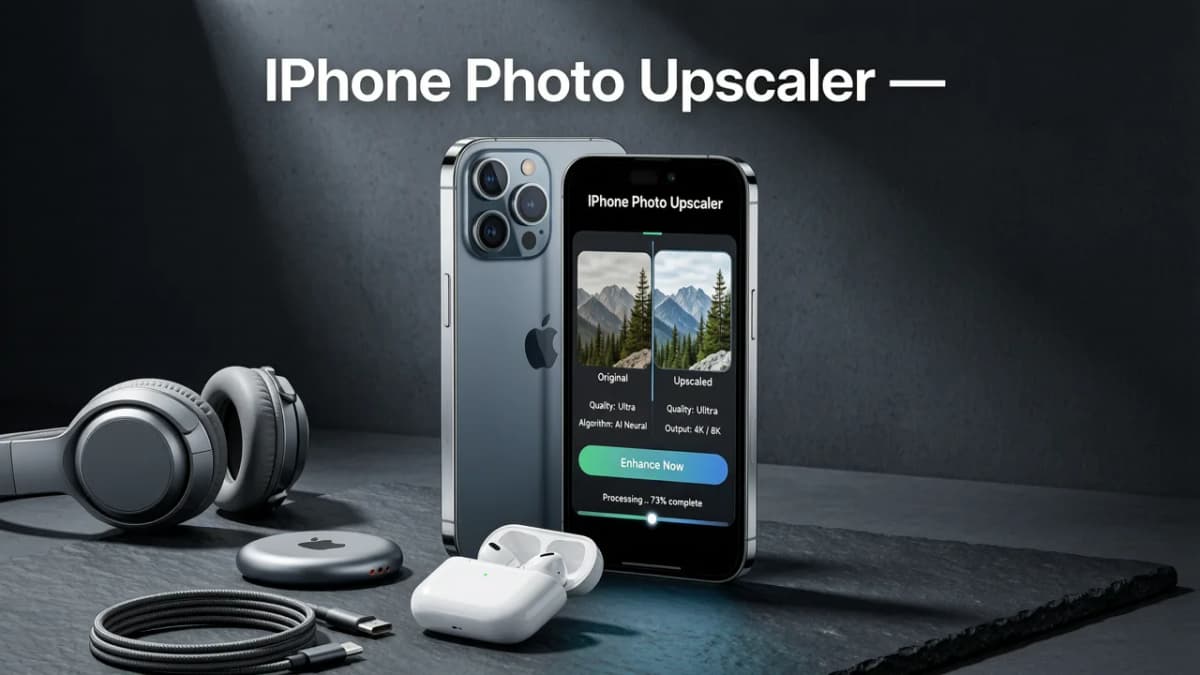
If you've ever pinched to zoom on a photo only to see a mushy, pixelated mess, you already know why an iPhone photo upscaler matters. In 2026, you don't need a desktop, a subscription to expensive software, or a single editing skill to turn a soft snapshot into a crisp, print-ready image — Pixelift does it right on your iPhone in seconds.
This guide walks you through exactly how iPhone photo upscaling works today, why Pixelift stands out for iOS users, and how to get sharper, larger, more detailed photos without leaving your phone.
Why iPhone Photos Often Need Upscaling in 2026
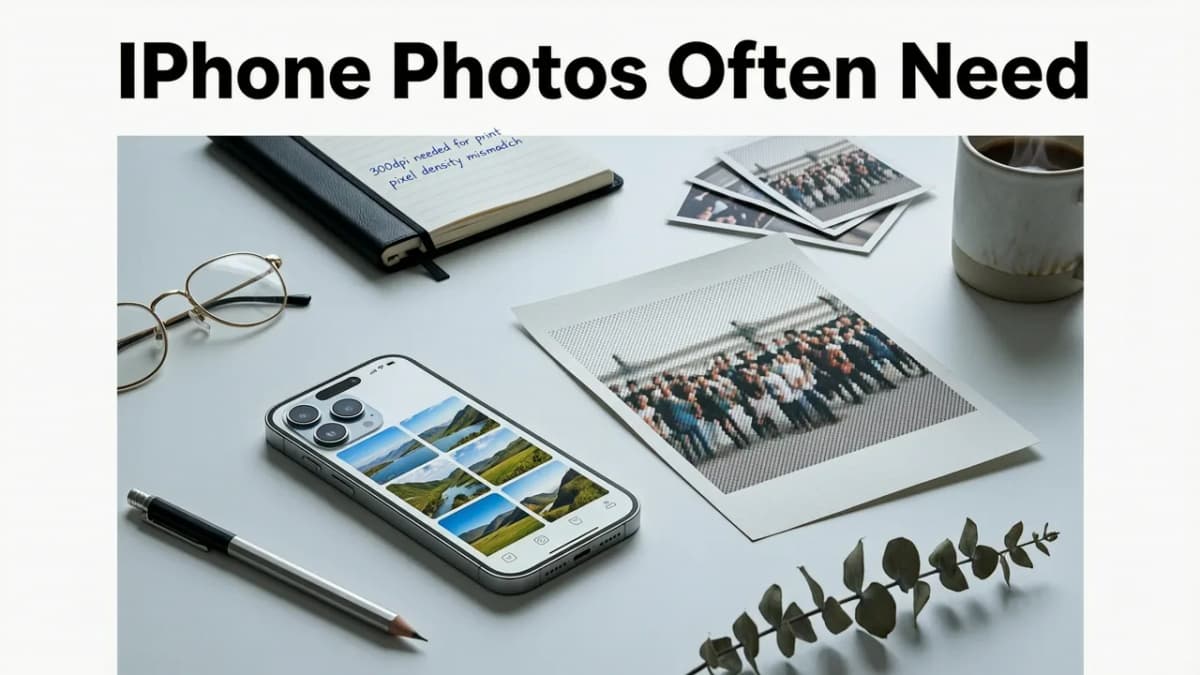
Even though the latest iPhones shoot incredible photos, most images still end up too small or too soft for real-world use. Here's why:
- Social media compression — Instagram, WhatsApp, and TikTok crush resolution the moment you upload.
- Digital zoom — Pinch-zooming on the iPhone crops the sensor, leaving you with a low-resolution fragment.
- Older iPhones — Photos taken on an iPhone 8, X, or even 11 still look great on-screen but fall apart when printed or enlarged.
- Screenshots and saved images — Anything pulled from the web, a text, or an app arrives at thumbnail quality.
- Low-light noise — Night-mode shots often trade sharpness for brightness, leaving faces and textures blurry.
An iPhone photo upscaler fixes all of these problems by using AI to reconstruct missing detail rather than simply stretching pixels.
What Is an iPhone Photo Upscaler and How Does It Work?
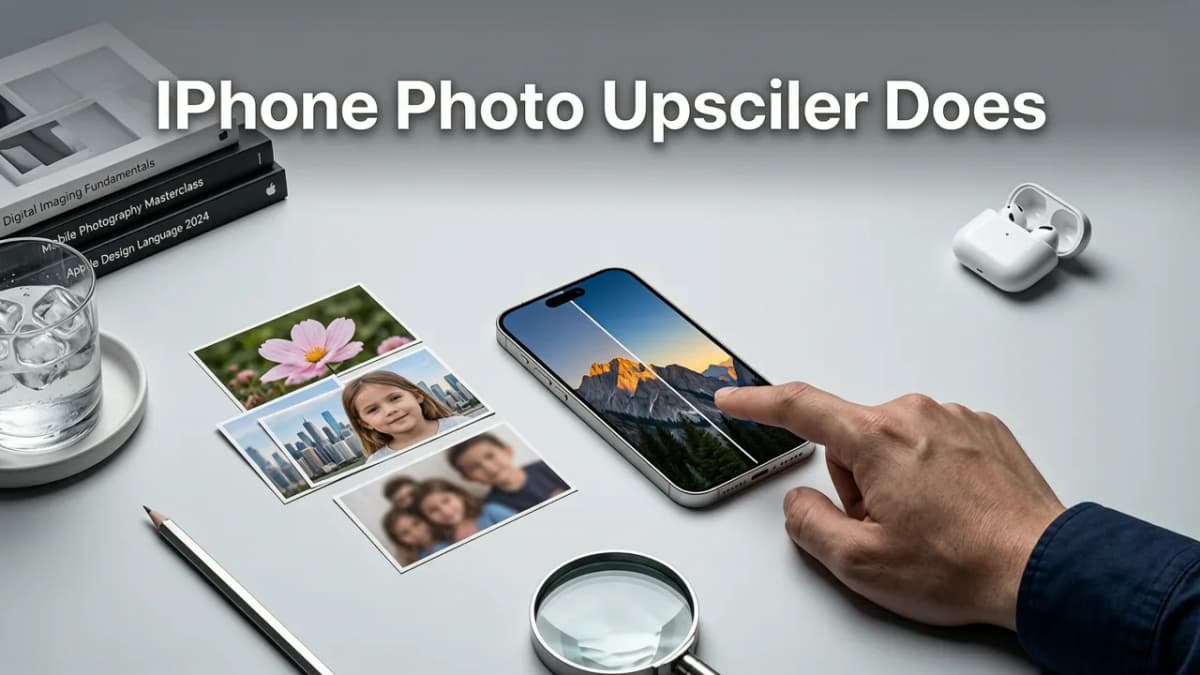
An iPhone photo upscaler is a tool that increases the resolution of an image while adding realistic detail. Traditional upscaling just enlarges existing pixels, which makes photos look blocky. AI-powered upscaling, like the kind Pixelift uses, analyzes the image and predicts what the missing detail should look like — sharpening edges, restoring textures, and cleaning up noise in the process.
The AI Steps Behind a Great Upscale
- Analysis — The AI scans the photo to identify faces, textures, edges, and noise patterns.
- Reconstruction — Missing pixels are filled in using deep-learning models trained on millions of high-resolution images.
- Enhancement — Color, lighting, and contrast are balanced so the result looks natural, not over-processed.
- Output — You get a file that's 2×, 4×, or even 8× the original resolution, ready to print or post.
Pixelift as the Best iPhone Photo Upscaler in 2026
Pixelift was built from the ground up for people who want results fast, without learning curves. Whether you use the web tool in Safari or the iOS app, the experience is the same: upload, enhance, download. Here's what makes it the go-to iPhone photo upscaler this year.
✅ One-Tap Upscaling That Actually Works
No sliders, no confusing menus. Open Pixelift on your iPhone, pick a photo, and tap enhance. The AI handles sharpening, noise reduction, and detail reconstruction automatically. If you want more control, Creative Presets let you restyle portraits and social images with a single tap.
✅ Face-Aware Sharpening
Most generic upscalers blur faces when they enlarge them. Pixelift's face-aware engine detects skin tone, eye detail, and hair texture, then reconstructs those areas separately so portraits look sharp and natural — even when you zoom in.
✅ Works Offline-Style Fast on iOS
The iOS app is optimized for Apple's neural engine, meaning processing happens quickly without draining your battery or heating up your phone. You can upscale a batch of photos while waiting in line and be done before it's your turn.
✅ No Editing Skills Required
Pixelift is designed for real people, not Photoshop veterans. If you can open your Camera Roll, you can use Pixelift. There's nothing to install beyond the app, no credit card needed to try it, and no watermarks on your final images.
How to Upscale a Photo on Your iPhone with Pixelift
Here's the full step-by-step, from Camera Roll to finished image.
Step 1 — Open Pixelift on Your iPhone
Launch the Pixelift iOS app or visit aienhancephoto.com in Safari. Both options sync with your Camera Roll through the Photos picker.
Step 2 — Select the Photo You Want to Enhance
Tap the upload button and choose any image: a blurry portrait, a low-resolution product shot, a scanned family photo, or a screenshot. Pixelift accepts JPEG, PNG, HEIC, and most other common formats.
Step 3 — Choose Your Enhancement Mode
- Auto Enhance — Best for everyday photos. Sharpening, upscaling, and color correction happen together.
- Upscale Only — Increases resolution without altering the look of the image.
- Restore — Ideal for old, faded, or damaged photos. For a deeper dive, check out our guide on the best AI photo restorer for family pictures in 2026.
- Creative Presets — Restyling options for portraits, social content, and creative projects.
Step 4 — Review and Download
Pixelift shows you a before-and-after comparison. Swipe to see the difference, then tap download. The enhanced image saves straight back to your Camera Roll at the new, higher resolution.
iPhone Photo Upscaler vs. Desktop Upscaler: Which Should You Use?
A lot of people wonder whether they should upscale on their iPhone or wait until they're at a computer. Here's a quick comparison to help you decide.
| Feature | Pixelift on iPhone | Desktop Upscaler |
|---|---|---|
| Setup required | None — app or Safari | Software install or browser |
| Processing speed | Seconds, optimized for iOS | Varies by hardware |
| Batch processing | Yes, in-app | Often limited to paid tiers |
| On-the-go editing | Full support | Not practical |
| Print-ready output | Up to 8× resolution | Up to 16× on high-end tools |
| Cost to start | Free to try | Usually paid upfront |
For most iPhone users, Pixelift covers everything from social posts to 8×10 prints. If you need massive enlargements for billboard-sized output, a desktop tool might still have an edge — but for daily use, the iPhone experience is faster and more convenient. You can read more about how Pixelift compares in our best AI photo upscaler of 2026 breakdown.
Real-World Use Cases for an iPhone Photo Upscaler
Sharpening Blurry Portraits
Group photos taken in low light often come out soft. Pixelift's face-aware engine sharpens each face individually, so you don't have to choose between keeping one person clear and losing everyone else.
Upscaling Product Photos for Etsy or Shopify
If you shoot product photos on your iPhone, you've probably noticed they look fine on-screen but pixelated on your store. Upscaling to a higher resolution gives you clean, marketplace-ready images without a studio reshoot.
Restoring Old Family Pictures
Scanned prints from the '80s and '90s are often low resolution and faded. Pixelift's restore mode brings back color and detail — and if you want a deeper walkthrough, our guide to restoring faded photos online covers every step.
Enlarging Screenshots and Saved Images
Screenshots, memes, and images saved from the web are usually tiny. An iPhone photo upscaler like Pixelift turns them into something you can actually use in a presentation, a post, or a print.
Preparing Photos for Printing
Printing a 12-megapixel iPhone photo at poster size often reveals soft edges and noise. Upscaling to 4× or 8× resolution gives you the detail density a printer needs for a sharp result.
Tips to Get the Best Results from Pixelift on iPhone
- Start with the highest-quality original you have. AI upscaling works best when it has real data to build on. Avoid upscaling a photo that's already been compressed multiple times.
- Use HEIC when possible. Apple's HEIC format retains more detail than JPEG, giving the AI more to work with.
- Crop before upscaling. If you only need part of the image, crop first so the AI focuses its detail reconstruction on the area that matters.
- Try multiple presets. Auto Enhance is great, but Creative Presets can give portraits a completely different mood with one tap.
- Use Magic Remover first. If your photo has distractions — a trash can, a stranger, a watermark — clean it up with the Magic Remover before upscaling for a polished final image.
How Pixelift Compares to Other iPhone Photo Upscalers
The App Store is full of "AI enhancer" apps in 2026. Here's what separates Pixelift from the crowd.
✅ No Subscription Wall Before You Try It
Many apps force a weekly subscription before you can even test a photo. Pixelift lets you see real results first.
✅ All-in-One Toolkit
Instead of juggling separate apps for upscaling, restoration, background removal, and restyling, Pixelift bundles everything into one clean interface.
✅ Built for iOS, Not Ported From Desktop
Pixelift's iOS app was designed specifically for iPhone and iPad. The UI respects Apple's design language, supports Live Photos, and integrates with the Photos picker and Files app.
✅ Regular Model Updates
The AI models behind Pixelift are updated throughout the year. That means better face reconstruction, smarter noise handling, and more natural color as 2026 goes on.
Is an iPhone Photo Upscaler Worth It in 2026?
Absolutely. The gap between a "good enough" photo and a stunning one often comes down to resolution and sharpness. With an iPhone photo upscaler like Pixelift, you can rescue shots that would have been throwaways two years ago, print images that look professional, and give your social content a polished edge — all from the device already in your pocket.
Whether you're fixing a blurry group photo, prepping product shots for your online store, or bringing old family pictures back to life, Pixelift makes the process fast, simple, and genuinely enjoyable.
Final Thoughts
Your iPhone takes amazing photos, but even the best camera can't fight compression, low light, or the passage of time. An iPhone photo upscaler like Pixelift bridges that gap, turning soft, small, or faded images into sharp, detailed, ready-to-share memories. Download the app or try it in Safari — your Camera Roll will thank you.
More on upscaling images
The other articles on this topic are listed in the upscaling guide.

2026-08-12
Upscale Photo iOS App in 2026: Sharpen, Restore & Enhance on iPhone
Looking for the best upscale photo iOS app in 2026? Pixelift upscales, sharpens, and restores low-res photos on iPhone in seconds — no editing skills needed.

2026-09-06
Pixelift Upscaler — AI-Powered Photo Enhancement Tool (2026 Review)
Discover the Pixelift upscaler in 2026: how it sharpens blurry photos, upscales low-res images, and restores old pictures — no editing skills needed. Full...

2026-08-01
Best AI Photo Upscaler 2026 — Fast, Free & No Install
Looking for the best AI photo upscaler 2026? Pixelift delivers one-click, browser-based upscaling—no install, no skill needed. Sharpens blurry photos,...
Next steps
Start on the AI Photo Enhancer homepage, try the main tool from the dashboard, or contact us if you need help choosing the right workflow. You can also explore localized pages like United Kingdom or Germany.