2026-08-12 · 8 min read
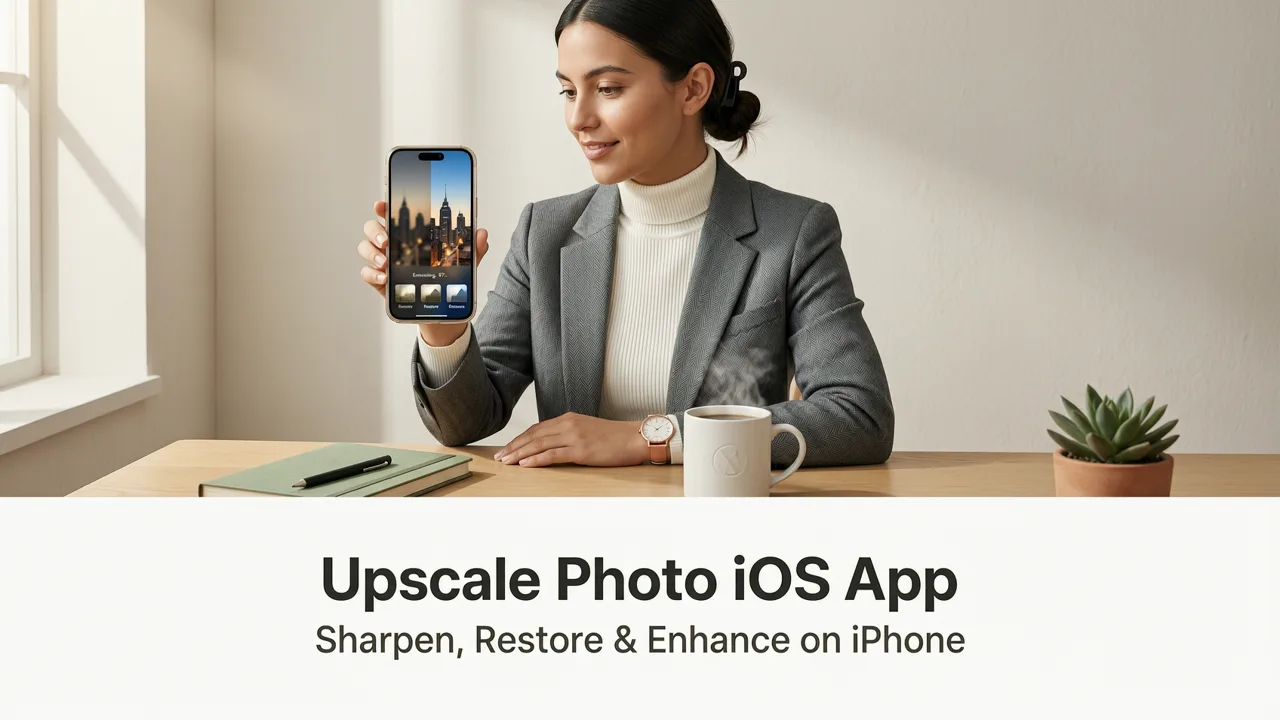
Upscale Photo iOS App in 2026: Sharpen, Restore & Enhance on iPhone
Looking for the best upscale photo iOS app in 2026? Pixelift upscales, sharpens, and restores low-res photos on iPhone in seconds — no editing skills needed.
Recommended next
Why Finding a Reliable Upscale Photo iOS App Still Feels Hard in 2026
If you have ever squinted at a treasured photo on your iPhone only to realize it is too small, too blurry, or too pixelated to share — you already know the frustration. In 2026, iPhone cameras shoot incredible images, but most of us still end up with low-resolution photos from old albums, screenshots, social media downloads, or quick snapshots taken in poor light. The good news is that a modern upscale photo iOS app can fix this in seconds, turning grainy, undersized pictures into sharp, print-ready images without any editing experience.
This guide walks you through exactly what to look for in an upscale photo iOS app, how AI upscaling actually works on your iPhone in 2026, and why thousands of users choose Pixelift as their go-to tool for instant photo enhancement. Whether you want to restore old family pictures, sharpen a blurry portrait, or enlarge a product shot for your online store, you will find a clear, step-by-step answer below.
What Does It Mean to Upscale a Photo on iPhone?
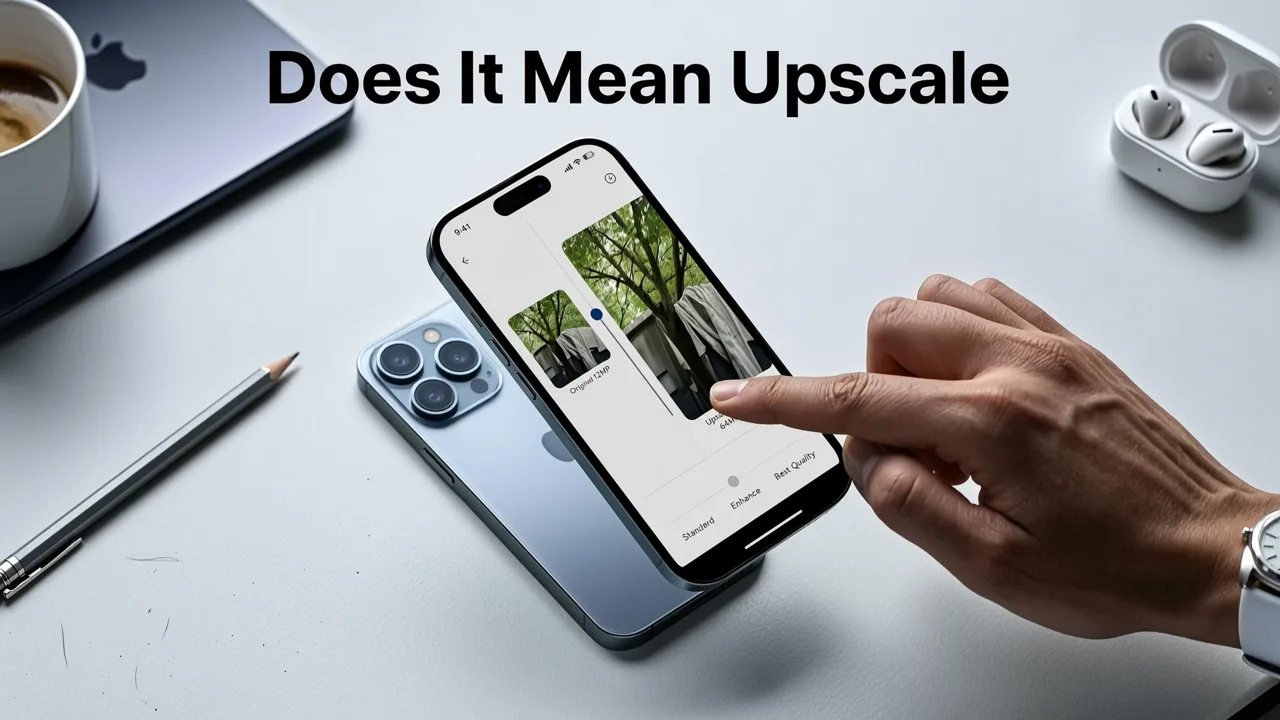
Upscaling a photo means increasing its resolution — adding more pixels so the image looks larger and sharper on bigger screens or when printed. Older upscaling methods simply stretched the image, which made it look soft and pixelated. In 2026, AI-powered upscalers analyze the content of your photo and intelligently generate new pixels, filling in missing detail based on patterns the model has learned from millions of high-quality images.
Here is the difference in plain terms:
- Traditional upscaling: Stretches existing pixels. Result: blurry, blocky, and often unusable.
- AI upscaling: Predicts and adds realistic detail. Result: a sharper, cleaner, higher-resolution image that looks natural.
When you use Pixelift as your upscale photo iOS app, the AI handles everything. You upload a low-resolution image, and within seconds you get back a version that is two to four times larger, with improved clarity, texture, and color — no manual adjustments required.
Why iPhone Users Need a Dedicated Upscale Photo iOS App
You might wonder why you cannot just use the built-in Photos app or a free editor from the App Store. The answer is simple: most native tools are designed for basic cropping and filters, not for intelligent upscaling or restoration. Here is what a dedicated app brings to the table:
1. True AI-Driven Enhancement
A quality upscale photo iOS app uses deep-learning models trained specifically on faces, textures, text, and scenery. It does not just sharpen edges — it reconstructs missing information. That is the difference between a usable photo and a ruined one.
2. Speed Without Sacrificing Quality
In 2026, on-device and cloud-based AI processing is faster than ever. Pixelift delivers results in seconds, so you never have to wait through long export queues or deal with crash-prone desktop software.
3. Zero Learning Curve
Most iPhone users are not professional editors. Pixelift is built for everyday people: tap upload, choose your enhancement, save. That is it. If you are curious about the broader landscape, we compared the top options in our guide to the best AI photo restorer for iPhone in 2026.
Key Features to Look for in an Upscale Photo iOS App
Not all upscalers are created equal. Before you download anything, make sure the app checks these boxes:
| Feature | Why It Matters | Pixelift Support |
|---|---|---|
| AI Upscaling (2x–4x) | Increases resolution while preserving or improving detail | ✅ Yes |
| Face Enhancement | Reconstructs facial features in low-res portraits | ✅ Yes |
| Old Photo Restoration | Removes scratches, fading, and color shifts | ✅ Yes |
| Object Removal | Cleans up background distractions | ✅ Magic Remover |
| Creative Presets | Restyles portraits and social images instantly | ✅ Yes |
| No Signup Required | Lets you try before committing | ✅ Web & App |
| Batch Processing | Upscales multiple photos at once | ✅ Yes |
If an app cannot handle at least the first three items, it is not a serious upscale photo iOS app — it is just a basic filter tool wearing a fancy label.
How Pixelift Works as an Upscale Photo iOS App
Pixelift was built by Devsrank with one goal: make professional-grade photo enhancement accessible to everyone. Here is how the workflow looks in practice.
Step 1 — Open the App or Web Tool
Launch Pixelift on your iPhone or visit the web version. There is no lengthy signup process. You can start enhancing immediately.
Step 2 — Upload Your Photo
Select any low-resolution, blurry, or old photo from your camera roll, Files app, or cloud storage. Pixelift accepts JPEG, PNG, and most common formats.
Step 3 — Choose Your Enhancement
Want to upscale? Pick the resolution boost. Need to restore an old family portrait? Switch to the restoration mode. You can also use the AI Object Remover to clean up unwanted elements before upscaling.
Step 4 — Download the Result
In seconds, your enhanced photo is ready. Save it back to your camera roll or share it directly to social media, email, or print services.
If you are dealing with motion blur or out-of-focus shots specifically, our detailed walkthrough on how to fix blurry photos on iPhone instantly covers additional tips that pair perfectly with Pixelift.
Real-World Use Cases for Pixelift on iPhone
Upscaling is not just about making images bigger. Here are the scenarios where iPhone users get the most value:
Restoring Old Family Photos
Scanned prints from the 1980s and 1990s are often low resolution, faded, or damaged. Pixelift brings them back to life with sharper faces, richer colors, and cleaned-up backgrounds. For a deeper dive, check out our guide on how to restore old photos on iPhone in 2026.
Enhancing Product Photos for E-Commerce
Sellers on Etsy, eBay, and Shopify need crisp, high-resolution product images. Pixelift upscales photos taken with older phones or under poor lighting so they look professional without a studio shoot.
Preparing Images for Print
Printing a photo at poster size requires far more pixels than a phone screen display. Pixelift's AI upscaling adds the detail needed for sharp prints at 8x10, 16x20, or larger.
Cleaning Up Social Media Shots
Use the Magic Remover to delete photobombers, trash cans, or power lines, then upscale the cleaned image for a polished Instagram or TikTok post.
Pixelift vs. Other Upscale Photo iOS Apps in 2026
The App Store is packed with photo enhancers, but most fall short in at least one area. Here is how Pixelift compares to the typical alternatives:
| Criteria | Pixelift | Typical Free Apps | Premium Desktop Tools |
|---|---|---|---|
| AI Upscaling Quality | High — detail-aware models | Low — basic sharpening | High — but complex |
| Speed on iPhone | Seconds | Varies, often slow | Not available on mobile |
| Old Photo Restoration | ✅ Built-in | ❌ Rare | ✅ But expensive |
| Object Removal | ✅ Magic Remover | ❌ Usually separate app | ✅ Manual tools |
| Price | Freemium | Ad-heavy or limited | $$$ subscription |
| No Signup Needed | ✅ Web & App | ❌ Forced accounts | ❌ Account required |
The takeaway: Pixelift combines the power of desktop-grade AI with the simplicity of a mobile-first experience. You do not need to juggle multiple apps or learn complicated software.
Tips to Get the Best Results When You Upscale Photos on iPhone
Even the best AI cannot work miracles on every image, but a few simple habits will dramatically improve your outcomes:
- Start with the highest-quality source you have. If you have both a scan and a phone photo of the same print, use the scan.
- Avoid heavy compression before upscaling. Photos saved from messaging apps are often heavily compressed. Use the original file whenever possible.
- Use the right enhancement mode. Pixelift offers specific modes for portraits, general photos, and old pictures. Picking the correct one gives the AI better context to work with.
- Remove distractions first. Use the Magic Remover to clean up the image before upscaling so the AI does not accidentally enhance unwanted objects.
- Compare before and after. Zoom in at 100% to check that faces, text, and textures look natural. If something seems off, try a different mode or upload a higher-quality source.
Privacy and Data Security
When you upload personal photos to any cloud-based tool, privacy matters. Pixelift processes images securely and does not share your photos with third parties. Photos are handled in accordance with modern data protection standards, and you retain full ownership of every image you upload. If you have specific questions about how your data is handled, the privacy policy on the Pixelift website provides full details.
Frequently Asked Questions
Is there a free upscale photo iOS app?
Pixelift offers a freemium model, so you can try the upscaling features without paying upfront. Full-resolution downloads and batch processing are available through affordable plans.
Can I upscale old printed photos using my iPhone?
Yes. Scan the print with your iPhone camera or a scanner app, then upload the scan to Pixelift. The AI restoration mode will sharpen faces, fix fading, and remove minor damage automatically.
How much can Pixelift enlarge a photo?
Pixelift supports up to 4x upscaling, which is enough to turn a small phone screenshot into a print-ready image or a grainy portrait into a sharp, detailed photo.
Do I need editing skills to use Pixelift?
Not at all. Pixelift is designed for everyday users. You upload a photo, choose a mode, and download the result. There are no sliders, layers, or complicated menus to learn.
Start Upscaling Your Photos on iPhone Today
Finding a reliable upscale photo iOS app does not have to be a guessing game. Pixelift combines powerful AI upscaling, old photo restoration, object removal, and creative presets into one simple tool that works on your iPhone in seconds. Whether you are rescuing faded family memories, sharpening product photos for your store, or preparing images for a big print, Pixelift gives you professional results without the learning curve.
Ready to see the difference for yourself? Open Pixelift on your iPhone or try the web version now and turn your lowest-resolution photos into your sharpest ones yet.