
Published by PixeLift · · 9 min read
Pixelift Upscaler — AI-Powered Photo Enhancement Tool (2026 Review)
Discover the Pixelift upscaler in 2026: how it sharpens blurry photos, upscales low-res images, and restores old pictures — no editing skills needed. Full...
For the basics of resolution and pixel size, see our main upscaling guide.

Recommended next
What Is the Pixelift Upscaler and Why People Keep Coming Back in 2026
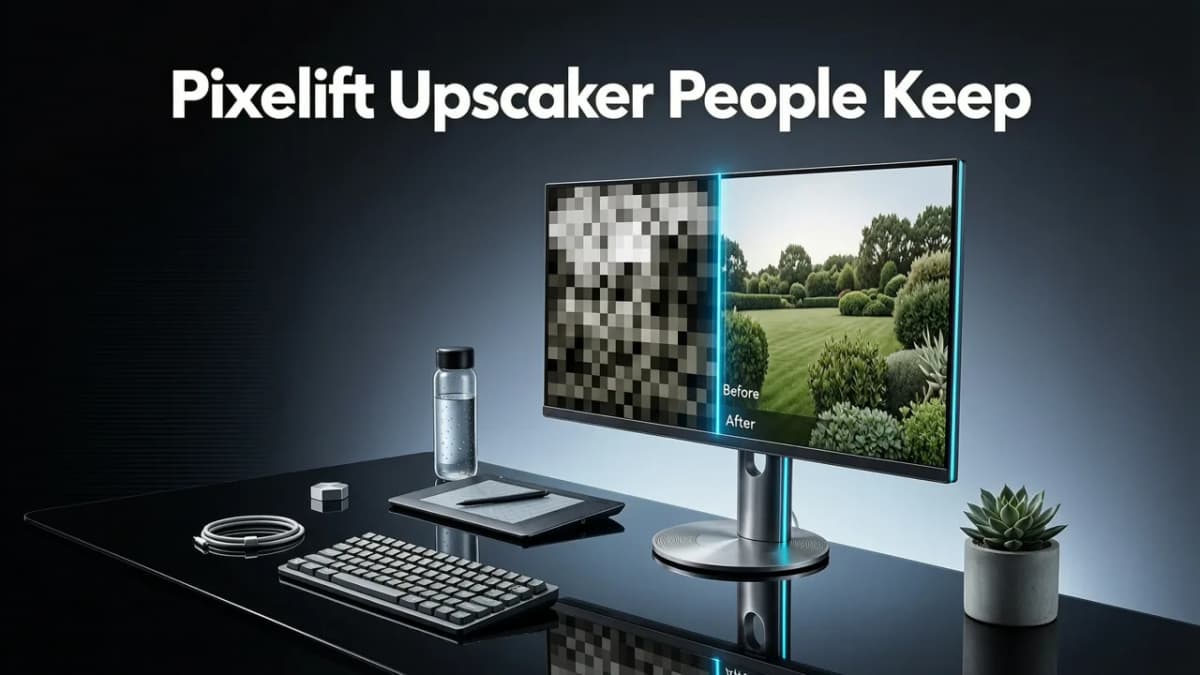
If you have ever stared at a pixelated photo of a loved one or a soft, blurry product shot that just won't print cleanly, the Pixelift upscaler is the tool that quietly fixes it in seconds. Pixelift, built by Devsrank, is an AI-powered photo enhancement platform that sharpens blurry images, upscales low-resolution files, restores old family pictures, and improves color, lighting, and detail — all without requiring a single editing skill from you.
Whether you are working from a web browser on your laptop or tapping through the iOS app on your phone, the Pixelift upscaler delivers results that used to demand hours in Photoshop. In this guide, we break down exactly what the tool does, how it compares to other options in 2026, and when it makes sense to reach for its companion features like the Magic Remover and Creative Presets.
How the Pixelift Upscaler Actually Works
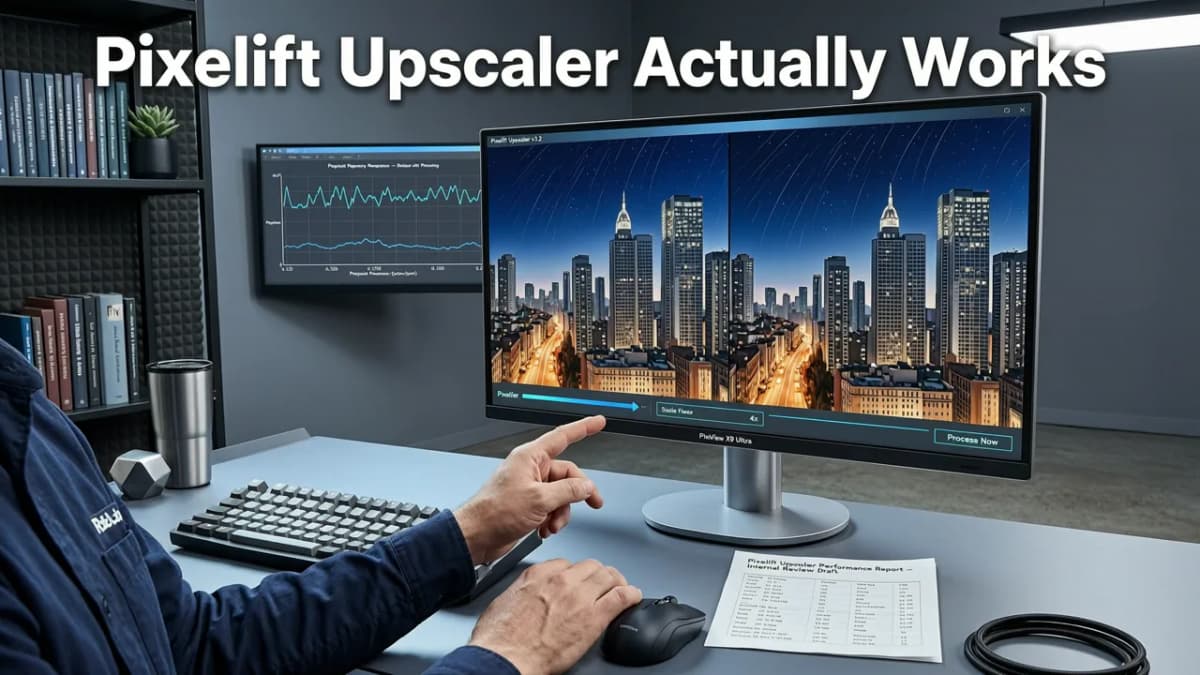
At its core, the Pixelift upscaler uses deep-learning models trained on millions of real-world photographs. When you upload an image, the AI analyzes its structure — edges, textures, skin tones, backgrounds — and reconstructs missing detail rather than simply stretching pixels. The result is a sharper, higher-resolution file that still looks like your original photo, not a synthetic-looking render.
Step-by-Step: Upscaling a Photo with Pixelift
- Upload your image. Drag and drop a file or choose from your camera roll on the iOS app.
- Select your upscale factor. Choose 2×, 4×, or higher depending on your target resolution.
- Let the AI process. Pixelift's neural engine reconstructs detail in seconds.
- Preview and compare. Use the before-and-after slider to see the difference.
- Download your enhanced photo. Save it in full resolution, ready to print or post.
The entire flow is designed around one principle: zero friction. There is no software to install on the web version, no credit card wall before your first test, and no confusing layer panels to navigate.
Key Features of the Pixelift Upscaler in 2026
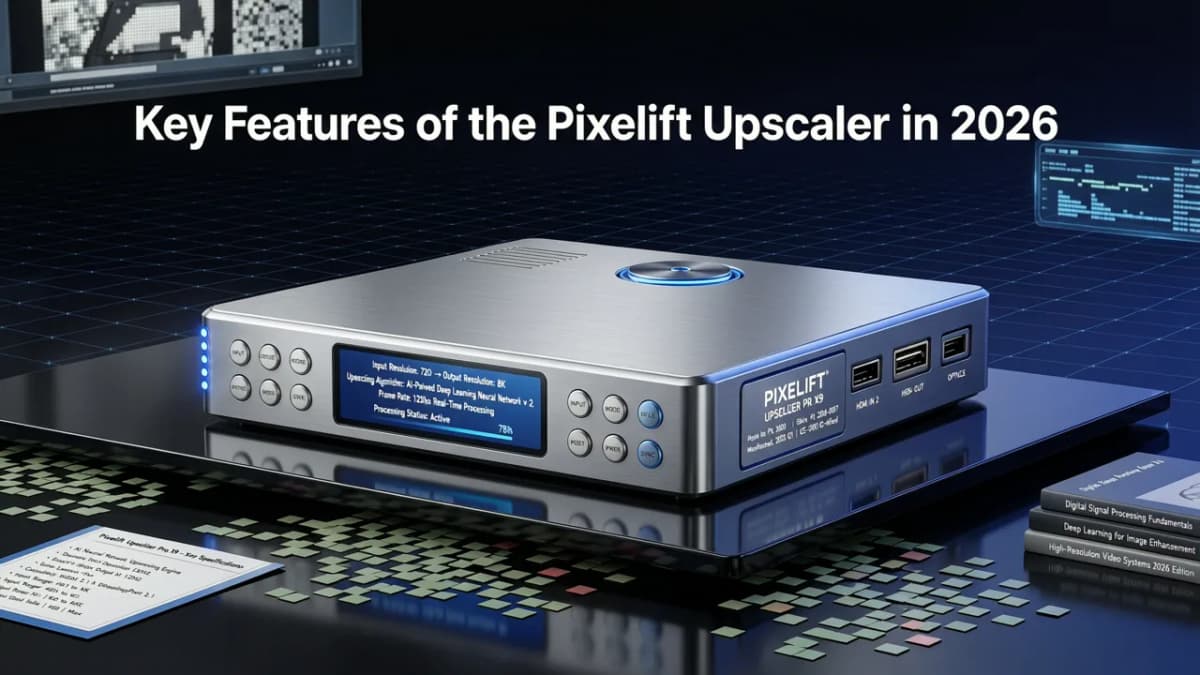
The Pixelift upscaler is the headline feature, but Pixelift has expanded into a more complete enhancement toolkit. Here is what you get under the hood this year.
✅ AI-Powered Sharpening and Detail Reconstruction
Pixelift doesn't just apply a generic sharpen filter. It identifies which areas of your photo need detail recovery — faces, text, fabric textures, product edges — and applies targeted enhancement. This means your subject stays crisp while backgrounds don't get noisy artifacts.
✅ Low-Resolution Image Upscaling
Got a small image from a screenshot, a social media download, or an old digital camera? The Pixelift upscaler can increase resolution by multiple factors while keeping edges clean and textures natural. If you're comparing dedicated upscaling tools, our Best AI Photo Upscaler 2026 guide covers how Pixelift stacks up against the competition.
✅ Old Photo Restoration
Scratches, fading, water damage, and color shifts from decades-old prints are handled by Pixelift's restoration engine. Faces are reconstructed with identity-preserving AI so Grandma's smile still looks like Grandma. For a deeper look at how this works with scanned family albums, check out our piece on the Best AI Photo Restorer for Family Pictures in 2026.
✅ Magic Remover
Power lines, photobombers, dust spots, unwanted objects — the Magic Remover lets you tap or brush over distractions and the AI fills in the gap seamlessly. It works surprisingly well on complex backgrounds like foliage and brick walls.
✅ Creative Presets
For portraits and social media images, Pixelift offers a library of Creative Presets that restyle color grading, lighting mood, and tonal character. Think of it as a one-click filter system, but smarter — the presets adapt to the content of your photo rather than applying a blanket overlay.
Pixelift Upscaler vs. Other Photo Enhancement Tools
The AI photo enhancement space is crowded in 2026, so it helps to see how the Pixelift upscaler compares on the things that actually matter to everyday users.
| Feature | Pixelift | Typical Desktop Editor | Basic Free Upscalers |
|---|---|---|---|
| No install required | ✅ Web + iOS | ❌ Download needed | ✅ Web |
| AI detail reconstruction | ✅ Yes | ⚠️ Manual only | ⚠️ Basic interpolation |
| Old photo restoration | ✅ Yes | ❌ Not built-in | ❌ No |
| Object removal | ✅ Magic Remover | ⚠️ Content-Aware Fill | ❌ No |
| Editing skill needed | None | Intermediate+ | None |
| Mobile app | ✅ iOS | ❌ Rarely | ⚠️ Limited |
| Batch processing | ✅ Yes | ✅ Yes | ❌ Usually one-at-a-time |
The biggest takeaway: Pixelift bundles upscaling, restoration, and cleanup into one workflow. If you only need to enlarge an image, a free tool might suffice — but the moment you also want to fix fading, remove a distraction, or touch up a portrait, having everything in one place saves real time.
Who Should Use the Pixelift Upscaler?
Pixelift is built for people who care about their photos but don't want to become professional retouchers. That said, the use cases stretch wider than you might think.
Families Digitizing Old Photo Albums
Scanned prints from the 70s, 80s, and 90s are often soft, faded, or damaged. The Pixelift upscaler can bring those files up to modern resolution while the restoration engine repairs scratches and recovers lost color. If you're dealing with faded prints specifically, our guide on how to restore faded photos online walks through the process in detail.
E-Commerce Sellers and Small Business Owners
Product photos shot on a phone or pulled from a supplier catalog often look small and soft on a website. Upscaling with Pixelift gives you crisp, print-ready product images without a reshoot. The Magic Remover is a bonus for cleaning up cluttered backgrounds.
Content Creators and Social Media Users
Reposting an old photo for a throwback story? Cropping a horizontal image into a vertical format and losing resolution? The Pixelift upscaler fixes both problems instantly, and Creative Presets help the image match your feed aesthetic.
Anyone Trying to Recover a Blurry Photo
Sometimes you find a blurry image online and wonder if it can be saved. As we explain in our guide on whether you can restore a blurry photo from Google Search, you can't fix images directly through a search engine — but once you have the file, Pixelift can work its magic on it.
Tips for Getting the Best Results from the Pixelift Upscaler
Pixelift is designed to be simple, but a few small practices will help you get even sharper outcomes.
- Start with the highest-quality source you have. AI upscaling works best when the original file has reasonable structure, even if it's low resolution. A heavily compressed JPEG with extreme artifacts will improve, but expectations should be realistic.
- Use the before-and-after slider. Don't just glance at the result — zoom in and compare detail areas like eyes, text, and edges.
- Combine tools when needed. If your photo is both blurry and has a distracting object, run the Magic Remover first, then upscale. Pixelift's workflow makes this easy.
- Choose the right upscale factor for your end use. Social media posts don't need 4× upscaling — a 2× enhancement is often enough and keeps file sizes manageable.
- Try Creative Presets on portraits. If you're enhancing a headshot or family photo, the presets can add a polished, professional tone that a plain upscale won't deliver.
Pixelift on Web vs. iOS: Which Should You Use?
Pixelift is available as a browser-based web tool and as a native iOS app. Both share the same AI engine, but the experience differs slightly depending on your workflow.
Web Tool
The web version is ideal when you're working at a desktop with a large library of files. Drag-and-drop uploading, a larger preview canvas, and easy file management make batch work efficient. It works on any modern browser — no plugins, no extensions.
iOS App
The iOS app shines when you're on the go. Snap a photo of a printed picture, enhance it right from your camera roll, and share it immediately. It's particularly handy for quick restorations of physical photos you've just scanned with your phone camera.
Pro tip: If you're at a family gathering and someone pulls out an old printed photo, the iOS app lets you capture, enhance, and share it back with the group in under a minute. That moment alone is worth the download.
Common Questions About the Pixelift Upscaler
Does Pixelift work on all image formats?
Pixelift supports the most common formats including JPEG, PNG, and WebP. For old scanned photos saved as TIFF, you may want to convert to a high-quality JPEG or PNG before uploading for the smoothest experience.
Can I use the Pixelift upscaler for commercial projects?
Yes. Enhanced images are yours to use however you need — for print, e-commerce listings, social media, client work, or personal projects. Pixelift does not claim ownership of your uploaded or processed images.
How large of an image can Pixelift handle?
Pixelift handles a wide range of file sizes on both the web tool and iOS app. Extremely large files may take slightly longer to process, but the AI engine is optimized for speed even with high-megapixel inputs.
Is there a free option to try before committing?
Pixelift typically allows new users to test the tool with a limited number of free enhancements so you can see the quality before deciding on a plan. Check the official site for the current offer.
Why Pixelift Feels Different in 2026
Two years ago, most AI photo tools forced you to choose between upscaling, restoration, or editing — each in a separate app or tab. Pixelift's approach in 2026 consolidates all of those capabilities into a single, clean interface. The AI models have improved, the processing speed has increased, and the results feel less "AI-generated" and more like what a skilled retoucher would produce by hand.
For anyone who just wants their photos to look better — sharper faces, cleaner backgrounds, restored memories — without learning a single keyboard shortcut, the Pixelift upscaler remains one of the most approachable and effective options available today.
Final Thoughts: Is the Pixelift Upscaler Worth Your Time?
If you have blurry photos, low-resolution images, or old family pictures that deserve a second life, Pixelift does the heavy lifting for you. The Pixelift upscaler delivers real, visible improvements in seconds, and the surrounding tools — Magic Remover, Creative Presets, and restoration — make it a genuinely all-in-one solution.
Head over to aienhancephoto.com to try it yourself. Upload a photo, see the difference on the slider, and decide with your own eyes. Your dusty shoebox of memories — and your camera roll — will thank you.
More on upscaling images
The other articles on this topic are listed in the upscaling guide.

2026-09-05
iPhone Photo Upscaler — Enhance Pics Directly on iOS (2026)
Looking for an iPhone photo upscaler in 2026? Discover how Pixelift lets you sharpen, upscale, and restore blurry photos right on iOS in seconds.

2026-09-03
Best AI Tool to Upscale Photos in 2026 — Pixelift Review
Looking for the best AI tool to upscale photos in 2026? Pixelift sharpens, enlarges, and restores images in seconds. Fast, free to try, and zero editing...

2026-08-01
Best AI Photo Upscaler 2026 — Fast, Free & No Install
Looking for the best AI photo upscaler 2026? Pixelift delivers one-click, browser-based upscaling—no install, no skill needed. Sharpens blurry photos,...
Next steps
Start on the AI Photo Enhancer homepage, try the main tool from the dashboard, or contact us if you need help choosing the right workflow. You can also explore localized pages like United Kingdom or Germany.