2026-08-15 · 9 min read
Upscale Low Resolution Image AI: The 2026 Guide to Sharper Photos
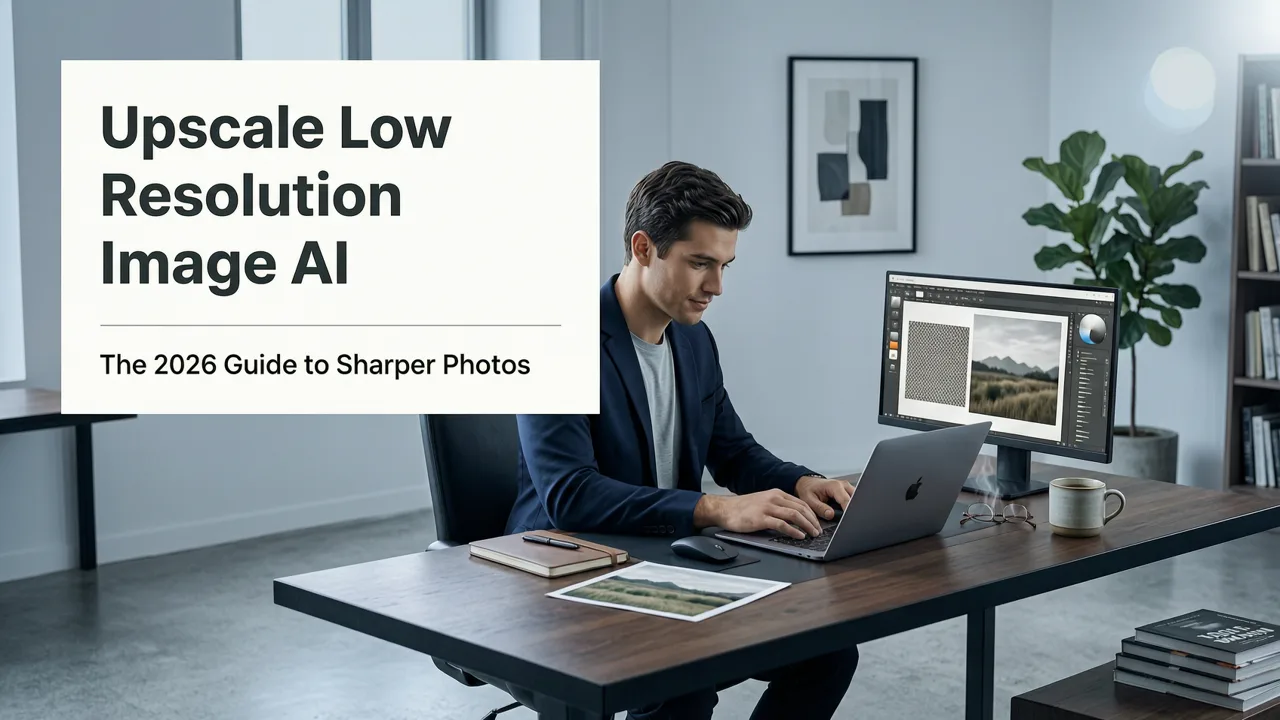
Upscale low resolution image AI tools like Pixelift sharpen blurry photos, restore old pictures, and boost detail in seconds. Learn how it works and which...
Recommended next
Upscale Low Resolution Image AI: The 2026 Guide to Sharper Photos
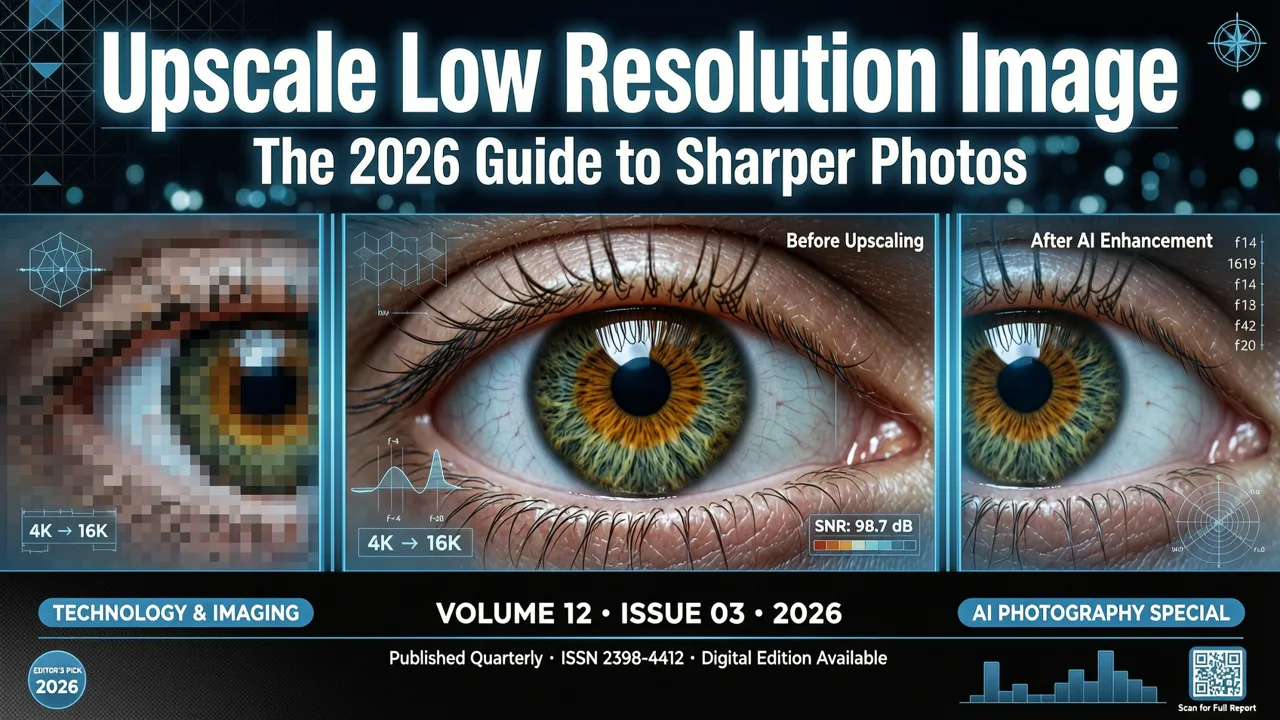
If you have ever tried to print a photo or share it online only to discover it looks soft, pixelated, or washed out, you already know the frustration of working with a small file. The good news is that an upscale low resolution image AI tool can fix that in seconds — no Photoshop skills, no manual tweaking, and no expensive software required. In 2026, AI-powered upscalers use advanced neural networks to reconstruct missing detail, sharpen edges, and restore color so your images look crisp at any size.
This guide walks you through exactly how these tools work, what to look for when choosing one, and how to get the best results whether you are restoring old family photos, preparing product shots for an online store, or simply making a social media image look its best.
What Does It Mean to Upscale a Low Resolution Image with AI?
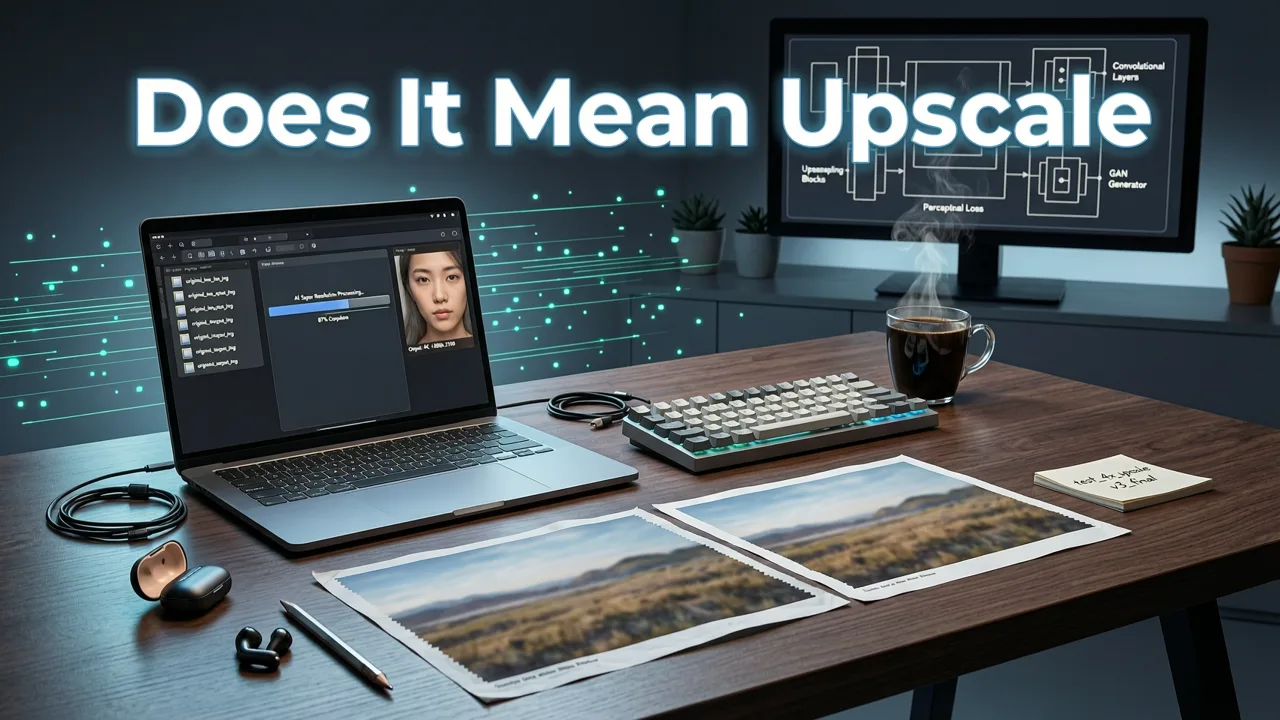
Upscaling means increasing the pixel dimensions of an image — for example, turning a 640 × 480 photo into a 2560 × 1920 version. Older methods simply stretched existing pixels, which made images look blurry or blocky. Modern AI upscaling works differently: a trained neural network studies millions of high-resolution images and learns how real-world textures, edges, and lighting patterns should look. When you feed it a low-resolution file, it predicts and reconstructs the missing detail rather than just stretching what is already there.
The result is an image that genuinely looks sharper and more detailed, not just bigger. This is why an upscale low resolution image AI tool can turn a tiny, grainy snapshot into something you would be proud to frame.
Key Terms to Know
- Super-resolution: The AI technique that adds realistic detail when enlarging an image.
- Upscaling factor: How much larger the output is compared to the input (commonly 2×, 4×, or 8×).
- Noise reduction: Removing grain and artifacts before or during the upscaling process.
- Face enhancement: A specialized AI model that reconstructs facial features for portraits.
How AI Photo Upscaling Works in 2026
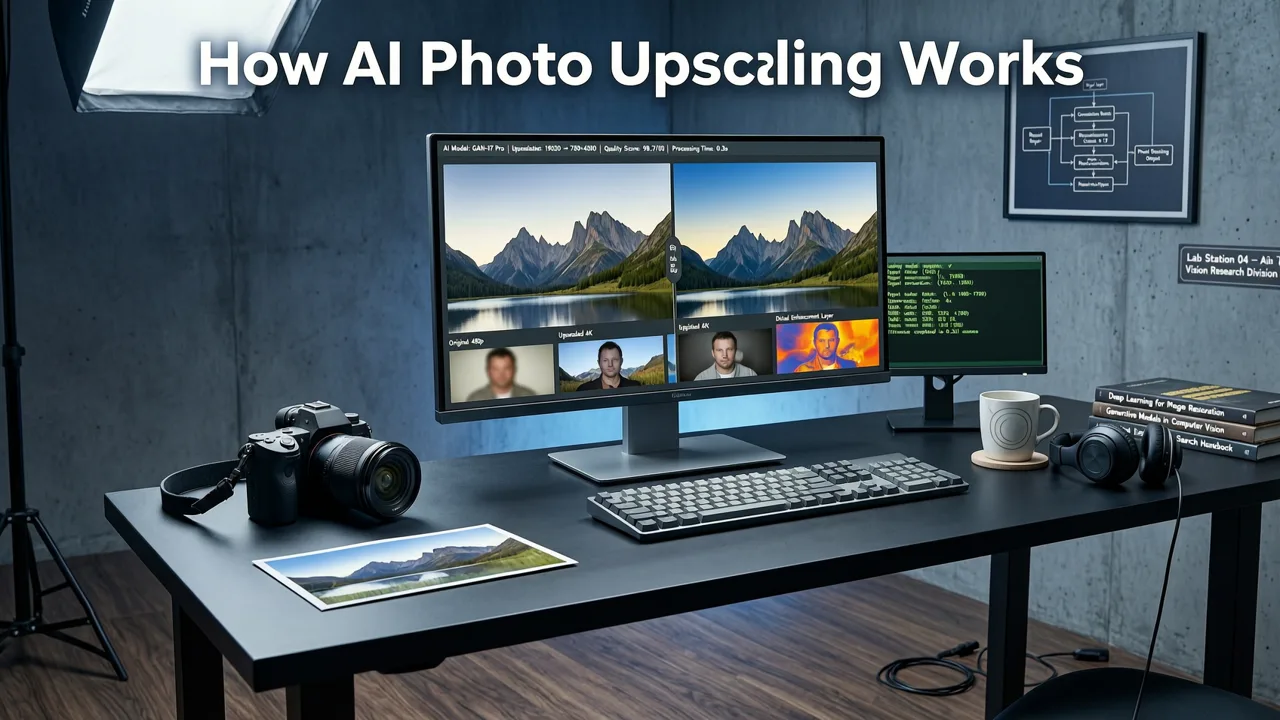
The core technology behind today's best upscalers is the generative adversarial network, or GAN, along with newer diffusion-based models. These architectures have evolved significantly over the past few years, and in 2026 they deliver noticeably better results on faces, text, and fine textures like fabric or foliage.
Step-by-Step: What Happens When You Upload a Photo
- Upload: You drop your low-resolution image into the tool.
- Analysis: The AI scans the image, identifying regions like skin, sky, text, or background objects.
- Enhancement: Separate models handle sharpening, noise reduction, color correction, and face restoration.
- Upscaling: The super-resolution engine reconstructs detail at the target resolution.
- Output: You download a high-resolution, print-ready file in seconds.
Tools like Pixelift combine all of these steps into a single click, so you never have to think about which model or setting to choose.
Why You Need an Upscale Low Resolution Image AI Tool in 2026
There are more reasons than ever to keep an AI upscaler in your toolkit. Screens are higher-resolution, social platforms compress uploads aggressively, and printing even a small photo exposes any softness instantly. Here are the most common situations where upscaling makes a real difference.
Restoring Old Family Photos
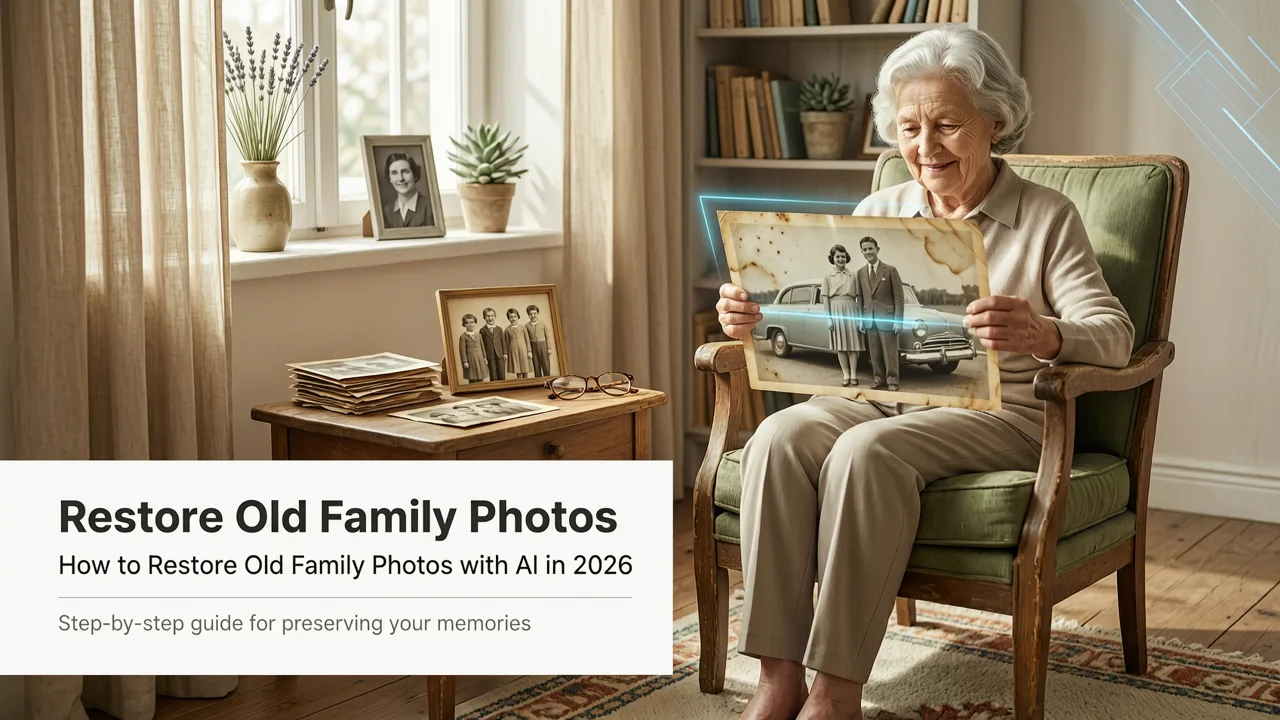
Scanned prints from the 1980s or 1990s are often low-resolution by today's standards. An AI upscaler can sharpen faded faces, rebuild torn edges, and bring color back to life — turning a shoebox of old prints into a digital album you would actually want to share.
E-Commerce and Product Photography
Marketplaces like Amazon and Etsy require images above a certain resolution. If your supplier sent you small product photos, an upscale low resolution image AI tool can bring them up to spec without a reshoot.
Social Media and Content Creation
Even if you are only posting online, platforms display images at larger sizes on modern phones and tablets. A quick upscale ensures your content looks sharp everywhere, from Instagram carousels to YouTube thumbnails.
Printing and Framing
A photo that looks fine on a phone screen can appear blurry when printed at 8 × 10 inches or larger. Upscaling gives you the pixel count needed for clean, gallery-quality prints.
What to Look for in the Best AI Image Upscaler
Not all upscalers are created equal. Here is a checklist to help you pick the right one.
1. True AI-Driven Enhancement
Make sure the tool uses neural-network-based super-resolution, not simple bicubic interpolation. The difference in output quality is dramatic, especially on faces and text.
2. Face-Aware Models
If you work with portraits, look for a dedicated face restoration model. Generic upscalers often leave eyes and skin looking unnatural, while face-aware models reconstruct features convincingly.
3. Batch Processing
If you have dozens of photos to enhance — say, an entire scanned album — batch processing saves hours of manual work.
4. Cross-Platform Access
The best tools work in your browser and on your phone. Pixelift, for example, is available as both a web tool and iOS app, so you can upscale on the go.
5. Transparent Pricing
Look for clear free tiers or credit-based plans. Avoid tools that hide limits behind vague "contact sales" pages.
Pixelift vs. Other Upscale Low Resolution Image AI Tools
To help you compare, here is a quick look at how Pixelift stacks up against other popular options in 2026.
| Feature | Pixelift | Typical Free Web Tool | Desktop Software |
|---|---|---|---|
| AI super-resolution | Yes (GAN + diffusion) | Varies | Yes |
| Face restoration | Built in | Sometimes | Plugin needed |
| Upscale factor | Up to 8× | 2× – 4× | Up to 16× |
| Batch processing | Yes | Rarely | Yes |
| iOS app | Yes | No | No |
| Magic Remover | Yes | No | Separate tool |
| Creative Presets | Yes | No | No |
| No editing skills needed | One click | One click | Manual settings |
Pixelift stands out because it bundles upscaling, sharpening, object removal, and creative restyling in a single interface — and it works equally well on the web and on iPhone. If you want a deeper look at what else the platform can do, check out the best AI photo enhancer roundup for a full comparison.
How to Upscale a Low Resolution Image with Pixelift
Getting started takes less than a minute. Here is the process.
On the Web
- Go to aienhancephoto.com and upload your image.
- Choose your upscale factor (2×, 4×, or 8×).
- Enable face enhancement if the photo includes people.
- Click Enhance and wait a few seconds.
- Download your high-resolution result.
On iPhone
- Download the Pixelift iOS app.
- Open the app and select a photo from your library.
- Tap Enhance — the AI handles sharpening, upscaling, and color correction automatically.
- Save the result back to your camera roll or share it directly.
If you are dealing with a blurry photo specifically, the guide to fixing blurry photos on iPhone walks through extra tips for the trickiest shots.
Tips for Getting the Best Results
Even the most powerful AI works best when you give it a decent starting point. Follow these tips to maximize quality.
- Start with the highest-quality source you have. A clean scan at 300 DPI will upscale better than a phone photo of a photo.
- Crop before upscaling. Remove unwanted borders so the AI focuses on the subject.
- Use face enhancement for portraits. This model is specifically tuned for eyes, skin texture, and hair.
- Avoid extreme upscaling on very small files. Going from 100 × 100 to 8× will always look artificial; aim for 2× or 4× on tiny images.
- Apply the Magic Remover first. If your image has watermarks, dust spots, or distracting objects, clean them up before upscaling for a cleaner final result.
The Technology Behind the Magic
If you are curious about what powers these tools under the hood, the short answer is deep learning. Modern upscalers rely on convolutional neural networks trained on massive datasets of paired low- and high-resolution images. Recent advances in 2026 include diffusion-based super-resolution models that produce even more natural textures, especially on complex surfaces like brick, grass, and fabric.
For a broader look at how companies approach responsible AI development, Google's AI responsibility principles offer a useful framework for understanding the ethical considerations behind these technologies.
Common Use Cases at a Glance
| Use Case | Recommended Upscale Factor | Extra Features to Enable |
|---|---|---|
| Old family photo (print scan) | 4× | Face enhancement, color restore |
| Product photo for e-commerce | 2× or 4× | Magic Remover for background cleanup |
| Social media post | 2× | Creative Presets for style |
| Wall print or poster | 4× or 8× | Face enhancement if portraits |
| Screenshot or text image | 2× or 4× | Sharpening focus |
Frequently Asked Questions
Can AI upscale any low resolution image?
Yes, modern AI upscalers work on virtually any image — photos, illustrations, screenshots, and scanned documents. Results are best when the source image is at least a few hundred pixels wide. Extremely tiny or heavily damaged files may still show some artifacts after upscaling.
Is it free to upscale images with AI?
Many tools, including Pixelift, offer a free tier that lets you enhance a certain number of images at no cost. For higher volumes or batch processing, paid plans provide additional credits and priority processing.
Does upscaling reduce image quality?
No — a good AI upscaler actually improves perceived quality by adding realistic detail and reducing noise. The key is choosing a tool that uses genuine neural-network-based super-resolution rather than simple pixel stretching.
Can I upscale photos on my phone?
Absolutely. Pixelift is available as an iOS app, so you can sharpen, upscale, and restore photos directly on your iPhone without transferring files to a computer.
How large can I upscale an image?
Most consumer tools support up to 4× or 8× upscaling. Going beyond that is possible with specialized desktop software, but the returns diminish — an 8× upscale of a very small file will rarely look natural.
Start Upscaling Today
An upscale low resolution image AI tool is one of the simplest ways to breathe new life into old, small, or blurry photos. Whether you are restoring a childhood snapshot, prepping product images for your store, or just making your social feed look sharper, the right AI upscaler does the heavy lifting in seconds. Head over to Pixelift to try it yourself — upload a photo, hit enhance, and see the difference instantly.