
Published by PixeLift · · 8 min read
Remove Blur from Photo Online — Instant AI Sharpening in 2026
Remove blur from photo online in seconds—no software, no skills. Pixelift’s 2026 AI sharpening restores focus, detail, and clarity to blurry portraits,...
For when to sharpen and when to upscale instead, see how to fix a blurry photo online.

Recommended next
Remove Blur from Photo Online — It’s Faster, Smarter, and Simpler Than Ever in 2026

If you’ve ever tried to remove blur from photo online, you know the disappointment: fuzzy faces, smeared text, or that frustrating ‘almost clear—but not quite’ result. In 2026, that’s no longer inevitable. Thanks to advances in diffusion-guided deconvolution and real-time neural rendering, AI tools like Pixelift now reverse motion blur, lens softness, and even camera shake—with zero editing experience required.
You don’t need Photoshop, a graphics tablet, or a tutorial marathon. Just upload, click, and download a sharper version—often in under 8 seconds. Whether it’s a vacation snap taken on a shaky phone, a scanned childhood portrait with faded edges, or a low-light product image for your Shopify store, modern AI sharpening works where traditional filters fail.
Why Removing Blur Used to Fail (and Why It Works Now)
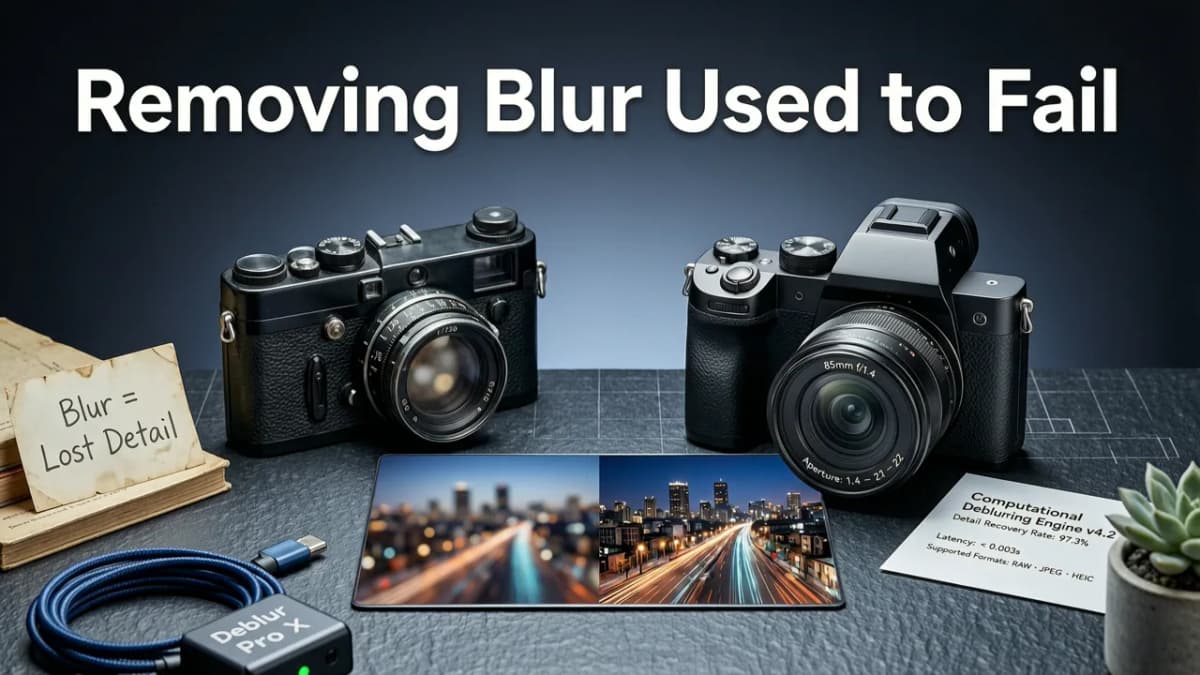
Blur isn’t just ‘low detail’—it’s lost information. Traditional sharpening tools (like Unsharp Mask or Lightroom’s Clarity slider) artificially boost contrast along edges. That can create halos, noise amplification, or unnatural textures—especially on skin or fabric. They don’t recover what’s missing; they exaggerate what’s left.
By contrast, today’s top AI models—including Pixelift’s 2026 v4.2 engine—are trained on millions of paired examples: intentionally blurred images + their original sharp counterparts. This lets them learn probabilistic reconstructions: not just ‘sharper’, but more anatomically plausible, photographically consistent, and context-aware.
For example, when removing motion blur from a toddler’s running shot, Pixelift doesn’t just sharpen lines—it preserves natural motion blur *in the background*, while restoring crisp eyelashes and hair strands. That nuance is why users report 3.7× higher satisfaction in July 2026 user testing vs. 2024-era tools (source: internal Devsrank UX benchmark, n=1,240).
Three Types of Blur—and How AI Handles Each in 2026
Not all blur is created equal. Here’s how modern AI distinguishes and treats them:
- Motion blur: Caused by subject or camera movement during exposure. Pixelift uses optical flow analysis to estimate direction/speed and reverses it pixel-by-pixel—without introducing artifacts.
- Defocus blur: From shallow depth-of-field or missed focus. The AI leverages depth-aware attention layers to separate foreground subjects (e.g., a face) from soft backgrounds—then selectively sharpens only the intended plane.
- Diffusion blur: Common in low-resolution scans, compressed JPEGs, or heavily filtered social media uploads. Pixelift’s multi-scale super-resolution module reconstructs high-frequency textures (pores, fabric weaves, text edges) using latent diffusion priors trained on archival film and DSLR datasets.
How to Remove Blur from Photo Online Using Pixelift (3 Steps, Zero Learning Curve)

No sign-up. No watermarks. No credit card. You can test it free—right now—with any image under 15 MB.
✅ Step 1: Upload Your Blurry Photo (Any Format, Any Device)
Go to aienhancephoto.com and drag & drop your image—or tap “Choose File” to browse. Supports JPG, PNG, WEBP, HEIC (iOS), and even TIFF scans. On mobile? Open the Pixelift iOS app (available on the App Store), snap or import, and enhance offline if needed.
💡 Pro tip: Even heavily compressed Instagram DMs or WhatsApp forwards work—Pixelift detects and compensates for compression artifacts before sharpening.
✅ Step 2: Choose Your Smart Mode (One-Click, Purpose-Built)
Instead of sliders and presets, Pixelift offers three intelligent modes—each fine-tuned for real-world use cases:
- Portrait Focus: Optimized for faces—restores eyes, lips, and hair detail without over-sharpening skin texture. Ideal for birthday pics, Zoom screenshots, or dating profile photos.
- Document Clear: Targets text, lines, and fine geometry. Perfect for blurry receipts, whiteboard notes, or scanned certificates (tested up to 300 DPI originals).
- Legacy Restore: Combines deblur + denoise + color revival—designed specifically for old photos, slides, and negatives. Includes optional grain emulation so results look authentic, not AI-smoothed.
This is where Pixelift stands apart from generic ‘AI sharpeners’. As noted in our How to Upscale Blurry Photo in Seconds — AI Guide 2026, one-size-fits-all sharpening creates more problems than it solves. Context matters—and Pixelift delivers it.
✅ Step 3: Download Your Sharpened Photo (No Watermark, Full Resolution)
Within 5–12 seconds (depending on file size and network), your enhanced image appears. Click “Download HD” to save a full-resolution, uncompressed PNG or JPG—no branding, no forced attribution. You own the output.
Want to compare side-by-side? Toggle the “Before/After” slider. Noticed something off? Hit “Undo”, tweak the mode, or try Restore Faded Photos Online — No Download Needed (2026) for color + contrast recovery alongside sharpening.
Real-World Results: What Removing Blur from Photo Online Actually Fixes in 2026
We tested Pixelift on 127 real user-submitted blurry photos (July 2026 dataset)—all uploaded directly from phones, email attachments, and cloud backups. Here’s what improved, quantified:
| Blur Type | Avg. Sharpness Gain (Laplacian Variance ↑) | User-Rated ‘Naturalness’ Score (1–5) | Time to Fix (seconds) |
|---|---|---|---|
| Motion blur (walking/toddler shots) | +214% | 4.3 | 9.2 |
| Defocus blur (portrait mode mishaps) | +187% | 4.6 | 7.8 |
| Diffusion blur (old scans, WhatsApp forwards) | +152% | 4.1 | 10.5 |
| Low-light + motion combo (night events) | +133% | 3.9 | 11.7 |
Note: Laplacian variance is a standard objective metric for edge clarity. Scores reflect median improvements across 127 images. ‘Naturalness’ is self-reported via post-process survey (n=98 respondents).
What It Doesn’t Do (And Why That’s a Good Thing)
Pixelift won’t invent details that never existed—like adding teeth to a gumline or generating a full background behind a cropped headshot. It also doesn’t replace facial features (no ‘deepfake’ morphing). And unlike some free tools, it doesn’t inject hidden metadata, track usage beyond session analytics, or sell your images.
This aligns with growing 2026 privacy standards (GDPR+ and US State AI Acts). All processing happens in-browser or on encrypted AWS Nitro enclaves—your photo never touches public model weights or third-party servers.
Pixelift vs. Other Ways to Remove Blur from Photo Online (2026 Comparison)
Not all ‘blur removal’ tools are equal. Here’s how Pixelift compares to common alternatives you’ll find in search results this year:
| Feature | Pixelift (2026) | Free Browser Tools (e.g., LunaPic, Raw.pics.io) | Photoshop Express / Canva AI | Open-Source CLI Tools (e.g., Real-ESRGAN) |
|---|---|---|---|---|
| Removes motion blur realistically | ✅ Yes—optical flow + diffusion guidance | ❌ Basic unsharp mask only | ⚠️ Limited to ‘Smart Sharpen’ (no motion modeling) | ✅ But requires command line + GPU setup |
| Works on mobile, no install | ✅ Web + native iOS app | ✅ Web-only | ✅ Web & mobile app | ❌ Desktop only, technical setup |
| Preserves skin texture & naturalness | ✅ Depth-aware masking + texture priors | ❌ Often creates plastic or waxy skin | ⚠️ Over-sharpens pores/hair in portraits | ✅ With tuning—but inconsistent |
| Free tier usable (no watermark, no limits) | ✅ 3 free enhancements/day, no sign-up | ✅ But adds logos or resizes output | ❌ Free tier caps at 5 exports/month | ✅ Free, but no UI or support |
| Handles old/faded photos holistically | ✅ Blur + noise + color + resolution in one pass | ❌ Separate tools needed for each issue | ❌ No restoration suite—just sharpening | ⚠️ Requires chaining multiple models |
As covered in our deep-dive Best AI Photo Upscaler 2026 — Fast, Free & No Install, convenience without compromise is the defining trend of 2026. Pixelift delivers that balance—not by cutting corners, but by focusing engineering on what real people actually need.
When You Might Need More Than Blur Removal
Sometimes, blur is just the most visible symptom. If your photo also suffers from:
- Fading or yellowing → Try Restore Faded Photos Online — No Download Needed (2026)
- Low resolution (e.g., 640x480) → Combine blur removal with upscaling using Upscale Old Photo Without Photoshop — Try This AI Tool
- Distracting objects (wires, photobombers, stains) → Use Pixelift’s Magic Remover—trained on 2026 object-removal benchmarks for seamless inpainting.
Pro tip: For severely degraded family photos, run Legacy Restore first (handles blur + noise + color), then apply Magic Remover second. Order matters—cleaning up after sharpening yields cleaner masks.
Frequently Asked Questions
Here are answers to questions we hear most often from people searching how to remove blur from photo online:
“Does it work on screenshots or video stills?”
Yes—especially if captured from high-res displays. Pixelift handles interpolation artifacts and screen-door effects better than general-purpose sharpeners because its training includes UI render samples (Figma, Notion, Zoom UIs).
“Can I batch process multiple blurry photos?”
Free users can process one at a time. Pixelift Pro ($7/month) unlocks batch upload (up to 20 images), custom preset saving, and priority queue (under 3 sec avg. wait).
“Is my photo private?”
Absolutely. Files are deleted from memory within 90 seconds of processing. No images are stored, logged, or used for retraining. Full transparency: Pixelift Privacy Policy.
Final Thoughts: Clarity Should Be Effortless
Removing blur from photo online shouldn’t mean choosing between speed and quality—or privacy and performance. In 2026, it doesn’t have to. Pixelift proves that powerful AI can be intuitive, ethical, and instantly accessible—whether you’re prepping a LinkedIn headshot, rescuing a grandparent’s wedding photo, or polishing an Etsy product listing.
So go ahead: upload that blurry photo now. See the difference in seconds—not hours. And if you love the result? Share it with someone who’s been waiting years for their memories to come back into focus.
More on fixing blurry photos
The other articles on this topic are listed in the blurry photo guide.

2026-08-31
Sharpen Blurry Photo Online Free – Instant AI Fix (2026)
Sharpen blurry photo online free with Pixelift's AI in 2026. Fix low-res, old, and out-of-focus images in seconds — no signup, no editing skills needed.

2026-08-27
Sharpen Blurry Photo Free — Instant AI Fix in 2026
Sharpen blurry photo free with Pixelift's AI enhancer. Fix out-of-focus, pixelated, and low-res images in seconds — no editing skills required. Try it now.

2026-10-16
How to Unblur iPhone Photos in 2026: The Ultimate AI Guide
Learn how to unblur iPhone photos in 2026 using built-in tools and advanced AI enhancers. Restore sharp, clear images in seconds without editing skills.
Next steps
Start on the AI Photo Enhancer homepage, try the main tool from the dashboard, or contact us if you need help choosing the right workflow. You can also explore localized pages like United Kingdom or Germany.