
Published by PixeLift · · 7 min read
How to Restore Old Family Photos with AI in 2026
Learn how to restore old family photos with AI in 2026. Discover the exact steps to fix faded, blurry, and damaged pictures instantly without editing skills.
For the whole process, from scanning a print to saving the result, see how to restore old photos with AI.

Recommended next
Why Restoring Old Family Photos Is Harder (and Smarter) in 2026
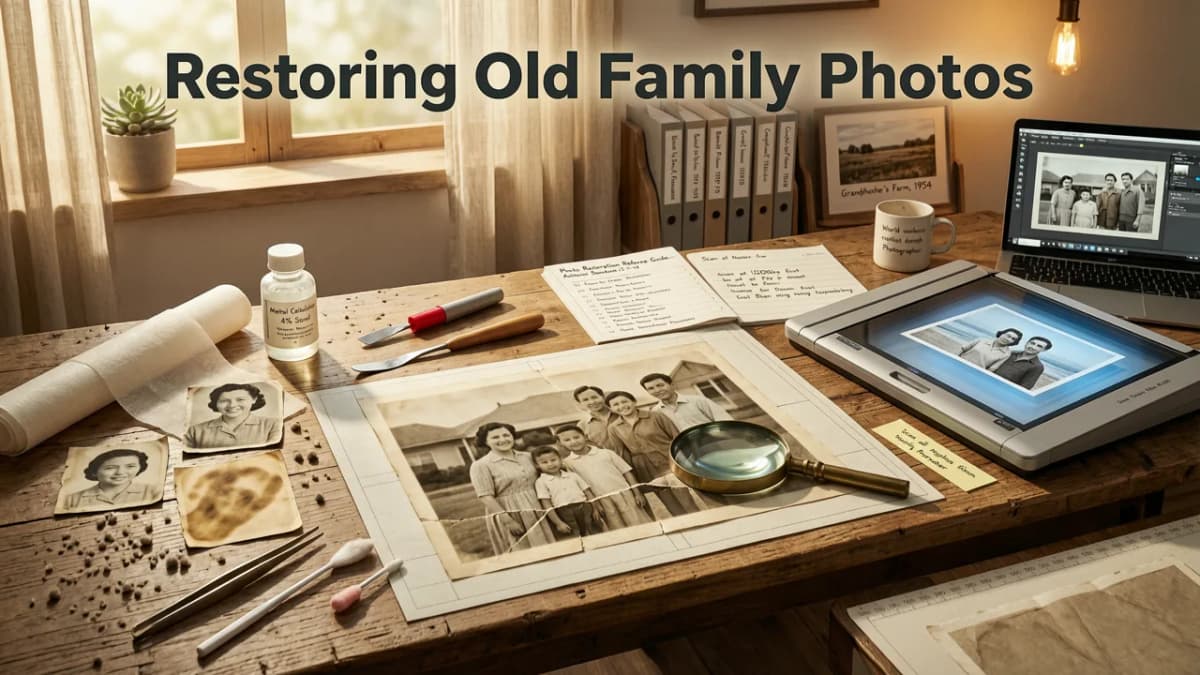
If you have ever dug out a shoebox of faded, creased prints and wondered how to restore old family photos without spending hours in complex editing software, the answer in 2026 is simpler than you think. Modern AI photo restoration can fix blurry faces, bring back lost colors, and repair physical damage in seconds by analyzing millions of reference images to predict and reconstruct missing pixels. You no longer need to be a professional retoucher to save your cherished memories.
But what exactly makes modern restoration so much more effective than the tools we had a few years ago? The leap in quality comes down to how artificial intelligence now understands the physical context of a photograph, rather than just applying a blanket filter over the image.
Faded-Edge Recognition Trained on Archival Images
Older digital tools treated every pixel equally, which often resulted in a harsh, unnatural look when trying to sharpen blurry photos. Today, neural networks are specifically trained on hundreds of thousands of scanned archival images. This means the AI understands how paper degrades over time, how sepia tones shift, and where the natural edges of a subject should be. When you upload a scanned picture from the 1970s, the system recognizes the physical medium and adjusts its enhancement strategy accordingly.
Dual-Pass Contextual Refinement — Not Just One-Click Sharpening
A common mistake in early digital photo repair was over-sharpening, which introduced ugly halos around faces and objects. In 2026, advanced platforms use a dual-pass approach. The first pass identifies the core structures of the image, such as facial geometry, fabric textures, and architectural lines. The second pass refines the micro-details, ensuring that skin tones remain natural and textures like hair or clothing look authentic. This contextual refinement is what separates a truly restored image from one that just looks heavily filtered.
Paper-Grain-Aware Processing for Physical Photo Scans
When you scan a physical print, you are not just capturing the image; you are capturing the texture of the paper, the gloss of the finish, and sometimes the microscopic dust of decades past. Modern AI models are paper-grain-aware, meaning they can differentiate between the actual image detail and the physical texture of the scan. This allows the software to clean up the background noise of the scan without accidentally erasing the fine details of the original photograph.
How to Restore Old Family Photos: The 2026 Step-by-Step Guide
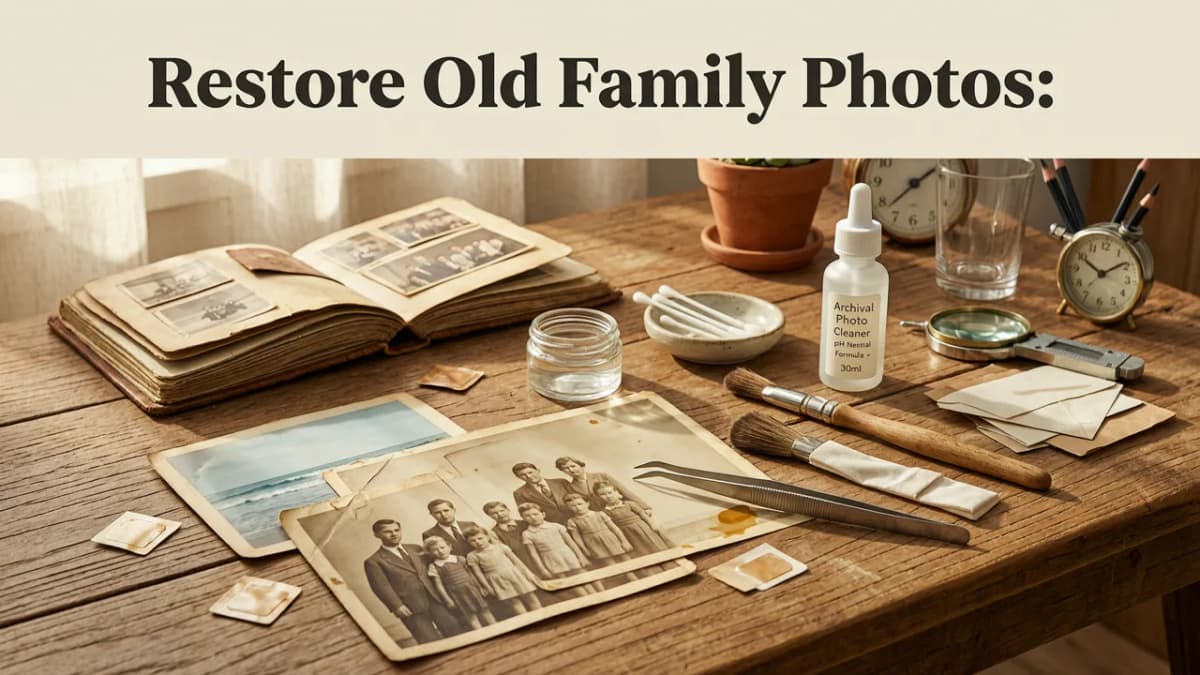
Understanding the technology is great, but knowing the practical workflow is what actually gets your pictures looking brand new. Here is the exact process to upscale low-resolution images and fix faded pictures using modern AI tools.
Step 1: Digitize the Original Print Properly
The quality of your digital restoration is only as good as your initial scan. Use a flatbed scanner set to at least 600 DPI (dots per inch). If the original photo is small, scanning at a higher resolution gives the AI more raw data to work with when it begins to upscale low-resolution images. Avoid using your phone camera if possible, as the angle, lighting, and lens distortion can introduce new problems that the AI will have to correct later.
Step 2: Run the Image Through an AI Enhancer
Once you have a high-quality digital file, it is time to let the software do the heavy lifting. Upload your scan to an AI photo enhancer like Pixelift. The tool will automatically analyze the image, detect blur, and reconstruct missing details. For black-and-white photos, you can also choose to add realistic colorization, which uses historical data to apply accurate, period-appropriate colors to your ancestors' portraits.
Step 3: Remove Distractions and Repair Damage
Even the best AI enhancer cannot magically guess what was behind a large tear or a missing corner. For physical damage, use a dedicated removal tool to clean up the background. If there are photobombers, unwanted objects, or severe scratches, specialized removal features will intelligently fill in the gaps by looking at the surrounding pixels and generating a seamless replacement.
Manual vs. AI Restoration: A 2026 Comparison
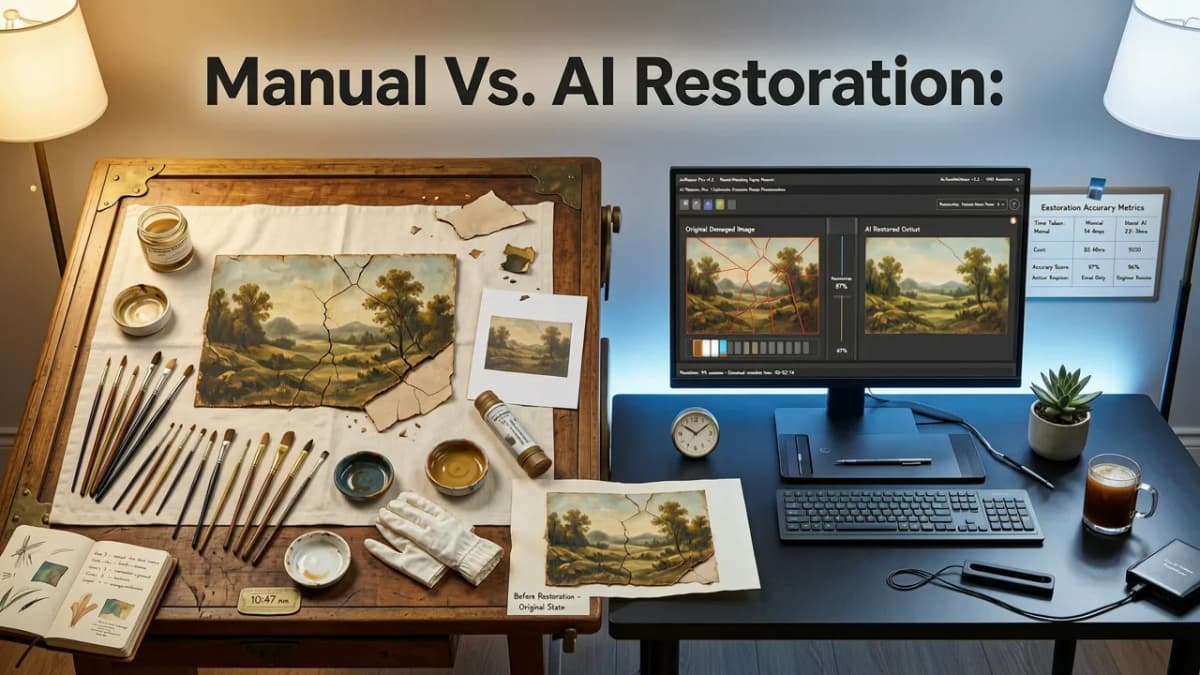
To understand just how much the landscape of digital photo repair has changed, take a look at how the old manual methods compare to the AI-driven workflows available today.
| Feature | Manual Editing (2010s) | AI Photo Restoration (2026) |
|---|---|---|
| Time Required | 30 minutes to several hours per photo | Less than 10 seconds per photo |
| Learning Curve | Steep; requires knowledge of cloning, masking, and layers | Zero; intuitive interfaces require no editing skills |
| Handling Blur | Limited; sharpening filters often add noise and halos | High; neural networks reconstruct facial features and textures |
| Colorization | Manual painting; highly subjective and time-consuming | Automated; trained on historical color accuracy |
| Cost | High (professional software or hiring a retoucher) | Low (accessible via web tools and mobile apps) |
Restoring on the Go: The Best AI Photo Restorer for iPhone in 2026
You do not always need to sit at a desktop computer to save your memories. If you are sorting through physical albums or just want to quickly fix a picture you found, mobile restoration is incredibly powerful right now. The Best AI Photo Restorer for iPhone in 2026 brings desktop-level neural processing directly to your pocket.
Mobile apps optimized for iOS can now process high-resolution scans locally or via secure cloud connections, meaning you can sharpen blurry photos and restore old family pictures while sitting on the couch. This is especially useful when you are digitizing a large batch of physical prints and want to immediately check the quality of the scan before moving on to the next page of the album.
Cleaning Up Distractions and Unwanted Objects
Restoration is not just about fixing blur and fading; it is also about cleaning up the image. Old photos often suffer from background clutter, accidental photobombers, or distracting elements that take away from the main subject. If you need to Remove Background Distractions Online, modern AI can isolate the subject and seamlessly blend the surrounding area.
For more specific issues, like a tear across a face or an unwanted object resting on a table in the background, an AI Object Remover is the perfect solution. These tools use contextual awareness to understand what should be behind the object, generating new pixels that match the lighting, shadow, and texture of the original scene perfectly.
Pro Tips for Getting the Best AI Restoration Results
While AI tools are incredibly smart, they still benefit from a little human guidance. Keep these best practices in mind to ensure your restored pictures look as natural and authentic as possible.
- Avoid Double Processing: Do not run an already enhanced image through the AI enhancer a second time. This can lead to over-sharpened features and unnatural skin textures.
- Scan in Color First: Even if the original photo is black and white, scan it in color. This preserves the true tonal values and prevents the scanner from introducing artificial contrast that the AI might misinterpret.
- Clean the Scanner Glass: It sounds simple, but dust and smudges on the scanner glass will be captured in the digital file. Wipe the glass with a microfiber cloth before scanning to give the AI a clean starting point.
- Use Creative Presets Sparingly: After the core restoration is done, you might be tempted to apply heavy artistic filters. Stick to subtle enhancements that respect the original era and style of the photograph.
Preserving Your Legacy with Modern Tools
Learning how to restore old family photos with AI in 2026 is no longer about mastering complex software; it is about choosing the right tool and letting the technology handle the heavy lifting. By combining a high-quality initial scan with advanced neural network upscaling and intelligent distraction removal, you can bring your most treasured memories back to life with stunning clarity.
Ready to see the difference for yourself? Whether you are working from a desktop or your mobile device, Pixelift offers the fast, intuitive, and precise AI enhancement you need to upscale low-resolution images, sharpen blurry photos, and fix faded pictures in seconds. Head over to the Pixelift web tool or download the iOS app today and start preserving your family history.
More on restoring old photos
The other articles on this topic are listed in the photo restoration guide.

2026-10-01
How to Restore Old Family Photos with AI in 2026
Learn how to restore old family photos with AI in 2026. Discover simple steps to fix scratches, enhance colors, and bring cherished memories back to life.

2026-08-30
Restore Old Photos AI Free — Upload & Revive Faded Family Pictures
Restore old photos AI free with Pixelift in 2026. Upload faded, scratched, or blurry family pictures and revive them in seconds — no editing skills required.

2026-08-16
Restore Old Family Photos Online in 2026: The Easy AI Guide
Learn how to restore old family photos online using AI in 2026. Fix scratches, fade, blur, and damage in minutes — no editing skills needed. Start today.
Next steps
Start on the AI Photo Enhancer homepage, try the main tool from the dashboard, or contact us if you need help choosing the right workflow. You can also explore localized pages like United Kingdom or Germany.