2026-10-16 · 8 min read
How to Unblur iPhone Photos in 2026: The Ultimate AI Guide
Learn how to unblur iPhone photos in 2026 using built-in tools and advanced AI enhancers. Restore sharp, clear images in seconds without editing skills.

Recommended next
Why Your iPhone Photos Get Blurry in 2026
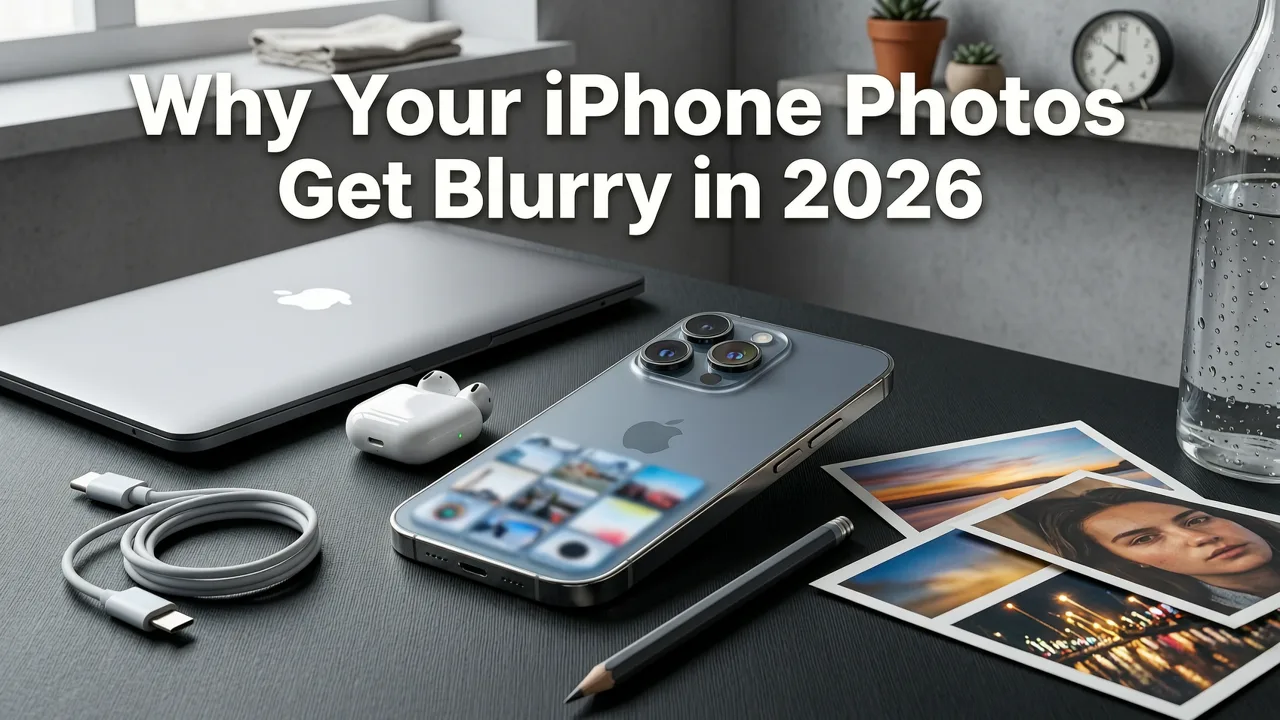
If you have ever tapped your camera roll to check a great shot, only to find it is completely out of focus, you know the frustration. Learning how to unblur iPhone photos in 2026 is easier than ever, thanks to advanced AI photo enhancers that can fix soft, pixelated, or out-of-focus images in seconds. Whether you are dealing with a shaky handheld shot, a low-light capture, or an old scanned picture, modern AI tools can reconstruct missing details and bring your memories back to life without requiring any complex editing skills.
Before diving into the solutions, it helps to understand why your iPhone pictures lose their sharpness in the first place. In 2026, smartphone cameras are incredibly advanced, but they still face physical limitations. The most common culprits behind blurry images include:
- Motion Blur: Happens when either the subject or your hands move during the exposure. Even the steadiest hands can cause slight shifts in low light, as the camera keeps the shutter open longer to gather light.
- Out-of-Focus Errors: The camera's autofocus might lock onto the background instead of your subject, or the subject might be too close to the lens for the macro capabilities to handle.
- Digital Zoom Compression: Pinching to zoom on your iPhone screen crops the image and stretches the pixels, resulting in a soft, pixelated look rather than true optical detail.
- Low-Resolution Compression: Sharing images through messaging apps or storing them in optimized cloud settings can strip away vital pixel data, leaving you with a degraded, blurry file.
How to Unblur iPhone Photos Using Built-in iOS Features
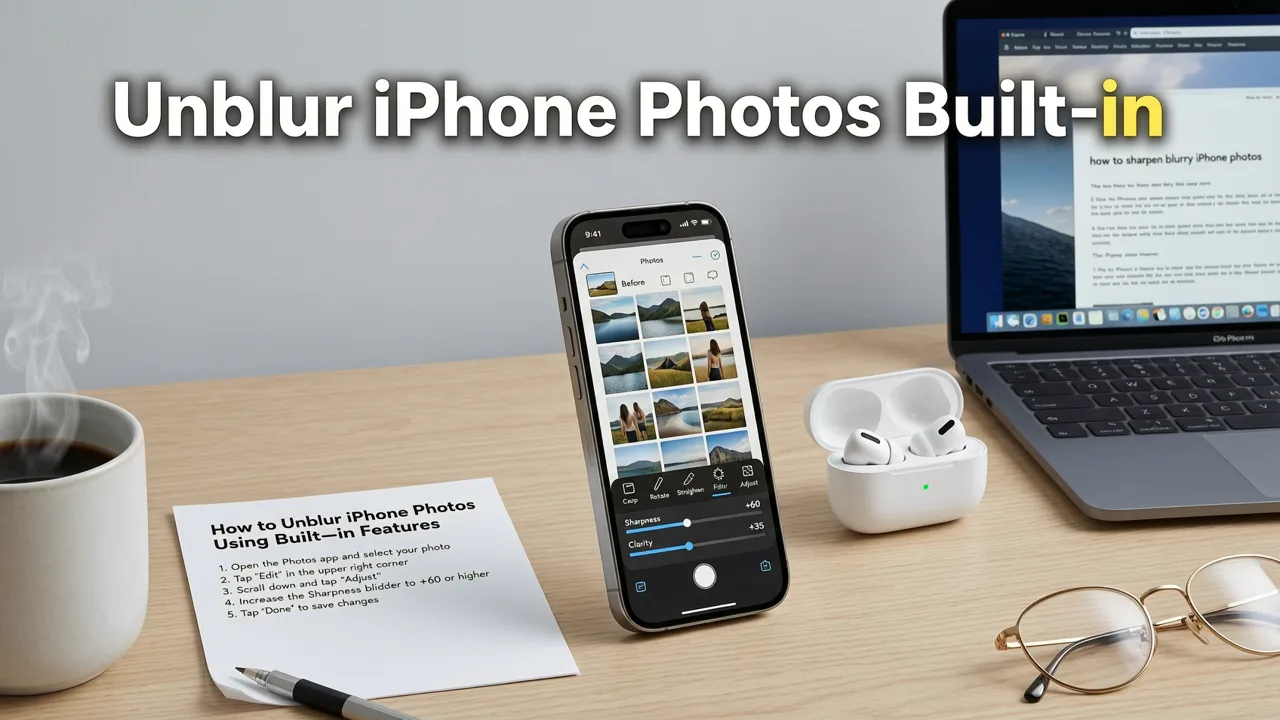
Apple includes a surprisingly robust set of editing tools directly inside the native Photos app. If you are dealing with minor softness or slight focus issues, you might be able to salvage the image without downloading anything extra.
The Native Sharpen Tool in Apple Photos
To access this, open your photo, tap Edit in the top right corner, and select the adjustment dial icon at the bottom. Scroll through the options until you find Sharpen and Definition. Dragging the Sharpen slider to the right enhances the contrast along the edges of objects, making them appear crisper. The Definition slider adds a localized contrast boost that can make details pop without introducing the harsh halos that older sharpening tools used to create.
Adjusting Clarity and Structure
Alongside sharpening, tweaking the Clarity and Brilliance sliders can help mask minor blur by bringing out mid-tone details. While these native tools are fantastic for giving a slightly soft photo a final polish, they have a major limitation: they cannot create new pixel data. If a face is completely blurred out or a texture is lost to heavy motion blur, the native iOS sliders will only amplify the existing blur, resulting in a noisy, unnatural image.
How to Unblur iPhone Photos with AI in 2026
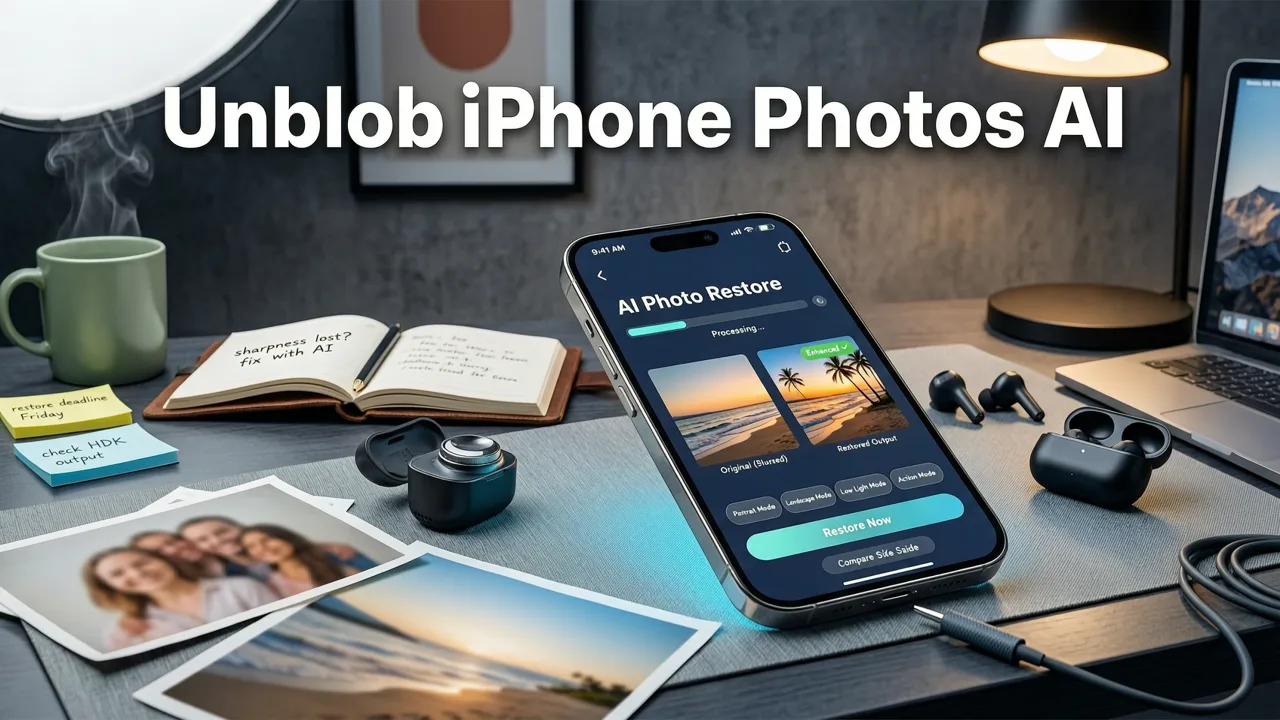
This is where artificial intelligence completely changes the game. Unlike traditional editing sliders that only adjust existing pixels, modern AI photo enhancers use generative models to understand what the image is supposed to look like. By analyzing millions of high-quality reference images, the AI can intelligently reconstruct missing textures, sharpen facial features, and remove noise, effectively unblurring photos that traditional tools would give up on.
Why AI Photo Enhancers Work Better Than Manual Editing
In 2026, AI models are specifically trained on real-world degradation patterns, including the exact type of compression and softness introduced by smartphone sensors. When you use a tool like Pixelift, the software identifies whether the blur is caused by motion, lack of focus, or low resolution. It then applies targeted adjustments—rebuilding eyelashes, sharpening fabric textures, or clarifying background elements—while keeping the image looking entirely natural.
Step-by-Step: Unblurring iPhone Pics with Pixelift
Pixelift is designed specifically for users who want professional results without learning complicated software. Here is how you can fix your blurry pictures in just a few taps:
- Upload Your Image: Open the Pixelift web tool or iOS app and select the blurry photo from your camera roll. The platform accepts all standard image formats and sizes.
- Select Your Enhancement Goal: Choose the Smart Mode for a one-click fix, or select specific enhancements like Face Recovery for portraits, or General Sharpening for landscapes and product shots.
- Review and Download: The AI processes the image in seconds. You can toggle between the original and enhanced versions to see the difference. Once you are happy with the sharp, clear result, simply download it back to your iPhone.
Native iOS Tools vs. AI Photo Enhancers: A Quick Comparison
To help you decide which route is best for your specific image, here is a breakdown of how native Apple tools compare to dedicated AI enhancement software.
| Feature | Native iOS Photos App | AI Photo Enhancers (e.g., Pixelift) |
|---|---|---|
| Primary Function | Adjusts existing pixels (contrast, edges) | Reconstructs missing pixels using generative AI |
| Best For | Minor softness, final polishing | Heavy blur, out-of-focus faces, low-res images |
| Learning Curve | Low, but requires manual tweaking | Zero, fully automated one-click processing |
| Handling Severe Blur | Creates noise and unnatural halos | Rebuilds details naturally and cleanly |
| Additional Tools | Basic color and light adjustments | Magic Remover, Creative Presets, old photo restoration |
How to Fix Specific Types of Blur on Your iPhone
Different types of blur require slightly different approaches. Understanding the root cause of your blurry picture will help you choose the right tool for the job.
Fixing Old or Scanned Family Pictures
If the blur is coming from an old physical photograph that you scanned or took a picture of with your iPhone, the issue is usually a mix of focus problems and degraded paper texture. Standard sharpening will just make the paper grain look worse. Instead, you need a specialized restoration workflow. You can learn the exact workflow for this in our guide on How to Restore Old Photos on iPhone in 2026, which covers how AI separates the subject from the background noise to deliver a pristine result.
Dealing with Low-Resolution Cloud Images
Sometimes, your photos look blurry not because of the camera, but because of how they are stored. If you use optimized storage settings, your iPhone keeps low-resolution versions on your device to save space. When you try to edit or zoom in on these, they look terrible. If you are trying to Upscale Low-Res Photos from iCloud Instantly (2026), AI upscalers are the perfect solution. They take those compressed, low-resolution files and mathematically rebuild the missing high-frequency details, turning a soft thumbnail into a crisp, printable image.
Rescuing Heavily Pixelated Shots
If you accidentally used digital zoom or cropped an image too tightly, you are left with a blocky, pixelated mess. Traditional editing cannot fix this, but diffusion-based AI can. For a deeper dive into the technology and a complete walkthrough, check out the How to Upscale Blurry Photo in Seconds — AI Guide 2026. It explains exactly how modern algorithms predict and fill in the gaps between pixels to restore natural textures.
Pro Tips for Capturing Sharper iPhone Photos Next Time
While AI is incredibly powerful and can save almost any blurry photo, capturing a sharp image in the first place always yields the best results. Here are a few friendly tips to keep your camera roll sharp:
- Wipe Your Lens: It sounds simple, but a smudge of fingerprint oil on your iPhone lens is the number one cause of soft, hazy, and blurry photos. Give it a quick wipe with a microfiber cloth before shooting.
- Tap to Focus: Do not let the camera guess. Tap the screen directly on your subject's face or the main object to lock the autofocus and adjust the exposure simultaneously.
- Use the Volume Buttons: Tapping the on-screen shutter button can cause the phone to shift slightly, introducing motion blur. Use the physical volume buttons on the side of your iPhone, or enable the raised shutter button in the settings for a more stable grip.
- Avoid Digital Zoom: Pinching the screen to zoom in crops the sensor data. Instead, physically move closer to your subject, or use the dedicated optical zoom lenses (like the 3x or 5x telephoto) available on newer iPhone models.
- Steady Your Hands: In low light, the camera slows down the shutter speed. Tuck your elbows into your ribs or lean against a wall to create a stable base and eliminate handshake blur.
Final Thoughts on Fixing Blurry iPhone Images
Knowing how to unblur iPhone photos in 2026 means understanding the limits of traditional editing and embracing the power of artificial intelligence. While the native Apple Photos app is great for minor tweaks, AI photo enhancers like Pixelift offer a true safety net for your most important memories. Whether you are trying to save a priceless old family portrait, fix a blurry product shot for your online store, or just rescue a cute photo of your pet that came out slightly out of focus, modern AI tools can reconstruct the details you thought were lost forever.
Ready to bring your soft, pixelated, or out-of-focus images back to life? Explore the Pixelift web tool or download the iOS app today to experience the magic of AI photo enhancement. With just one tap, you can turn your blurry mistakes into sharp, vibrant masterpieces.