2026-09-02 · 10 min read
How to Fix Blurry Photo Online Instantly in 2026
Learn how to fix blurry photo online using AI tools in 2026. Sharpen, upscale, and restore low-quality images in seconds — no editing skills required.

Recommended next
How to Fix Blurry Photo Online Instantly in 2026

You snap a photo, tap the screen to review it, and — ugh — everything's out of focus. Or maybe you found an old family picture that's soft, grainy, or just plain blurry. Either way, you want to fix blurry photo online fast, without downloading heavy software or learning Photoshop. The good news? In 2026, AI-powered tools can sharpen, upscale, and restore blurry images in seconds, right from your browser or phone.
This guide walks you through exactly how to fix a blurry photo online, why AI has made this dramatically easier than it used to be, and which approach works best for different types of blur — from out-of-focus portraits to pixelated product shots and faded family snapshots.
Why Do Photos Get Blurry in the First Place?

Before jumping into fixes, it helps to understand what's actually wrong with your image. Different types of blur require different solutions, and knowing the cause will help you pick the right tool.
Camera Shake and Motion Blur
This happens when the camera moves during exposure. The result is a smeared, streaky look across the entire frame. It's the most common type of blur in low-light photos taken handheld.
Out-of-Focus Blur
The lens simply missed the subject. Faces look soft, edges lack definition, and the image feels like it was shot through frosted glass. This is especially frustrating with portraits where the eyes should be razor-sharp.
Low Resolution and Upscaling Artifacts
Sometimes the photo isn't technically blurry — it's just too small. When you zoom in or print a low-resolution image, you see blocky pixels and soft edges. This is common with screenshots, old digital camera files, and images saved from social media.
Aging and Degradation
Old printed photos that have been scanned often suffer from a combination of blur, fading, scratches, and noise. These need more than a simple sharpen filter — they need intelligent restoration.
How to Fix Blurry Photo Online: The AI Approach
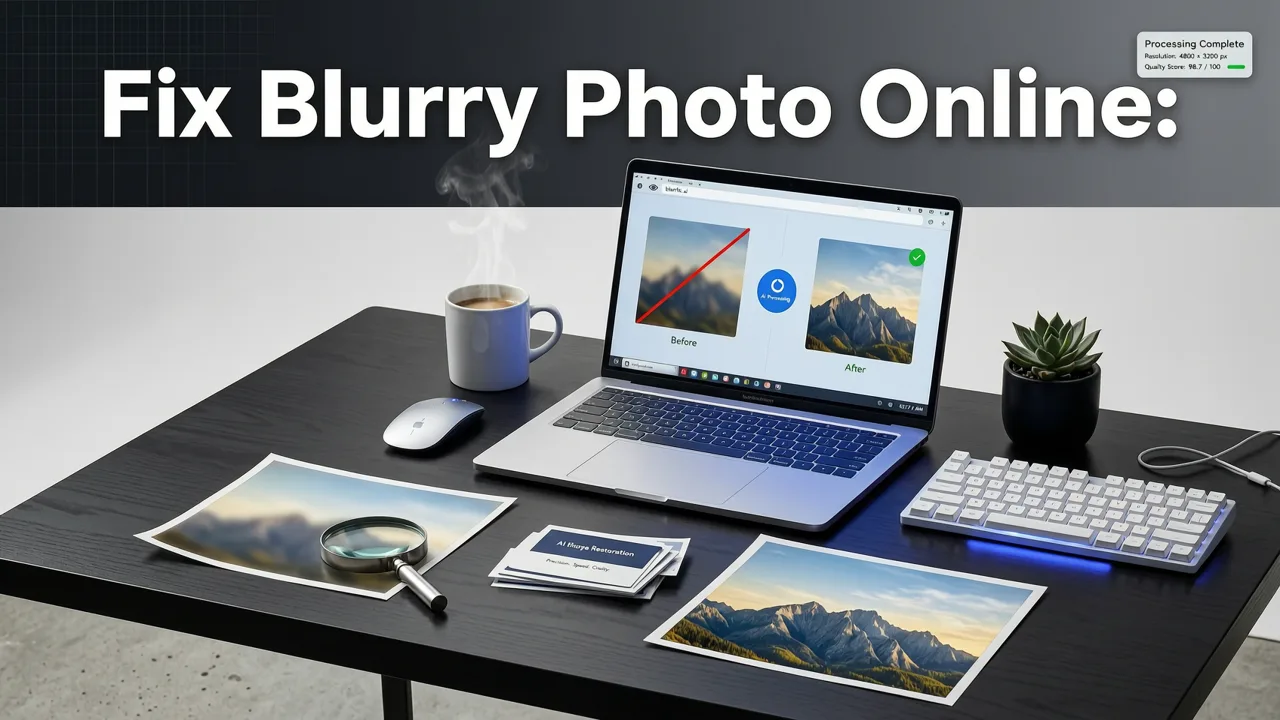
Traditional photo editors rely on sharpening filters that boost edge contrast. They can help a little, but they also amplify noise and create ugly halos around objects. In 2026, the best way to fix blurry photo online is with AI that understands what the image is supposed to look like.
AI photo enhancers like Pixelift use deep learning models trained on millions of images. Instead of just sharpening edges, they reconstruct missing detail — rebuilding facial features, sharpening textures, and restoring color accuracy. The result looks natural because the AI is filling in gaps based on what it has learned about real-world objects and scenes.
Step-by-Step: Fix a Blurry Photo with Pixelift
- Go to Pixelift online — no download, no account required to start.
- Upload your blurry image — drag and drop or select from your device.
- Choose the enhancement mode — sharpen, upscale, restore, or apply a creative preset.
- Review the result — the AI processes your image in seconds.
- Download the enhanced photo — in full resolution, ready to share or print.
That's it. Five steps, under a minute, zero editing experience needed.
What Type of Blur Are You Dealing With?
Not all blur is created equal. Here's a quick reference to help you match your problem with the right fix.
| Type of Blur | Common Cause | Best Fix |
|---|---|---|
| Motion blur | Camera shake during exposure | AI sharpening + detail reconstruction |
| Out of focus | Lens missed the subject | Face-aware AI restoration |
| Low resolution | Small file, pixelated when enlarged | AI upscaling (2x, 4x, or higher) |
| Aged/scan blur | Old print degradation + scanning | Full restoration: sharpen + color + scratch removal |
| Compression artifacts | Saved at low quality (JPEG, social media) | AI enhancement + noise reduction |
Fix Blurry Portraits Without Losing Identity
Portraits are the trickiest category. A generic sharpening filter can make a face look crisp but wrong — altering the shape of the eyes, the curve of the jaw, or the texture of the skin in ways that destroy the person's likeness.
This is where face-aware AI matters. Pixelift's enhancement engine detects facial landmarks and reconstructs features based on what it knows about human faces. It preserves identity while removing blur, so your grandmother's 1978 portrait still looks like your grandmother — just sharper, with better lighting and color.
If you're working specifically with old family photos, you'll want to check out the full breakdown in our guide on the best AI photo restorer for family pictures in 2026.
How to Fix Blurry Photo Online for Product Photography
Blurry product photos cost money. If you run an online store, a soft or pixelated product image directly reduces buyer confidence and conversion rates. In 2026, you don't need a professional studio reshoot to fix this.
Common Product Photo Issues AI Can Fix
- Soft focus from handheld shooting or cheap lenses
- Low resolution from supplier images or marketplace downloads
- Poor lighting that washes out colors or creates harsh shadows
- Background distractions that pull attention from the product
Pixelift handles all of these in a single pass. The AI sharpens product edges, restores true-to-life color, and improves overall clarity. You can also use the Magic Remover feature to clean up dust, scratches, or unwanted objects from the background.
Upscaling vs. Sharpening: Which Do You Actually Need?
People often search for "fix blurry photo online" when what they really need is to make a small image bigger. Others need genuine sharpening. Here's the difference.
Sharpening
Sharpening improves the clarity and edge definition of an image at its current resolution. It's the right fix when your photo is the right size but looks soft, hazy, or slightly out of focus.
Upscaling
Upscaling increases the resolution of an image while adding new detail. It's the right fix when your photo is too small to print, share at full quality, or display on a high-resolution screen without looking pixelated.
In practice, many blurry photos benefit from both. Pixelift combines sharpening and upscaling in a single workflow, so you get a larger, sharper image without the noise and artifacts that traditional methods produce. For a deeper comparison of upscaling tools this year, take a look at our best AI photo upscaler 2026 guide.
Can You Fix Blurry Photos from Google Search Results?
A common question we see: "I found a blurry photo on Google. Can I fix it directly from the search results?" The short answer is no — Google doesn't give you access to the original high-resolution file. It only shows a compressed preview. You'll need to find the original source or work with whatever resolution is available.
For a complete walkthrough of what you can and can't do with images found through Google, read our guide on whether you can restore a blurry photo from Google Search.
Restoring Old and Faded Photos Alongside Blur
Blur rarely travels alone in old photos. Faded colors, scratches, dust spots, and yellowing are almost always part of the package. If you're working with scanned prints or inherited family albums, you need a tool that handles the full restoration — not just sharpening.
Pixelift's restoration mode addresses blur, color fading, noise, and physical damage in one pass. The AI rebuilds lost detail while keeping the character of the original photograph intact. For a focused guide on bringing color back to washed-out prints, see our article on how to restore faded photos online with no download needed.
Fix Blurry Photo Online: Free vs. Paid Tools in 2026
The internet is packed with free "fix blurry photo" tools. Most of them apply a basic sharpening filter and call it AI. Here's what to watch for when comparing options.
| Feature | Basic Free Tools | AI-Powered Tools (e.g., Pixelift) |
|---|---|---|
| Sharpening method | Simple contrast boost | Deep learning detail reconstruction |
| Face handling | None — faces often look over-processed | Face-aware restoration preserving identity |
| Upscaling | Rarely included or limited to 2x | Up to 4x with natural detail generation |
| Noise handling | Sharpening often increases noise | Simultaneous noise reduction and sharpening |
| Old photo restoration | Not available | Full restoration: blur, fade, scratches, color |
| Platform | Usually web only | Web + iOS app |
Free tools can work for a quick fix on a social media post. But if you care about the result — for printing, professional use, or preserving family memories — AI-powered restoration delivers a noticeably different quality.
Tips for Getting the Best Results When You Fix Blurry Photos Online
Even with powerful AI, a few simple practices will improve your outcomes.
- Upload the highest quality source you have. If you're scanning an old print, scan at 600 DPI or higher. The AI works best with maximum input data.
- Don't over-process. One pass through a good AI enhancer is usually better than running the image through multiple tools. Each generation can introduce artifacts.
- Check the result at 100% zoom. What looks good at thumbnail size may reveal issues when viewed full resolution.
- Use the right mode for the job. Sharpening mode for slightly soft photos, upscaling for small images, full restoration for old or damaged prints.
- Save in the highest quality format. PNG or maximum-quality JPEG to preserve the AI's improvements.
Why Pixelift Works for People Who Don't Edit Photos
Let's be honest — most people searching for how to fix blurry photo online don't want to learn photo editing. They don't want to understand layers, masks, or adjustment brushes. They want to upload a photo, click a button, and get a better version back.
That's exactly how Pixelift is built. The interface is stripped down to the essentials: upload, choose your enhancement, download. There are no confusing sliders or technical jargon. The AI handles every decision about how much sharpening to apply, where to reconstruct detail, and how to balance noise reduction.
It's available as a web tool you can use from any browser, and as an iOS app for on-the-go editing. Whether you're on a laptop at your desk or scrolling through your camera roll on the couch, fixing a blurry photo takes seconds.
Common Uses for Fixing Blurry Photos Online
People use AI photo enhancement for all sorts of situations. Here are some of the most common:
- Saving a favorite photo that came out slightly out of focus
- Preparing images for print — enlarging a small file for a poster, canvas, or photo book
- Restoring family heirlooms — old prints, damaged negatives, faded albums
- Improving product photos for e-commerce listings and marketing
- Enhancing social media content — making casual shots look more polished
- Recovering details from screenshots or images saved from messaging apps
The Bottom Line on Fixing Blurry Photos in 2026
The technology for fixing blurry photos has matured significantly. You no longer need expensive software, professional retouchers, or any technical skill to turn a soft, pixelated, or damaged image into something sharp and usable. AI handles the heavy lifting — understanding what your photo should look like and reconstructing the missing detail accordingly.
Whether you're rescuing a cherished family portrait, polishing product images for your store, or just trying to save that one photo from last weekend that didn't quite come out right, the tools are faster, smarter, and more accessible than ever.
Ready to see the difference? Head over to Pixelift and fix your first blurry photo online in seconds — no download, no account, no editing experience required.