
Published by PixeLift · · 6 min read
How to Upscale Image Without Losing Quality Fast in 2026
Learn how to upscale image without losing quality in 2026. Discover the best AI methods to enlarge low-resolution photos while keeping details sharp.
This article is part of our guide to upscaling low-resolution images with AI.

Recommended next
Why Traditional Upscaling Ruins Photo Quality
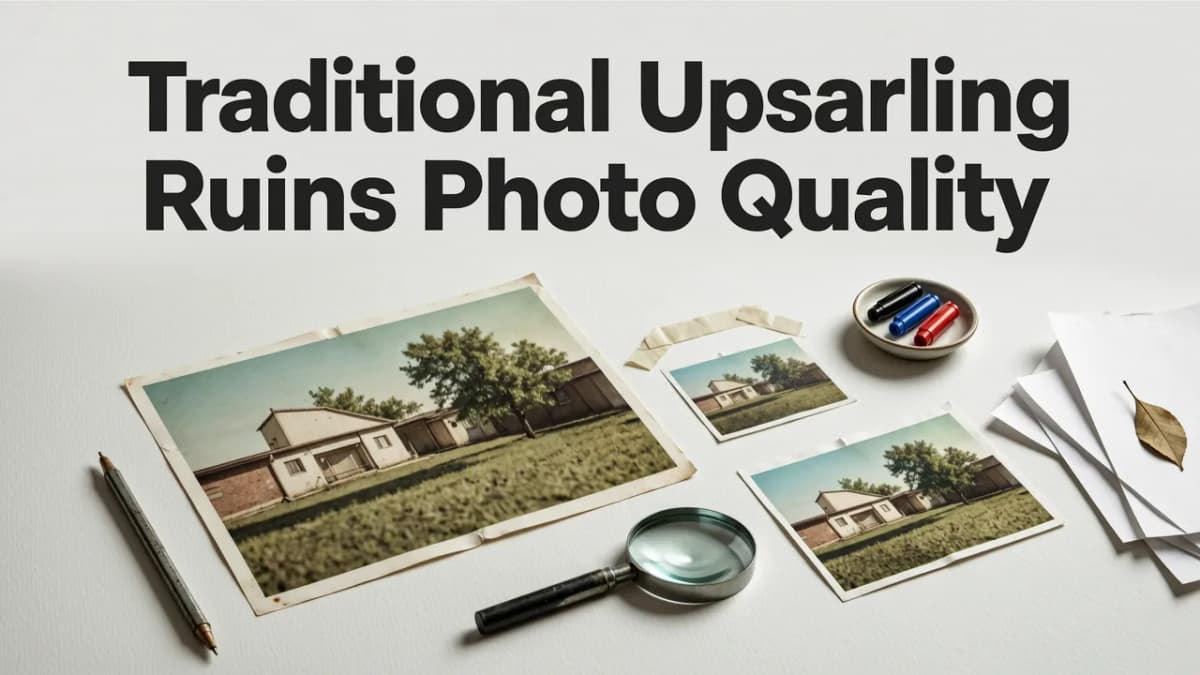
If you have ever tried to enlarge a small picture for a print or a high-resolution display, you already know the frustration. The moment you stretch a low-resolution file, the details turn into a blocky, blurry mess. For decades, the standard approach to increase resolution relied on basic mathematical algorithms like bicubic or nearest-neighbor interpolation. These older methods simply guess the missing pixels by averaging the colors of the surrounding ones. While this works fine for simple graphics, it completely fails when applied to complex photography, portraits, or detailed landscapes.
The result is a soft, smeared image that lacks definition. Traditional methods cannot invent missing data; they can only stretch what is already there. If you want to truly upscale image without losing quality, you have to move beyond basic pixel stretching and embrace modern artificial intelligence.
How to Upscale Image Without Losing Quality Using AI
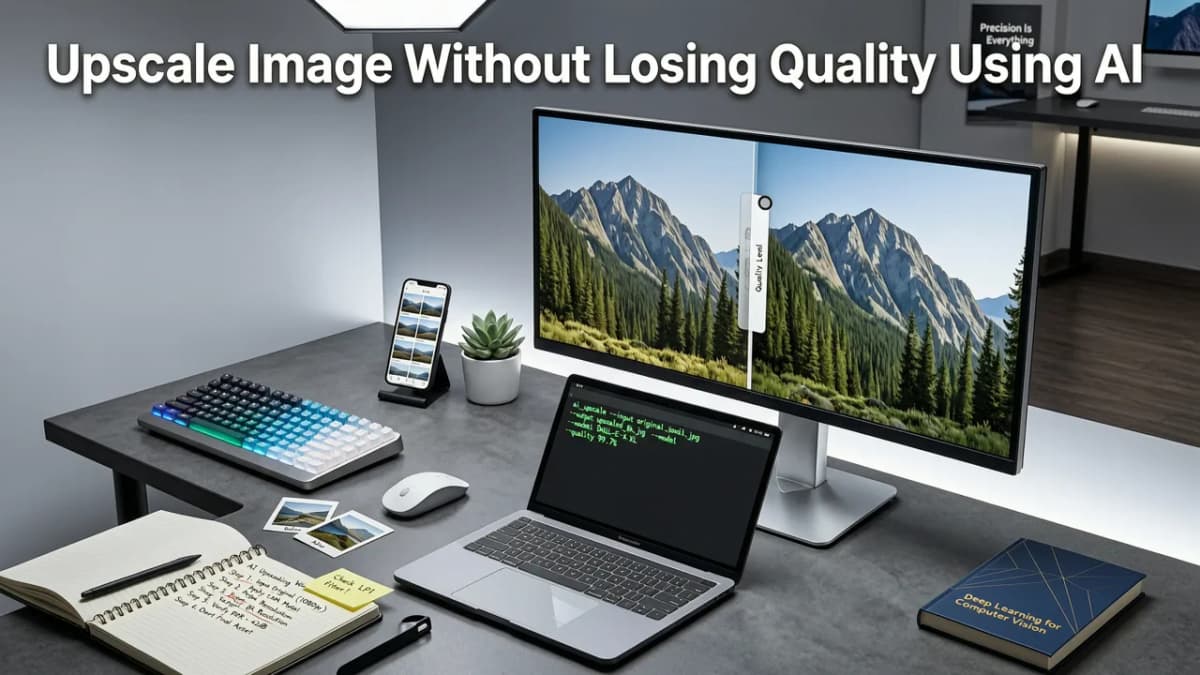
In 2026, the secret to enlarging photos while maintaining crisp edges and natural textures lies in AI-powered super-resolution. Instead of just guessing pixel colors, an AI image upscaler analyzes the entire image, recognizes the objects within it, and reconstructs missing details based on deep learning models trained on millions of high-quality photographs.
Here is the step-by-step process to achieve flawless results when you need to sharpen photos and boost their resolution.
Step 1: Choose a Dedicated AI Upscaler
The first step is selecting a tool built specifically for AI enhancement. Look for platforms that utilize advanced neural networks rather than basic filters. Modern web-based tools and dedicated mobile apps allow you to process files directly in your browser or on your phone, eliminating the need for heavy desktop software. Whether you are working from a desktop or need to fix a blurry photo on an iPhone, choosing a specialized AI tool ensures the engine is optimized for photographic detail.
Step 2: Let the AI Analyze and Reconstruct
Once you upload your low-resolution file, the AI goes to work. This phase involves several critical background processes:
- Noise Reduction: The system identifies and removes digital grain and compression artifacts that usually become more obvious when an image is enlarged.
- Feature Recognition: The algorithm identifies specific elements like human faces, foliage, textures, and architectural lines.
- Detail Synthesis: Using its training data, the AI generates new, highly accurate pixels to fill in the gaps, effectively restoring old pictures and adding natural micro-contrast.
This intelligent reconstruction is what allows you to upscale image without losing quality. The AI does not just stretch the existing pixels; it rebuilds the image at a higher resolution.
Step 3: Fine-Tune and Export
After the initial processing, review the enhanced version. Most advanced tools allow you to adjust the enhancement strength or choose between different scale factors, such as 2x or 4x. Once you are satisfied with the clarity and detail, export the file in a lossless format like PNG or a high-quality JPEG to preserve all the newly generated data.
Traditional vs. AI Upscaling: A Quick Comparison
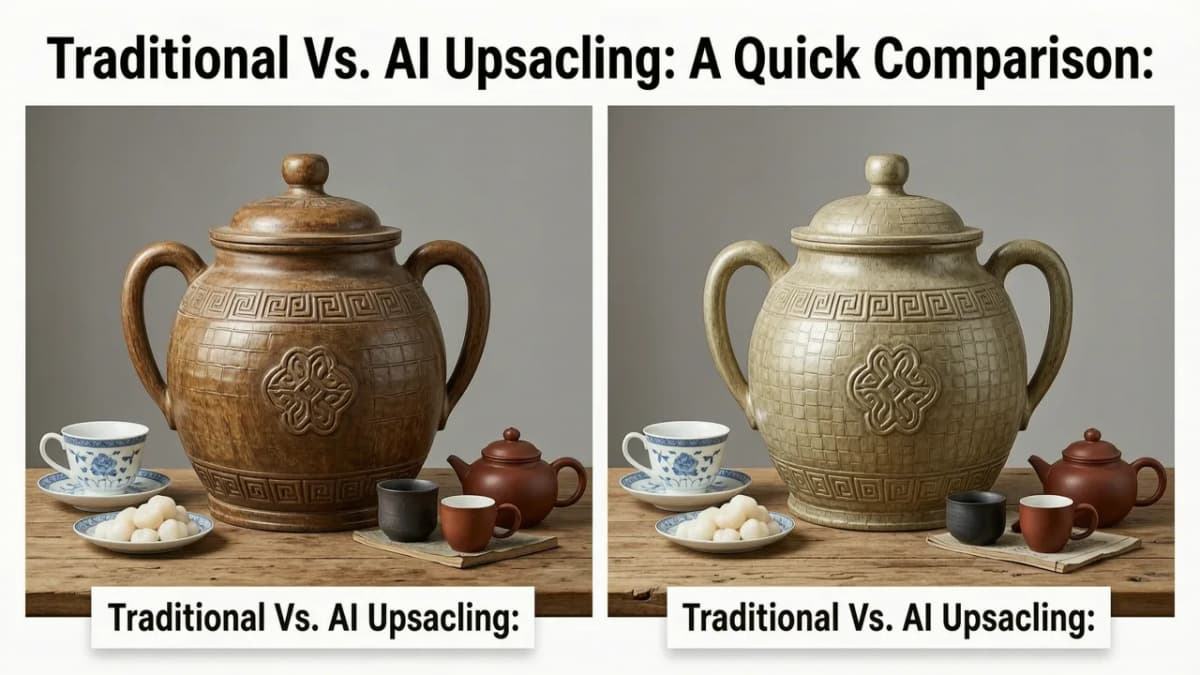
To understand why AI has completely changed the landscape of photo enhancement, it helps to compare it directly with older methods. Here is a breakdown of how the two approaches differ in 2026.
| Feature | Traditional Interpolation | AI Super-Resolution |
|---|---|---|
| Core Mechanism | Mathematical averaging of existing pixels | Deep learning and detail reconstruction |
| Detail Handling | Blurs and softens edges | Sharpens and synthesizes new textures |
| Noise Management | Amplifies existing grain and artifacts | Actively reduces noise and compression blocks |
| Face Recovery | Results in smeared, unrecognizable features | Restores natural facial structures and eyes |
| Best Use Case | Simple vector graphics or solid colors | Portraits, landscapes, and old family photos |
Pro Tips for the Best Results
While AI tools are incredibly powerful, the quality of your final output still depends on how you prepare and process the file. Follow these expert tips to ensure your enlarged photos look their absolute best.
Clean the Image Before Upscaling
If your source photo has unwanted elements, it is always better to remove them before you increase the resolution. Upscaling a photo with a distracting object will just make that object larger and sharper. If you need to remove a watermark from a photo online or clear out background clutter, do it first. Once the canvas is clean, the AI can focus entirely on enhancing the actual subject matter.
Use Magic Tools for Distractions
Sometimes, the issue is not just resolution, but minor distractions in the frame. Modern AI suites often include specialized cleanup tools. For instance, understanding what magic remover tools do for photos can help you instantly erase power lines, photobombers, or blemishes without leaving unnatural smudges. A clean base image always yields a more realistic upscaled result.
Optimize for Your Specific Device
Not all workflows are the same. If you are shooting and editing on the go, you need mobile-optimized solutions. You can easily upscale low-res photos on Android using dedicated apps that bring desktop-level AI processing directly to your smartphone. Mobile tools are specifically designed to handle the unique compression and lighting issues common in phone cameras.
Common Mistakes to Avoid
Even with the best technology, a few common pitfalls can ruin your final image. Keep these in mind to maintain professional-quality results.
- Over-Upscaling: Pushing an image to 8x or 16x when a 2x or 4x enlargement is sufficient. Over-processing can introduce artificial textures. Stick to the scale that meets your output requirements.
- Ignoring Lighting First: AI can fix blur and resolution, but it cannot fix fundamentally terrible lighting. Adjust your exposure and color balance before running the upscaling process.
- Using the Wrong Export Settings: Saving a beautifully restored 4K image as a low-quality compressed file defeats the entire purpose. Always export at the highest quality settings available.
Bringing Old Memories Back to Life
One of the most rewarding uses for this technology is the ability to restore old pictures. Scanned physical prints often suffer from low resolution, faded colors, and physical damage. By combining AI upscaling with color restoration and noise reduction, you can take a tiny, degraded scan and turn it into a vibrant, high-resolution digital file ready for modern displays or large-format printing.
The technology has evolved from simple pixel stretching to intelligent scene reconstruction. Whether you are trying to save a cherished family portrait, prepare a product shot for an e-commerce store, or just want a sharper profile picture, the right AI approach makes it effortless.
Conclusion
Learning how to upscale image without losing quality is no longer about mastering complex desktop software or accepting blurry results. With modern AI super-resolution, you can enlarge low-resolution photos, fix blurry pictures, and restore old memories in seconds. The key is to choose a dedicated AI tool, clean up your image first, and let the neural networks handle the heavy lifting.
Ready to see the difference for yourself? Try the Pixelift web tool or download the iOS app to start sharpening your photos and bringing your low-resolution images into stunning, high-definition clarity today.
More on upscaling images
The other articles on this topic are listed in the upscaling guide.

2026-09-04
How to Upscale Old Photo Without Losing Quality (2026 Guide)
Learn how to upscale old photo without losing quality in 2026. Discover AI-powered steps, tools, and tips to restore and enlarge vintage pictures sharply.

2026-08-24
Upscale Low Resolution Image Without Quality Loss (2026 Guide)
Learn how to upscale low resolution image files in 2026 using AI. Sharpen blurry photos, restore old pictures, and boost clarity without editing skills.

2026-10-28
How to Upscale Low Resolution Images with AI in 2026
Learn how to upscale low resolution images using AI in 2026. Discover simple, no-skill methods to enlarge photos without losing quality or adding blur.
Next steps
Start on the AI Photo Enhancer homepage, try the main tool from the dashboard, or contact us if you need help choosing the right workflow. You can also explore localized pages like United Kingdom or Germany.