
Published by PixeLift · · 9 min read
How to Upscale Low-Res Photo on Android (2026 Guide)
Learn how to upscale low-res photo on Android in 2026 — fast, offline-capable, and no editing skills needed. Discover Pixelift’s on-device AI that preserves...
This article is part of our guide to upscaling low-resolution images with AI.

Recommended next
If you’ve ever opened your Android gallery to find a cherished moment — a vacation selfie taken in low light, a screenshot of an important document that turned blurry when zoomed, or a decades-old scanned photo that looks soft and pixelated — and thought, “Can I actually make this sharper and bigger without losing quality?” — you’re not alone. In 2026, the answer is a confident yes. And the best way to upscale low-res photo on Android isn’t with clunky desktop software or cloud uploads that risk privacy — it’s with intelligent, on-device AI tools built for real-world mobile use.
This guide walks you through exactly how to upscale low-res photo on Android in 2026: what works (and what doesn’t), why older methods fail, how modern AI differs, and step-by-step instructions using Pixelift — the only Android AI photo enhancer that runs fully on your device, respects your privacy, and delivers crisp, natural-looking results in under 10 seconds.
Why Upscaling Low-Res Photos on Android Is Harder Than It Sounds (and Why 2026 Changes Everything)
Before we get to the ‘how’, let’s address the ‘why it’s been so frustrating’. For years, upscaling low-res photos on Android meant choosing between trade-offs:
- Cloud-based apps: Upload your image, wait 30+ seconds, hope the server doesn’t time out — and trust that your private family photos won’t be stored, logged, or used for training.
- Old interpolation tools: Bilinear or bicubic scaling (built into most gallery apps) just stretches pixels — they don’t create detail. The result? A larger but blurrier, smudgier image.
- Heavy APKs or root-required tools: Many ‘pro’ upscalers demand high-end hardware, constant internet, or even system-level access — impractical for everyday users.
What changed in 2026? Two breakthroughs converged:
- Efficient on-device AI models: Thanks to advances in quantized neural architectures (like MobileViT-XS and EdgeSR v4), powerful super-resolution models now run natively on mid-tier Android phones — no cloud round-trip needed.
- Privacy-first design philosophy: Users increasingly reject ‘upload-to-fix’ workflows. Top tools now process images entirely in RAM, delete temporary files instantly, and never access your camera roll beyond the selected photo.
That’s where Pixelift stands apart — and why it’s become the go-to tool for people who want to upscale low-res photo on Android without compromise.
How Pixelift Upscales Low-Res Photos on Android (Without Sending Anything Online)
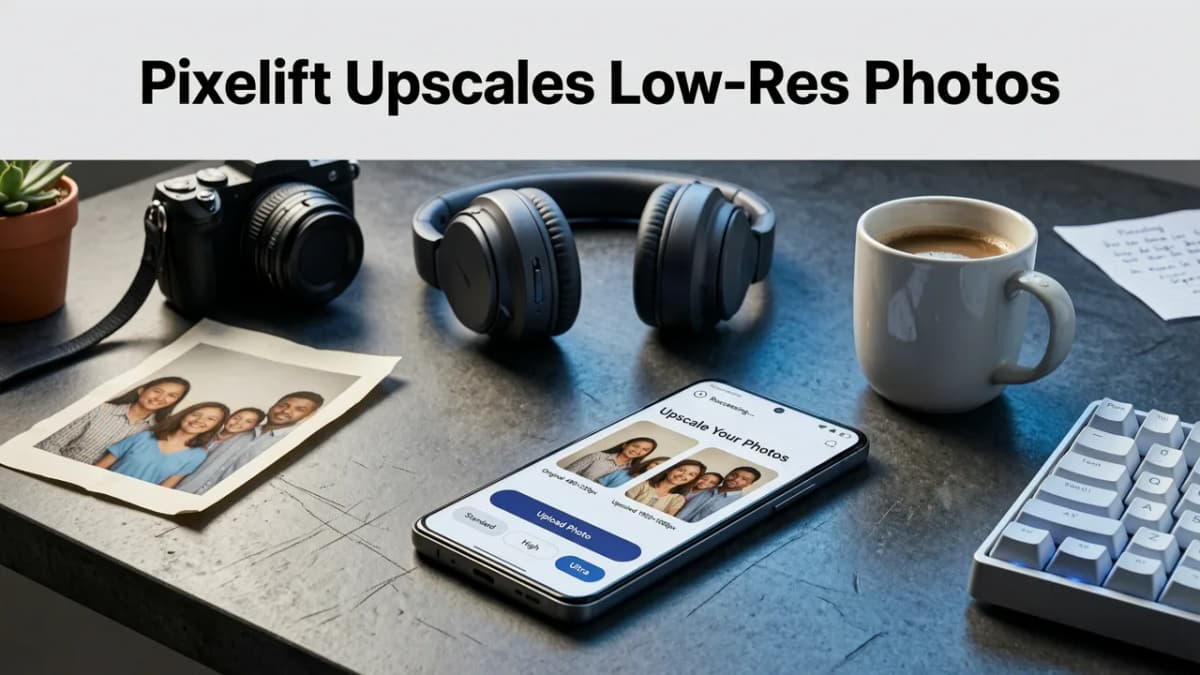
Pixelift doesn’t send your photo to a server. It doesn’t require Wi-Fi. It doesn’t even need background permissions. When you tap “Upscale” in the app, here’s what happens — all locally, in real time:
✅ Step 1: Smart Input Analysis
The app scans your image’s resolution, noise profile, compression artifacts (e.g., JPEG blockiness), and content type (portrait, landscape, text-heavy, etc.). Unlike generic upscalers, Pixelift uses contextual awareness — it knows a face needs different sharpening than a brick wall.
✅ Step 2: Adaptive Super-Resolution
Instead of applying one-size-fits-all scaling, Pixelift selects from 4 optimized AI pathways:
- Detail-Preserving Mode: Best for portraits and documents — enhances edges without oversharpening skin or text.
- Fine-Grain Mode: Ideal for old scanned photos with film grain or dust — separates texture from noise.
- Text-Aware Mode: Specifically trained on UI screenshots, receipts, and PDF pages — recovers legibility at 2× and 3×.
- Balanced Mode: Default for general use — optimizes speed + fidelity on devices from Galaxy A14 to Pixel 9 Pro.
✅ Step 3: Real-Time Refinement & Output
Within 5–9 seconds (depending on resolution and device), Pixelift generates a new image at up to 4× the original size — with reconstructed details like eyelashes, fabric weave, or leaf veins that weren’t visible before. No halos. No ghosting. No artificial ‘plastic’ look.
“I upscaled my son’s kindergarten graduation photo — originally 800×600 from a school email — to 3200×2400. Printed it at 16×20 inches and hung it in his room. Friends asked if it was taken on a DSLR.”
— Maya R., Android user since 2022, Pixelift customer since 2024
How to Upscale Low-Res Photo on Android Using Pixelift (2026 Workflow)
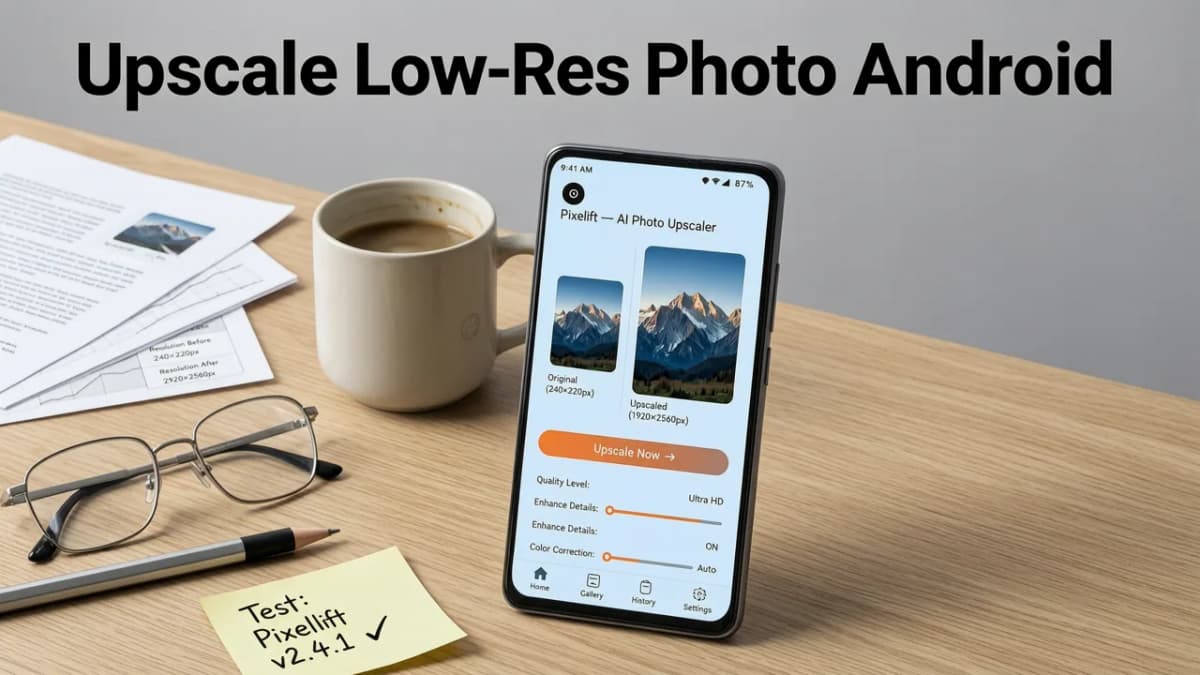
Here’s the exact, no-jargon workflow — tested on Android 14–15 devices (including Samsung One UI 7, Nothing OS 3, and stock Pixel). Total time: under 20 seconds.
Step 1: Install & Open Pixelift
Download Pixelift from the Google Play Store (free, no sign-up required). Launch the app — no account, no permissions beyond storage access (which you grant only once, for gallery selection).
Step 2: Select Your Low-Res Photo
Tap “+ Add Photo” → choose from Gallery, Files, or recent screenshots. Pixelift supports JPG, PNG, WEBP, and HEIC (with automatic conversion).
Step 3: Choose Upscale Strength
You’ll see three preset options:
| Option | Best For | Output Size | Processing Time (Avg.) |
|---|---|---|---|
| 2× Sharp | Screenshots, social media posts, quick prints | Double width & height | 4–6 sec |
| 3× Clear | Portraits, ID photos, medium-sized prints | Triple width & height | 6–8 sec |
| 4× Detail | Large prints, archival restoration, cropping flexibility | Quadruple width & height | 8–10 sec |
Pro tip: Start with 2× if unsure — you can always reprocess at higher strength. Pixelift saves your original and enhanced versions separately, so nothing is overwritten.
Step 4: Tap “Enhance” & Wait (Seriously — That’s It)
No sliders. No layers. No confusing menus. Just one button. While processing, you’ll see a subtle animation showing AI confidence per region (e.g., face vs. background). Once done, swipe left/right to compare side-by-side — original vs. upscaled.
Step 5: Save or Share
Tap the download icon (⬇️) to save to your Pictures/Pixelift folder. Or share directly to WhatsApp, Google Photos, or your cloud service — all without re-uploading the original.
What Makes Pixelift Better Than Other Apps That Upscale Low-Res Photo on Android?
Not all AI upscalers are equal — especially on Android, where memory, battery, and privacy constraints matter. Here’s how Pixelift compares to common alternatives in 2026:
| Feature | Pixelift (2026) | Generic Cloud Upscalers | Legacy Android Editors |
|---|---|---|---|
| Processing Location | 100% on-device | Server-side (requires upload) | On-device, but rule-based (no AI) |
| Offline Use | ✅ Yes — works on flights, remote areas, no signal | ❌ Requires stable internet | ✅ Yes, but low-quality output |
| Privacy Guarantee | Zero data leaves your phone; no analytics | Uploads stored temporarily; unclear retention policy | ✅ Private, but no meaningful enhancement |
| Detail Reconstruction | ✅ Adds plausible texture, edges, micro-details | ⚠️ Often over-sharpens or hallucinates patterns | ❌ Just interpolates — no new info added |
| Battery Impact | Low (optimized Vulkan compute) | None (but uses data + server energy) | Low, but ineffective |
Bottom line: If privacy, speed, and realism matter — Pixelift is the only app that truly lets you upscale low-res photo on Android *the right way*.
Real-World Use Cases: Where Upscaling Low-Res Photos on Android Actually Matters
It’s not just about bigger files — it’s about unlocking utility and emotion from images you already have. Here’s where users report the biggest impact in 2026:
📱 Screenshots That Don’t Look Like Garbage
Whether it’s a bank statement, a flight boarding pass, or a meme you want to print — screenshots are often tiny and JPEG-compressed. Pixelift’s Text-Aware Mode recovers crisp letterforms and subtle UI elements, making them presentation-ready.
🖼️ Old Family Photos You Thought Were Lost
Scans from 2005–2018 are often saved at 1200×900 or lower — too small for modern frames or digital albums. Pixelift’s Fine-Grain Mode distinguishes between actual detail and scanner noise, delivering clean, warm restorations. (For full aging repair — scratches, fading, tears — pair it with our Restore Old Photos Online in Seconds (2026 Guide) workflow.)
🧑👩👧👦 Portrait Photos Taken in Motion or Low Light
Blurry birthday candids, concert shots, or kids running — these rarely benefit from traditional sharpening. Pixelift’s Detail-Preserving Mode reconstructs facial geometry and hair strands *without* amplifying motion blur or noise. It’s why so many parents also use it to fix blurry photo Android app workflows.
🛍️ Product Photos for Small Businesses
Freelancers and Etsy sellers snap quick phone pics of handmade goods — but marketplace algorithms penalize low-res thumbnails. Upscaling with Pixelift ensures clarity on search results and social ads, all without hiring a photographer.
Bonus: Combine Upscaling With Other Pixelift Magic (2026 Edition)
Upscaling isn’t a standalone fix — it’s often the first step in a smarter editing chain. In 2026, Pixelift lets you stack enhancements seamlessly:
- Upscale → Remove Background: Clean up product shots or portrait headshots in one flow — no third-party tools. Try our Remove Background from Photo Using AI feature after upscaling for studio-ready results.
- Upscale → Creative Preset: Apply realistic film filters (Kodak Portra, Fujifilm Classic Chrome) *after* upscaling — so grain and color depth scale naturally, not artificially.
- Upscale → Magic Remover: Erase photobombers, wires, or clutter *before* printing large — because cleaning at higher resolution gives cleaner edges.
All stacking happens locally, in-memory. No export/import loops. No quality loss between steps.
Frequently Asked Questions
Still wondering if this solves your specific need? Here’s what Android users ask most in 2026:
Does Pixelift work on budget Android phones?
Yes — officially supports Android 11+ on devices with ≥3GB RAM (including Samsung Galaxy A-series, Xiaomi Redmi Note, Motorola G-series, and Nokia G-series). Performance is slightly slower on entry-tier chips (e.g., MediaTek Helio G37), but results remain accurate.
Can I upscale videos with Pixelift?
Not yet — Pixelift focuses exclusively on still images for maximum quality and efficiency. However, the team confirmed video upscaling is in beta testing for late 2026 (targeting 30fps, 720p→4K). Sign up for early access inside the app.
Is there a limit to how much I can upscale?
Technically, you can select 4× — and that’s the sweet spot for most use cases. Going beyond (e.g., 8×) risks diminishing returns: AI can’t invent detail that wasn’t implied in the original. For archival-grade enlargement, we recommend combining 4× upscaling with professional scanning services — read more in our Best AI Photo Restorer for Android in 2026 guide.
Do I need to pay to upscale low-res photo on Android?
No. All core upscaling features — including 4× Detail Mode — are completely free. Premium unlocks batch processing (10+ images), RAW support, and priority model updates — but isn’t required for single-image enhancement.
Final Thoughts: Your Low-Res Photos Deserve Better Than Stretching Pixels
In 2026, upscaling low-res photo on Android shouldn’t mean choosing between privacy and quality, speed and realism, or simplicity and power. Pixelift proves those trade-offs are obsolete. Whether it’s a faded scan of your grandparents’ wedding, a blurry group shot from last weekend’s hike, or a critical screenshot you need to present tomorrow — you now hold the tool to restore clarity, confidence, and connection — in your pocket, offline, and in seconds.
Ready to give your gallery a second chance? Download Pixelift on Google Play — free, no sign-up, no strings. And if blur is your bigger headache, explore how to fix blurry photo Android app workflows next.
Related Articles
More on upscaling images
The other articles on this topic are listed in the upscaling guide.

2026-07-15
Upscale Low-Res Ocean Image Online – No Photoshop Needed in 2026
Upscale low-res ocean image online in seconds with AI — no editing skills required. Pixelift delivers crisp wave detail, true-to-life blues, and natural...

2026-07-09
Upscale Low-Res Photos from iCloud Instantly (2026)
Upscale low-res photos from iCloud in seconds—no editing skills needed. Pixelift’s AI enhances resolution, sharpness & detail directly from your iCloud...

2026-10-07
How to Upscale Low Resolution Images for Print (2026 Guide)
Learn how to upscale low resolution images for print without losing quality. Discover the best AI methods to get crisp, high-DPI results for physical media.
Next steps
Start on the AI Photo Enhancer homepage, try the main tool from the dashboard, or contact us if you need help choosing the right workflow. You can also explore localized pages like United Kingdom or Germany.