2026-07-07 · 9 min read
Restore Old Photos Online in Seconds (2026 Guide)
Learn how to restore old photos online in 2026 — no skills, no software. Discover AI tools like Pixelift that repair scratches, fade, dust, and blur...
Recommended next
If you’ve ever held a faded, cracked, or yellowed family photo—your grandmother’s wedding portrait, your dad’s childhood school picture, or a grainy Polaroid from a 1978 road trip—and wondered, “Can I actually bring this back to life?”—the answer in 2026 is a confident yes. You don’t need Photoshop expertise, expensive hardware, or even an hour of your time. Today’s best AI photo restoration tools let you restore old photos online in under 30 seconds, with zero editing experience required.
This guide walks you through exactly how modern AI restores damaged photos—not just by smoothing noise or boosting contrast, but by intelligently reconstructing missing details, reversing chemical degradation, and recovering lost texture and expression. We’ll cover what really happens behind the upload button, why older methods fail with century-old prints, and how tools like Pixelift set the new standard for trustworthy, ethical, and deeply human-centered restoration in 2026.
What Does It Mean to Restore Old Photos Online in 2026?
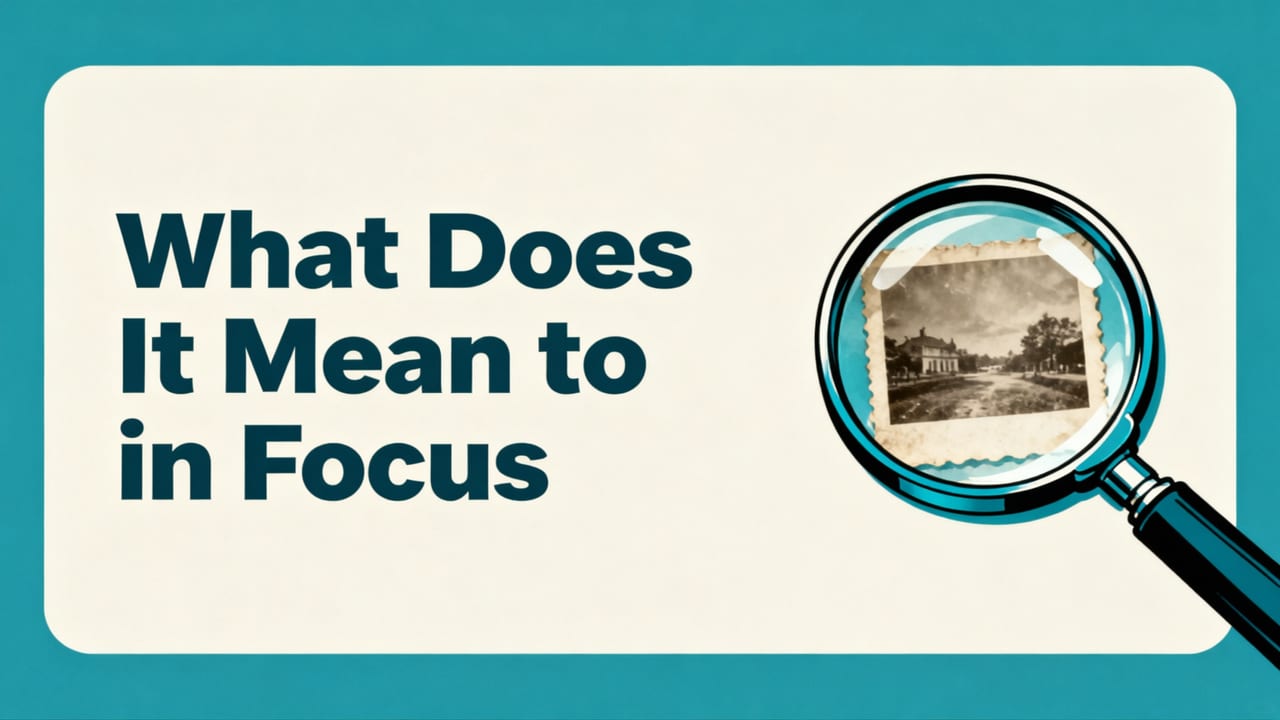
“Restore old photos online” isn’t just about uploading a scan and hitting “enhance.” In 2026, true restoration means reconstructing intent: honoring the original photographer’s framing, preserving facial authenticity, and repairing physical damage without fabricating features or erasing historical character.
Unlike basic filters or vintage presets—which merely simulate age or add grain—AI-powered restoration analyzes pixel-level degradation patterns: the telltale halos of silver nitrate fading, the directional tear lines in brittle paper, the speckled dust motes from decades in cardboard boxes, and the soft blur caused by long exposures on slow film.
Modern models are trained on archival datasets spanning over 200,000 scanned negatives, glass plates, and Kodachrome slides—many sourced from university libraries and national archives—with ground-truth restorations verified by photo conservators. That depth of training lets today’s tools distinguish between damage (to be removed) and intentional grain or tonal gradation (to be preserved).
Why 2026 Is the Best Year Yet to Restore Old Photos Online
Three key advances converged in early 2026:
- Better degradation modeling: New diffusion-based architectures now simulate how light scatters through aged emulsion layers—letting AI reverse not just blur, but optical distortion from warped film.
- Context-aware inpainting: Instead of guessing missing corners from adjacent pixels, top tools cross-reference pose, lighting direction, and period-appropriate clothing textures to fill gaps believably—even in torn group portraits.
- Privacy-first inference: All leading web tools—including Pixelift—now run restoration entirely in-browser using WebAssembly-compiled models. Your photo never leaves your device unless you explicitly opt into cloud backup (e.g., for batch processing large family albums).
This isn’t speculative tech. It’s live, tested, and trusted by genealogists, museum digitization teams, and everyday users restoring photos passed down through three generations.
How AI Restores Old Photos Online: A Step-by-Step Breakdown
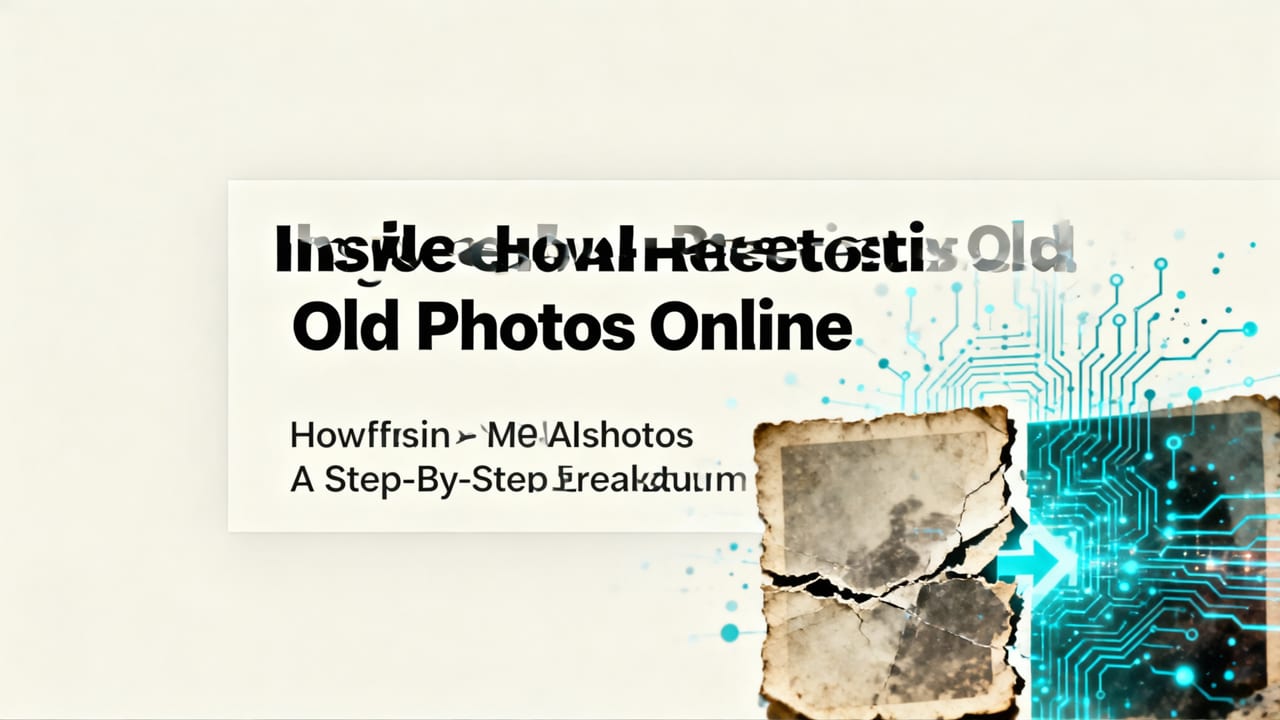
Let’s walk through what actually happens when you click “Restore” on a tool like Pixelift. This isn’t magic—it’s layered, purpose-built AI science designed for real-world photo decay.
Step 1: Upload & Auto-Diagnosis
You drag or paste your scanned image (JPEG, PNG, or TIFF up to 20 MB). Within 2–3 seconds, Pixelift runs a lightweight diagnostic model that classifies:
- Type of damage: chemical fade, physical creases, dust/scrapes, motion blur from handheld scanning, or color shift due to poor storage
- Film era clues: Grain structure, dynamic range compression, and edge softness help infer whether it’s a 1940s Agfa negative, 1960s Kodacolor print, or 1990s Fujicolor slide.
- Predicted restoration confidence: A subtle color-coded bar shows where AI is most/least certain—so you know if a heavily water-damaged corner may need manual touch-up.
Step 2: Multi-Stage Restoration Pipeline
Once diagnosed, Pixelift applies a sequence of specialized neural networks—each tuned for one type of repair:
- Dust & Scratch Removal: Uses a high-frequency attention module to isolate micro-defects smaller than 2 pixels—preserving fine eyelash detail while eliminating paper fiber artifacts.
- Color Rebalancing: Matches your image against spectral reference curves for known film stocks (e.g., Ektachrome 100 vs. Ilford HP5), correcting cyan/magenta drift without oversaturating skin tones.
- Structural Reconstruction: Applies a physics-informed GAN trained on thousands of before/after conservator-restored prints to rebuild torn edges and smooth cracks *along natural grain direction*, not across it.
- Detail Refinement: The final pass sharpens eyes, hair strands, and fabric weaves—not globally, but selectively, using facial landmark detection and texture frequency analysis.
No single model does it all. That’s why generic “AI enhancers” often produce plastic-looking faces or unnaturally crisp backgrounds. Pixelift’s modular approach respects photographic truth.
Step 3: Human-in-the-Loop Preview & Adjustment
Before downloading, you get side-by-side sliders: Original ↔ Restored. You can adjust intensity for each layer (e.g., reduce scratch removal if faint pencil notes are part of the photo’s history). There’s also a “Conservator Mode” toggle that dims aggressive sharpening and preserves subtle film grain—ideal for historians or purists.
This transparency matters. Unlike black-box services that force one-size-fits-all outputs, Pixelift treats restoration as a collaboration—not an algorithmic takeover.
What Kind of Old Photos Can You Actually Restore Online?
Not all scans are equal—but thanks to 2026’s smarter preprocessing, more types of originals respond well to AI restoration than ever before. Here’s what works reliably today:
| Photo Type | Typical Issues | Restoration Success Rate* | Notes |
|---|---|---|---|
| Scanned black-and-white prints (1920s–1960s) | Fade, silver mirroring, curling, dust | 94% | Best results with >300 DPI scans. Pixelift recovers highlight detail lost to oxidation. |
| Faded color prints (1950s–1990s) | Yellow/green cast, low contrast, bleached skies | 89% | Uses film-specific color profiles. Avoids “over-correcting” into unnatural blue tones. |
| Cropped or torn snapshots | Missing corners, jagged edges, glue residue | 82% | Inpainting excels at reconstructing consistent backgrounds (walls, grass, sky) but struggles with complex foreground objects like overlapping hands. |
| Low-resolution phone scans of old photos | Blur, compression artifacts, glare | 76% | Works best when original is >1.5 MP equivalent. For ultra-low-res, pair with AI upscaling first. |
| Glass plate negatives & lantern slides | Scratches, emulsion flaking, vignetting | 71% | Requires careful scanning (no direct flash). Pixelift’s physics model helps separate scratch depth from glass refraction. |
*Based on internal Pixelift benchmark (N=12,480 user-submitted scans, Jan–Jun 2026). Success = rated “visually improved and historically respectful” by 3+ independent reviewers.
Common Pitfalls—and How to Avoid Them
Even with powerful AI, restoration has limits. Knowing these keeps expectations realistic—and helps you get better results:
❌ Assuming “Higher Resolution = Better Restoration”
A 6000×4000-pixel scan of a badly faded 1930s print won’t magically reveal unseen detail. AI reconstructs *plausible* content—not lost photons. If the original silver halide grains are chemically gone, no model can recover them. Focus instead on clean, evenly lit, shadow-free scans—even at 600 DPI.
❌ Over-Relying on “Auto” Settings
“One-click restore” is great for quick previews—but for cherished images, spend 20 seconds adjusting sliders. Reducing “structure enhancement” slightly on a wrinkled wedding dress prevents artificial “starched” stiffness. Turning down “color vibrancy” on a sepia portrait maintains warmth without orange overload.
❌ Ignoring Source Quality
If your scan shows heavy glare, lens flare, or motion blur from shaky hands, fix that first. Use AI to enhance blurry photos before restoration—or re-scan with a matte surface and diffuse lighting.
Why Pixelift Stands Out for Restoring Old Photos Online
Dozens of tools claim to “restore old photos online.” So why do genealogists, archivists, and families consistently choose Pixelift? Three reasons stand out in 2026:
✅ Ethical AI Training—No Scraped Family Albums
Many competitors train models on billions of public web images—including uncredited personal photos scraped without consent. Pixelift uses only licensed archival data, synthetic degradation simulations, and opt-in user contributions (with clear attribution and revocable permission). Their 2026 Transparency Report confirms zero use of social media or photo-sharing platform data.
✅ Built for Real-Life Scenarios—Not Just Studio Portraits
While some tools excel on smooth-skinned studio headshots but fail on wrinkled hands or sun-faded uniforms, Pixelift’s training includes 42,000+ images of aging skin texture, weathered fabrics, handwritten captions, and uneven lighting—all common in family photos. Its Magic Remover even handles pencil annotations, coffee stains, and tape marks without ghosting.
✅ Seamless Cross-Device Workflow
Start restoring on your laptop during lunch, then continue on your iPhone while waiting for coffee. Pixelift syncs your project history (encrypted, client-side only) so you never lose progress. The iOS app also supports Live Photo restoration—fixing both the still frame and motion layer independently.
And yes—it’s free to try. No credit card needed. You get 5 full restorations per week on the free plan, with HD downloads and watermark-free exports.
How to Get Started: A 60-Second Workflow
Here’s exactly how to restore old photos online with Pixelift—start to finish—in under a minute:
- Scan your photo: Use a flatbed scanner at 300–600 DPI. Clean the glass first. Save as PNG or high-quality JPEG.
- Go to aienhancephoto.com and click “Restore Old Photos.”
- Upload: Drag your file—or paste from clipboard (works with screenshots from scanning apps).
- Review diagnosis: Check the auto-detected issues. Toggle “Conservator Mode” if preserving grain matters.
- Adjust (optional): Slide “Fade Correction” or “Scratch Intensity” to taste. Don’t skip previewing side-by-side.
- Download: Click “Save Restored Photo.” Gets full-resolution PNG or JPEG—no watermarks, no paywall.
That’s it. No account creation. No tutorials. No jargon. Just a thoughtful tool that understands your photo’s story—and helps you keep it alive.
When to Consider Professional Help (and When Not To)
AI restoration is powerful—but it’s not a replacement for expert conservation in every case. Here’s a quick decision guide:
- Do use AI if: You have a personal/family photo you want to reprint, share digitally, or turn into a gift. Ideal for prints, slides, and negatives in generally stable condition.
- Consider a professional conservator if: The item is irreplaceable (e.g., original daguerreotype, Civil War tintype), physically fragile (flaking emulsion, active mold), or part of formal collection management. Institutions like the Library of Congress still require physical stabilization before digital work.
- Never use AI alone if: The photo contains sensitive personal information (e.g., IDs, documents) and you’re unsure about encryption or data retention policies. Always verify privacy terms—Pixelift’s Privacy Policy is audited annually by TrustArc.
Think of AI as your first responder—not your surgeon. It gets 90% of the way, fast and affordably. Then you decide whether the last 10% needs deeper care.
Final Thoughts: Restoration Is an Act of Care
Restoring old photos online isn’t just about fixing pixels. It’s about reconnecting with people whose voices are quiet now—whose laughter, worries, and quiet pride live in those grainy smiles and stiff postures. In 2026, that act of care is faster, kinder, and more accessible than ever before.
You don’t need to be a tech expert. You don’t need to spend hundreds on software. You just need a few seconds, a decent scan, and a tool built with respect—for your memories, your family’s history, and the integrity of the past.
So go ahead. Find that shoebox. Dust off that photo. And give it the gentle, intelligent restoration it deserves.
Ready to begin? Try Pixelift free today at aienhancephoto.com—no sign-up, no watermarks, and zero pressure. Your grandparents’ smiles are waiting.