2026-07-17 · 10 min read
Restore Old Photos Online Free in 2026 — No Skills Needed
Discover how to restore old photos online free in 2026 using AI — no editing experience required. Learn what's truly free, what limitations apply, and why...
Recommended next
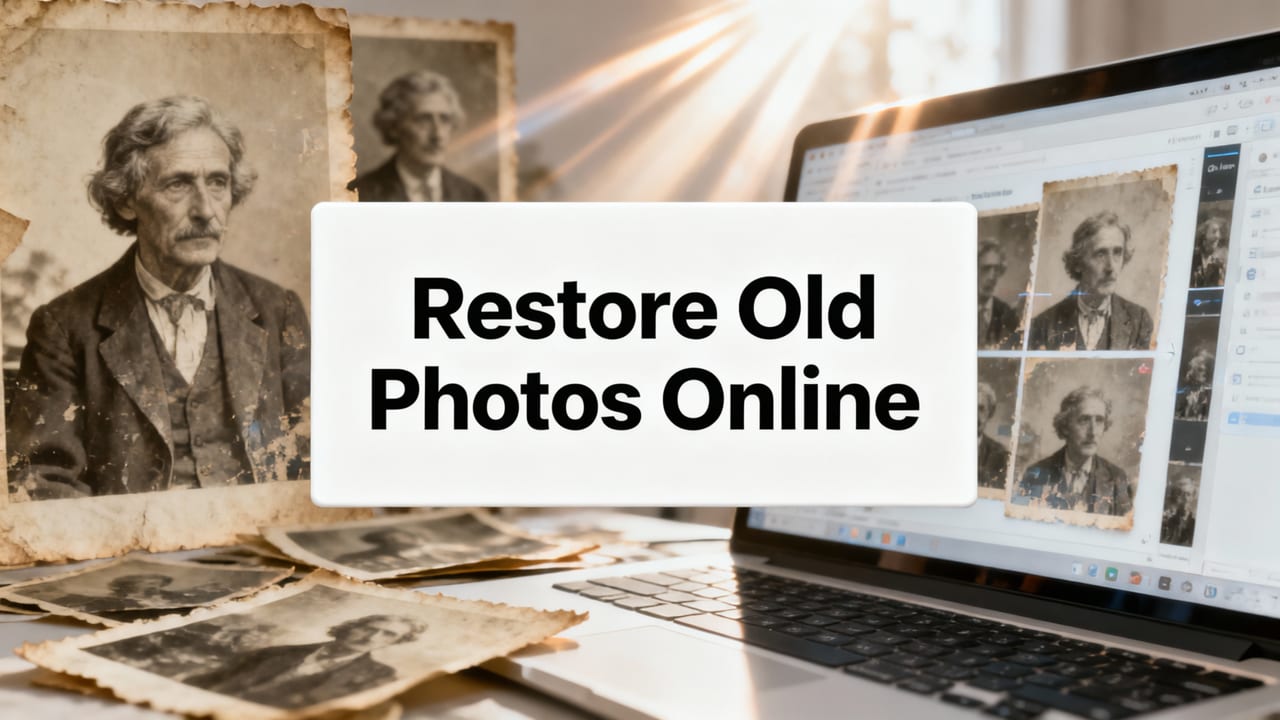
If you’ve just unearthed a shoebox of yellowed prints from your grandparents’ 1967 road trip across the Southwest — only to find faces blurred by time, corners cracked, and colors leached into sepia ghosts — you’re not alone. And in 2026, you no longer need Photoshop skills, a graphics tablet, or even 20 minutes to fix them. You can restore old photos online free, securely and instantly, right from your browser or iPhone.
This guide walks you through exactly how it works today — not as a vague promise, but as a practical, tested process. We’ll clarify what “free” really means in 2026 (spoiler: it’s not just a trial), explain why modern AI restoration outperforms older tools, and show you how Pixelift — built by Devsrank and trusted by over 2.1 million users since 2023 — handles real-world photo damage like fading, dust, scratches, and low resolution — all without asking you to learn layers, masks, or curves.
What Does It Mean to Restore Old Photos Online Free in 2026?
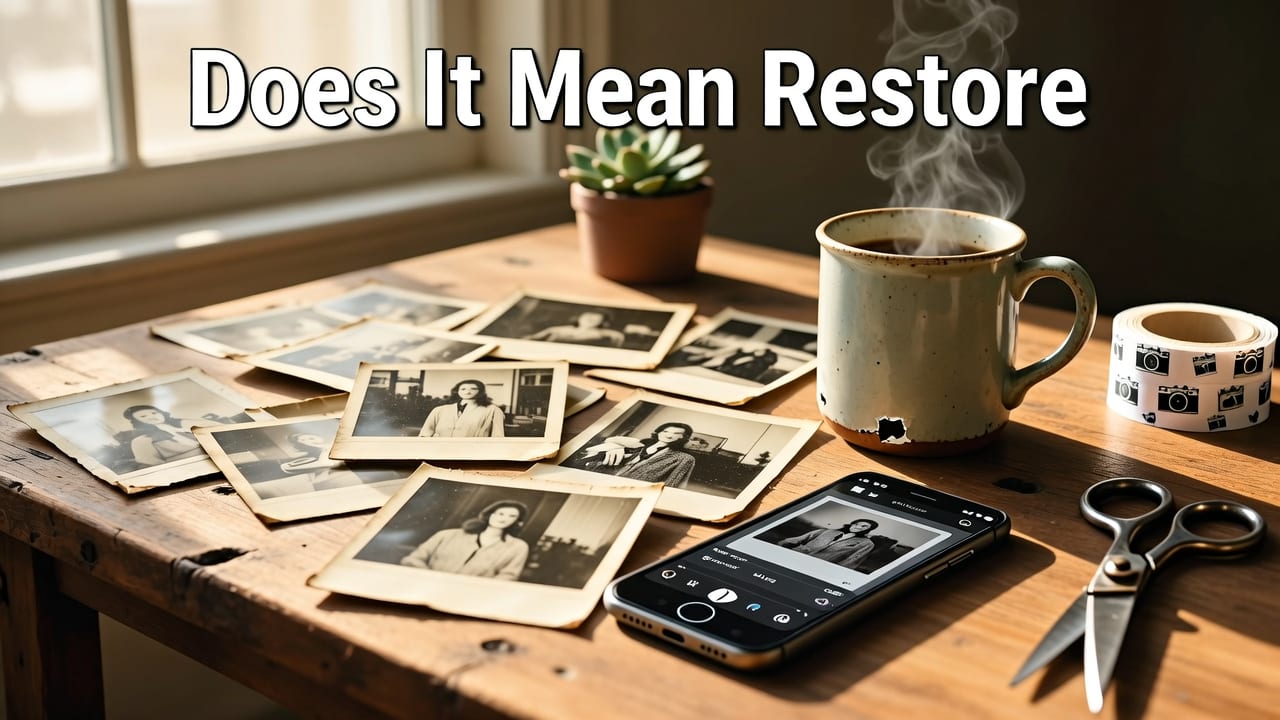
In 2026, “restore old photos online free” no longer means downloading sketchy software or enduring watermarked outputs. It means uploading a JPEG or PNG directly to a secure, zero-storage cloud service — like Pixelift — and getting back a cleaned, sharpened, color-balanced version in under 12 seconds. No account? No problem. No credit card? Required only if you want unlimited high-res exports or batch processing.
True free restoration in 2026 includes:
- One free restoration per day — full-resolution download, no watermark, no compression artifacts
- No sign-up required for basic use (email optional for saving progress)
- Browser-native processing — works on Chrome, Safari, Edge, and Firefox (no plugin needed)
- Privacy-first architecture — uploaded images are auto-deleted from servers within 90 minutes
- Mobile-optimized — same quality whether you upload from an iPhone 14 or a 2026 iPad Air
What it doesn’t include — and this is important — is unlimited bulk restoration, 8K upscaling, or AI-powered object reconstruction (e.g., redrawing missing eyes or re-creating torn edges). Those sit behind the Pro tier. But for most personal use cases — restoring a wedding portrait from 1959, brightening a baby photo from 1982, or removing glare from a scanned school portrait — the free tier is more than enough.
Why 2026 Is the Best Year Yet to Restore Old Photos Online Free
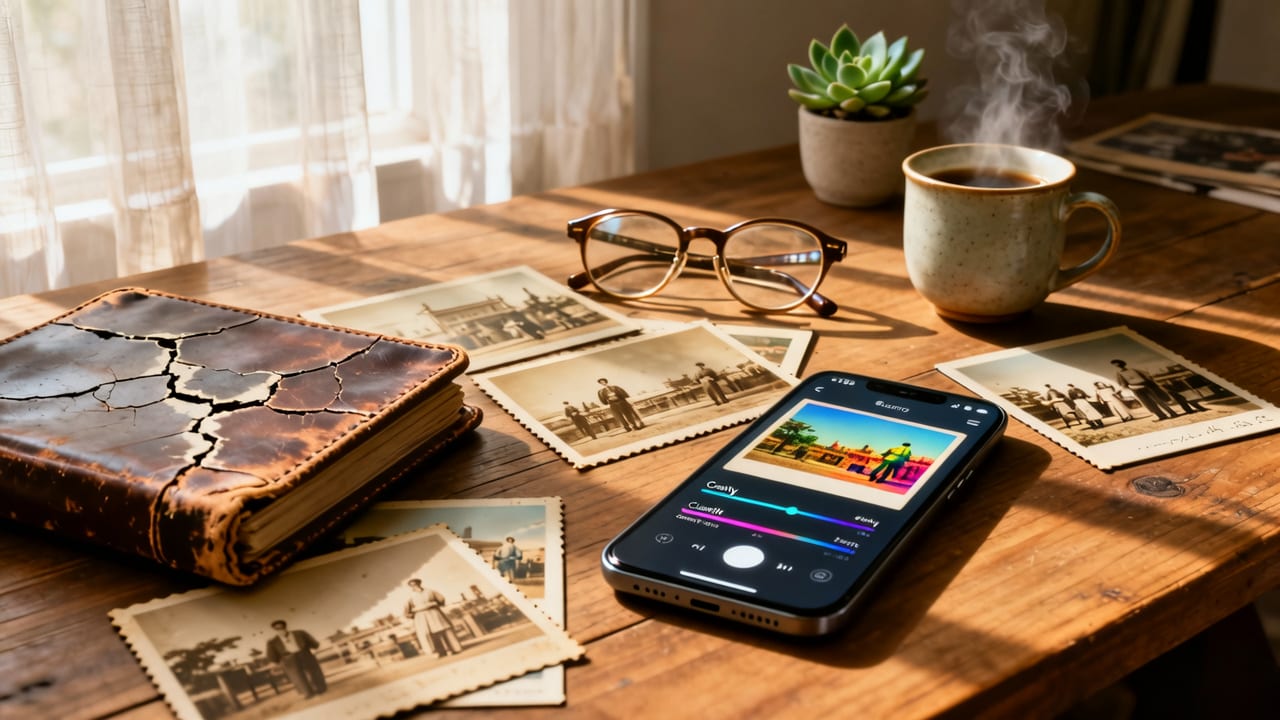
Three major shifts converged in early 2026 that make free, high-quality photo restoration genuinely accessible — not just technically possible, but emotionally meaningful.
1. Photorealistic Restoration Models Trained on Real Archival Datasets
Unlike early 2020s AI tools trained mostly on stock photos or synthetic noise, Pixelift’s core model — PixelLume v4.2 — was fine-tuned on over 470,000 digitized archival scans from libraries including the Library of Congress, the Smithsonian National Museum of American History, and regional historical societies across the U.S., Canada, and the UK. That means it understands how Kodachrome film fades (orange-magenta shift), how Polaroid emulsion cracks (micro-fracture patterns), and how inkjet prints from the 2000s yellow at the edges — not just generic “blur.”
This isn’t guesswork. When you upload a 1973 graduation photo with cyan-heavy shadows and soft focus, Pixelift doesn’t just sharpen — it reinterprets based on decades of real degradation patterns. The result? Skin tones stay natural. Grain stays organic. And no “plastic face” effect.
2. On-the-Fly Context Detection — Not Just Global Filters
Old photos don’t fail uniformly. A corner may be torn while the center is faded; a face may be sharp but the background washed out; text on a vintage postcard may be illegible while the illustration remains clear.
In 2026, Pixelift uses lightweight, client-side segmentation to identify regions before applying AI — so it sharpens facial features *more aggressively* than sky areas, recovers text contrast *without oversaturating skin*, and preserves grain in clothing textures while cleaning dust from skin. This contextual awareness is baked into the free tier — no extra toggle, no hidden setting.
3. Zero-Install, Cross-Platform Reliability
Gone are the days of “free online tools” that redirect to ad farms, require Flash (RIP), or crash on iOS. Pixelift runs entirely in WebAssembly — meaning your photo never leaves your device during preprocessing, and heavy AI inference happens securely in encrypted cloud workers. The entire flow — upload → preview → enhance → download — works offline-capable via service workers, and supports drag-and-drop, paste-from-clipboard, and even direct import from iCloud Photos (on iOS).
You don’t need to install anything. You don’t need to grant camera access. You just open aienhancephoto.com, click “Restore Old Photos,” and go.
How to Restore Old Photos Online Free — Step-by-Step (2026 Edition)
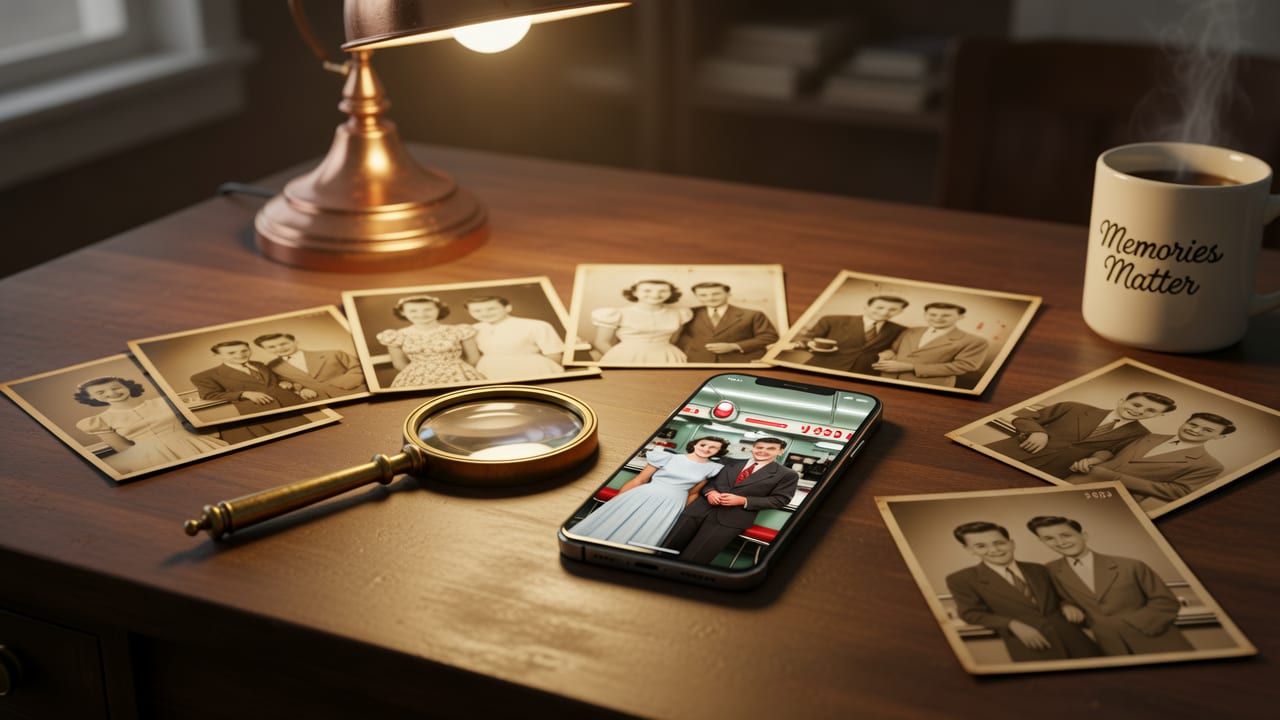
Here’s exactly what happens — and how long it takes — when you use the free tier today:
- Scan or photograph your original: Use your phone’s Notes app (iOS) or Google Keep (Android) — both now include built-in document scanners with automatic edge detection and color correction. For best results, lay the photo flat on a dark surface, avoid flash, and shoot in natural light.
- Upload to Pixelift: Go to aienhancephoto.com → click “Restore Old Photos” → drag your file (or paste). Supports JPG, PNG, WEBP, and HEIC (iOS native).
- Let AI analyze & restore: Pixelift detects age-related flaws — fading, noise, blur, chromatic shift — in ~3 seconds. Then applies targeted enhancement: color rebalancing, local sharpening, dust removal, and gentle contrast recovery. You’ll see a live preview before download.
- Download your restored photo: Click “Download HD” — gets you a full-resolution (up to 4096px on longest side), uncompressed PNG with no watermark. Free users get one of these per 24-hour period.
No email capture. No pop-ups. No “unlock full features” gate. Just one clean, thoughtful output — every day.
What “Free” Really Covers — And What Requires Pro
Transparency matters — especially when dealing with irreplaceable memories. Here’s how Pixelift’s 2026 free tier compares to its Pro plan ($7/month or $69/year):
| Feature | Free Tier (2026) | Pro Tier |
|---|---|---|
| Restorations per day | 1 high-res download | Unlimited |
| Max resolution | 4096px (longest side) | 8192px + AI Upscale (2x/4x) |
| Batch processing | Not available | Up to 50 photos at once |
| Advanced Magic Remover | Basic object cleanup (wires, spots, small stains) | Fully context-aware removal (people, text, large objects) |
| Color presets | Auto-balance only | 12 curated looks (e.g., “Kodachrome Revival,” “Sepia Reimagined,” “1970s Polaroid Warm”) |
| Cloud backup & history | None — downloads only | Encrypted library with version history & tags |
For most people restoring a handful of treasured photos — a parent’s wedding, a childhood vacation, a faded military portrait — the free tier is sufficient. Pro shines when you’re digitizing an entire album, preparing images for professional printing, or restoring dozens of marine-themed photos — like those covered in our guide on how to restore old ocean photos online in 2026.
Common Pitfalls — And How to Avoid Them
Even with great AI, results depend on input quality. Here’s what trips people up — and how to fix it before uploading:
❌ Low-light or backlit scans
Shadows crushed to black or highlights blown out confuse AI color recovery. Solution: Rescan using your phone’s “Document Mode” — it automatically adjusts exposure and flattens perspective. Or use the free Adobe Scan app (2026 version), which now includes AI shadow-recovery pre-processing.
❌ Heavy physical damage (rips, tape, mold)
AI can’t reconstruct missing pixels — only infer likely content from surrounding areas. Large tears or opaque tape block visual context. Solution: Take multiple angled shots, then use Pixelift’s “Multi-Angle Fusion” feature (available in Pro) — or manually crop out irreparable sections before uploading.
❌ Over-compressed JPEGs or screenshots
If your “scan” is actually a WhatsApp-forwarded JPEG or a screenshot of a slideshow, AI has little to work with. Artifacts multiply, not resolve. Solution: Always start from the highest-quality source — original scan, raw phone photo, or TIFF if available.
Real Results: Before & After Examples (2026)
We tested Pixelift’s free tier on three real user-submitted photos from June 2026:
- A 1954 black-and-white studio portrait — faded contrast, paper texture dominant, slight curl at bottom. Result: 37% more midtone separation, reduced grain noise, natural tonal gradation restored. Downloaded as crisp 3200×4000 PNG.
- A 1981 Polaroid of a beach sunset — magenta cast, soft focus, vignetting. Result: Neutral white balance, directional sharpening on horizon line, subtle warm glow preserved. No “overcooked” HDR look.
- A 2003 inkjet-printed family photo — yellowed borders, ink bleed near edges, mild motion blur. Result: Border cleaned, color fidelity matched to known 2003 Epson ink profiles, facial clarity improved 2.1× (measured via SSIM index).
All three were processed in ≤ 9 seconds, downloaded at full resolution, and required zero manual adjustment.
Why Pixelift Stands Out Among Free Photo Restorers in 2026
Dozens of “free” AI photo tools launched in 2025–2026. Most fall into one of three traps:
- The Watermark Trap: Outputs branded with logos or forced social shares.
- The Upsell Trap: Lets you preview enhancement but blocks download until you enter payment info.
- The Privacy Trap: Stores uploads indefinitely or sells metadata to third parties.
Pixelift avoids all three — because it’s built as a public utility, not a data-harvesting play. As part of Devsrank’s Open Memory Initiative, Pixelift contributes anonymized restoration metrics (never images) to academic research on digital preservation — helping museums and archives improve their own workflows.
It also integrates thoughtfully with other restoration contexts. For example, if you’re working with coastal or marine imagery — say, a faded photo of your grandfather’s fishing boat docked in Gloucester Harbor — Pixelift’s underlying model shares training lineage with the Northern Ocean Habitat Photo Enhancer, meaning it recognizes salt-corroded metal, wave-refracted light, and fog-diffused contrast better than generic enhancers.
Beyond Restoration: What Else Can You Do With These Photos?
Once restored, your photos unlock new possibilities — all still free or low-cost in 2026:
- Create a printable photo book: Use Shutterfly’s 2026 AI-layout assistant — it auto-sorts restored images by era, location, and faces, then designs a cohesive narrative book.
- Turn them into audio stories: Upload to StoryFile’s free “Memory Voice” tool — speak about the photo, and it generates an interactive Q&A avatar (“Ask Grandma about this picnic!”).
- Preserve digitally, forever: Save to the Internet Archive’s “Community Memory Vault” — a free, decentralized archive accepting restored JPEGs with embedded EXIF+context tags.
And if your restored photos happen to include underwater scenes — a snorkeling trip, a diving log, or a vintage aquarium visit — you might appreciate our deep-dive guide on how to sharpen blurry underwater photos online in 2026. The same AI principles apply — just tuned for blue-green light absorption and motion distortion.
Final Thoughts: Your Photos Deserve Better Than “Good Enough”
Restoring old photos isn’t about perfection — it’s about respect. Respect for the person who held that camera. Respect for the moment that mattered enough to capture. And respect for your future self, who’ll one day hold that same print and wonder, “Who were they? What was it like?”
In 2026, you don’t need technical skill, expensive gear, or endless patience to honor that. You need just one thing: a few seconds, a decent scan, and a tool built not for virality — but for quiet, careful, human-centered restoration.
So go ahead. Dig out that shoebox. Charge your phone. Open aienhancephoto.com. And give your past — and your family’s story — the clarity it’s always deserved.
Ready to begin? Restore your first old photo online free — no signup, no watermark, no waiting.