2026-08-13 · 8 min read
Pixelift iOS App Download – Restore & Enhance Photos on iPhone
Get the Pixelift iOS app download link, setup steps, and features to sharpen, upscale, and restore photos on iPhone in 2026. Fast, free, and easy to use.

Recommended next
Where to Get the Pixelift iOS App Download in 2026
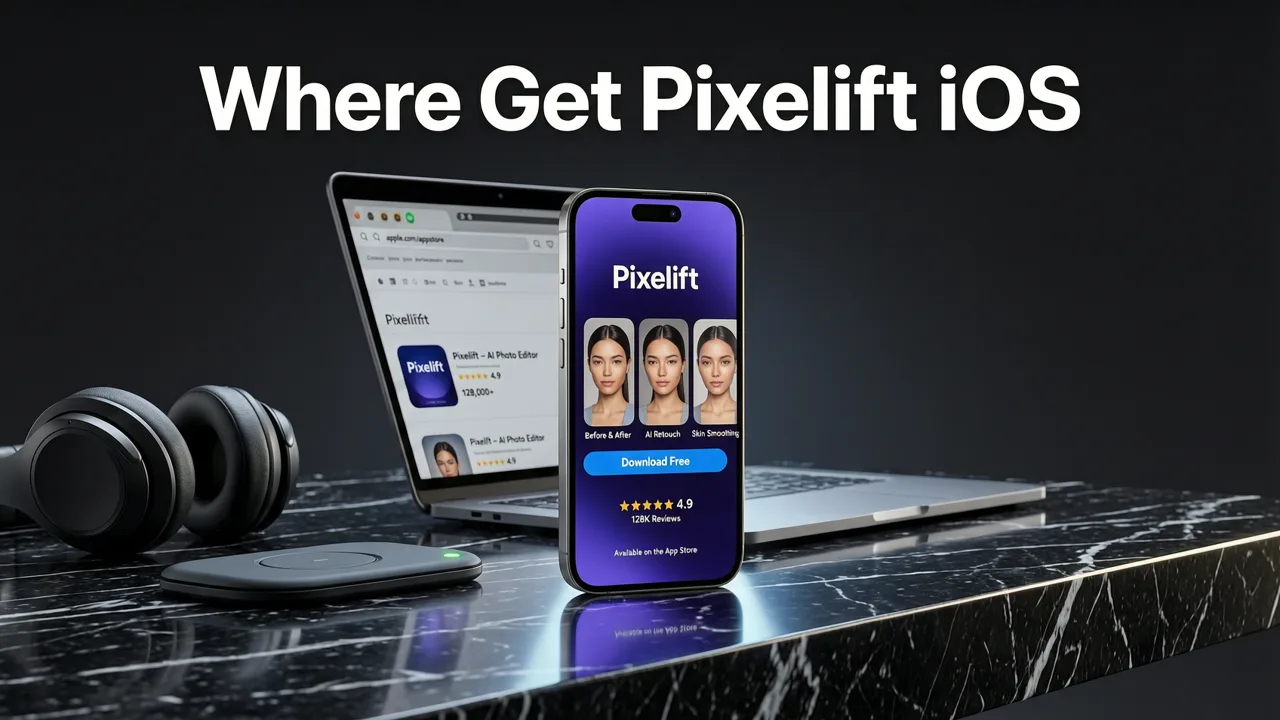
If you have been searching for a fast, no-fuss way to sharpen blurry photos, upscale low-resolution images, or bring faded family snapshots back to life on your iPhone, you are in the right place. The Pixelift iOS app download gives you access to one of the most complete AI photo enhancement toolkits available on the App Store in 2026 — and you can be up and running in under a minute.
Pixelift, built by Devsrank, combines sharpening, upscaling, color correction, old-photo restoration, a Magic Remover for cleaning up distractions, and Creative Presets for restyling portraits and social images. All of it runs on-device and in the cloud with zero editing experience required. Below you will find exactly how to download the app, what you can do with it, and why iPhone users continue to choose it over generic editors.
How to Download the Pixelift iOS App — Step by Step
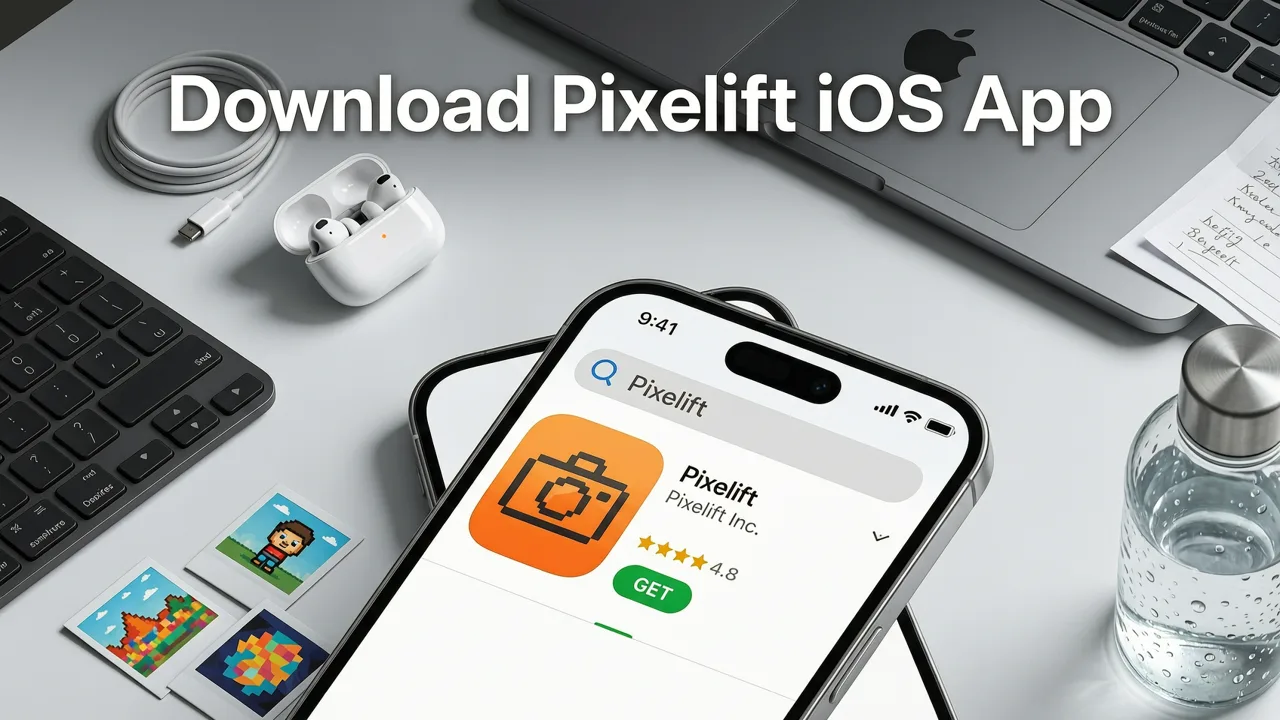
Getting Pixelift on your iPhone is straightforward. Here is the exact process so you can start enhancing photos within seconds of finishing this guide.
- Unlock your iPhone and open the App Store.
- Tap the Search tab in the bottom-right corner.
- Type "Pixelift" or "Pixelift AI Photo Enhancer" into the search bar.
- Look for the app published by Devsrank — the icon features a vibrant gradient design.
- Tap Get (or the cloud-download icon if you have installed it before).
- Authenticate with Face ID, Touch ID, or your Apple ID password.
- Once installed, open the app, grant photo-library access, and start enhancing.
If the app does not appear in your regional App Store, you can also use the Pixelift web tool directly from Safari — no install required — and save results straight to your Camera Roll.
What You Get With the Pixelift iOS App in 2026
Pixelift is not a one-trick sharpening filter. It is a full AI editing suite designed for real-life photo problems. Here is a breakdown of the core features you unlock the moment you complete the Pixelift iOS app download.
AI Photo Sharpening & Upscaling
Blurry photos happen. Motion blur, low light, and aggressive cropping all rob your images of detail. Pixelift's AI sharpening engine analyzes each pixel, reconstructs missing edges, and upscales resolution by up to 4× without introducing the halos or noise you get from older sharpening tools. It is especially useful for screenshots, saved social media images, and photos taken on older iPhones.
Old Photo Restoration
Scanned family photos often arrive on your iPhone looking faded, scratched, or discolored. Pixelift's restoration mode detects damage patterns — tears, creases, yellowing, and missing fragments — and rebuilds them intelligently. Faces get special attention: the AI reconstructs eyes, skin texture, and hair detail that traditional filters simply smooth over. If you want a deeper walkthrough, our guide on how to restore old photos on iPhone in 2026 covers every step.
Magic Remover
Photobombers, power lines, watermarks, and unwanted objects disappear in a single tap. Paint over the distraction with your finger, and Pixelift's inpainting AI fills the gap with context-aware texture that matches the surrounding area. It works on busy backgrounds, skies, and patterned surfaces — the spots where most remover tools leave obvious smudges.
Creative Presets
Beyond restoration, Pixelift includes a library of Creative Presets for portraits, travel shots, food photography, and social media content. Each preset applies a curated combination of color grading, lighting adjustment, and subtle sharpening tuned for a specific mood — warm film tones, cool cinematic looks, clean editorial styles, and more.
Color & Lighting Enhancement
Flat, underexposed, or oddly white-balanced photos get an automatic lift. Pixelift reads the scene, corrects exposure, recovers shadow and highlight detail, and adjusts saturation to natural levels. The result looks like a professional edit without the manual sliders.
Pixelift iOS App vs. Web Tool — Which Should You Use?
Many users ask whether they should grab the app or stick with the browser version. Both share the same AI engine, but the experience differs. Here is a side-by-side comparison to help you decide.
| Feature | Pixelift iOS App | Pixelift Web Tool |
|---|---|---|
| Installation | Required (App Store) | None — runs in Safari |
| Offline access | Limited (cached results) | Internet required |
| Batch processing | Yes — multiple photos in queue | One at a time |
| Camera integration | Shoot and enhance in-app | Upload from Camera Roll |
| Cross-platform use | iPhone and iPad only | Any device with a browser |
| Best for | Everyday on-the-go editing | Quick one-off fixes on any device |
If you edit photos regularly on your iPhone, the app is the faster choice. If you only need an occasional fix — or you are on a friend's device — the web tool is perfect. You can learn more about the browser-based workflow in our article on how to fix blurry photos on iPhone instantly in 2026.
Why iPhone Users Choose Pixelift Over Other Photo Apps in 2026
The App Store is packed with photo editors, but most of them fall into one of two traps: they are either too technical for casual users or too simplistic to handle real restoration work. Pixelift sits in the sweet spot.
Zero Learning Curve
There are no manual sliders, no layer masks, and no confusing menus. Pick a photo, choose an enhancement mode, and tap enhance. The AI handles the rest. This matters if you are restoring a grandparent's wedding photo and have never opened Photoshop in your life.
Results That Respect the Original
Many AI enhancers over-sharpen faces until they look plastic or repaint backgrounds until they look artificial. Pixelift is tuned for subtlety. It preserves grain structure in film scans, keeps skin texture natural in portraits, and avoids the "AI glow" that makes enhanced photos look obviously processed.
Privacy-Conscious Processing
Your photos are processed securely and are not stored on Pixelift servers longer than necessary. The app requests only the permissions it needs — photo library access and, optionally, camera access for in-app capture.
Regular Updates from Devsrank
The team behind Pixelift ships frequent model updates. In 2026 alone, the upscaling engine has been retrained on a broader dataset of vintage photos, and the Magic Remover now handles reflective surfaces and fine hair edges far more cleanly than earlier versions.
Quick Tips to Get the Best Results From the Pixelift iOS App
Even the best AI works better when you feed it good input. Follow these practical tips after you complete the Pixelift iOS app download to maximize your results.
- Scan old photos at the highest resolution your scanner allows. A 600 DPI scan gives Pixelift more data to work with than a quick phone snapshot of a print.
- Crop before you enhance. Remove borders, tape marks, and scanner artifacts first so the AI focuses on the actual image content.
- Use the right mode for the job. Sharpening is ideal for blurry modern photos. Restoration is designed for aged, faded, or damaged images. Mixing the two on the same photo can over-process it.
- Compare before and after. Pixelift lets you toggle the original view — use it. Subtle enhancement often looks more natural than maximum-intensity processing.
- Save a copy, not an overwrite. Keep your originals intact so you can re-enhance later as the AI models improve.
Pixelift iOS App Download — System Requirements
Before you head to the App Store, make sure your device meets the minimum requirements. Pixelift is optimized for recent iPhones but still runs on slightly older hardware.
| Requirement | Minimum | Recommended |
|---|---|---|
| iOS version | iOS 16.0 or later | iOS 18.0 or later |
| Device | iPhone XR / XS or newer | iPhone 13 or newer |
| Storage | 200 MB free for the app | 1 GB+ free for processing |
| Internet | Required for first launch and cloud processing | Wi-Fi for batch uploads |
Is the Pixelift iOS App Free?
Pixelift offers a free tier that lets you enhance a limited number of photos per day with a small watermark. Upgrading unlocks unlimited enhancements, higher resolution output, batch processing, and watermark-free downloads. Pricing and plan details are shown inside the app and on the Pixelift website, and they are updated regularly to reflect current App Store offerings in 2026.
Common Reasons the Pixelift iOS App Download Might Fail
Occasionally, users run into issues during installation. Here are the most common causes and fixes.
- Insufficient storage. Free up space by offloading unused apps or deleting old videos.
- Outdated iOS. Go to Settings → General → Software Update and install the latest version.
- Regional availability. If Pixelift is not listed in your country's App Store, use the web tool as a workaround.
- Apple ID restrictions. If Screen Time restrictions block app installs, adjust them under Settings → Screen Time → Content & Privacy Restrictions.
Alternatives to the App — When the Web Tool Makes More Sense
Not every situation calls for an app install. If you are on an iPad borrowed from a colleague, using a shared family device, or simply need to fix one photo quickly before a meeting, the Pixelift web tool is faster. Open Safari, navigate to the Pixelift site, upload your photo, and download the result — no account required for basic enhancements. For a detailed comparison of mobile versus browser workflows, check out our guide on the best upscale photo iOS app options in 2026.
Final Thoughts on the Pixelift iOS App Download
Whether you want to rescue a blurry vacation shot, upscale a low-resolution product photo for your online store, or restore a cherished family portrait from the 1970s, the Pixelift iOS app puts professional-grade AI enhancement in your pocket. The download takes seconds, the interface is intuitive, and the results speak for themselves. Head to the App Store, search for Pixelift by Devsrank, and give your photos the second chance they deserve.
Ready to start? Open the App Store now, complete the Pixelift iOS app download, and transform your first photo in under a minute. If you prefer to try before you install, visit the Pixelift web tool and see the AI in action immediately.