2026-08-20 · 12 min read
Best AI Tool to Restore iCloud Pictures in 2026
Looking for the best AI tool to restore iCloud pictures? Pixelift sharpens, upscales, and revives blurry or faded iCloud photos in seconds — no editing...

Recommended next
What Does It Mean to Restore iCloud Pictures with AI in 2026?
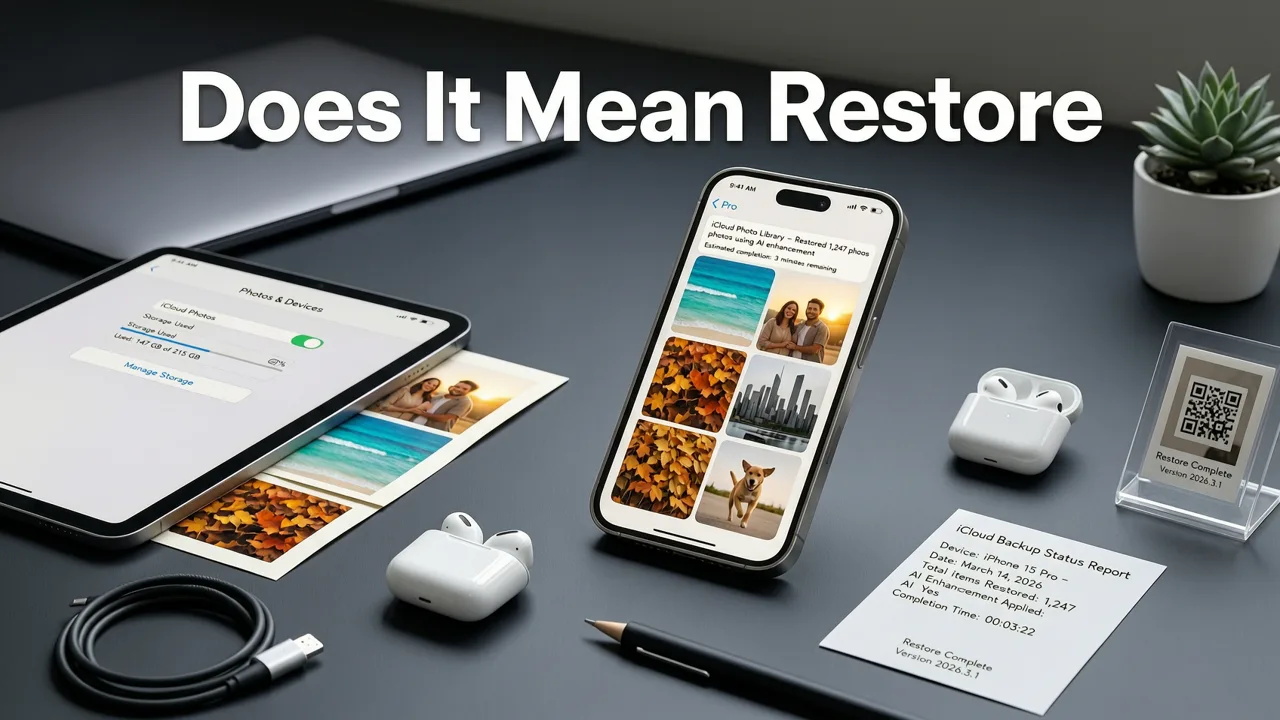
If you've ever scrolled through your iCloud Photo Library and felt a pang of disappointment seeing your favorite memories trapped behind soft focus, compression artifacts, or faded color — you're not alone. Millions of iPhone and iPad users store their most precious moments in iCloud, only to discover that years of syncing, downsampling, and re-encoding can quietly degrade image quality. The good news? In 2026, an AI tool to restore iCloud pictures can bring those moments back to life in seconds, without requiring a single manual adjustment.
Restoring iCloud pictures with AI means using machine learning models trained specifically to reverse common forms of digital degradation — blur, noise, low resolution, washed-out tones, and compression damage — while preserving the authentic look and feel of the original moment. Whether it's a blurry candid from last summer's vacation or a scanned family photo that's been sitting in iCloud for a decade, modern AI restoration can reconstruct fine detail, sharpen edges, and rebalance color with startling accuracy.
The best part? You don't need Photoshop skills, a powerful computer, or hours of free time. Tools like Pixelift handle the heavy lifting automatically, so you can focus on enjoying your memories instead of wrestling with software.
Why iCloud Pictures Need Restoration in the First Place
It might seem strange that photos stored in a cloud service — designed to keep your files safe and accessible — would need restoration at all. But iCloud's architecture introduces several subtle quality challenges that compound over time.
Compression During Upload and Sync
When you enable iCloud Photos, Apple compresses your images to optimize storage and sync speed. While the "Optimize iPhone Storage" setting is great for saving space on your device, it means the full-resolution originals live in iCloud while smaller, compressed versions sit on your phone. Over years of re-syncing, those compressed versions can become the only copy you easily access — and the quality difference becomes noticeable when you zoom in or print.
Device-to-Device Resampling
Every time a photo moves between devices — from your iPhone to your iPad to your Mac — it may be resampled at slightly different resolutions. Each pass can introduce minor artifacts that accumulate over time, especially in images that were already captured in less-than-ideal lighting conditions.
Aging Scans and Legacy Imports
Many iCloud libraries contain a mix of born-digital photos and scanned prints from decades ago. Those scanned images often carry the limitations of older scanning hardware: low DPI, color shifts, dust spots, and faded tones. They've been sitting in your iCloud library for years, waiting for a better way to look at them.
Accidental Edits and Filters
Sometimes the degradation is self-inflicted. A quick crop, an overzealous filter, or an auto-enhance that went wrong can leave you with a version of a photo that looks nothing like the original. iCloud keeps edit histories, but reverting isn't always straightforward — especially for edits made on older devices or removed apps.
Why 2026 Is the Best Year Yet to Restore iCloud Pictures
AI image restoration has been improving steadily for years, but 2026 marks a genuine inflection point. Here's what's changed.
Models Trained on Real-World iCloud Degradation
Leading AI restoration tools are now trained on datasets that include the specific compression artifacts, color shifts, and resolution losses common in iCloud-synced libraries. Instead of applying generic sharpening, these models understand exactly how iCloud degrades images and can reverse those specific patterns. This means cleaner results with fewer hallucinated details.
Faster Processing, Higher Output Quality
Thanks to advances in model efficiency and cloud computing, restoration that took minutes in 2023 now happens in seconds. And the output quality has jumped dramatically — we're talking about tools that can upscale a 640-pixel image to print-ready resolution while actually improving the perceived sharpness and detail.
Seamless Workflows for Non-Technical Users
The best tools in 2026 don't require you to understand neural networks, download desktop software, or learn complex interfaces. Upload a photo, click enhance, download the result. That's it. This accessibility has opened the door for millions of people who would never have attempted photo restoration before.
How an AI Tool to Restore iCloud Pictures Actually Works
Under the hood, modern AI photo restoration combines several specialized models into a single pipeline. Here's a step-by-step breakdown of what happens when you feed an iCloud picture into a tool like Pixelift.
Step 1: Upload and Auto-Diagnosis
When you upload your photo, the AI first runs a diagnostic pass. It analyzes resolution, sharpness, noise levels, color balance, and the types of degradation present. This is where the tool decides which restoration models to activate and in what order.
Step 2: Noise Reduction and Artifact Removal
Before any enhancement can happen, the tool needs to clean the canvas. AI-powered noise reduction removes grain, compression blocks, and other artifacts without smearing fine details. This is a massive improvement over the blunt noise reduction of older software, which often left photos looking waxy and over-smoothed.
Step 3: Intelligent Sharpening and Detail Recovery
Once the image is clean, the AI applies targeted sharpening based on what it detects in the photo. Faces get specialized treatment — eyes, skin texture, and hair are enhanced separately from backgrounds, architecture, or product surfaces. This context-aware approach is what separates 2026-era tools from everything that came before.
Step 4: Upscaling and Resolution Enhancement
If the original image is low-resolution — common with older photos, screenshots, or heavily compressed iCloud versions — the AI upscales it using learned patterns from millions of high-quality reference images. The result isn't just a bigger file; it's a genuinely sharper, more detailed image that looks like it was captured at higher resolution in the first place.
Step 5: Color and Lighting Correction
The final pass rebalances color temperature, contrast, and dynamic range. Faded photos get their vibrancy back. Over-processed images get tamed. The AI aims for natural, true-to-life results — not the oversaturated, HDR-gone-wrong look that plagued earlier tools.
Pixelift: The Best AI Tool to Restore iCloud Pictures in 2026
Among the many AI photo tools available today, Pixelift stands out as the most complete solution for restoring iCloud pictures specifically. Here's why.
Purpose-Built for iCloud-Style Degradation
Pixelift's AI models were trained with extensive samples of images that have passed through Apple's iCloud pipeline. The tool understands the specific compression signatures, color space conversions, and resolution changes that iCloud introduces — and it reverses them with precision that generic enhancers simply can't match.
One-Click Simplicity
There's no learning curve. Upload your iCloud photo, and Pixelift's AI handles the rest. No sliders to adjust, no technical jargon to decipher. The tool automatically detects what your photo needs and applies the right combination of enhancements.
Multiple Restoration Modes
Not every photo has the same problems, and Pixelift recognizes that. The tool offers specialized modes for different scenarios:
- Photo Enhancer — sharpens blurry images, improves detail, and balances color and lighting across the board.
- Old Photo Restoration — specifically tuned for faded, scratched, or damaged prints that have been scanned and uploaded to iCloud. Learn more in our guide to restoring old photos online.
- Magic Remover — cleans up distracting objects, photobombers, or blemishes without leaving unnatural artifacts behind.
- Creative Presets — restyles portraits and social media images with professional-looking color grades and effects.
Available Everywhere You Need It
Pixelift works as a web tool you can access from any browser and as a dedicated iOS app for on-the-go restoration. Whether you're at your Mac reviewing your entire iCloud library or scrolling through photos on your iPhone during a commute, you can enhance and restore images instantly.
Step-by-Step: How to Restore Your iCloud Pictures with Pixelift
Ready to bring your iCloud photos back to life? Here's exactly how to do it.
- Open Pixelift — Visit the Pixelift web app or open the iOS app on your iPhone or iPad.
- Upload your photo — Select the image from your iCloud Photo Library. You can also drag and drop from your Mac's Photos app or Files app.
- Choose your enhancement mode — For general blur and quality issues, the Photo Enhancer is your best bet. For old or faded photos, switch to Old Photo Restoration. If you need to remove distractions, use the Magic Remover.
- Let the AI work — Processing typically takes just a few seconds. The AI analyzes your photo and applies the appropriate enhancements automatically.
- Review and download — Compare the before and after. If you're happy with the result, download the enhanced image at full resolution. It will be saved back to your device and can sync right back to iCloud.
For iCloud photos that are specifically blurry rather than faded or damaged, check out our dedicated guide to fixing blurry iCloud photos online for additional tips and techniques.
What Types of iCloud Photos Benefit Most from AI Restoration?
While Pixelift can improve virtually any image, certain types of iCloud photos see the most dramatic transformations.
| Photo Type | Common Issues | What AI Restoration Fixes |
|---|---|---|
| Old family scans | Fading, scratches, low DPI, color shifts | Restores color, removes damage, upscales resolution |
| Low-light candid shots | Blur, noise, lost detail | Reduces noise, recovers detail, sharpens subjects |
| Compressed iCloud versions | Artifacts, soft focus, banding | Removes compression artifacts, restores sharpness |
| Motion-blurred moments | Soft subjects, smeared details | AI sharpening reconstructs edges and texture |
| Screenshots and saved images | Low resolution, pixelation | Upscales cleanly with enhanced clarity |
| Photos with distractions | Photobombers, objects, blemishes | Magic Remover cleans the scene naturally |
How Pixelift Compares to Other Approaches
You have several options for restoring iCloud pictures, but they vary widely in effort, cost, and quality. Here's how they stack up.
| Method | Effort Required | Quality of Results | Best For |
|---|---|---|---|
| Pixelift (AI-powered) | Minimal — upload and go | Excellent — specialized AI models | Anyone who wants fast, professional results |
| Adobe Photoshop (manual) | High — requires editing skills | Excellent — but depends on the user | Professional retouchers and designers |
| Apple Photos built-in edits | Low — but limited tools | Moderate — basic adjustments only | Quick brightness and contrast tweaks |
| Generic online enhancers | Low | Variable — often over-processed | Quick fixes when specialized tools aren't available |
| Hiring a retoucher | Low effort, high cost | Excellent — human expertise | Irreplaceable one-of-a-kind photos |
Tips for Getting the Best Results When Restoring iCloud Pictures
Even with a powerful AI tool like Pixelift, a few best practices can help you get the most out of your restoration efforts.
Start with the Highest-Resolution Version Available
If you have both a full-resolution original and a compressed iCloud version, always start with the original. The AI can do more with more data to work with. Check your iCloud settings to make sure you're downloading full-resolution originals when available.
Batch Process Similar Photos Together
If you have a collection of old family photos that all share similar degradation patterns — same scanning quality, same age, same storage conditions — process them in a batch. You'll get consistent results and save time.
Don't Skip the Before-and-After Check
Pixelift makes it easy to compare your original and enhanced images. Take a moment to review the results. In most cases, the AI's automatic enhancements will be exactly what you need. But knowing what changed helps you build confidence in the tool and understand what it's capable of.
Save Enhanced Versions Separately
Keep your original iCloud photos intact and save the enhanced versions as new files. This way, if AI restoration technology continues to improve — and it will — you can always re-process the originals with even better results in the future.
Explore Creative Presets for Social Sharing
Once your photos are restored, Pixelift's Creative Presets let you add professional-looking styling for social media, printing, or personal projects. It's a great way to go from restoration to finished product in one workflow. For faded family photos specifically, our guide on restoring faded family photos from iCloud has additional styling recommendations.
Privacy and Security: What Happens to Your iCloud Photos?
When you upload personal photos to any online tool, privacy is a legitimate concern. Pixelift processes images securely and does not retain or share your photos beyond what's needed to complete the enhancement. Your memories stay yours. For users who want maximum control, the web tool processes images in-browser where possible, and the iOS app keeps files within your device's secure environment.
The Future of AI Photo Restoration
We're only at the beginning of what AI can do for photo restoration. As models continue to improve — guided by responsible AI development principles from organizations like Google AI and OpenAI — we can expect even more accurate, nuanced, and accessible restoration tools. The gap between a damaged photo and a beautifully restored one will continue to shrink, until eventually, almost any image can be brought back to life with a single click.
Final Thoughts
Your iCloud Photo Library is more than just a collection of files — it's a living archive of your life's most important moments. When those moments get buried under blur, noise, fading, or compression, it feels like losing a piece of your history. But with the right AI tool to restore iCloud pictures, that history is never truly lost.
Pixelift combines specialized AI models, effortless usability, and versatile restoration modes into one tool that makes professional-quality photo restoration accessible to everyone. Whether you're rescuing a blurry birthday photo, upscaling a low-resolution keepsake, or bringing new life to decades-old family scans, Pixelift gives you the results you want in seconds — no editing experience required.
Ready to bring your iCloud pictures back to life? Try Pixelift today and see the difference AI restoration can make for your most cherished photos.