2026-08-19 · 11 min read
Fix Blurry iCloud Photos Instantly with AI (2026 Guide)
Learn how to fix blurry iCloud photos in 2026 with AI-powered tools. Discover why your photos blur, how to sharpen them, and restore clarity in seconds — no...

Recommended next
What Does It Mean to Fix Blurry iCloud Photos in 2026?
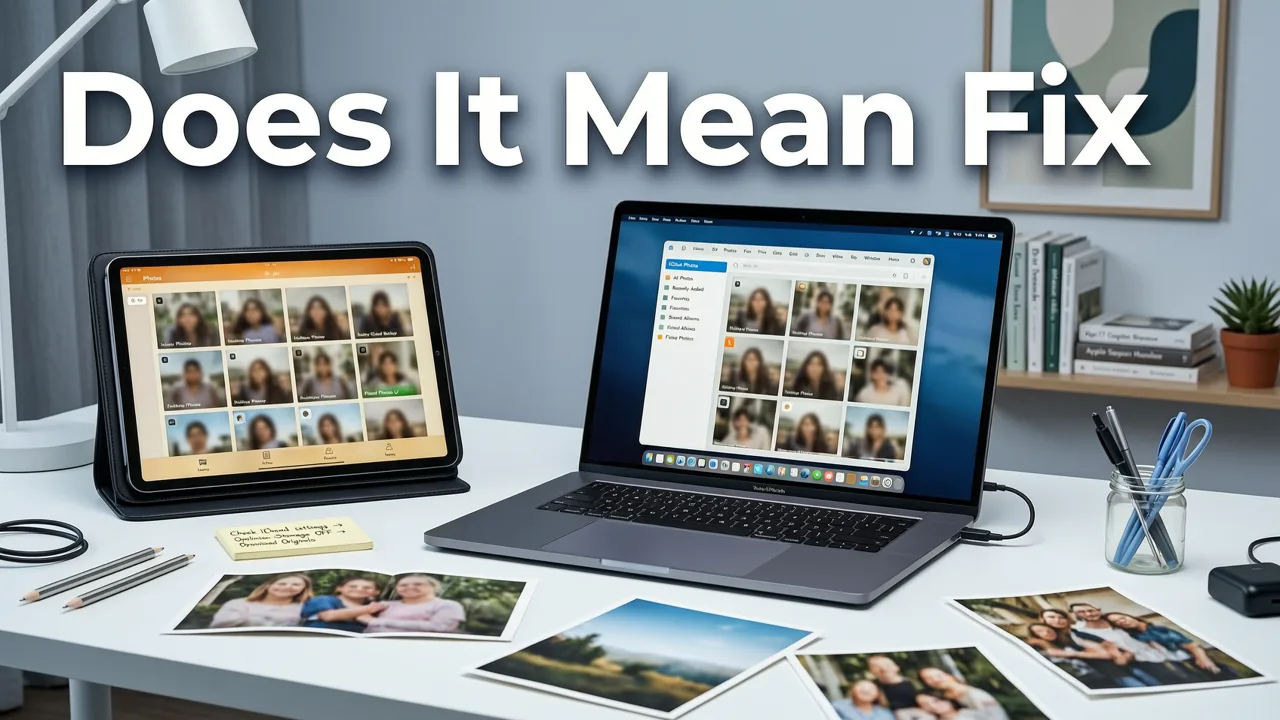
If you've ever opened your iCloud Photo Library expecting crisp memories and instead found soft, pixelated, or frustratingly out-of-focus shots, you're not alone. Millions of iPhone and iPad users face this exact problem every week — and the good news is that in 2026, you can fix blurry iCloud photos in seconds using AI, without touching a single manual adjustment slider.
Fixing blurry iCloud photos means recovering lost sharpness, restoring fine facial detail, and upscaling low-resolution images that have degraded during syncing, compression, or storage. Modern AI models can now analyze the specific degradation patterns that iCloud introduces and reverse them with astonishing accuracy.
This guide walks you through exactly why your iCloud photos end up blurry, which AI-powered methods actually work in 2026, and how to restore your entire library without any editing experience.
Why Your iCloud Photos Look Blurry in the First Place

Before you fix blurry iCloud photos, it helps to understand what's causing the blur. It's rarely a single issue — more often, it's a combination of factors stacking up over time.
iCloud's Optimized Storage Compression
When you enable Optimize iPhone Storage, Apple replaces full-resolution originals on your device with smaller, compressed versions. When you tap a photo to view it, iOS downloads the full-res file from iCloud. But if the download is interrupted, incomplete, or cached poorly, you'll see a blurry placeholder instead of the real image.
Sync Glitches Across Devices
If you use iCloud Photos across an iPhone, iPad, Mac, and Apple TV, sync conflicts can cause thumbnail previews to display instead of full-resolution images. These thumbnails often look soft or pixelated, especially on larger screens.
Network-Related Degradation
Photos uploaded over slow or unstable Wi-Fi connections may be compressed more aggressively by iOS to save bandwidth. This is particularly common with burst shots, Live Photos, and screenshots.
Aging Device Sensors
Older iPhones and iPads have smaller sensors and less advanced image processing. Photos taken on devices from 2019 or earlier may already be soft at the capture stage, and iCloud compression amplifies the problem.
Why 2026 Is the Best Year Yet to Fix Blurry iCloud Photos

The AI photo enhancement landscape has evolved dramatically. Here's what's changed in 2026 that makes fixing blurry iCloud photos easier than ever:
- Specialized degradation models: AI tools are now trained specifically on iCloud compression artifacts, meaning they can reverse the exact type of softness that iCloud introduces — not just generic blur.
- One-click workflows: You no longer need to download, edit, and re-upload. Modern tools let you process photos directly from your camera roll or iCloud library.
- Batch processing: Fix hundreds of blurry photos at once instead of one at a time.
- On-device AI: Some tools now run lightweight models directly on your iPhone, so you don't even need to upload anything to the cloud.
If you want a deeper look at how the technology works under the hood, our breakdown of how to fix blurry iCloud photos online covers the technical details in plain language.
How to Fix Blurry iCloud Photos: Step-by-Step
Here's the exact process for restoring sharpness to your blurry iCloud photos using AI in 2026. No Photoshop, no tutorials, no frustration.
Step 1: Save the Photo to Your Device
If the photo is stored only in iCloud and shows as a low-res thumbnail, tap it to trigger a full download. Make sure you're on a strong Wi-Fi connection. If it still looks blurry after downloading, the blur is baked into the image file itself — which is exactly what AI is designed to fix.
Step 2: Upload to an AI Photo Enhancer
Open an AI-powered enhancement tool like Pixelift, the best AI tool to restore iCloud photos in 2026. Upload the blurry photo directly from your camera roll. The tool will auto-diagnose the type of blur — motion blur, focus blur, compression artifacts, or low resolution — and apply the right correction model.
Step 3: Review and Download the Enhanced Photo
Within seconds, you'll see a side-by-side comparison of the original and enhanced version. If you're happy with the result, download the sharpened photo back to your device. The enhanced file will replace or sit alongside the blurry original in your camera roll.
Step 4: Re-Sync to iCloud (Optional)
Once you've saved the enhanced photo, iCloud will automatically sync the new, sharper version across all your devices. Your blurry photo problem is solved — permanently.
What AI Actually Does When You Fix Blurry iCloud Photos
It's worth understanding what's happening behind the scenes. When you use an AI tool to fix blurry iCloud photos, the software performs several sophisticated operations simultaneously:
- Deconvolution: The AI reverses the mathematical blur kernel that was applied during compression, essentially "un-blurring" the image at a pixel level.
- Detail hallucination: For areas where detail has been completely lost (like facial features or text), the AI predicts what the missing information likely looked like based on millions of training examples.
- Noise reduction: Compression often introduces color noise and banding. AI filters this out while preserving genuine detail.
- Upscaling: If the photo was stored at a reduced resolution, the AI intelligently increases the pixel count while maintaining sharpness — a process called super-resolution.
These operations happen in seconds and produce results that would have taken a professional retoucher hours to achieve manually just a few years ago.
Fix Blurry iCloud Photos vs. Traditional Editing: A Comparison
Not sure whether to use AI or go the manual route? Here's how the two approaches stack up in 2026:
| Factor | AI Photo Enhancement | Manual Editing (Photoshop, etc.) |
|---|---|---|
| Time required | Seconds per photo | 10–30 minutes per photo |
| Skill level needed | None — fully automated | Advanced editing knowledge |
| Batch processing | Hundreds of photos at once | One photo at a time |
| Quality of results | Excellent for blur, upscaling, and restoration | Excellent but dependent on skill |
| Cost | Free tiers available; affordable plans | Expensive software + learning curve |
| iCloud-specific optimization | Yes — trained on iCloud compression patterns | No — generic tools |
For most people who simply want their iCloud photos to look sharp again, AI enhancement is the clear winner. Manual editing still has its place for creative professionals, but it's overkill for everyday photo restoration.
Common Types of Blur in iCloud Photos and How AI Fixes Them
Not all blur is created equal. Here are the most common types you'll encounter in your iCloud library and how AI handles each one:
Motion Blur
Caused by subject movement or camera shake during capture. AI analyzes the direction and intensity of the blur streaks and reverses them, restoring sharp edges to moving subjects.
Focus Blur
When the camera focuses on the wrong subject or misses focus entirely, the resulting image is uniformly soft. AI sharpens the entire image and can even re-establish focus on the intended subject using facial recognition and depth estimation.
Compression Artifacts
Blocky, pixelated areas caused by aggressive JPEG or HEIC compression. AI smooths these artifacts while reconstructing the detail that was lost during compression.
Low-Resolution Blur
Photos that were stored at reduced resolution due to iCloud's optimized storage. AI upscales these images to their original dimensions (or even larger) while adding realistic detail.
Tips to Prevent iCloud Photos from Becoming Blurry in the Future
Once you've fixed your blurry iCloud photos, you'll want to keep them sharp. Here are practical steps to prevent future degradation:
- Use "Download and Keep Originals" in your iCloud Photos settings instead of "Optimize Storage" if you have enough device space. This prevents compression from happening in the first place.
- Ensure strong Wi-Fi during uploads. Photos uploaded over cellular or weak connections are more likely to be compressed.
- Regularly check for sync issues. Go to Settings → Your Name → iCloud → Photos and look for any paused or error messages.
- Back up originals separately. Keep a local backup on an external drive or a secondary cloud service as a safety net.
- Use AI enhancement proactively. If you notice a photo starting to look soft, run it through an AI enhancer like Pixelift's photo restoration tool before the degradation gets worse.
Fix Blurry iCloud Photos on iPhone, iPad, and Mac
The process for fixing blurry iCloud photos is essentially the same regardless of your device, but here are platform-specific notes:
On iPhone and iPad
Use the iOS app version of your chosen AI enhancer. You can select photos directly from your camera roll, process them in-app, and save the enhanced versions back to your library. The entire workflow takes less than a minute per photo.
On Mac
Use the web version of your AI enhancer. Open the Photos app, select the blurry images, drag them into your browser, and process them on the web. Enhanced photos can be dragged back into your Photos library.
Across Multiple Devices
Because iCloud Photos syncs automatically, any enhanced photo you save on one device will appear on all your other devices within minutes. Fix a photo on your Mac during lunch, and it'll be sharp on your iPhone by dinner.
How to Fix Blurry iCloud Photos in Bulk
If your entire iCloud library looks soft, fixing photos one at a time isn't practical. Here's how to handle bulk restoration:
- Export from iCloud.com: Go to iCloud.com on your computer, sign in, and select multiple photos. Download them as a ZIP file.
- Batch upload to an AI enhancer: Use a tool that supports batch processing to upload all the photos at once.
- Review and download: Check a few samples to make sure you're happy with the enhancement quality, then download the entire batch.
- Re-import to iCloud: Upload the enhanced photos back to your iCloud library. They'll replace or supplement the originals.
This approach is especially useful if you're restoring faded family photos from iCloud and want to bring an entire album back to life in one session.
Is It Safe to Use AI Tools to Fix Blurry iCloud Photos?
Yes — as long as you choose a reputable tool. Here's what to look for:
- Privacy-first processing: Your photos should be processed securely and deleted from the tool's servers after download.
- No account required for basic use: The best tools let you try them without signing up.
- Transparent data policies: The tool should clearly state what it does with your images and for how long.
- Positive user reviews: Check recent reviews on the App Store or independent review sites.
Pixelift, for example, processes your photos securely and does not store them permanently. Your memories stay yours.
Frequently Asked Questions
Here are answers to the most common questions about fixing blurry iCloud photos with AI in 2026.
Can I fix blurry iCloud photos for free?
Many AI photo enhancers offer free tiers that let you process a limited number of photos at no cost. For larger libraries, affordable paid plans provide unlimited or high-volume processing.
Will fixing blurry iCloud photos affect my original files?
Most AI tools save the enhanced version as a new file, leaving your original untouched. You can choose to keep both or replace the original with the enhanced version.
How long does it take to fix a blurry iCloud photo with AI?
Typically between 3 and 15 seconds per photo, depending on the image size and the complexity of the blur. Batch processing can handle hundreds of photos in a few minutes.
Does AI work on all types of blurry photos?
AI excels at fixing motion blur, focus blur, compression artifacts, and low-resolution images. Severely damaged photos may see dramatic improvement but might not reach perfect clarity — though 2026's models are remarkably close.
Can I fix Live Photos and HDR images from iCloud?
Yes. Most AI enhancers in 2026 support Live Photos (by enhancing the key frame) and HDR images. Check your tool's supported formats before uploading.
Final Thoughts: Your iCloud Photos Deserve to Look Their Best
Blurry iCloud photos don't have to be a permanent problem. Whether the blur comes from compression, sync issues, aging device sensors, or simple capture mistakes, AI-powered enhancement can restore sharpness and clarity in seconds — no editing skills required.
In 2026, the tools are better than ever, the workflows are seamless, and the results speak for themselves. Stop settling for soft, pixelated memories. Try an AI photo enhancer today and see your iCloud library the way it was always meant to look.
Ready to bring your photos back to life? Upload your first blurry iCloud photo to Pixelift and see the difference AI makes in seconds.