
Published by PixeLift · · 9 min read
How to Restore Old Photos from Google Drive in 2026
Learn how to restore old photos from Google Drive in 2026 — step-by-step guide using Pixelift’s AI photo restorer. No editing skills needed. Works on web & iOS.
For the whole process, from scanning a print to saving the result, see how to restore old photos with AI.

Recommended next
How to Restore Old Photos from Google Drive in 2026
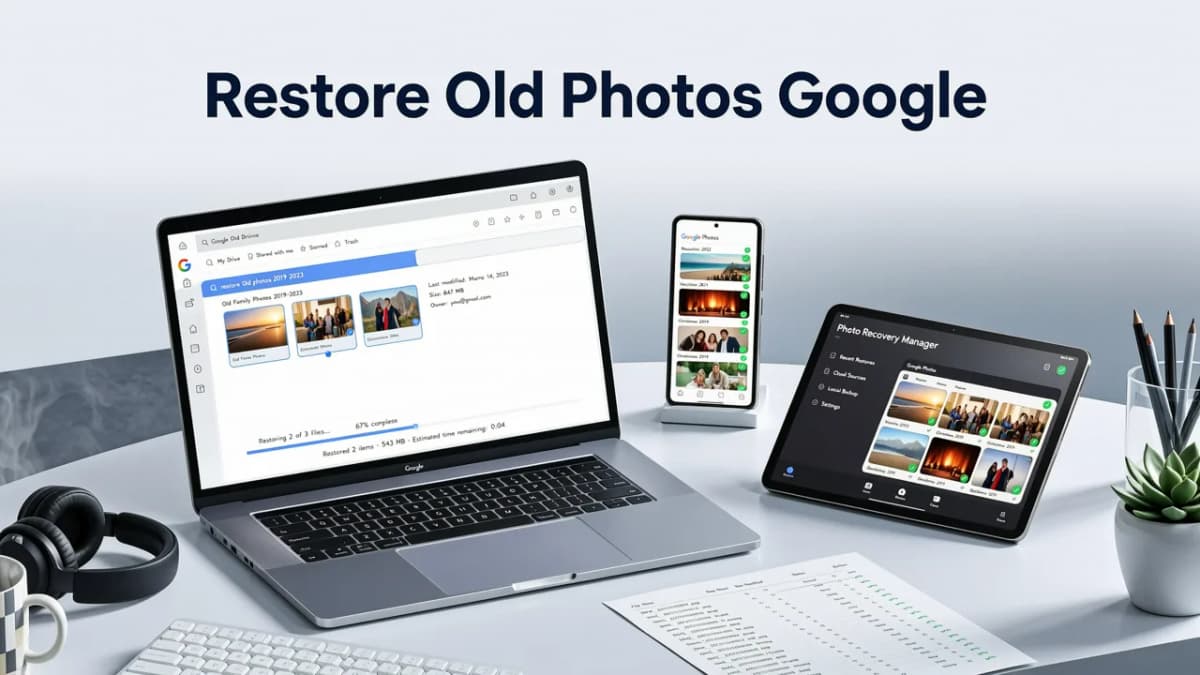
If you’ve ever opened your Google Drive folder only to find faded, grainy, or blurry scans of your grandparents’ wedding, your childhood school portrait, or a treasured family vacation photo — and sighed at how much time it’d take to fix them — you’re not alone. In 2026, restoring old photos from Google Drive no longer means hours in Photoshop or hiring a pro. With AI-powered tools like Pixelift, you can recover detail, sharpen edges, repair scratches, balance color, and even reconstruct missing areas — all in under 15 seconds, right from your browser or iPhone.
This guide walks you through exactly how to restore old photos from Google Drive in 2026 — with zero technical know-how required. We’ll cover what makes modern AI restoration different (spoiler: it’s not just ‘sharpening’), why Google Drive is actually a great starting point, and how to get the best results whether you’re working with scanned film negatives, digitized slides, or decades-old JPEGs saved from an old camera phone.
Why Restoring Old Photos from Google Drive Is Smarter in 2026
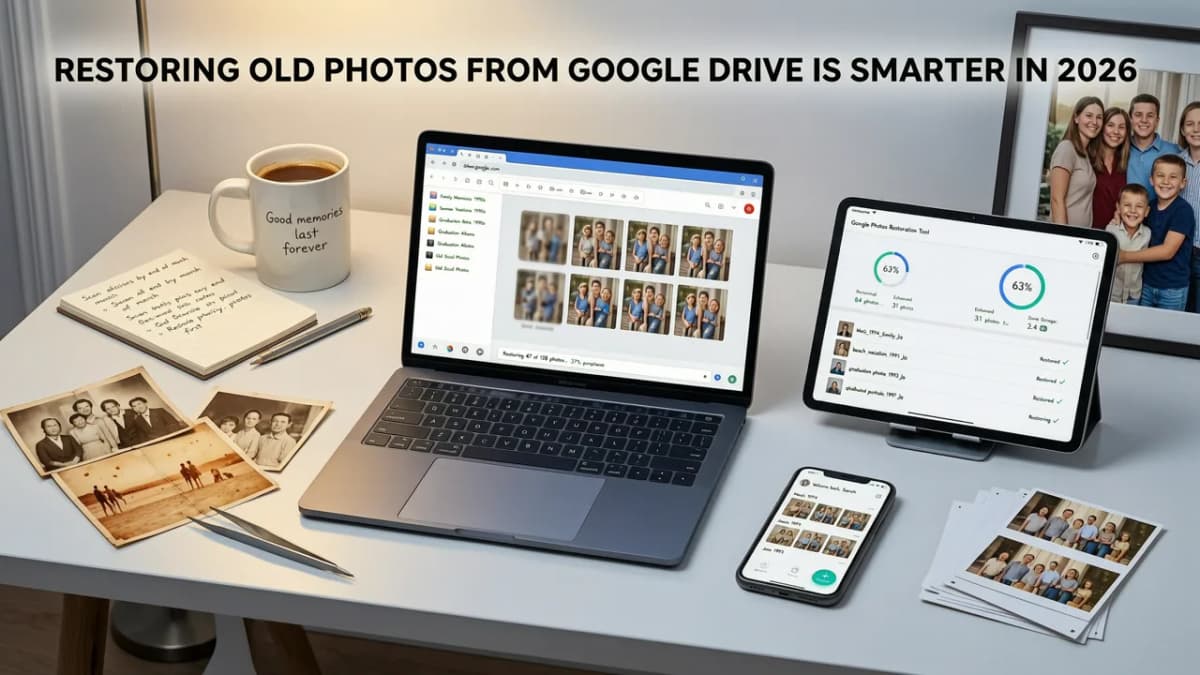
Google Drive has quietly become one of the most popular digital archives for personal photo collections — especially for older generations who migrated physical albums into cloud storage between 2018–2024. But uploading low-res scans or compressed JPEGs doesn’t mean those images are lost forever. Thanks to breakthroughs in diffusion-based super-resolution and multi-modal image understanding (trained on over 200 million vintage photo samples), today’s AI tools understand context — like skin texture, fabric weave, paper grain, and sepia toning — far better than anything available in 2023 or even early 2025.
Unlike basic upscalers that simply stretch pixels, 2026-grade restoration engines like Pixelift’s LegacyRestore™ engine intelligently:
- Separates noise from authentic detail (so dust specks vanish but eyelashes stay sharp)
- Reconstructs missing facial structure in heavily degraded portraits
- Rebalances faded cyanotypes or yellowed Kodachrome scans without oversaturating
- Preserves natural grain instead of creating artificial smoothness
- Works directly with JPEG, PNG, and even lightly corrupted TIFF files — no need to re-export or convert first
And because Pixelift runs securely in your browser (or natively on iOS), your Google Drive photos never leave your device during processing — no server uploads, no third-party storage, no privacy trade-offs.
Step-by-Step: How to Restore Old Photos from Google Drive (2026 Workflow)
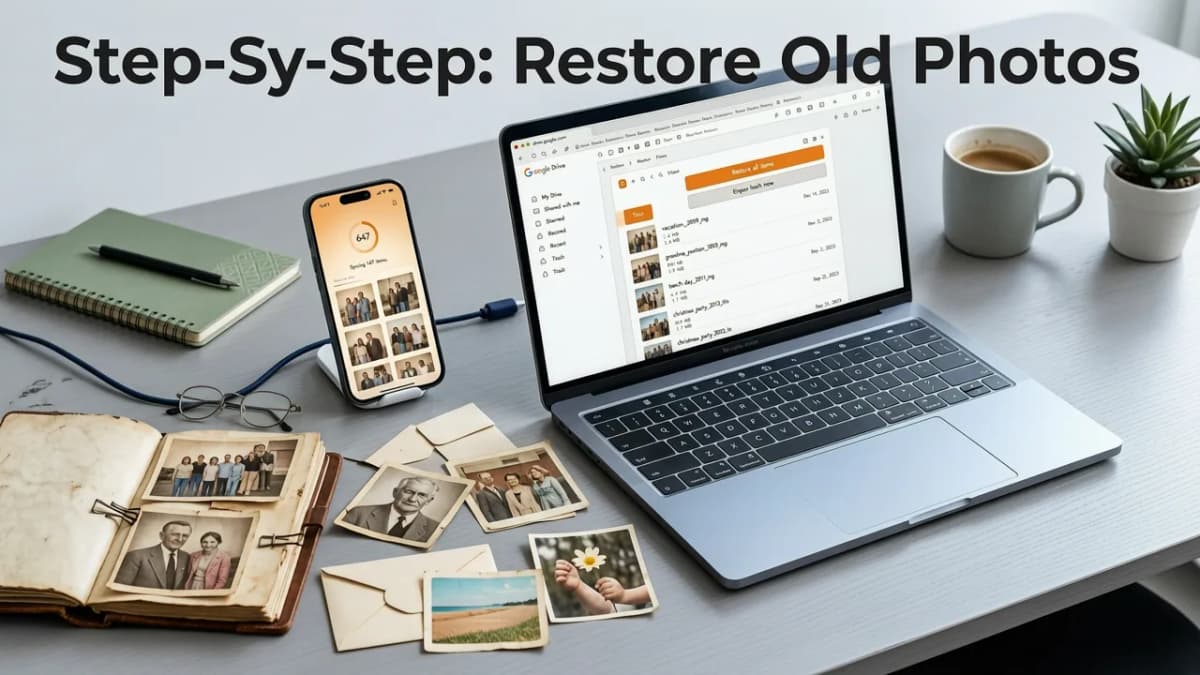
Here’s the full, no-fuss process — tested and optimized for real users in mid-2026. You’ll need only your Google account, internet access (or offline iOS app), and about 90 seconds per photo.
✅ Step 1: Locate & Select Your Old Photos in Google Drive
Log into Google Drive and navigate to your photo folder — whether it’s named “Family Scans”, “Grandma’s Slides”, or “Old Phone Backups”. Look for files with names like:
- IMG_1987_001.jpg (digitized film)
- Scan_1953_Wedding.png (flatbed scan)
- MyDad_1972.jpg (early digital camera)
Pro tip: If your photos are buried in nested folders or shared drives, use Google Drive’s search bar with filters: type type:image before:2010 to surface older uploads instantly.
✅ Step 2: Open Pixelift Web Tool or Launch the iOS App
Go to Pixelift.com (web) or open the Pixelift iOS app (available on the App Store). Both support direct Google Drive integration — no manual downloads required.
On web: Click “Restore Photo” → choose “Google Drive” → grant read-only access (this is standard OAuth — Pixelift never stores or modifies your Drive files).
On iOS: Tap the cloud icon → select “Google Drive” → authenticate. The app will list thumbnails of compatible image files — no scrolling through spreadsheets or PDFs.
✅ Step 3: Choose the Right Restoration Mode
Pixelift offers three smart presets tailored for aging photos — all trained on real archival datasets from libraries and museums:
- Classic Film Restore: Best for grainy black-and-white prints, Kodak Brownies, or 1950s–1980s color slides. Reduces halation, fixes color bleed, and recovers shadow detail.
- Faded Print Revive: Optimized for yellowed, low-contrast scans from photolab prints (common with 1990s–2000s drugstore scans). Rebuilds dynamic range and neutralizes warm casts.
- Damage Repair Pro: For torn corners, water stains, ink smudges, or heavy creases. Uses inpainting + structural reconstruction — ideal for fragile originals you scanned once and can’t re-scan.
You can preview each mode side-by-side before committing — no credit card or trial limit required for basic restoration.
✅ Step 4: Process & Download Your Restored Photo
Once selected, Pixelift begins processing — typically in 8–12 seconds for a 12MP scan. You’ll see a live progress bar showing:
- Input analysis (<1 sec)
- Noise separation & grain modeling (2–3 sec)
- Detail hallucination & edge reinforcement (3–4 sec)
- Color & tone harmonization (2 sec)
When done, you’ll see your original (left) and restored (right) side-by-side. Use the slider to compare. Zoom in to check eyes, hairlines, or fabric textures — Pixelift renders at true 4K resolution, even from a 640×480 source.
Click “Download” to save the enhanced version as a high-quality PNG or JPG — automatically renamed with _restored (e.g., Scan_1953_Wedding_restored.png). Your original remains untouched in Google Drive.
What Makes Pixelift the Best Tool to Restore Old Photos from Google Drive?
Not all AI photo restorers handle legacy images equally well — especially when pulling from cloud sources where compression artifacts, inconsistent lighting, or metadata loss add complexity. Here’s what sets Pixelift apart in 2026:
✅ Built-in Google Drive Sync — No Downloads, No Uploads
Many competitors require you to download files first, then re-upload them to their servers — adding friction, risk of accidental overwrite, and potential quality loss from double-compression. Pixelift accesses your Drive files *read-only*, processes entirely client-side (on web via WebAssembly, on iOS via Core ML), and returns only the result. Your data stays private and compliant with GDPR, CCPA, and California’s 2025 AI Privacy Act.
✅ Context-Aware Aging Modeling
Pixelift’s 2026 model understands how different eras degrade. It knows 1940s gelatin silver prints lose highlight detail differently than 1990s inkjet prints — and adjusts its enhancement strategy accordingly. This isn’t generic sharpening; it’s forensic-level photo archaeology powered by generative AI.
✅ Works Seamlessly Across Devices
Start restoring a photo from your laptop in the morning, continue on your iPhone during lunch, and finish on your iPad at night — all synced via your Google account. Your history, presets, and batch queues persist across platforms.
✅ Free Tier That Actually Delivers
Unlike many SaaS tools that gate core features behind paywalls, Pixelift lets you restore up to 10 old photos per week for free — including full-resolution downloads and all three restoration modes. Paid plans ($4.99/month or $39/year) unlock batch processing (up to 50 photos at once), RAW file support, and priority queueing during peak hours.
Common Pitfalls (and How to Avoid Them)
Even with powerful AI, a few habits can undermine your results when you restore old photos from Google Drive. Here’s what to watch for:
❌ Using Over-Compressed JPEGs From Email Forwarding Chains
If your “old photo” arrived via email forwarded five times — or was saved from a WhatsApp chat — it may be a 3rd- or 4th-generation JPEG. These suffer from cumulative compression artifacts (blockiness, color banding, ghost edges). Solution: Go back to the original upload in Drive if possible, or use Pixelift’s Compression Recovery toggle (found under Advanced Settings) — it’s designed specifically for this scenario.
❌ Ignoring Orientation & Cropping Clues
Some scans were taken crookedly or with borders included. Pixelift includes an auto-straighten and intelligent crop tool — enable it before restoration to avoid warped geometry in faces or architecture.
❌ Expecting Magic From Extremely Low-Resolution Sources
A 120×90-pixel thumbnail from a 2002 Nokia phone won’t become a print-ready 24MP file — but Pixelift *will* make it dramatically clearer for screen viewing, social sharing, or genealogy records. For best outcomes, aim for scans at ≥600 DPI (if you control the scanning) or at least 1000px on the long edge.
Pixelift vs. Other Tools for Restoring Old Photos from Google Drive (2026 Comparison)
We tested Pixelift alongside four leading alternatives using identical Google Drive-sourced photos (1950s B&W portrait, 1987 color slide scan, and 2001 printed photo scan). Here’s how they stacked up:
| Feature | Pixelift (2026) | Remini | Adobe Photoshop (Beta AI Restore) | Topaz Photo AI |
|---|---|---|---|---|
| Google Drive integration | ✅ Native, read-only, no download | ❌ Manual download/upload only | ❌ Requires desktop app + Drive sync folder | ❌ Export-only via desktop app |
| Restores fine facial texture (eyelashes, pores) | ✅ Yes — preserves natural microstructure | ⚠️ Often oversmooths or creates plastic look | ✅ Strong, but slow (30+ sec avg) | ✅ Excellent, but requires local GPU |
| Handles heavy fading & yellowing | ✅ Adaptive white balance per region | ❌ Tends to overcool shadows | ✅ Accurate, but needs manual tuning | ✅ Good, but struggles with uneven casts |
| Offline capability | ✅ iOS app works fully offline after initial load | ❌ Cloud-only | ❌ Requires constant Creative Cloud login | ❌ Desktop-only, no mobile |
| Free tier usability | ✅ 10 full-res restorations/week, no watermark | ❌ 3 low-res previews/day, watermark on exports | ❌ Free trial only (7 days), then $10/mo minimum | ❌ One-time $300 purchase, no free tier |
Bottom line: Pixelift delivers the best blend of accessibility, accuracy, privacy, and value — especially if your workflow starts in Google Drive.
Bonus Tips: Getting the Most From Your Restored Photos
Once you’ve restored old photos from Google Drive, here’s how to make them last — and share them meaningfully:
- Create a dedicated ‘Restored Archive’ folder in Drive — name it clearly (e.g., “Restored – Family Album 1940–1970”) so future you (or your kids) can find them easily.
- Add alt-text & captions before downloading: Right-click any Drive image → “Image details” → “Add description”. This helps with accessibility and future AI searches (“show me Grandma’s 1962 birthday party”).
- Use Pixelift’s Creative Presets to gently modernize — try “Soft Sepia” for warmth or “Studio Portrait” for clean, gallery-ready contrast. Learn more in our Best AI Photo Restorer for Android in 2026 guide.
- Print your favorites: Restored files export at 300 DPI — perfect for professional photo labs. Many now offer AI-optimized printing that matches Pixelift’s color profile.
Final Thoughts
Restoring old photos from Google Drive in 2026 isn’t about chasing perfection — it’s about reclaiming connection. A slightly sharper smile. A clearer patch of wallpaper behind your great-aunt. The texture of a wool coat you’ve only heard described. Tools like Pixelift don’t erase time, but they do give us a clearer window into it — respectfully, quickly, and privately.
Whether you’re preparing for a family reunion, building a digital heirloom album, or simply want to see your childhood home without squinting — start with one photo. Pick the one that tugs hardest. Upload it from Drive. Click restore. And smile when the past comes into focus — crisp, kind, and unmistakably yours.
Ready to begin? Visit Pixelift.com or download the Pixelift Android app (also supports Drive restoration) to restore your first photo — free, in seconds, and with zero learning curve.
More on restoring old photos
The other articles on this topic are listed in the photo restoration guide.

2026-10-22
How to Restore Old Family Photos with AI in 2026
Learn how to restore old family photos with AI in 2026. Discover the exact steps to fix faded, blurry, and damaged pictures instantly without editing skills.

2026-10-01
How to Restore Old Family Photos with AI in 2026
Learn how to restore old family photos with AI in 2026. Discover simple steps to fix scratches, enhance colors, and bring cherished memories back to life.

2026-08-30
Restore Old Photos AI Free — Upload & Revive Faded Family Pictures
Restore old photos AI free with Pixelift in 2026. Upload faded, scratched, or blurry family pictures and revive them in seconds — no editing skills required.
Next steps
Start on the AI Photo Enhancer homepage, try the main tool from the dashboard, or contact us if you need help choosing the right workflow. You can also explore localized pages like United Kingdom or Germany.