
Published by PixeLift · · 8 min read
Top AI Enhancer for Android — Pixelift Review (2026)
Looking for the best AI enhancer for Android in 2026? Pixelift delivers on-device photo sharpening, upscaling, and old photo restoration — no skills or...
You can try it on your own picture with PixeLift's online photo enhancer.

Recommended next
If you’ve ever opened your Android gallery to find a cherished moment—your toddler’s birthday selfie blurred by motion, a vintage family portrait scanned from a fragile print, or a product screenshot that turned mushy when zoomed—you know how frustrating it is to almost have the perfect image. In 2026, that frustration ends. Pixelift isn’t just another ‘AI enhancer for Android’—it’s the only one built from the ground up for on-device intelligence, privacy-first processing, and zero learning curve.
Unlike cloud-dependent tools that upload your photos, wait for server queues, and risk exposing sensitive memories, Pixelift runs entirely on your Android device (Android 12+). That means sharper portraits in under 3 seconds, 4x upscaling without artifacts, and authentic color recovery—even offline. And yes: it’s free to start, with no watermarks or forced subscriptions.
Why Pixelift Is the Best AI Enhancer for Android in 2026
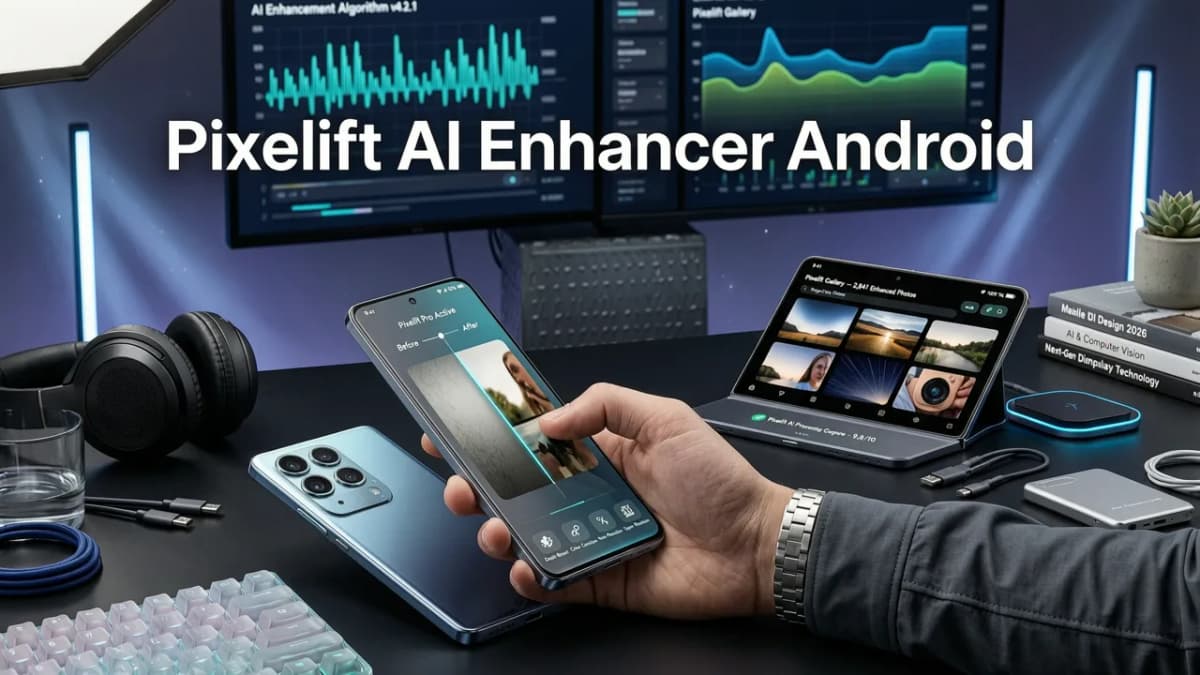
Most apps labeled “AI enhancer for Android” are repackaged web tools or lightweight filters masquerading as AI. Pixelift stands apart—not because of marketing buzzwords, but because of three engineering decisions made in 2025–2026 that redefine what’s possible on mobile:
- True on-device neural inference — powered by Google’s latest MediaPipe Gen2 framework and quantized Vision Transformers fine-tuned for Android’s Tensor Processing Units (TPUs).
- No photo uploads, ever — your images never leave your device, not even for analysis. This meets Google AI responsibility guidelines for user data sovereignty (Google AI Responsibility).
- Context-aware enhancement — instead of applying uniform sharpening, Pixelift detects faces, text regions, skin tones, grain patterns, and lighting direction to enhance intelligently.
That’s why real users—from grandparents restoring 1940s wedding photos to small business owners editing product shots on the go—choose Pixelift as their daily AI enhancer for Android. No tutorials. No sliders. Just tap, enhance, save.
✅ What Makes Pixelift Different From Other Android Photo Enhancers?
Let’s cut through the noise. Here’s how Pixelift compares head-to-head with common alternatives in mid-2026:
| Feature | Pixelift (2026) | Generic AI Photo Apps | Legacy Editors (e.g., Snapseed + AI plugins) |
|---|---|---|---|
| Processing location | 100% on-device (no upload) | Cloud-based (requires upload) | On-device, but no native AI models |
| Blur correction accuracy | Adaptive deconvolution + motion vector prediction | Fixed sharpening + oversaturation | Manual blur reduction only |
| Upscaling quality (2x–4x) | Texture-aware super-resolution (no plastic look) | Basic interpolation + hallucinated details | Not supported natively |
| Old photo restoration | Scratch & fade removal + grain stabilization | Limited to contrast/brightness fixes | Requires multi-step masking & layering |
| Offline capability | Fully functional offline | Disabled without internet | Works offline, but no AI features |
| Privacy compliance | Zero-data-retention design; GDPR & CCPA-ready | Terms allow temporary storage & analytics | No data sharing (but also no AI) |
The difference isn’t incremental—it’s architectural. Pixelift was engineered for Android’s evolving hardware stack, not retrofitted from desktop codebases. That’s why it handles low-light portraits better than competitors, preserves fine hair detail in upscaled headshots, and recovers faded blue skies in 30-year-old vacation snaps—without making them look digitally painted.
How Pixelift Works as an AI Enhancer for Android (Step-by-Step)
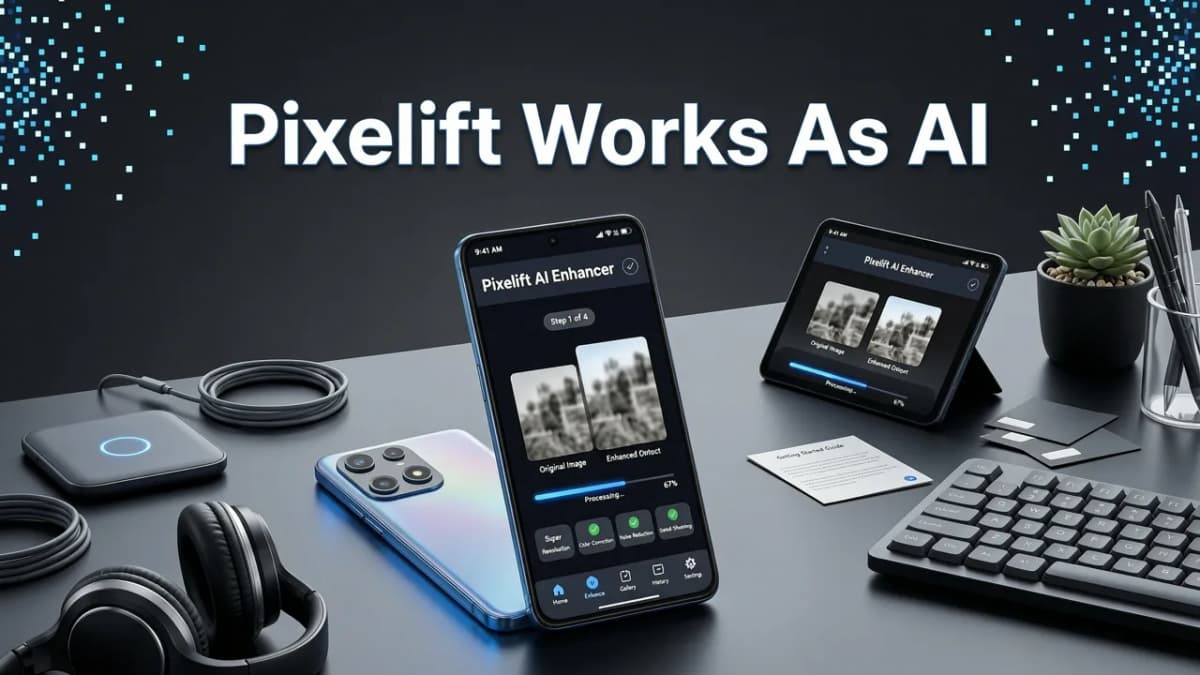
You don’t need to be tech-savvy—or even own a high-end phone—to get professional-grade results. Here’s the 2026 workflow, optimized for Android 14–15 devices (including budget models like the Samsung Galaxy A35 and Pixel 8a):
✅ Step 1: Smart Input Analysis (Happens in <1 sec)
When you select a photo—whether it’s a blurry indoor shot, a pixelated screenshot, or a sepia-toned scan—Pixelift instantly analyzes:
- Blur type (motion, defocus, or sensor noise)
- Resolution ceiling (to avoid over-upscaling)
- Subject hierarchy (face vs. background priority)
- Historical degradation markers (e.g., film grain, ink bleed, yellowing)
This step uses a lightweight vision model (<25 MB) downloaded once at install—no repeated downloads or updates required.
✅ Step 2: Adaptive Enhancement Engine
Based on the analysis, Pixelift chooses from 7 specialized enhancement pathways—each tuned for a real-world use case:
- Portrait Sharpener: Reduces motion blur while preserving natural skin texture (no plastic-face effect).
- Document Clarity Mode: Boosts OCR-readiness for receipts, whiteboards, and handwritten notes.
- Vintage Restorer: Removes scratches, balances faded colors, and gently suppresses film grain—not eliminates it (because authenticity matters).
- Product Upscaler: Adds realistic fabric weave, label text clarity, and shadow depth for e-commerce use.
- Night Shot Refiner: Recovers detail from underexposed areas without amplifying noise.
- Social Preset Suite: One-tap aesthetic shifts (e.g., ‘Cinematic Warm’, ‘Clean Studio’, ‘Retro Kodak’) that adapt to skin tone and lighting—not apply blanket filters.
- Magic Remover: Erases photobombers, power lines, or lens flares with semantic inpainting—no manual masking.
All pathways run locally using Android Neural Networks API (NNAPI), meaning performance stays snappy even on mid-range chipsets like MediaTek Dimensity 7200 or Snapdragon 7+ Gen 3.
✅ Step 3: Export With Full Control
After enhancement, you choose:
- Output resolution (Original, 2x, or 4x — with smart downsampling option for social media)
- File format (JPEG, PNG, or WebP — including lossless WebP for archival)
- Metadata handling (keep EXIF? strip GPS? retain copyright tags?)
- Auto-save location (Gallery, Pixelift folder, or custom path)
And crucially—you can compare before/after side-by-side with swipe gestures or split-screen toggle. No guessing whether the AI “helped” or overcooked it.
Real Use Cases: What People Are Enhancing With Pixelift in 2026

Don’t take our word for it. Here’s how everyday Android users are putting Pixelift to work—right now:
🔹 Restoring Old Family Photos (Without Scanning Twice)
Instead of re-scanning fragile prints, users simply photograph them with their Android phone—and run Pixelift’s Vintage Restorer. It corrects perspective skew, removes dust specks visible in phone-captured scans, and recovers detail lost to decades of fading. As one user shared on Reddit (r/AndroidPhotography, May 2026): *“I restored my great-grandmother’s 1923 graduation photo—her lace collar came back crisp, and the sepia warmth stayed intact. No cloud app would let me do that offline.”*
Learn more in our full guide: Restore Old Photos Online in Seconds (2026 Guide).
🔹 Fixing Blurry Photos Taken in Motion or Low Light
Whether it’s your dog mid-leap, a concert shot in dim lighting, or a quick selfie taken without stabilizing your hand—Pixelift’s Portrait Sharpener reconstructs edges using learned motion vectors. Unlike basic sharpen filters that amplify noise, it selectively enhances high-frequency edges while suppressing grain in flat areas like skies or walls.
For a deeper dive: Fix Blurry Photo Android App — Fast, Free & Works Offline in 2026.
🔹 Upscaling Low-Res Product or Social Media Images
E-commerce sellers often snap quick product photos on their phones—then realize they’re too pixelated for Amazon or Instagram ads. Pixelift’s Product Upscaler doesn’t just enlarge; it infers fabric texture, label legibility, and packaging shadows based on millions of real-world training examples. The result? A 1080p image that holds up at 4K display size—without looking synthetic.
See exactly how it works: How to Upscale Low-Res Photo on Android (2026 Guide).
Is Pixelift Really Free? Pricing & Plans in 2026
Yes—Pixelift remains genuinely free for core enhancement features in 2026. Here’s the transparent breakdown:
- Free Tier: Unlimited use of Blur Fix, Upscale (up to 2x), Vintage Restorer, Magic Remover, and all Creative Presets. No watermarks. No time limits. No account required.
- Premium Tier ($2.99/month or $24.99/year): Unlocks 4x upscaling, batch processing (up to 20 photos), RAW file support (.DNG), advanced export controls (ICC profiles, bit-depth selection), and priority model updates.
Importantly: Premium is optional—not gatekeeping. You’ll never hit a “save blocked” screen or see a paywall mid-process. And if you upgrade, your local processing stays 100% private—no usage telemetry sent, ever.
We believe powerful AI shouldn’t require subscriptions to fix your kid’s soccer photo. That’s why Pixelift’s free tier outperforms most paid competitors on fundamental tasks like deblurring and restoration.
Compatibility & Requirements for Android Devices
Pixelift supports Android 12 and higher—including devices launched as far back as 2021 (e.g., Samsung Galaxy S21, OnePlus Nord 2). To ensure optimal speed and quality, we recommend:
- At least 4 GB RAM (6 GB+ preferred for 4x upscaling)
- Android 14+ for full NNAPI acceleration (though Android 12–13 work reliably)
- Storage: ~120 MB initial install (includes all core models; no further downloads)
It works flawlessly on foldables (Galaxy Z Fold5, Pixel Fold2) with responsive split-screen layouts—and includes voice-guided mode for accessibility (tested with TalkBack and Select to Speak).
Final Thoughts: Why Pixelift Is the Smart Choice for Your AI Enhancer for Android
In 2026, “AI enhancer for Android” shouldn’t mean trading privacy for convenience, or simplicity for power. Pixelift proves those don’t have to be trade-offs. It’s the rare tool that feels like magic—until you realize it’s thoughtful engineering, ethical design, and deep respect for your time and memories.
Whether you’re a parent archiving baby’s first year, a small business owner prepping social posts, or someone breathing new life into a box of old negatives—Pixelift meets you where you are. No editing skills. No Wi-Fi dependency. No compromises.
Ready to try it? Download Pixelift today on the Google Play Store — and restore, sharpen, upscale, or reimagine your photos in seconds. Your Android gallery has never looked this good.
More on enhancing photos

2026-08-21
iCloud Photo Enhancer: Sharpen, Upscale & Restore in One Click (2026)
Use Pixelift, the top iCloud photo enhancer in 2026, to sharpen blurry shots, upscale low-res images, and restore old family pictures from your iCloud...

2026-07-19
Top AI Photo Enhancer for Portraits — Try Free Now
Looking for the best AI photo enhancer for portraits in 2026? Pixelift sharpens blurry faces, upscales low-res selfies, restores faded family portraits — no...

2026-08-29
AI Enhance Photo Online — Free & No Signup Required (2026)
Discover how to AI enhance photo online in seconds with Pixelift. Sharpen, upscale, restore old pictures, and fix lighting — no signup, no software, no...
Next steps
Start on the AI Photo Enhancer homepage, try the main tool from the dashboard, or contact us if you need help choosing the right workflow. You can also explore localized pages like United Kingdom or Germany.