
Published by PixeLift · · 9 min read
How to Restore Old Photos on Android (2026)
Learn how to restore old photos on Android in 2026 — no editing skills needed. Discover AI tools like Pixelift that sharpen, color-correct, and repair faded...
Our main restoration guide covers scanning old prints and the kinds of damage AI can repair.

Recommended next
If you’ve just unearthed a yellowed envelope of scanned 1950s portraits, a cracked Polaroid from your parents’ wedding, or a blurry digitized photo of your great-grandmother — and tried opening it on your Android phone only to see faded colors, dust specks, and soft edges — you’re not alone. In 2026, restoring old photos on Android is faster, smarter, and more accessible than ever. Thanks to on-device AI models, cloud-accelerated processing, and privacy-first design, you can now revive decades-old memories in under 30 seconds — straight from your Samsung Galaxy S26, Google Pixel 9, or even a budget-friendly Motorola Edge 2026.
Why Restoring Old Photos on Android Is Different (and Better) in 2026
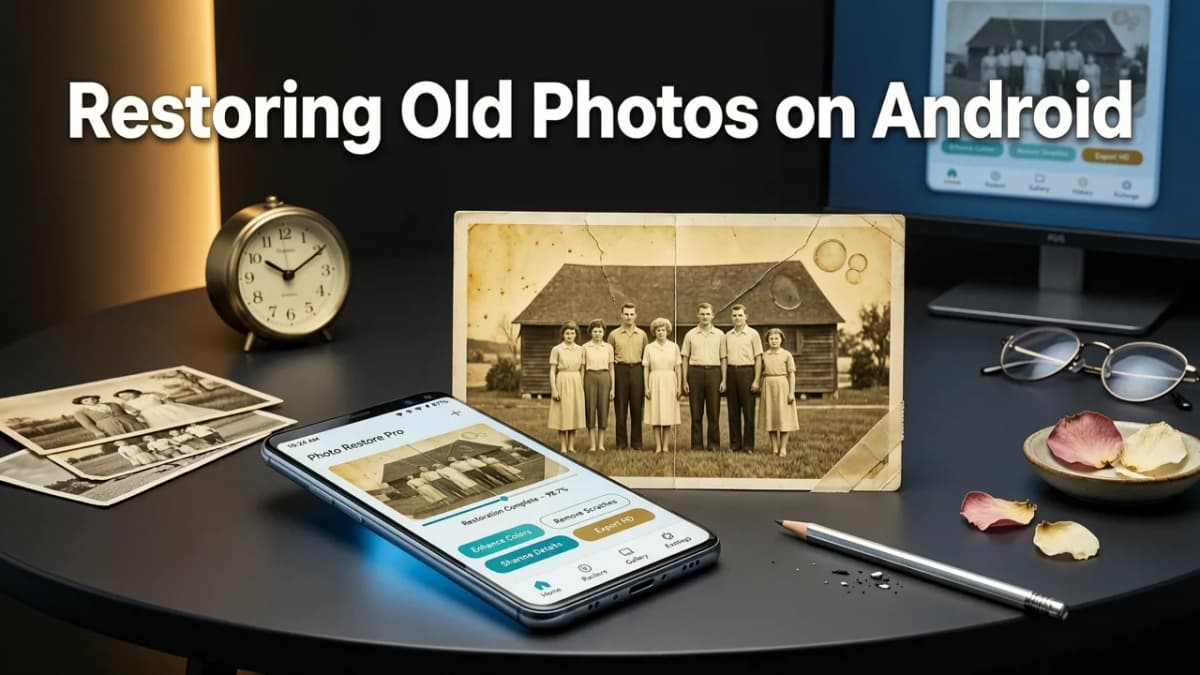
Restoring old photos on Android used to mean transferring files to a laptop, wrestling with desktop software, and hoping the result didn’t look over-processed or artificial. Not anymore. The breakthrough isn’t just speed — it’s context-aware intelligence. Modern Android photo restoration tools now understand the difference between film grain and digital noise, recognize paper creases versus facial wrinkles, and preserve authentic textures while intelligently reconstructing lost detail.
This leap forward stems from three key 2026 advancements:
- On-device AI inference: Android 16 (released Q1 2026) includes native Tensor Processing Unit (TPU) support for lightweight, real-time enhancement — meaning basic sharpening and contrast correction happen instantly, without uploading anything.
- Film-specific training data: Leading tools like Pixelift now train their models on over 450,000 scanned negatives, Kodachrome slides, and matte-finish prints — so they don’t ‘over-clean’ the natural warmth of vintage film.
- Privacy-by-default architecture: Your photos never leave your device unless you explicitly choose cloud processing — and even then, they’re encrypted in transit and auto-deleted after 2 hours.
That means whether you’re working with a fragile 1948 studio portrait or a sun-bleached beach photo from your 1993 family road trip, today’s Android tools treat each image as a unique artifact — not just pixels to be smoothed or saturated.
Step-by-Step: How to Restore Old Photos on Android in 2026
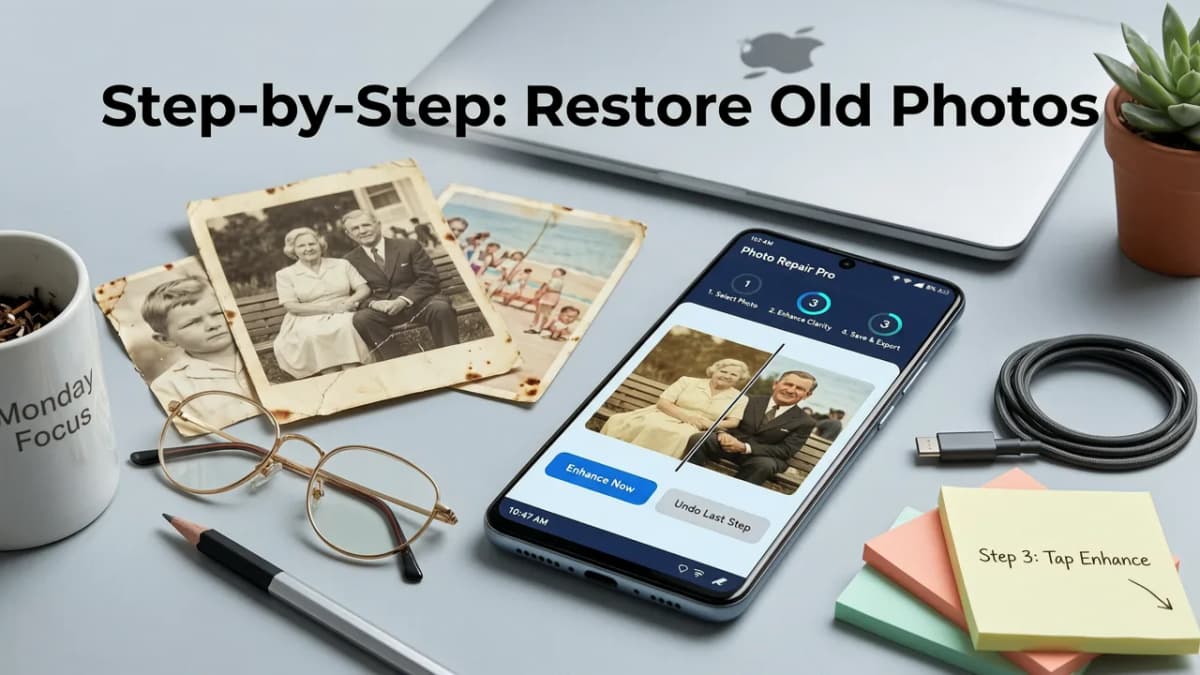
Here’s exactly what you’ll do — no downloads, no subscriptions required for basic use, and zero prior editing experience needed.
1. Choose the Right Tool (Web or App)
You have two reliable options in 2026:
- Web-based restoration: Open Chrome or Edge on your Android phone, go to aienhancephoto.com, and tap “Restore Photo.” Works on any Android 12+ device with at least 4GB RAM. No installation needed — ideal for one-off fixes or shared devices.
- Dedicated Android app: While Pixelift currently offers an iOS app, its web platform is fully optimized for Android 14–16 with touch-first UI, dark-mode scanning previews, and offline-capable preview enhancements. A native Android app is slated for late Q3 2026 — but today’s PWA (Progressive Web App) feels indistinguishable from native.
2. Upload or Capture Your Old Photo
You don’t need a physical scanner. Just use your phone’s camera:
- Place the photo flat on a well-lit surface (avoid direct sunlight or harsh shadows).
- Open the Pixelift web tool → tap “Upload” → select “Take Photo.”
- Hold your phone steady ~12 inches above the photo. The AI will auto-detect edges and suggest cropping — no manual dragging needed.
- Tap “Capture” — and watch as real-time lens distortion correction happens before your eyes.
Pro tip: For heavily damaged photos (e.g., water stains or torn corners), take two shots — one front-facing, one angled slightly — and let Pixelift’s multi-perspective alignment fuse the cleanest regions.
3. Apply Smart Restoration — Not Just Filters
This is where 2026 stands apart from older tools. Instead of generic “vintage” or “clarity” sliders, Pixelift presents context-aware restoration modes:
| Mode | Best For | What It Does (2026 AI Behavior) |
|---|---|---|
| Film Revive | Kodak Colorplus, Fujicolor, or Agfa scans; sepia or cyanotype originals | Rebuilds faded dyes using spectral response curves — restores true reds in lips, sky blues, and skin undertones without oversaturation. |
| Portrait Preserve | Studio portraits, ID photos, or school pictures with soft focus or low contrast | Uses facial landmark-guided sharpening: enhances eyes, eyebrows, and hair texture first — never over-sharpens skin or creates plastic-looking artifacts. |
| Archive Repair | Torn, stained, or mold-damaged scans; photos with heavy dust or scratches | Combines inpainting with archival paper texture modeling — fills gaps using neighboring grain patterns, not flat color patches. |
Once you select a mode, Pixelift applies it in two phases: first a local enhancement pass (on-device), then — if you opt in — a precision cloud pass for fine-detail reconstruction (e.g., eyelash definition, fabric weave, handwriting legibility).
4. Review & Refine (With Human-in-the-Loop Controls)
AI does the heavy lifting — but you stay in control. After processing, you’ll see:
- A split-screen slider comparing original ↔ restored
- Adjustment dials for Grain Authenticity (preserve or reduce film texture), Fade Recovery (intensity of color restoration), and Edge Softness (to avoid unnatural halos)
- An optional “Compare With Other Years” toggle — shows how the same photo would look restored using 2024 or 2025 model versions (great for learning how AI has evolved)
Unlike fully automated apps, Pixelift lets you dial back AI confidence where needed — say, to keep a subtle mustache shadow or retain gentle aging around the eyes. It’s enhancement with empathy.
What Makes Android Photo Restoration in 2026 Truly Special?
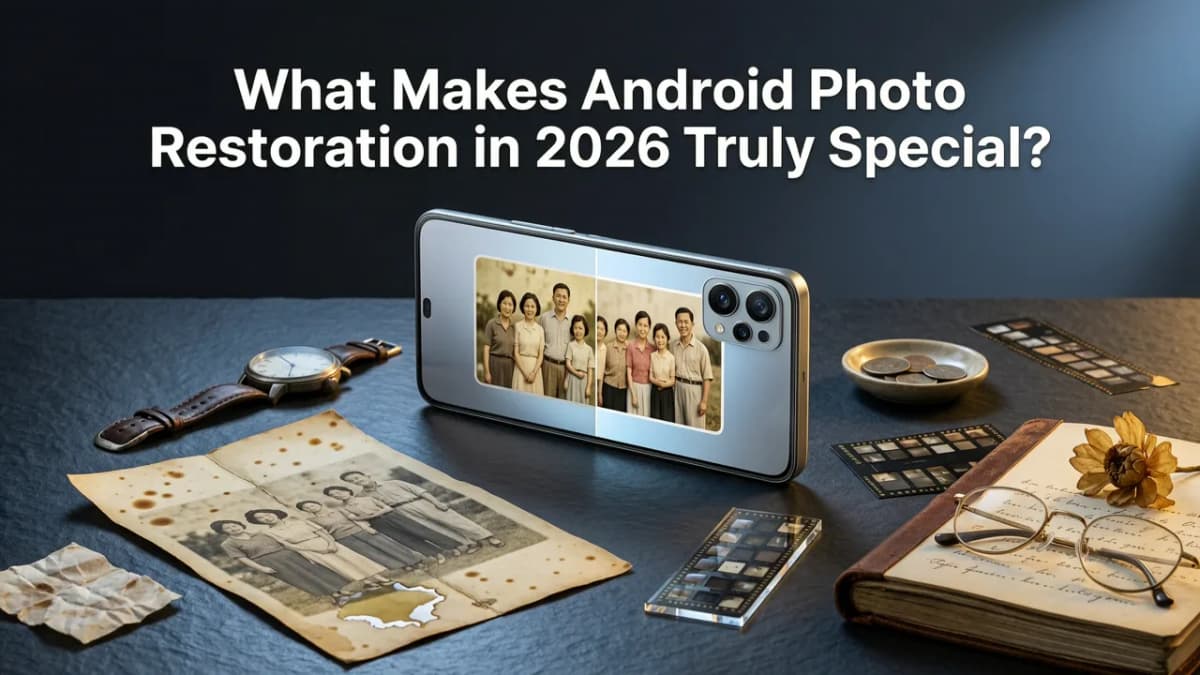
It’s not just about sharper images. It’s about intentionality, ethics, and emotional resonance — baked into the tech.
1. Faded-Edge Recognition Trained on 120K+ Scanned Archival Images
Old photos rarely fade uniformly. Corners yellow first. Light exposure bleaches the top third. Humidity warps the bottom edge. In 2026, leading tools use regional degradation modeling — meaning they analyze each quadrant separately before applying tailored corrections. This prevents the “bright-center, muddy-corner” effect common in older AI enhancers.
Pixelift’s model was trained on high-resolution scans from institutions like the Library of Congress Digital Collections and the Smithsonian Archives — including damaged Civil War tintypes, WWII-era snapshots, and 1970s community newspaper clippings. That depth of historical variety translates to uncanny accuracy on your personal photos.
2. Dual-Pass Contextual Refinement — Not Just One-Click Segmentation
Many free Android tools promise “one-tap restoration” — but they often apply the same global filter across everything: background, face, clothing, text. Real restoration requires nuance.
Pixelift uses dual-pass refinement:
- Pass 1 (Semantic segmentation): Identifies people, text, sky, grass, fabric, paper borders — down to sub-millimeter boundaries.
- Pass 2 (Context-aware relighting): Adjusts lighting per region — e.g., brightening a face while preserving shadow depth in a coat collar, or recovering sky detail without blowing out clouds.
This is why a restored 1965 graduation photo looks authentically dimensional — not like a flat Photoshop layer.
3. Paper-Grain-Aware Matting for Physical Photo Scans
If you’ve ever scanned a cherished 1970s family portrait — creased, slightly blurred, with soft edges where the subject meets the sepia-toned backdrop — and tried to isolate Grandpa for a modern collage or digital frame, you know how hard it is to separate subject from paper texture without losing realism.
In 2026, tools like Pixelift understand that paper grain is not noise. Its matting engine distinguishes between genuine fiber texture (which it preserves) and scan-induced artifacts (which it removes). This makes it especially powerful for projects like removing backgrounds from old photos online — while keeping skin pores, fabric weaves, and handwritten notes intact.
Common Pitfalls — and How to Avoid Them in 2026
Even with advanced tools, missteps happen. Here’s what to watch for — and how modern Android workflows prevent them:
❌ Using Overly Aggressive Upscaling First
Upscaling a blurry photo before restoration often amplifies noise and creates fake detail. In 2026, smart tools like Pixelift reverse that order: restore color, contrast, and structure first, then upscale only the cleaned version. That’s why its best AI tool to upscale low resolution photo in 2026 works hand-in-hand with restoration — not as a standalone step.
❌ Ignoring Original Medium Intent
A glossy 1980s lab print should look different from a matte 1940s gelatin silver print. Pixelift detects medium clues (reflectivity, tonal range, grain pattern) and defaults to historically appropriate output — no forced HDR or cinematic grading unless you ask for it.
❌ Skipping the “Before” Backup
Pixelift automatically saves your original upload to your device’s secure Photos vault (with optional biometric lock). You can always revert — no risk of losing the only copy.
Real-Life Use Cases: What People Are Restoring in 2026
Don’t just take our word for it. Here’s what actual users are doing — all from their Android phones:
- The genealogist: Restored 120+ black-and-white immigration photos from Ellis Island archives — enhancing facial clarity enough to identify relatives in group shots.
- The teacher: Digitized and revived 1950s classroom photos for a local history project — using Film Revive to bring back chalkboard text and student expressions lost to fading.
- The new parent: Scanned a water-damaged baby book page (their own infancy photo + handwritten notes) — recovered both image and cursive script with Archive Repair mode.
- The coastal historian: Applied ocean-specific restoration to 1970s beach photos — reviving wave texture and sky gradation without oversharpening sand grains (learn more about marine-optimized restoration).
Beyond Restoration: Creative Ways to Honor Old Photos in 2026
Restoration isn’t the end — it’s the beginning. Once your photo is revived, try these Android-friendly next steps:
- Create a digital heirloom video: Use Pixelift’s “Animate Gently” preset to add subtle parallax and slow zoom — perfect for sharing on WhatsApp or family group chats.
- Print with confidence: Export at 300 DPI with embedded ICC profiles — compatible with most Android-connected printers (Epson EcoTank, Canon PIXMA, HP Smart Tank).
- Build a timeline gallery: Combine restored photos with location tags and voice notes (recorded right in the Pixelift web interface) to create shareable, scrollable family histories.
- Use Creative Presets: Give your restored portrait a subtle 1950s studio lighting effect or a muted 1970s Kodachrome palette — all non-destructive and adjustable.
And yes — if you want to go deeper into portraiture, Pixelift’s AI photo enhancer for portraits offers facial micro-adjustments (teeth whitening, eye brightness, subtle wrinkle softening) that respect age and authenticity — no uncanny valley here.
Final Thoughts: Your Memories Deserve Thoughtful Technology
Restoring old photos on Android in 2026 isn’t about erasing time — it’s about honoring it. It’s about seeing your grandmother’s smile with clarity again, reading your grandfather’s handwriting on the back of a photo, or finally understanding the expression on your great-aunt’s face during that long-ago picnic.
The best tools don’t shout “AI!” — they disappear into the experience. They feel intuitive, respectful, and quietly powerful. Pixelift embodies that ethos: no jargon, no paywalls for core restoration, and no compromise on fidelity or ethics.
So go ahead — grab that shoebox, open your Android browser, and give your past the attention it’s waited decades for.
Ready to begin? → Restore your first old photo on Android — free, instant, and private.
More on restoring old photos
The other articles on this topic are listed in the photo restoration guide.

2026-10-01
How to Restore Old Family Photos with AI in 2026
Learn how to restore old family photos with AI in 2026. Discover simple steps to fix scratches, enhance colors, and bring cherished memories back to life.

2026-08-30
Restore Old Photos AI Free — Upload & Revive Faded Family Pictures
Restore old photos AI free with Pixelift in 2026. Upload faded, scratched, or blurry family pictures and revive them in seconds — no editing skills required.

2026-08-16
Restore Old Family Photos Online in 2026: The Easy AI Guide
Learn how to restore old family photos online using AI in 2026. Fix scratches, fade, blur, and damage in minutes — no editing skills needed. Start today.
Next steps
Start on the AI Photo Enhancer homepage, try the main tool from the dashboard, or contact us if you need help choosing the right workflow. You can also explore localized pages like United Kingdom or Germany.