2026-08-26 · 10 min read
Enhance Photo Quality Online — No Skills Needed (2026 Guide)
Enhance photo quality online in seconds with AI. Sharpen blurry photos, upscale low-res images, and restore old pictures — no editing skills needed in 2026.
Recommended next
What Does It Mean to Enhance Photo Quality Online in 2026?
If you've ever stared at a photo that's just slightly off — too blurry, too grainy, too dim — and wished you could magically make it look professional, you're not alone. The good news? In 2026, you don't need Photoshop skills, expensive software, or hours of trial and error to enhance photo quality online. AI-powered tools can now sharpen, upscale, color-correct, and even restore decades-old pictures in a matter of seconds.
Here's the short version: modern AI photo enhancers analyze your image pixel by pixel, identify issues like blur, noise, low resolution, and color fading, then reconstruct the missing details using deep learning models trained on millions of reference images. The result is a cleaner, sharper, more vibrant photo — all without you touching a single slider.
Whether you're trying to fix a blurry group shot from last weekend, upscale a product photo for your online store, or bring a faded family portrait back to life, this guide walks you through exactly how to enhance photo quality online in 2026 — step by step, with no editing experience required.
Why 2026 Is the Best Year Yet to Enhance Photo Quality Online
Photo enhancement technology has made a massive leap over the past few years. Here's what's changed and why now is the perfect time to give it a try:
- Smarter AI models: The latest generation of enhancement models understands context — faces, textures, skies, and fabrics — instead of just applying a blanket sharpening filter. This means your photos look natural, not overprocessed.
- One-click workflows: Tools like Pixelift have simplified the entire process to a single upload. There's no learning curve, no confusing menus, and no need to understand terms like "unsharp mask" or "noise reduction."
- Higher resolution output: AI upscalers in 2026 can increase image resolution by up to 4× or even 8× while preserving realistic detail — perfect for printing or displaying on large screens.
- Mobile-first design: Most top tools now work seamlessly on your phone, so you can enhance photos right from your camera roll without transferring files to a desktop.
- Better old-photo restoration: Specialized models can now repair cracks, remove yellowing, and reconstruct missing areas in vintage photographs with stunning accuracy.
How AI Enhances Photo Quality Online: A Step-by-Step Breakdown
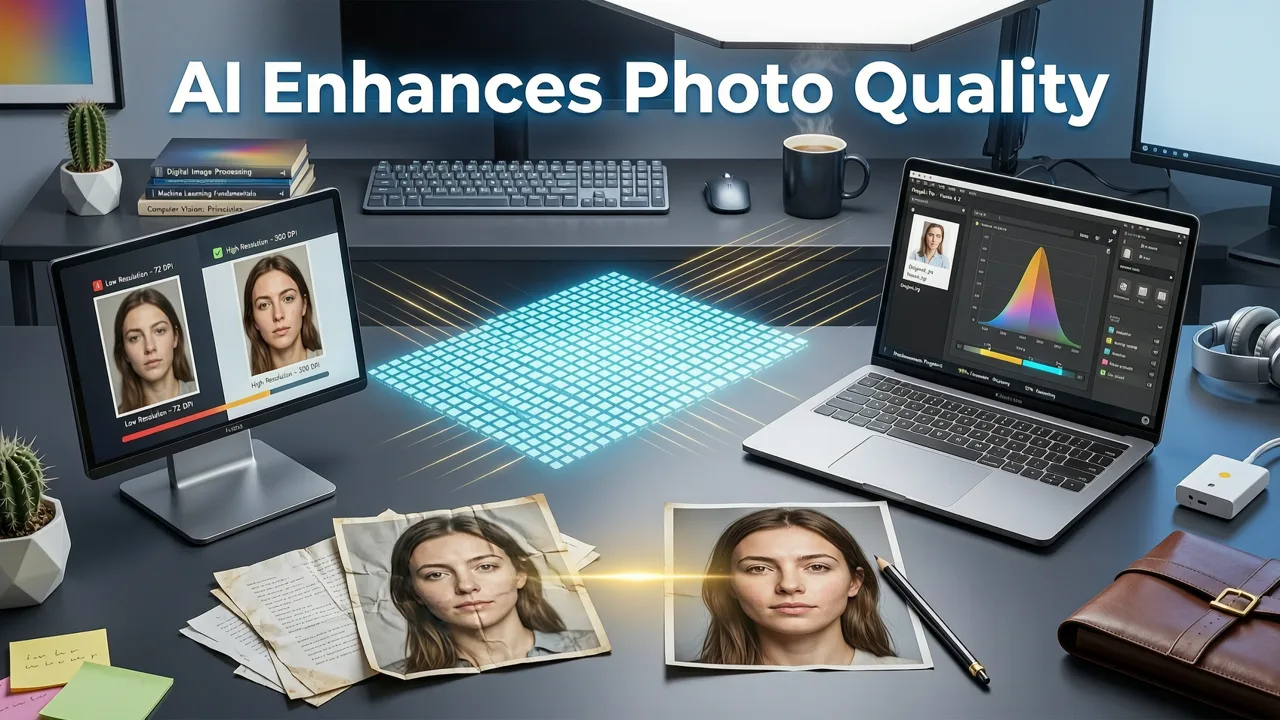
Let's pull back the curtain on what actually happens when you upload a photo to an AI enhancer. Understanding the process helps you get better results and know what to expect.
Step 1: Upload Your Photo
Start by uploading your image to the enhancement tool. Most platforms accept common formats like JPEG, PNG, HEIC, and even RAW files. The upload is typically drag-and-drop or tap-to-select on mobile. Pixelift, for example, processes files directly in your browser — nothing is stored permanently unless you choose to save it.
Step 2: AI Auto-Diagnosis
Once your photo is uploaded, the AI runs a quick diagnostic scan. It identifies the primary quality issues: blur level, noise density, resolution, color balance, lighting exposure, and any visible damage like scratches or tears. This analysis takes less than a second.
Step 3: Intelligent Enhancement
Based on the diagnosis, the AI applies targeted corrections. It doesn't just sharpen everything equally — it prioritizes faces, text, edges, and important details while smoothing out noise in flat areas like skies or backgrounds. If the image is low-resolution, the upscaling engine reconstructs plausible detail rather than simply stretching pixels.
Step 4: Preview and Fine-Tune (Optional)
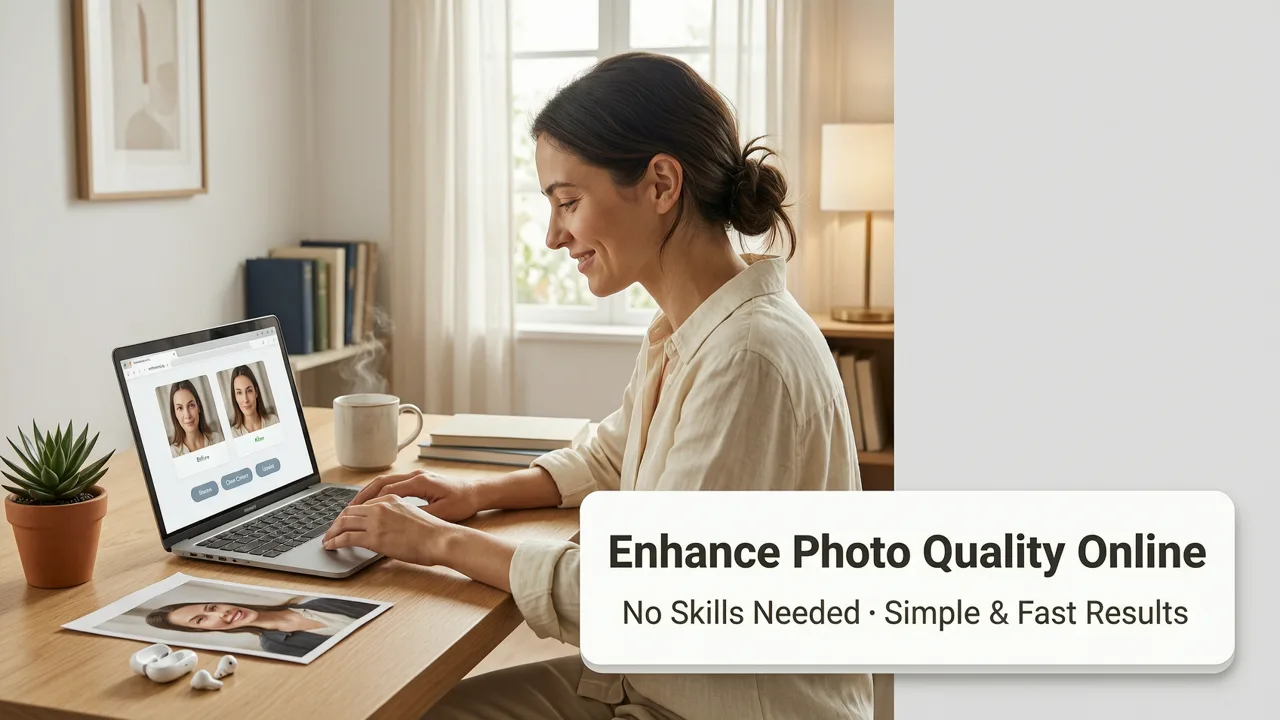
Most tools let you compare the before-and-after side by side. Some, like Pixelift, also offer optional creative presets — think film-inspired tones, portrait glow, or social-media-ready color grading — if you want to go beyond pure restoration.
Step 5: Download Your Enhanced Photo
Hit download and you're done. The enhanced image is ready to share, print, or use however you like.
What Types of Photos Can You Enhance Online?
One of the biggest advantages of 2026's AI enhancers is their versatility. Here are the most common use cases:
Blurry Photos
Motion blur, out-of-focus shots, and soft images caused by low light are all fair game. AI sharpening algorithms reconstruct edges and recover detail that traditional tools simply can't reach. If you're dealing with blurry photos synced from Apple devices, you might also want to check out this guide on how to fix blurry iCloud photos online.
Low-Resolution Images
Found an old photo scanned at 72 DPI? Downloaded an image from the web that looks tiny on your screen? AI upscaling can increase the resolution while adding realistic texture and detail, making the image suitable for printing or large displays.
Old and Damaged Family Photos
Cracks, fading, water stains, yellowing — AI restoration models in 2026 can repair all of these. If you have a box of vintage prints sitting in a drawer, this is the year to digitize and restore them. For a deeper walkthrough, read our guide on how to restore old photos online.
Product Photos
E-commerce sellers and small business owners can use AI enhancement to make product shots look clean, bright, and professional — without hiring a photographer or renting a studio.
Portraits and Selfies
AI portrait enhancement smooths skin naturally, brightens eyes, and improves lighting — all while keeping the image looking like you, not like a filtered version of someone else.
Enhance Photo Quality Online: Key Features to Look For
Not all photo enhancers are created equal. Here's a comparison of the features that matter most when choosing a tool:
| Feature | Why It Matters | What to Expect in 2026 |
|---|---|---|
| AI Sharpening | Fixes blur and soft focus | Context-aware sharpening that preserves natural textures |
| AI Upscaling | Increases resolution for printing and displays | Up to 8× upscale with realistic detail reconstruction |
| Photo Restoration | Repairs old, damaged, or faded photos | Crack removal, color recovery, and missing-area reconstruction |
| Color & Lighting Correction | Balances tones and fixes exposure | Automatic white balance, HDR-style lighting, and skin-tone optimization |
| Object Removal | Cleans up distracting elements | One-click removal of photobombers, blemishes, and background clutter |
| Creative Presets | Adds stylistic looks without manual editing | Film emulations, portrait glows, and social-media-ready filters |
| Mobile Support | Edit on the go | Dedicated iOS apps and responsive web tools |
| No Signup Required | Quick, frictionless experience | Many tools now let you enhance photos without creating an account |
Pixelift: A Complete Photo Enhancement Toolkit
If you're looking for a single tool that covers all the bases, Pixelift is built exactly for this. It combines sharpening, upscaling, restoration, color correction, object removal, and creative presets into one streamlined platform. Here's what makes it stand out:
- No editing skills required: The interface is designed for everyday users, not professionals. Upload, enhance, download.
- Works for everything: Portraits, product photos, old family pictures, screenshots, social media images — it handles them all.
- Magic Remover: Need to clean up a distracting background object or remove a blemish? The AI-powered eraser handles it in one click.
- Creative Presets: Want to give your photos a stylistic twist? Choose from presets designed for portraits, travel shots, and social media content.
- Web and iOS: Use it in your browser or download the app for on-the-go editing.
Built by the team at Devsrank, Pixelift is designed around one simple idea: everyone deserves great-looking photos, regardless of their technical skill level.
Tips for Getting the Best Results When You Enhance Photo Quality Online
Even with powerful AI, a few simple practices can help you get even better outcomes:
- Start with the highest quality source you have. If you're scanning old prints, use at least 300 DPI. The better the input, the better the enhancement.
- Don't over-enhance. Most AI tools let you adjust the intensity. A subtle enhancement often looks more natural than a maxed-out one.
- Handle one issue at a time. If your photo is both blurry and faded, try sharpening first, then address color separately. Layered corrections tend to look cleaner.
- Use the right tool for the job. If you're specifically restoring vintage photos from your iCloud library, check out our guide on how to restore faded family photos from iCloud for a tailored workflow.
- Compare before and after. Always toggle between the original and enhanced version to make sure the AI hasn't introduced anything unnatural.
Enhance Photo Quality Online vs. Traditional Editing Software
Still wondering whether AI enhancement is worth it compared to learning Photoshop or Lightroom? Here's a quick reality check:
| Factor | AI Online Enhancer | Traditional Software |
|---|---|---|
| Learning Curve | None — upload and go | Weeks to months of practice |
| Time per Photo | Seconds | Minutes to hours |
| Cost | Free or low-cost plans | Subscription fees ($10–$55/month) |
| Consistency | AI applies uniform quality standards | Depends on your skill level that day |
| Accessibility | Works in any browser or phone | Requires a capable computer |
| Custom Control | Limited but growing | Full pixel-level control |
For most everyday users — and honestly, for a lot of professional use cases too — AI enhancers deliver 90% of the results in 5% of the time. If you need surgical-level control for a specific creative project, traditional software still has its place. But for quick, high-quality results? AI wins.
Common Questions About Enhancing Photo Quality Online
Here are some things people often wonder about when they first try AI photo enhancement:
Will AI make my photo look fake or overprocessed?
Not if you use a well-built tool. The best AI enhancers in 2026 are trained to produce natural-looking results. They understand skin tones, fabric textures, and environmental lighting, so the output looks like a better version of your original photo — not a completely different image. That said, if you push the enhancement intensity to the maximum, any tool can start to look artificial. A lighter touch usually goes further.
Can I enhance photos on my phone?
Absolutely. Most leading tools, including Pixelift, work directly in your mobile browser or through a dedicated iOS app. There's no need to transfer files to a desktop computer.
Is it safe to upload personal photos?
Reputable AI photo enhancers process your images securely and don't store them permanently. Always check the privacy policy of any tool you use. Pixelift, for example, processes files in-session and does not retain your images after download.
Can AI really restore a photo that's heavily damaged?
It depends on the extent of the damage. Minor to moderate issues — fading, small cracks, light scratches, color shifts — are handled beautifully. Severely torn or missing sections can also be reconstructed in many cases, though extremely damaged photos may require multiple passes or manual touch-ups for perfect results.
The Bottom Line: Enhancing Photos Has Never Been Easier
The days of accepting blurry, grainy, or faded photos are over. Whether you're fixing a snapshot from last night's dinner, upscaling a product image for your store, or restoring your grandparents' wedding portrait, AI-powered tools make it possible to enhance photo quality online in seconds — with zero editing experience.
If you're ready to see what your photos can really look like, give Pixelift a try. Upload a photo, watch the AI do its thing, and download a version you'll actually want to share. Your camera roll — and your family archive — will thank you.