
Published by PixeLift · · 7 min read
How to Upscale Low Resolution Photos Online in 2026
Discover how to upscale low resolution photos online in 2026 using AI. Learn the best tools, step-by-step workflows, and tips to sharpen blurry images fast.
This article is part of our guide to upscaling low-resolution images with AI.

Recommended next
If you have ever tried to print a cherished memory from your phone camera roll only to find it pixelated and soft, you know the frustration. The good news is that you can now upscale low resolution photos online in seconds using advanced AI, turning blurry, tiny files into crisp, high-definition masterpieces without needing any editing skills.
Whether you are trying to save a small product shot for an online store, enlarge a childhood portrait for a framed gift, or simply make a downloaded image look better on your screen, modern AI tools handle the heavy lifting for you. Here is everything you need to know about enlarging and sharpening your images in 2026.
What Does It Mean to Upscale Low Resolution Photos in 2026?
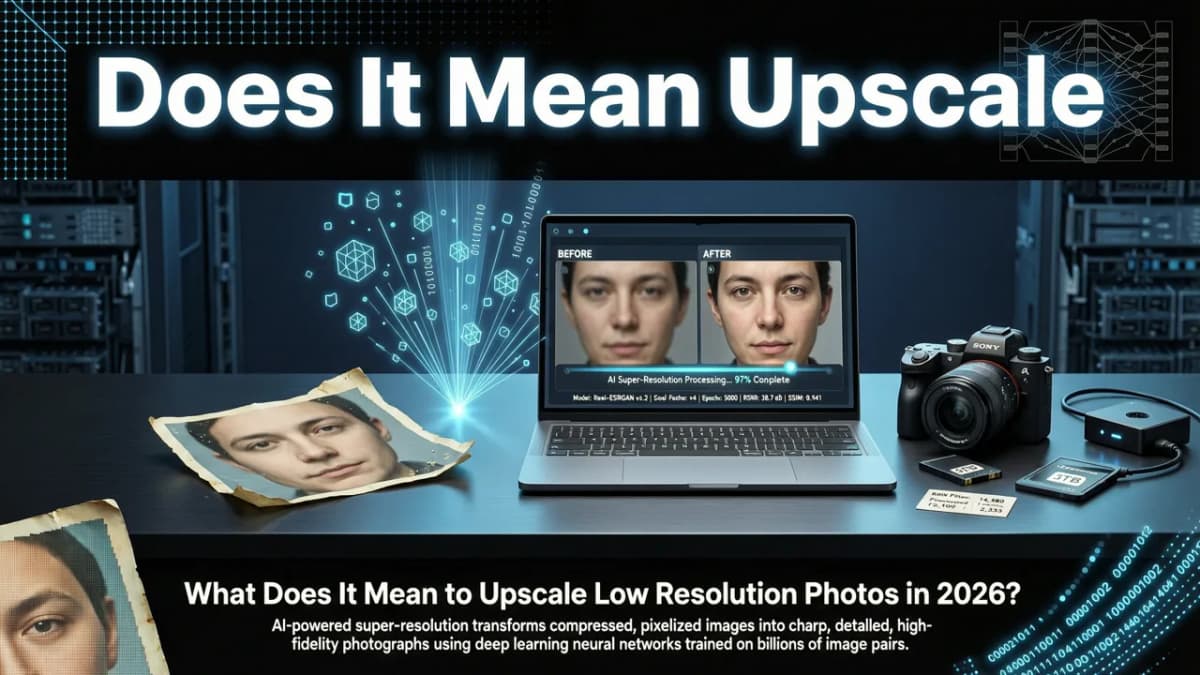
To upscale low resolution photos means to increase the pixel dimensions of an image while maintaining or improving its visual clarity. In the past, making an image larger simply meant stretching the existing pixels, which resulted in a blurry, blocky mess known as pixelation.
Today, AI-driven upscaling works entirely differently. Instead of just stretching pixels, AI image upscalers analyze the existing data and use deep learning models to predict and generate the missing details. The software understands what a human face, a blade of grass, or a fabric texture should look like, and it intelligently fills in the gaps. This process transforms a small, low-quality file into a high-fidelity image ready for large-format printing or high-resolution displays.
Why 2026 Is the Best Year Yet to Upscale Low Resolution Photos
The technology behind photo enhancement has evolved rapidly. If you tried to enlarge images a few years ago, the results were often unnatural or overly smoothed. Here is why the current landscape is a game-changer for everyday users and professionals alike.
1. Photorealistic Upscaling Models Trained on Real Device Archives
Modern AI models are no longer just trained on generic, perfectly lit stock photography. In 2026, the best algorithms are trained on massive archives of real-world device captures. This means the AI understands the specific sensor noise, lens softness, and compression artifacts typical of smartphone cameras, older digital point-and-shoots, and even scanned film.
Because the AI recognizes exactly how your specific device captured the original low-resolution image, it can reverse those specific hardware limitations. The result is a naturally sharp photo that looks like it was taken with a high-end modern camera, rather than an artificially painted digital illustration.
2. Cloud-Native and Local Processing Hybrid Architecture
Speed and privacy are paramount when handling personal memories or sensitive product photos. Current platforms utilize a hybrid architecture that balances cloud-native processing power with local device capabilities. When you use a tool like Pixelift, the heavy computational lifting of generating new pixels happens on secure, high-speed cloud servers, ensuring your device does not overheat or drain its battery.
At the same time, lightweight local processing handles the immediate preview rendering and user interface interactions. This hybrid approach means you get desktop-class enhancement power directly from your mobile phone or browser, with results delivered in seconds.
How Pixelift Stands Out for AI Photo Enhancement
When you need to enhance photo quality online without a steep learning curve, Pixelift offers a streamlined, user-friendly experience. Built by Devsrank, this platform is designed specifically for people who want professional results without opening complex editing software.
Beyond simply making images larger, Pixelift provides a comprehensive suite of tools. It features a Magic Remover to clean up distracting backgrounds or unwanted objects, and Creative Presets that allow you to restyle portraits and social media images with a single tap. Whether you are working on a web browser or using the dedicated iOS app, the interface remains intuitive, ensuring that your focus stays on the final image rather than the technical process.
How to Upscale Low Resolution Photos in 4 Simple Steps
You do not need a degree in graphic design to get stunning results. Here is a straightforward workflow to enlarge and sharpen your images using an AI enhancer.
- Upload Your Image: Open your preferred AI photo enhancement tool, such as the Pixelift web app or iOS app, and upload the low-resolution photo from your device, cloud storage, or social media feed.
- Select Your Enhancement Preferences: Choose the desired upscale multiplier (such as 2x or 4x). If your image has specific needs, like removing a distracting background, you can apply the Magic Remover at this stage.
- Let the AI Process the Photo: Hit the enhance button. The AI will analyze the pixel data, reconstruct missing details, correct lighting imbalances, and sharpen the edges. This typically takes only a few seconds.
- Review and Download: Check the before-and-after comparison. If you are happy with the crisp, high-definition result, download the newly upscaled image to your device in your preferred format.
Traditional Upscaling vs. AI Upscaling in 2026
Understanding the difference between legacy methods and modern AI helps you appreciate why your photos look so much better today. Here is a quick comparison of how the two approaches handle low-resolution files.
| Feature | Traditional Software Upscaling | Modern AI Upscaling (2026) |
|---|---|---|
| Core Method | Interpolation (stretching existing pixels) | Generative AI (predicting and creating new pixels) |
| Edge Sharpness | Blurry and soft edges | Crisp, defined, and natural edges |
| Texture Detail | Repeats existing patterns unnaturally | Generates realistic, varied textures |
| Noise Handling | Amplifies grain and digital noise | Intelligently removes noise while preserving detail |
| User Skill Required | High (requires manual tweaking) | None (fully automated) |
As the table illustrates, AI upscaling completely removes the technical barrier. You no longer have to manually adjust contrast masks or sharpening sliders to get a usable image.
Tips for Getting the Best Results When You Upscale Low Resolution Photos
While AI is incredibly powerful, a few simple practices can help you achieve the absolute best results for your specific projects.
- Start with the Highest Quality Source: Even the best AI cannot invent information that is entirely missing. If you have multiple versions of a photo, always upload the highest resolution original file available before applying the upscale.
- Combine Tools for E-Commerce: If you are removing background from photo elements for product listings, upscale the image first to ensure the subject is perfectly sharp, then remove the background. This prevents the AI from accidentally blurring the edges of your product during the cutout process.
- Use Targeted Presets: Not all images are created equal. A portrait requires different sharpening logic than a landscape or a product shot. Utilize creative presets tailored to your subject matter to ensure skin tones remain natural and textures look accurate.
- Batch Process for Consistency: If you are working on a series of old family pictures or a catalog of product images, use batch processing features. This ensures every photo in your set receives the exact same high-quality enhancement, saving you hours of manual clicking.
Restoring and Enhancing Archival Memories
One of the most rewarding uses for this technology is bringing old memories back to life. Scanned physical photographs often suffer from low resolution, color fading, and physical damage. Modern AI restoration models are specifically trained to handle archival degradation.
When you restore old photos from iCloud or physical scans, the AI can reconstruct torn edges, fix water damage artifacts, and dramatically increase the resolution. This means you can take a tiny, damaged 2-megabyte scan of a 1990s family portrait and turn it into a stunning 16-megabyte image ready to be printed as a large canvas for your living room.
Conclusion
The days of accepting blurry, pixelated images are officially over. Learning how to upscale low resolution photos using AI empowers you to rescue cherished memories, create professional product shots, and perfect your social media content in mere seconds. With intuitive platforms like Pixelift leading the charge in 2026, high-quality photo enhancement is finally accessible to everyone, regardless of technical skill.
Ready to see the difference for yourself? Explore the best AI tool to upscale low resolution photo in 2026 and start transforming your pixelated images into crisp, high-definition masterpieces today.
More on upscaling images
The other articles on this topic are listed in the upscaling guide.

2026-10-28
How to Upscale Low Resolution Images with AI in 2026
Learn how to upscale low resolution images using AI in 2026. Discover simple, no-skill methods to enlarge photos without losing quality or adding blur.

2026-10-07
How to Upscale Low Resolution Images for Print (2026 Guide)
Learn how to upscale low resolution images for print without losing quality. Discover the best AI methods to get crisp, high-DPI results for physical media.

2026-09-07
Upscale Low Resolution Image Online — Fast, Free & Clear in 2026
Upscale low resolution image online with Pixelift AI. Sharpen blurry photos, restore old pictures, and boost detail in seconds — no download or editing...
Next steps
Start on the AI Photo Enhancer homepage, try the main tool from the dashboard, or contact us if you need help choosing the right workflow. You can also explore localized pages like United Kingdom or Germany.