
Published by PixeLift · · 7 min read
How to Unblur a Blurry Picture on iPhone Fast in 2026
Learn how to unblur a blurry picture on iPhone fast using AI. Discover the best methods to sharpen, restore, and enhance your photos in 2026.
This article is part of our guide to fixing blurry photos.

Recommended next
What Does It Mean to Unblur a Blurry Picture on iPhone in 2026?
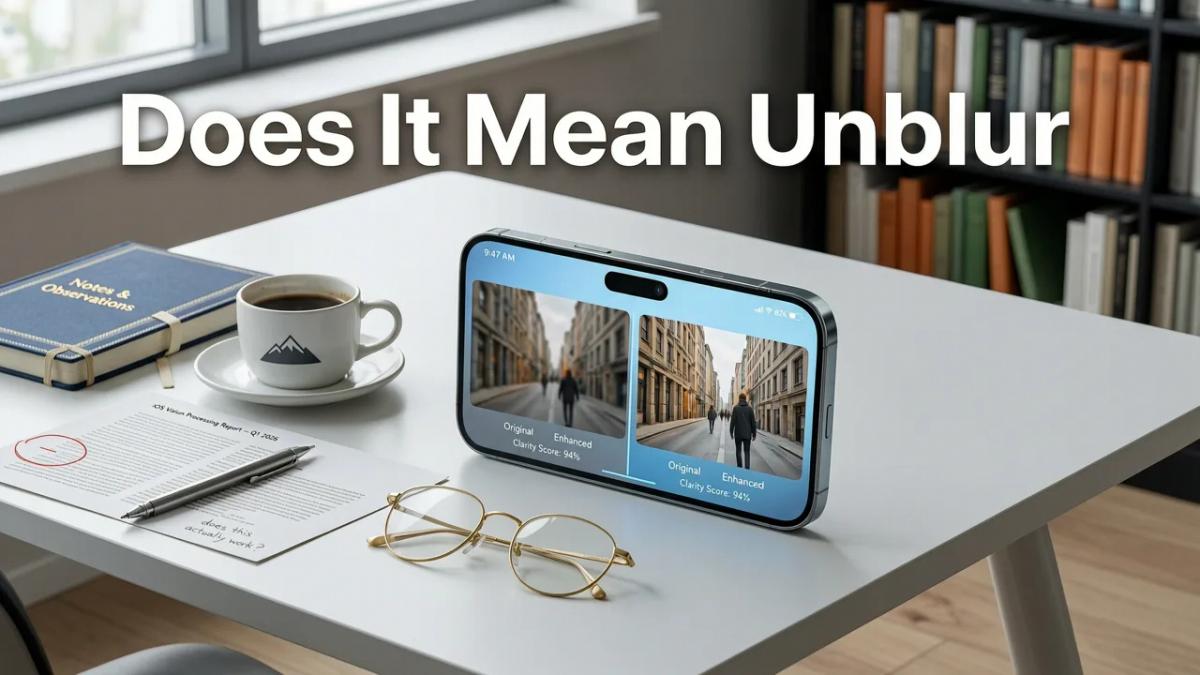
We have all been there. You capture a beautiful moment, but when you look at the screen, the subject is completely out of focus. If you are trying to unblur a blurry picture on iPhone, the good news is that 2026 offers better solutions than ever before. While the native iOS editing tools can help with minor softness, dedicated AI photo enhancers are now the fastest way to recover lost details, fix motion blur, and restore clarity in seconds.
Unblurring a photo in 2026 is no longer just about sliding a "sharpness" bar to the right. True unblurring means reconstructing missing pixels, correcting optical distortions, and intelligently guessing what the original scene looked like before the blur occurred. Whether you are dealing with a shaky hand, a moving pet, or an old scanned family portrait, modern software can separate the subject from the background and apply targeted corrections.
Why 2026 Is the Best Year Yet to Unblur a Blurry Picture on iPhone
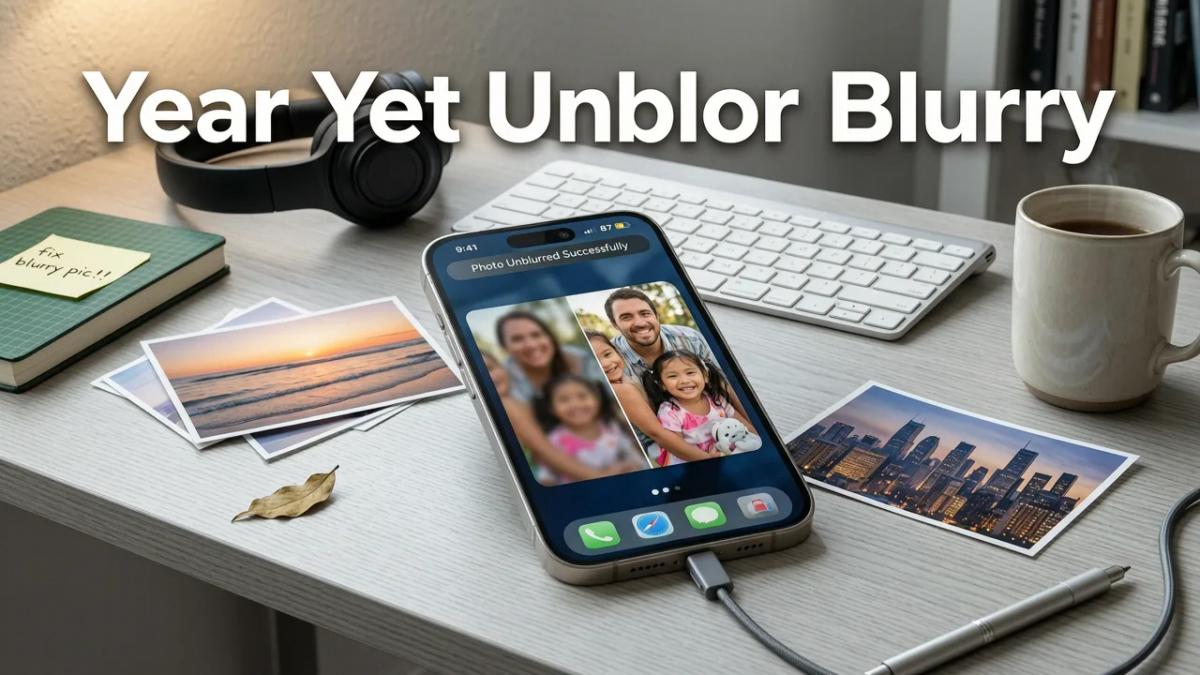
The landscape of mobile photo editing has shifted dramatically. If you have ever tried to save a cherished memory or a crucial product shot, only to find it ruined by a slight focus miss, you know the frustration. Here is why the current year is the absolute best time to fix those images.
1. Generative AI Models Trained on Real-World Degradation
Modern AI photo enhancers are no longer relying on basic edge-detection algorithms. Today’s models are trained on millions of real-world degraded images, including motion blur, lens softness, and compression artifacts. This means the software actually understands the physics of how a blur happens and can reverse it by predicting the original sharp edges and textures. Instead of just making a blurry edge look like a harsh, pixelated line, the AI generates natural-looking skin textures, fabric details, and foliage.
2. Hybrid Cloud and Local Processing for Instant Results
Speed is everything when you are editing on the go. The latest iOS photo tools utilize a hybrid architecture. Light sharpening and color corrections happen locally on your iPhone’s neural engine, providing instant feedback. For heavy reconstruction, such as fixing severe motion blur or upscaling low-resolution images, the processing is seamlessly handed off to the cloud. This ensures your device doesn't overheat or drain its battery, while still delivering desktop-quality results in seconds.
How to Unblur a Blurry Picture on iPhone Using Native iOS Tools

If your photo is only slightly soft or slightly out of focus, the built-in Photos app might be enough. Apple has continuously refined its native editing suite. Here is how you can attempt to unblur a blurry picture on iPhone using the tools already on your device.
- Open the Photos App: Locate the blurry image you want to fix and tap on it to open it in full screen.
- Tap Edit: In the top right corner, tap the "Edit" button to bring up the adjustment sliders.
- Adjust Sharpness and Definition: Swipe through the bottom menu to find the "Sharpness" and "Definition" sliders. Sharpness enhances the edges of objects, while Definition adds mid-tone contrast, which can make a soft image look punchier and clearer.
- Fine-Tune with Brilliance: Slightly increasing the "Brilliance" slider can also help bring out hidden details in the shadows and highlights, giving the illusion of a sharper image.
- Save Your Changes: Tap "Done" to apply the edits.
The Limitation: Native iOS tools only enhance existing pixels. If the photo is heavily blurred, pixelated, or severely out of focus, sliding these bars will only make the image look noisy and unnatural. For true restoration, you need AI.
How to Unblur a Blurry Picture on iPhone Using AI Enhancers
When native tools fall short, an AI photo enhancer is the ultimate solution. Tools like Pixelift are designed specifically to fix out-of-focus pictures and restore old pictures without requiring any manual editing skills. Here is how the AI workflow operates.
Step 1: Upload Your Blurry Image
Open the Pixelift web tool or the iOS app directly from your home screen. Simply select the blurry photo from your camera roll. The interface is designed for speed, allowing you to process multiple images at once if you are clearing out a batch of old family albums.
Step 2: Let the AI Reconstruct the Details
Once uploaded, the AI analyzes the image to identify the type of degradation. It automatically applies the correct enhancement model. For portraits, it focuses on facial features, eyes, and skin texture. For product photos or landscapes, it prioritizes edge clarity and structural details. You don't need to choose complex settings; the engine handles the heavy lifting.
Step 3: Clean Up Distractions and Apply Presets
Often, a blurry photo is compounded by a messy background. You can use the Magic Remover feature to instantly erase distracting objects, photobombers, or blemishes. Afterward, you can browse the Creative Presets to restyle the image, giving it a professional color grade that draws the eye to the newly sharpened subject.
Step 4: Download the Enhanced Photo
Once you are happy with the result, simply save the high-resolution file back to your iPhone camera roll. The AI ensures that the upscaled image maintains its quality, whether you are viewing it on your phone screen or printing it out.
Native iOS Editing vs. AI Photo Enhancers: A Quick Comparison
Choosing between built-in tools and dedicated software depends on the severity of the blur. Here is a breakdown to help you decide which route to take.
| Feature | Native iOS Photos App | AI Photo Enhancers (e.g., Pixelift) |
|---|---|---|
| Best For | Minor softness, slight focus misses | Severe blur, motion blur, low-resolution images |
| How It Works | Adjusts existing pixel contrast and edges | Generates new pixels and reconstructs lost details |
| Learning Curve | Requires manual slider tweaking | One-click automated processing |
| Handling Noise | Can increase grain and noise | Actively reduces noise while sharpening |
| Extra Features | Basic color and light adjustments | Magic Remover, background removal, creative presets |
Advanced Tips for Recovering Your iPhone Photos
Fixing blur is just one part of the photo recovery process. Once you have sharpened your images, you might want to explore other ways to maximize their quality and preserve your memories.
Upscale Low-Resolution Images
If your blurry photo is the result of cropping too closely or downloading a small image from the internet, sharpening alone won't fix the pixelation. You need to increase the actual dimensions of the file. If you want to dive deeper into this process, check out our guide on How to Upscale Blurry Photos in 2026: The Complete AI Guide to learn how to turn tiny, blocky images into crisp, high-definition masterpieces.
Rescue Old Photos from the Cloud
Many of us have thousands of older photos stored in the cloud that we never look at because the quality is poor or they are damaged. You can easily pull these down and give them a new lease on life. For a complete walkthrough on retrieving and fixing these memories, read our article on How to Restore Old Photos from iCloud in 2026. It is a great way to digitize and enhance physical scans or old digital files that have been sitting in your storage for years.
Remove Unwanted Backgrounds
Once your subject is perfectly sharp and unblurred, you might realize the background is still distracting. AI makes it incredibly easy to isolate your subject. You can easily remove background from photo using AI to create clean, professional cutouts for social media, e-commerce listings, or custom greeting cards.
Final Thoughts on Fixing Blurry iPhone Photos
A blurry photo no longer means a deleted photo. The technology available today ensures that minor focus misses and major motion blur can be corrected with just a few taps. While the native iOS editing tools are great for quick, minor adjustments, AI photo enhancers provide the heavy-duty reconstruction needed to truly save your most important memories. By leveraging modern AI models, you can ensure that every picture in your camera roll is sharp, clear, and ready to be shared or printed.
Ready to bring your best photos back to life? Open Pixelift today and experience the fastest way to sharpen, restore, and enhance your images without needing a single editing skill. Your camera roll will thank you.
More on fixing blurry photos
The other articles on this topic are listed in the blurry photo guide.

2026-10-16
How to Unblur iPhone Photos in 2026: The Ultimate AI Guide
Learn how to unblur iPhone photos in 2026 using built-in tools and advanced AI enhancers. Restore sharp, clear images in seconds without editing skills.

2026-10-13
How to Unblur a Picture on iPhone Using AI in 2026
Learn how to unblur a picture on iPhone using AI in 2026. Discover simple ways to sharpen, upscale, and restore blurry photos instantly without editing skills.

2026-08-11
How to Fix Blurry Photo on iPhone Instantly in 2026
Learn how to fix blurry photo on iPhone in seconds — no editing skills needed. Discover Pixelift’s AI-powered web tool and iOS app for sharpening,...
Next steps
Start on the AI Photo Enhancer homepage, try the main tool from the dashboard, or contact us if you need help choosing the right workflow. You can also explore localized pages like United Kingdom or Germany.