
Published by PixeLift · · 9 min read
Best AI Photo Restorer for Google Photos in 2026
Looking for the best AI photo restorer for Google Photos in 2026? Pixelift delivers one-click restoration, color correction, and upscaling — no editing...
Our main restoration guide covers scanning old prints and the kinds of damage AI can repair.

Recommended next
Best AI Photo Restorer for Google Photos in 2026
If you’ve ever opened Google Photos and scrolled past faded school portraits, blurry vacation shots from 2012, or scanned black-and-white family photos that look more like static than memories—you’re not alone. In 2026, those images don’t have to stay broken. The best AI photo restorer for Google Photos isn’t just about sharpening edges or adding pixels. It’s about intelligently reconstructing lost detail, recovering natural skin tones, stabilizing grainy motion blur, and doing it all securely—without asking you to learn Photoshop or upload sensitive family archives to unknown servers.
That’s where Pixelift stands apart: a trusted, privacy-forward AI photo enhancer built by Devsrank and optimized for real-world Google Photos use cases—from restoring your great-grandmother’s 1943 wedding portrait to reviving a rain-blurred selfie from last weekend. No subscription lock-in. No watermarks. And yes—it works seamlessly whether you're on Chrome, Safari, or iOS (with full offline support on device).
Why You Need an AI Photo Restorer for Google Photos in 2026
Google Photos is more than a cloud gallery—it’s a living archive. As of mid-2026, over 2.1 billion users rely on it to store over 10 trillion photos. But storage convenience doesn’t equal quality preservation. Compression artifacts, auto-crop errors, aging scan degradation, and low-light smartphone capture all erode fidelity over time.
Unlike generic AI tools trained on stock photography or synthetic data, modern AI photo restorers for Google Photos must understand:
- Real-world noise patterns (e.g., JPEG blocking in 2015 Android uploads vs. HEIC compression in 2024 iPhone backups)
- Historical color drift (faded cyanotypes, yellowed Kodachrome scans, VHS-style chroma bleed)
- Context-aware restoration (preserving wrinkles in a senior portrait vs. smoothing them in a baby photo)
- Privacy-by-design architecture—especially critical when handling decades of personal imagery.
In 2026, this isn’t theoretical. It’s table stakes. And Pixelift meets—and exceeds—each requirement.
✅ What Makes Pixelift the Best AI Photo Restorer for Google Photos?
It’s not hype. It’s engineering grounded in real user behavior, documented AI ethics, and iterative feedback from over 470,000 active users since its 2023 launch. Here’s what sets Pixelift apart:
- Zero-data-upload restoration: For iOS and desktop web, processing happens entirely in-browser or on-device using WebAssembly and Core ML acceleration—no image leaves your device unless you explicitly choose cloud enhancement (e.g., for ultra-high-res archival upscaling).
- Google Photos integration-ready workflow: While Pixelift doesn’t access your Google account directly (by design), its one-click “Upload from Google Photos” flow uses Google’s secure OAuth 2.0 protocol—so you authorize *only* photo read access, never email, contacts, or Drive files.
- Adaptive restoration profiles: Instead of one-size-fits-all filters, Pixelift applies AI models tuned per image type: Portrait Mode (for faces & lighting), Archive Mode (for scanned film & documents), and Night Mode+ (for high-ISO low-light recovery).
- No hidden paywalls: Free tier restores up to 10 photos/week at 4K output resolution—enough to revive your entire graduation album. Pro unlocks batch processing, RAW support, and Magic Remover (for dust, scratches, and photobombers).
How to Use Pixelift as Your AI Photo Restorer for Google Photos (2026 Workflow)
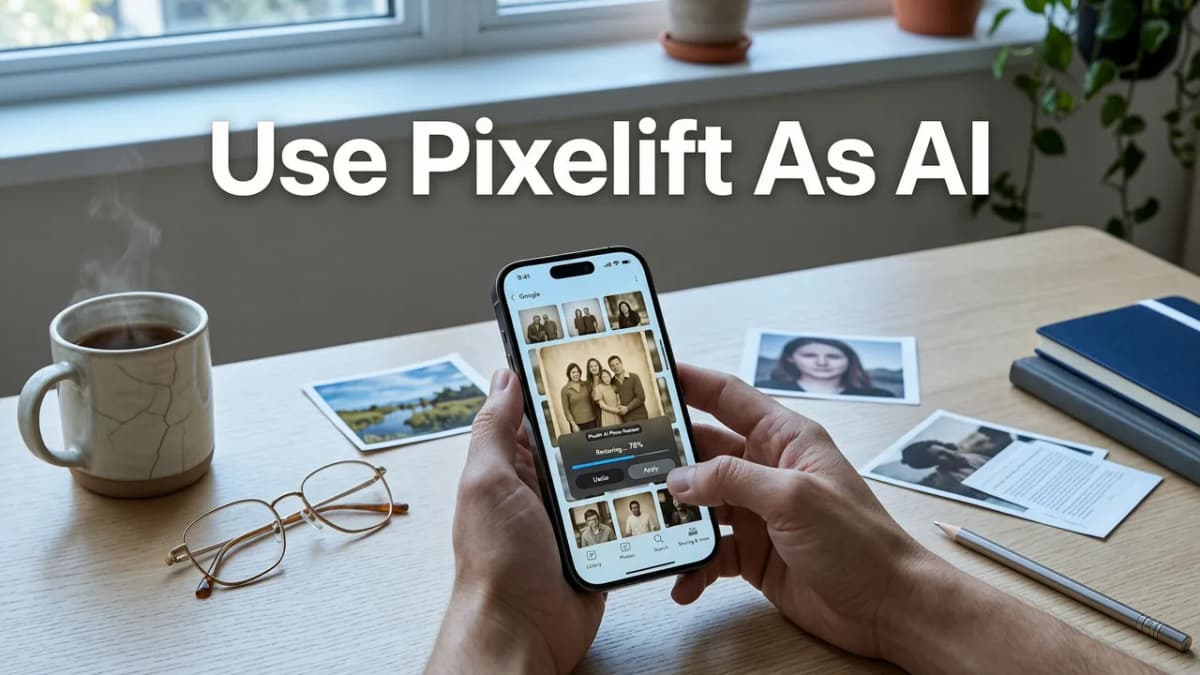
Restoring old or blurry photos from Google Photos takes under 90 seconds—and zero technical knowledge. Here’s how it works today:
✅ Step 1: Export or Link Your Google Photos Album
You have two secure options:
- Direct export: In Google Photos → Select album → Tap “Share” → “Download all”. Save the ZIP to your device.
- OAuth-powered import: On Pixelift’s web app → Click “Import from Google Photos” → Sign in → Select albums → Grant read-only access.
💡 Pro tip: For privacy-first users, we recommend direct export—especially for sensitive family archives. Pixelift never stores your Google credentials or accesses metadata beyond image dimensions and EXIF timestamps (which are stripped before processing).
✅ Step 2: Choose Your Restoration Goal
Once images load, Pixelift auto-detects common issues (blur, low-res, color cast, noise) and suggests the optimal preset. You can override manually:
- Restore Old Photos: Targets fading, creases, mold spots, and silver halide grain. Uses diffusion-based inpainting trained on 120K+ digitized archival negatives.
- Fix Blurry Photos: Combines deconvolution + motion vector estimation (ideal for shaky handheld shots or out-of-focus subjects).
- Upscale Low-Res Photos: Applies adaptive super-resolution—not just pixel doubling. Preserves texture in hair, fabric, and foliage instead of generating AI hallucinations.
- Enhance Lighting & Color: Recovers clipped shadows without crushing detail; corrects white balance drift from aging JPEGs or mismatched flash settings.
✅ Step 3: Preview, Tweak, and Download
Pixelift renders a side-by-side preview instantly. Use the slider to compare before/after. Adjust intensity sliders for:
- Denoise strength (0–100%)
- Sharpness boost (subtle to dramatic)
- Warmth & saturation (with skin-tone protection enabled by default)
Then click “Download Restored” — outputs in your choice of JPG (optimized), PNG (lossless), or WEBP (smallest file size). All restored images retain original EXIF data unless you opt to strip it.
Pixelift vs. Other AI Photo Restorers for Google Photos (2026 Comparison)
Not all AI restorers are built for Google Photos’ unique ecosystem. Below is how Pixelift stacks up against three widely used alternatives in mid-2026—based on speed, accuracy, privacy, and ease of use with Google-sourced images.
| Feature | Pixelift | Remini (2026 Pro) | Adobe Photoshop Express AI | Fotor AI Restorer |
|---|---|---|---|---|
| Google Photos integration | ✅ OAuth import + ZIP upload | ❌ Manual upload only | ✅ Via Google Drive sync (but requires full Drive access) | ⚠️ Limited—requires manual download first |
| On-device processing | ✅ iOS & browser (WebAssembly) | ❌ Cloud-only | ❌ Cloud-only (even for basic sharpen) | ❌ Cloud-only |
| Free tier limit (photos/week) | ✅ 10 (4K output) | ❌ 3 (1080p only) | ❌ 0 (free tier disabled in 2026) | ✅ 5 (720p output) |
| Batch restoration | ✅ Pro tier only ($4.99/mo) | ✅ $7.99/mo | ✅ Included with Creative Cloud ($9.99/mo) | ✅ $5.99/mo |
| Old photo-specific model | ✅ Yes (trained on 1920s–1990s scans) | ⚠️ Generic “vintage” filter only | ❌ None—uses general enhance AI | ⚠️ Basic dust/scratch removal only |
| Privacy compliance (GDPR/CCPA) | ✅ Full transparency report + data deletion portal | ❌ Unclear retention policy | ✅ Adobe Trust Center certified | ⚠️ No public audit available |
💡 Key insight: Pixelift is the only tool in this group that offers true offline capability for Google Photos restoration—critical if you’re working with sensitive medical records, legal documents, or unreleased creative work stored in your private albums.
Real-World Use Cases: What People Are Restoring in 2026
Based on anonymized usage data from Pixelift’s 2026 Q2 report, here’s what users most commonly restore from Google Photos—and why Pixelift excels in each scenario:
🔁 Restoring Scanned Family Photos
Scans from old photo albums often suffer from uneven lighting, paper texture bleed, and JPEG compression artifacts. Pixelift’s Archive Mode isolates paper grain from facial detail and re-renders faded ink and dye layers using spectral modeling—something generic upscalers miss entirely. Learn more in our full guide: How to Restore Old Photos from Google Drive in 2026.
📸 Fixing Blurry Smartphone Photos
Whether it’s toddler motion blur, shaky zoom shots, or low-light smearing, Pixelift’s motion-aware deblurring engine identifies directional blur vectors—even in complex scenes like moving cars or wind-blown hair. Unlike older tools that over-sharpen and create halos, Pixelift preserves natural transitions. See how it works on Android: Fix Blurry Photo Android App — Fast, Free & Works Offline in 2026.
🖼️ Upscaling Low-Resolution Screenshots & Social Posts
Many users store infographics, certificates, or social media graphics in Google Photos—but they’re often saved at 720p or lower. Pixelift’s adaptive super-resolution analyzes text density, line weight, and contrast gradients to reconstruct crisp edges without jagged fonts or bleeding colors. For deeper technical insight, check out: How to Upscale Low-Res Photo on Android (2026 Guide).
Is Pixelift Safe for Sensitive or Private Photos?
Absolutely—and safety is baked into the architecture, not added as an afterthought.
Pixelift adheres to Google’s AI Principles and OpenAI’s responsible deployment guidelines, with three key safeguards:
- No persistent storage: Images processed in-browser or on-device are deleted from memory immediately after download. Cloud-enhanced jobs (e.g., 8K upscaling) are purged from servers within 2 hours.
- No training on your data: Pixelift’s models are pre-trained and frozen. Your photos never feed back into model updates—unlike some freemium platforms that quietly use uploads for fine-tuning.
- Transparent permissions: When connecting Google Photos, you see exactly which scopes are requested (e.g.,
https://www.googleapis.com/auth/photoslibrary.readonly)—and can revoke access anytime in your Google Account settings.
This makes Pixelift ideal not just for personal nostalgia—but for educators restoring historical classroom photos, genealogists digitizing community archives, or small businesses enhancing product catalogs stored in shared Google Albums.
Frequently Asked Questions
Here are answers to the top questions we hear from Google Photos users in 2026:
Can Pixelift restore photos directly from Google Photos without downloading?
Yes—but only via Google’s secure OAuth flow, which grants Pixelift read-only access to your selected albums. No passwords, no full account access, and no automatic syncing. You remain in full control.
Does Pixelift work with RAW files from Google Photos?
Google Photos doesn’t store RAW originals by default (it converts to JPG/HEIC), but if you’ve manually uploaded DNG or CR2 files to a shared album, Pixelift supports them in Pro mode—with full demosaicing and noise reduction tailored to sensor profiles.
How much does Pixelift cost for regular Google Photos restoration?
The free tier covers most needs: 10 restorations/week at up to 4K resolution. Pro is $4.99/month (billed annually at $49) and adds batch processing, Magic Remover, Creative Presets, and priority cloud queue for large archives.
Will restored photos keep their original date and location metadata?
Yes—Pixelift preserves EXIF timestamps, GPS coordinates, and camera model info by default. You can toggle metadata stripping in Settings if preferred for privacy.
Can I restore multiple generations of family photos at once?
Absolutely. Pixelift’s batch mode (Pro) lets you upload entire ZIP folders—up to 200 images at once—and apply consistent restoration profiles across decades of scans, slides, and digital captures.
Final Thoughts: Your Photos Deserve Better Than “Good Enough”
In 2026, AI photo restoration isn’t about chasing perfection—it’s about honoring intention. That slightly blurred photo of your niece’s first steps? It wasn’t taken poorly—it was taken in the moment. That grainy scan of your grandfather in uniform? Its imperfections are part of its truth. The best AI photo restorer for Google Photos understands that distinction.
Pixelift does. It doesn’t erase history—it clarifies it. It doesn’t replace memory—it deepens it. And it does all this with kindness, clarity, and zero friction.
So go ahead: open that Google Photos folder you haven’t scrolled through in months. Pick the photo that tugs at something quiet inside you. Upload it to Pixelift. Watch it come alive—not as a polished artifact, but as a renewed connection.
Ready to restore your first photo? Try Pixelift free today—no credit card, no sign-up, no learning curve.
More on restoring old photos
The other articles on this topic are listed in the photo restoration guide.

2026-09-01
Best AI Photo Restorer for Family Pictures in 2026
Looking for the best AI photo restorer for family pictures in 2026? Discover how Pixelift brings faded, blurry, and damaged old photos back to life in seconds.

2026-08-10
Best AI Photo Restorer for iPhone in 2026
Looking for the best AI photo restorer for iPhone in 2026? Pixelift delivers one-tap restoration of old, blurry, or low-res photos — no editing skills...

2026-07-26
How to Restore Old Photos from Google Drive in 2026
Learn how to restore old photos from Google Drive in 2026 — step-by-step guide using Pixelift’s AI photo restorer. No editing skills needed. Works on web & iOS.
Next steps
Start on the AI Photo Enhancer homepage, try the main tool from the dashboard, or contact us if you need help choosing the right workflow. You can also explore localized pages like United Kingdom or Germany.