2026-08-22 · 10 min read
Best AI Photo Enhancer Online — Free & No Install (2026)
Discover the best ai photo enhancer online in 2026. Sharpen blurry photos, upscale low-res images, and restore old pictures instantly — no skills or...
Recommended next
What Makes the Best AI Photo Enhancer Online in 2026?
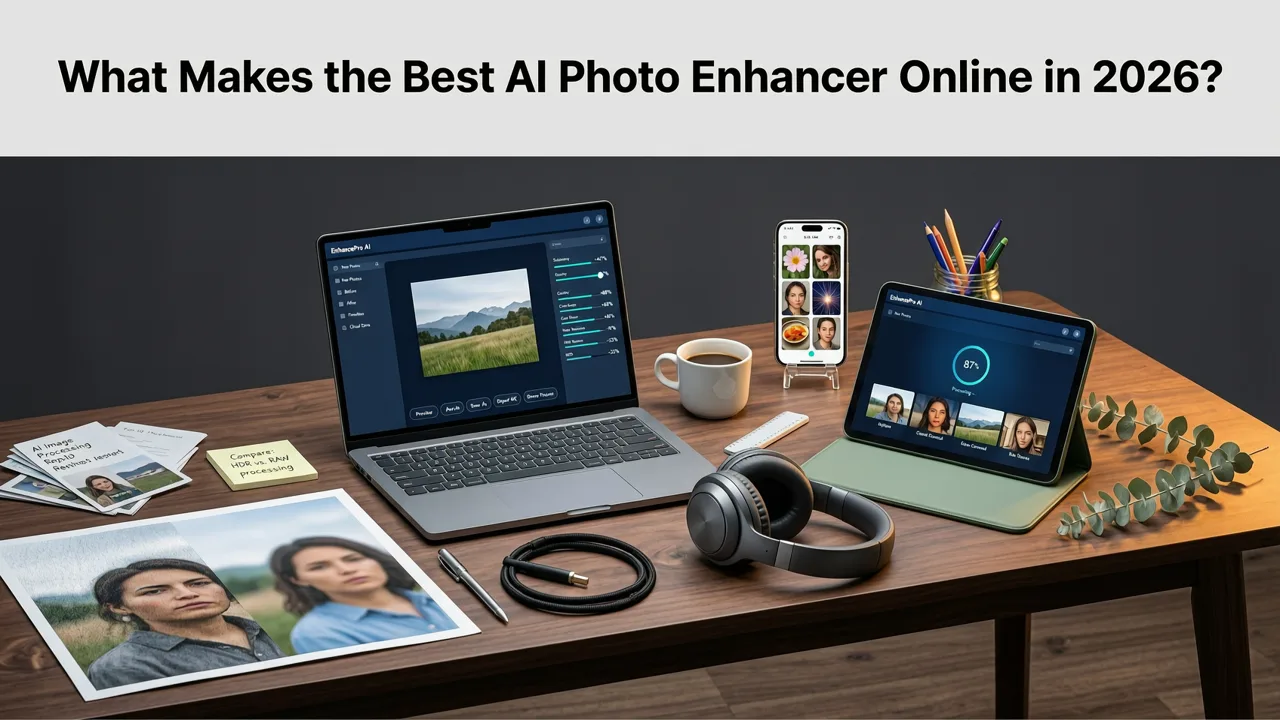
If you've ever stared at a blurry photo of your kid's first steps or a faded snapshot of your grandparents' wedding day and thought, "I wish I could fix this without learning Photoshop," you're not alone — and in 2026, you don't have to. An ai photo enhancer online can sharpen, upscale, restore, and restyle your images in seconds, right inside your browser, with zero editing skills required.
This guide breaks down exactly what these tools do, how they work under the hood, what to look for when choosing one, and how to get the best results on everything from grainy smartphone shots to decades-old family albums. Whether you want to rescue a single cherished memory or clean up product photos for your online store, you'll walk away knowing exactly which features matter and how to use them.
Why 2026 Is the Best Year Yet to Use an AI Photo Enhancer Online

Image-enhancement AI has made a generational leap in the last eighteen months. Models that once needed a powerful desktop GPU now run entirely in the cloud, which means you can open a tab on your phone, tablet, or laptop and get professional-grade results in under ten seconds.
Three big shifts are driving this moment:
- Smaller, faster models. Diffusion-based and transformer architectures have been distilled to run efficiently on modest cloud hardware, cutting processing time and cost.
- Better training data. Models are now trained on curated datasets that include real-world degradation patterns — motion blur, compression artifacts, water damage, fading — so they fix the problems you actually have.
- Smoother workflows. Modern tools handle batch uploads, cloud-library integrations, and mobile-first interfaces, so there's no friction between "I have a bad photo" and "I have a great photo."
The result is that everyday users — not just photographers or designers — can now fix images that would have required expensive software or a skilled retoucher just a few years ago.
What an AI Photo Enhancer Online Actually Does
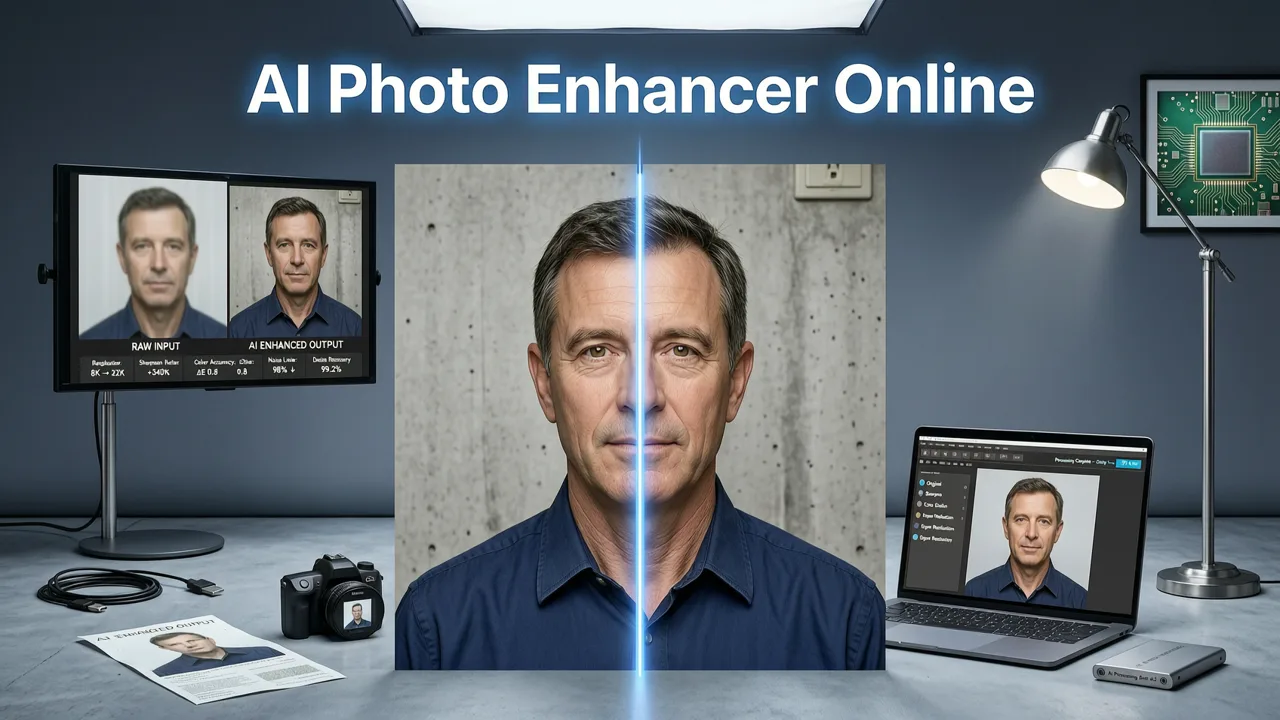
At its core, an ai photo enhancer online analyzes your image pixel by pixel, identifies problems, and reconstructs the missing or degraded information. Here are the main tasks these tools handle:
Sharpening Blurry Photos
Motion blur, missed focus, and soft lens shots are reconstructed using learned patterns of edges, textures, and facial structures. The AI doesn't just apply a sharpening filter — it predicts what the sharp version of the image should look like and rebuilds it.
Upscaling Low-Resolution Images
Need to print a photo that was originally taken at 720p? Modern upscalers can increase resolution by 2×, 4×, or even 8× while adding realistic detail that wasn't there before. This is especially useful for screenshots, web images, and old digital camera files.
Restoring Old and Damaged Photos
Scratches, tears, discoloration, and missing sections can be repaired automatically. If you have a box of vintage prints sitting in a drawer, an AI restorer can bring them back to life without any manual retouching. For a deeper dive on this, check out our Restore Old Photos Online in Seconds (2026 Guide).
Improving Color, Lighting, and Detail
Washed-out exposure, wrong white balance, and flat contrast are corrected with one click. The AI reads the scene — sky, skin, foliage, architecture — and applies adjustments that look natural rather than over-processed.
Removing Distractions
Power lines, photobombers, watermark text, and random clutter can be erased and replaced with contextually appropriate background content. This is often called "inpainting" or "object removal," and in 2026 it works convincingly on complex scenes.
How to Choose the Right AI Photo Enhancer Online
Not all tools are created equal. Here's a practical checklist to separate the genuinely useful from the gimmicky:
- Quality of output. Look for tools that produce natural-looking results without the telltale "AI sheen" — waxy skin, hallucinated text, or weird artifacting around edges.
- No install required. A true online tool works in your browser. You shouldn't need to download software, install plugins, or configure anything.
- Speed. In 2026, a good tool should process a single image in under 10 seconds. If it takes a minute, the underlying infrastructure is outdated.
- Batch processing. If you have dozens of photos to fix, batch upload saves enormous time.
- Privacy and data handling. Your photos are personal. Make sure the tool deletes uploads after processing and doesn't use your images to train public models without consent. Reputable providers follow responsible AI practices — you can review Google's framework at ai.google/responsibility as a reference for what good governance looks like.
- Platform support. Web tool, iOS app, Android app — whatever fits your workflow. The best services offer both a browser experience and a native mobile app.
- Specialized modes. General enhancers are fine, but tools that offer dedicated modes for portraits, product photos, old prints, and screenshots will give you better results than a one-size-fits-all approach.
Pixelift: A Complete AI Photo Enhancer Online for Every Use Case
Built by Devsrank, Pixelift is designed around the idea that anyone should be able to fix a bad photo in seconds. It combines a sharpener, upscaler, old-photo restorer, color corrector, Magic Remover, and Creative Presets into one clean interface — available as a web tool and an iOS app.
Who Is Pixelift For?
- Families who want to restore old prints and share improved versions with relatives.
- Content creators who need quick, clean product and portrait photos for social media.
- E-commerce sellers who want professional-looking product shots without hiring a retoucher.
- Everyday users who just want their smartphone photos to look better before sharing them.
What Makes It Stand Out in 2026?
Pixelift's models are trained on real-world degradation patterns — not just synthetic blur added in a lab. That means when you upload a photo that's soft because it was taken in low light with a budget phone, the AI recognizes exactly that type of softness and fixes it appropriately, rather than applying a generic sharpening filter that just makes noise more visible.
The Magic Remover is another highlight. It handles everything from removing a stray coffee cup in the background of a portrait to cleaning up dust and scratches on scanned vintage photos — and it does so without leaving the smeared, blurry patches that older inpainting tools were notorious for.
Creative Presets add a fun, expressive layer. Instead of just making a photo "correct," you can restyle portraits with film-look color grades, give social images a specific mood, or apply subtle artistic treatments — all without opening a separate editing app.
Step-by-Step: How to Enhance a Photo Online with Pixelift
Using an ai photo enhancer online shouldn't feel like filing taxes. Here's how simple the process is:
Step 1: Upload Your Photo
Open the Pixelift web tool or iOS app and drag in your image — or tap to select it from your camera roll. There's no account wall blocking your first enhancement, so you can see results before committing to anything.
Step 2: Choose Your Enhancement Mode
Pixelift auto-detects the type of image and suggests the best mode, but you can also choose manually:
- Sharpen & Enhance — for blurry, soft, or low-detail photos.
- Upscale — to increase resolution for printing or cropping.
- Restore — for old, damaged, faded, or scratched photos.
- Magic Remover — to erase unwanted objects and distractions.
- Creative Presets — to restyle portraits and social images.
Step 3: Review and Download
Within seconds, you'll see a before-and-after comparison. If the result looks good, download the enhanced image in full resolution. If you want to fine-tune, you can adjust the enhancement strength or try a different mode.
AI Photo Enhancer Online: Feature Comparison
Here's how the key capabilities stack up across common use cases:
| Use Case | Key Feature Needed | What to Expect in 2026 | Pixelift Support |
|---|---|---|---|
| Blurry smartphone photos | Smart sharpening | Natural detail recovery, no over-sharpening | ✓ Sharpen & Enhance mode |
| Low-res images for printing | AI upscaling | 2×–8× resolution increase with realistic texture | ✓ Upscale mode |
| Old family photos | Damage restoration | Scratch, tear, and fade repair | ✓ Restore mode |
| Product photos for e-commerce | Background cleanup | Object removal and lighting correction | ✓ Magic Remover + Enhance |
| Social media portraits | Color grading & presets | One-click mood and style adjustments | ✓ Creative Presets |
| iCloud photo library cleanup | Batch processing | Fix multiple soft or degraded photos at once | ✓ Batch upload supported |
Tips for Getting the Best Results from Any AI Photo Enhancer Online
Even the best tool works better when you give it good input. Follow these practical tips:
- Upload the highest-quality source you have. If you have both a compressed JPEG and a lossless original, use the original. The AI can work miracles, but it can't invent information that was never captured.
- Scan old photos at high DPI. When digitizing prints, scan at 600 DPI or higher. This gives the AI more data to work with and produces dramatically better restorations.
- Don't over-enhance. It's tempting to crank every slider to maximum. Subtle enhancements usually look more natural and hold up better when you share or print the image.
- Use the right mode for the job. A portrait sharpening mode will handle skin texture differently than a landscape mode. Choosing correctly saves you from re-doing work.
- Check the results at 100% zoom. Thumbnails can look great while hiding subtle artifacts. Always inspect the full-resolution output before downloading or sharing.
Common Questions About AI Photo Enhancement
Is it safe to upload my photos to an online enhancer?
Reputable tools process your images on secure servers and delete them after a short retention period. Always check the provider's privacy policy. If a tool claims to be free but doesn't explain what happens to your data, that's a red flag.
Can an AI photo enhancer fix a completely out-of-focus photo?
Mild to moderate blur can usually be improved significantly. Extreme blur — where facial features are completely unrecognizable — is harder, but 2026 models have gotten surprisingly good at reconstructing plausible detail even from very soft source images.
Do I need to install software to use an AI photo enhancer?
No. Modern tools like Pixelift run entirely in your browser or as a native mobile app. There's nothing to install, configure, or update on your computer.
Will the enhanced photo look artificial?
Not if you use a quality tool and avoid over-processing. The best 2026 models are specifically trained to produce natural-looking results — realistic skin texture, accurate colors, and believable detail rather than the waxy, over-smoothed look that early AI enhancers were known for.
Wrapping Up: Your Photos Deserve Better
Whether you're rescuing a faded family heirloom, sharpening a blurry keepsake, or just making your weekend photos look share-worthy, an ai photo enhancer online removes the barrier between "I wish I could fix this" and "Done." In 2026, the technology is fast, the results are natural, and the tools are easier to use than ever.
Ready to see what your photos can look like? Try Pixelift free — upload a photo, pick a mode, and see the difference in seconds. No install, no account wall, no editing skills needed. Just better photos.