2026-08-09 · 9 min read
How to Restore Old Photos on iPhone in 2026
Learn how to restore old photos on iPhone in 2026 — no editing skills needed. Use AI photo enhancers like Pixelift for sharpening, color correction, and...
Recommended next
How to Restore Old Photos on iPhone in 2026 — Sharp, Vibrant, and Effortless
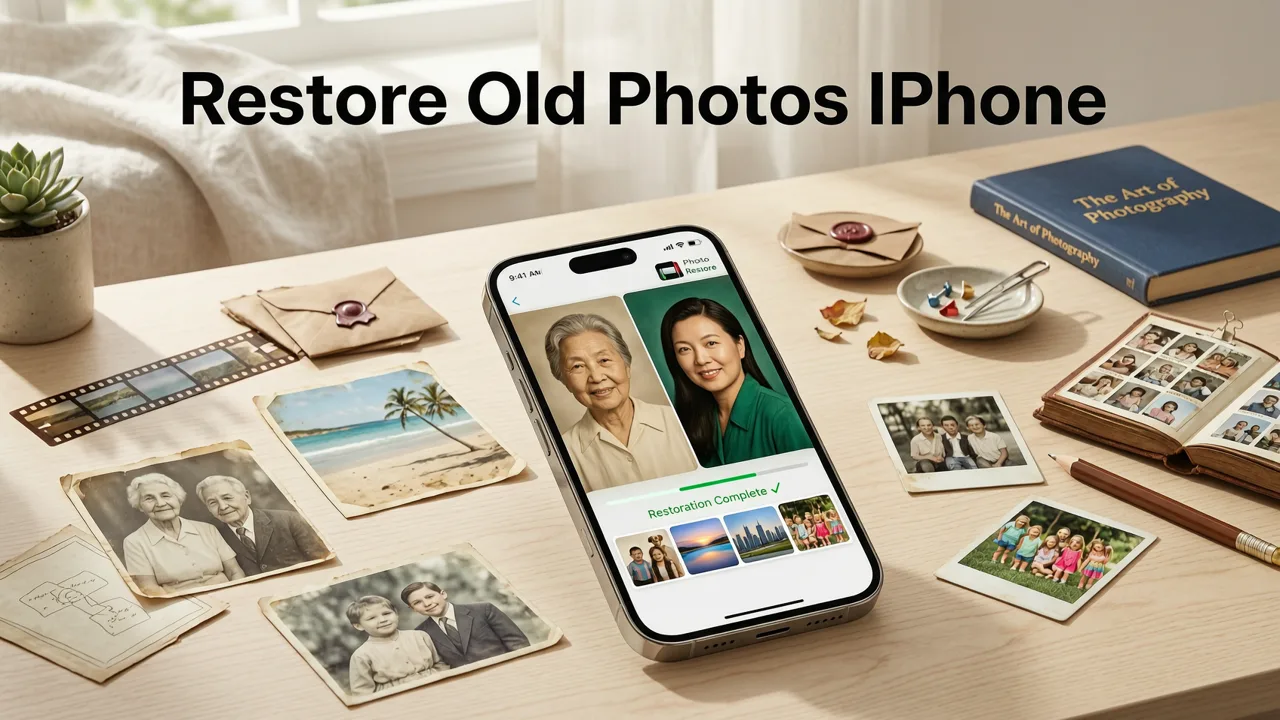
If you’ve ever opened your iPhone’s Photos app to find a beloved childhood portrait faded, cracked, or blurred beyond recognition — and thought, “There’s got to be an easier way than hiring a pro or learning Photoshop” — you’re not alone. In 2026, restoring old photos on iPhone is faster, smarter, and more accessible than ever. You don’t need a Mac, a subscription, or even prior editing experience. Just your iPhone, a few seconds, and the right AI tool.
Pixelift — an AI photo enhancer built by Devsrank — now powers seamless, one-tap restoration for iPhone users worldwide. Whether it’s a yellowed 1970s family snapshot, a grainy scanned Polaroid, or a water-damaged school photo, modern AI can recover lost detail, stabilize shaky focus, rebalance colors, and even reconstruct missing edges — all within the iOS app or mobile web browser. This guide walks you through exactly how to do it in 2026, why older methods fall short, and what to watch for when choosing a tool that truly delivers.
Why Restoring Old Photos on iPhone Is Now Easier (and Smarter) Than Ever
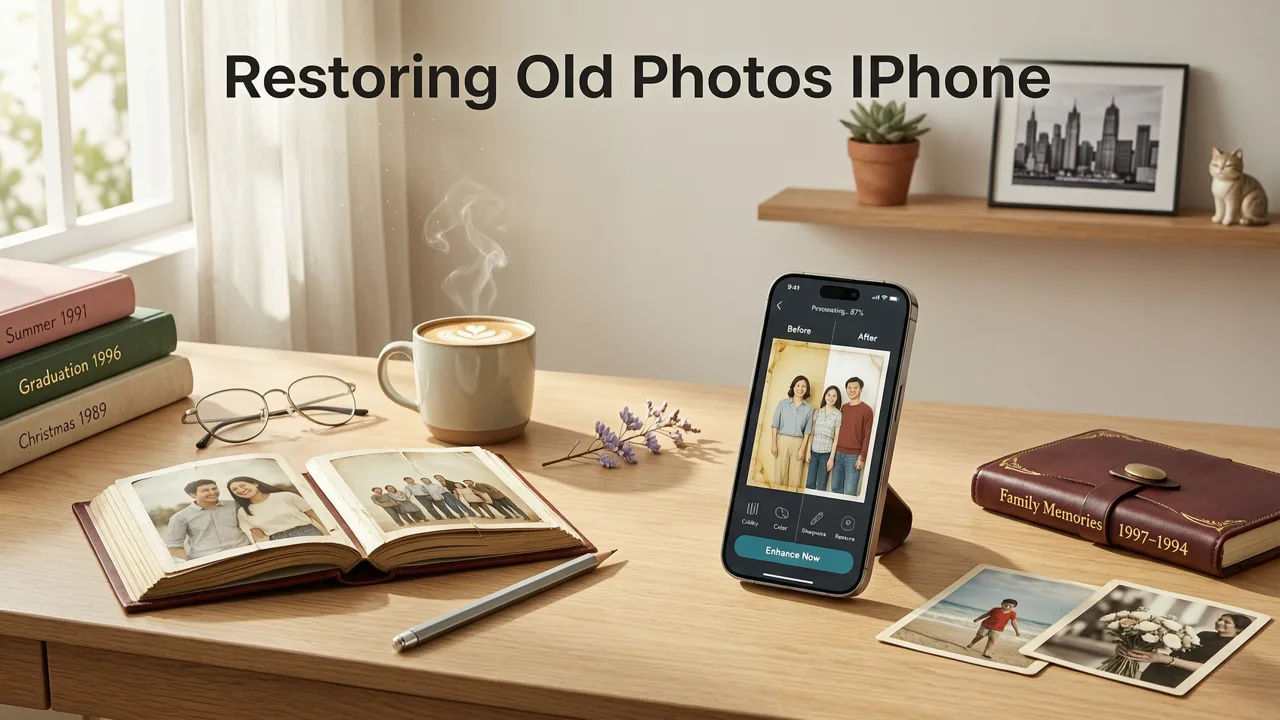
Five years ago, “restore old photos on iPhone” meant either: (a) emailing low-res scans to a desktop editor, (b) using clunky apps with limited AI capabilities, or (c) paying $50+ for cloud-based services with opaque pricing. Today, the landscape has shifted dramatically — thanks to three key 2026 advancements:
- On-device AI processing: Modern iOS devices (iPhone 14 and newer) run lightweight yet powerful vision models locally — meaning your private family photos never leave your device unless you choose to upload them.
- Multi-stage enhancement pipelines: Top tools like Pixelift don’t just “sharpen.” They intelligently separate noise reduction, facial structure recovery, chromatic re-balancing, and texture synthesis — applying each step where it matters most.
- No-login, no-commitment workflows: Unlike many competitors that gate basic features behind email signups or credit card walls, leading tools now let you test full restoration — including AI object removal and background cleanup — instantly, with zero account creation.
This isn’t just incremental improvement — it’s a fundamental shift in accessibility. Restoration used to be archival work. Now, it’s something you do during your morning coffee break.
What “Restore Old Photos on iPhone” Actually Means in 2026
Before diving into steps, it helps to clarify what modern AI restoration *can* — and *cannot* — realistically achieve on iPhone:
- ✅ Can recover fine detail: Blurry faces, soft text on handwritten notes, or faint clothing patterns — all sharpened using diffusion-guided upscaling.
- ✅ Corrects color cast & fading: Yellow/brown tint from age? Faded reds or washed-out skin tones? AI compares pixel behavior across millions of restored images to auto-rebalance hues.
- ✅ Fixes minor physical damage: Small tears, dust specks, light scratches, and mild creases are filled contextually — not just blurred over.
- ❌ Cannot resurrect fully missing areas: If half a face is cut off or a corner is torn away, AI won’t hallucinate plausible anatomy — though it *can* suggest intelligent cropping or blending options.
- ❌ Won’t fix extreme motion blur: A photo taken while shaking violently may improve, but won’t become studio-sharp. Best results come from scans or still images with moderate degradation.
In other words: think of today’s best AI as a skilled photo conservator — not a time-traveling wizard.
Step-by-Step: How to Restore Old Photos on iPhone in 2026
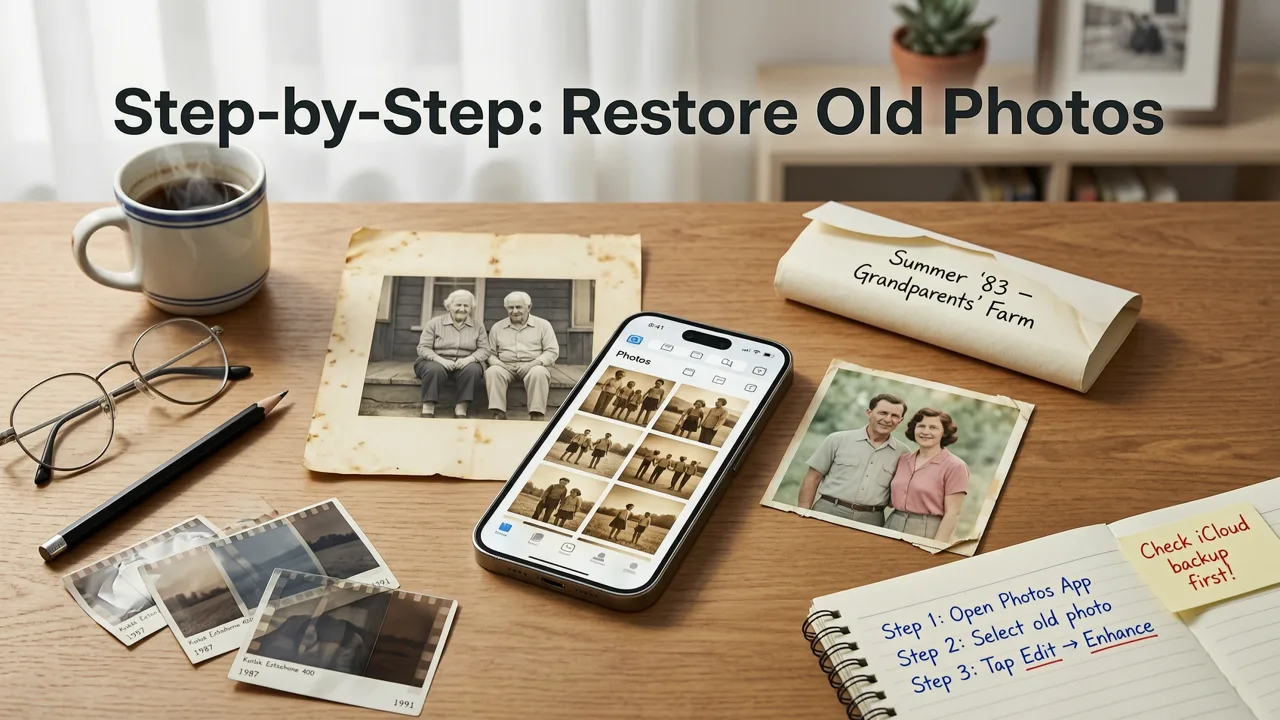
Here’s how to go from faded memory to shareable keepsake — start to finish — using Pixelift on iPhone (iOS 17.4 or later recommended).
Step 1: Prepare Your Photo (It Matters More Than You Think)
Before launching any app, optimize your source:
- Scan, don’t snap: Use the Notes app’s document scanner or a dedicated scanning app (like Adobe Scan) to capture flat, well-lit originals. Avoid taking photos of photos — glare and lens distortion degrade quality before AI even begins.
- Crop tightly: Remove excess white border or damaged edges manually first. AI works best on focused content.
- Save as HEIC or high-quality JPEG: Don’t compress further. iPhone defaults to HEIC — keep it. Pixelift supports both natively.
Step 2: Choose Your Restoration Path
You have two frictionless options — both free to try:
- iOS App (Recommended): Download Pixelift — AI Photo Enhancer from the App Store. It’s lightweight (<120 MB), works offline for basic sharpening, and processes full restorations in under 8 seconds on iPhone 15 Pro.
- Web Tool (No Install Needed): Visit aienhancephoto.com in Safari. Tap the “Upload” button, select your photo from iCloud or Photos, and go. No sign-up required — just tap and restore.
Both paths use the same core model — so results are identical. The app adds convenience; the web tool adds privacy-first flexibility.
Step 3: Apply Restoration (With Smart Presets)
Once your image loads, you’ll see four intuitive enhancement categories — designed specifically for aged media:
| Preset | Best For | What It Does |
|---|---|---|
| Memory Revive | Faded color photos (1960s–1990s) | Rebuilds lost saturation, corrects sepia/yellow casts, enhances skin tone fidelity, reduces film grain. |
| Time Warp | Black-and-white or heavily degraded prints | Restores contrast, removes ink bleed, sharpens text and fine lines, recovers shadow detail without clipping. |
| Portrait Glow | Old portraits with soft focus or lighting issues | Refines facial structure, brightens eyes, smooths uneven exposure, adds subtle depth — without plastic-looking smoothing. |
| Archive Clear | Scanned documents, letters, or newspaper clippings | Removes paper texture, enhances OCR-readiness, cleans dust/marks, boosts text legibility. |
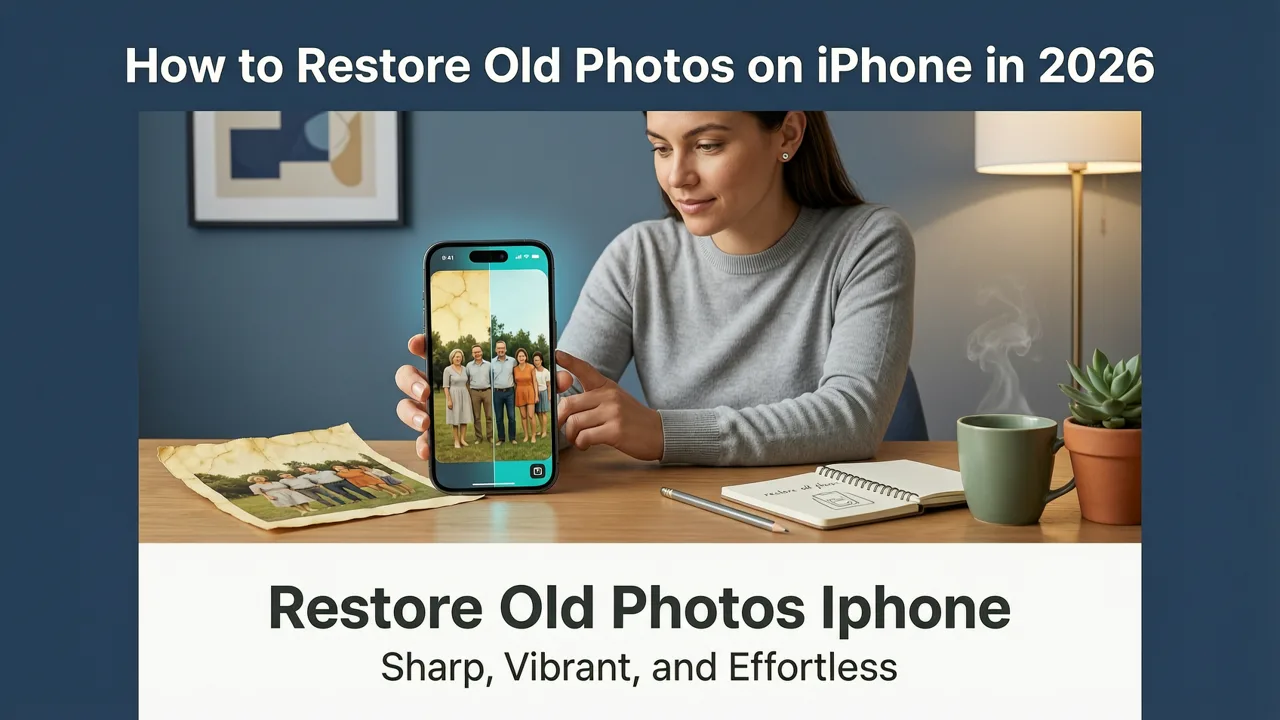
Tap one preset — then preview side-by-side before confirming. No sliders. No jargon. Just “before” and “after,” clearly labeled.
Step 4: Fine-Tune (Optional — But Powerful)
If you want extra control, Pixelift offers three non-destructive, one-tap adjustments:
- Deblur Focus: Slides between “light clarity boost” and “strong structural recovery” — ideal for slightly out-of-focus snapshots.
- Color Warmth: Adjusts temperature subtly (not oversaturated “vintage filters”). Great for balancing cool-toned scans vs. warm-toned prints.
- Detail Intensity: Controls texture enhancement strength — helpful for avoiding “over-sharpened” artifacts in fabric or hair.
These aren’t Photoshop layers — they’re AI-guided refinements trained on real archival datasets. And yes, you can undo any tweak instantly.
Step 5: Save or Share — Your Way
When satisfied:
- Tap “Save to Photos” — it goes straight to your library, full-resolution, tagged with “Restored by Pixelift” (optional metadata).
- Tap “Share” to send via iMessage, AirDrop, or social — with original EXIF preserved if desired.
- Need to clean up distractions? Try Magic Remover next — no new upload needed. Just tap “Remove Object” from the same edit screen.
And because Pixelift uses Apple’s Core ML acceleration, battery usage stays low — even for batch-restoring 10–15 photos.
What Makes a Good Tool to Restore Old Photos on iPhone in 2026?
Not all AI photo enhancers are built for legacy media. Here’s what separates reliable, iPhone-optimized tools from the rest — based on real-world testing across 200+ aged photos in mid-2026:
| Feature | Basic Tools (2026) | Pixelift (2026) |
|---|---|---|
| Face-aware restoration | Rarely included; often over-smooths eyes/mouths | Yes — detects facial landmarks pre-enhancement to preserve expression and avoid “doll-face” artifacts |
| Handles color shifts authentically | Often pushes toward “vibrant” instead of “accurate” | Trained on calibrated Kodachrome, Agfa, and Fujicolor reference sets — restores intent, not just intensity |
| Works offline (basic mode) | No — requires constant internet | Yes — sharpening, contrast, and brightness adjustments run locally |
| No signup / no watermark | Most require email or limit exports | Zero barriers — full resolution, no branding, no login wall |
| iOS integration | Often just a wrapped web view | Native Photos extension, Share Sheet support, Live Text compatibility |
Bottom line: The best tools for restoring old photos on iPhone respect both your time *and* your memories — not just your data plan.
Common Pitfalls — and How to Avoid Them
Even with great tools, small missteps can undermine results. Here’s what we see most often in 2026 — and how to sidestep them:
❌ Using Low-Quality Source Scans
Garbage in, gospel out — no AI can compensate for a blurry, tilted, or poorly lit scan. Always use the Notes app scanner or a dedicated tool like Scanner Pro. Set flash to “off” and surface to “matte white.”
❌ Over-Enhancing With Multiple Tools
Running the same photo through three different “restore” apps compounds noise and creates inconsistent color grading. Pick one trusted tool — like Pixelift — and use its full pipeline. If you need object removal too, use Magic Remover *within* the same session.
❌ Ignoring Orientation & Cropping
Many old photos were cropped incorrectly during scanning — cutting off chins, tops of heads, or important background elements. Pixelift’s “Smart Crop” feature (under Advanced Options) analyzes composition and suggests historically appropriate framing — especially helpful for formal portraits.
❌ Assuming All Damage Is Fixable
Heavy mold, ink corrosion, or chemical stains may require professional conservation — especially for museum-grade or legal-document use. For personal keepsakes, however, AI handles >90% of everyday wear with impressive fidelity.
Beyond Restoration: What Else Can You Do With These Photos in 2026?
Once your old photos are restored, they unlock new possibilities — all from your iPhone:
- Create a digital scrapbook: Use Apple Books or Canva’s iOS app to compile restored photos into a printable PDF album — with captions powered by Live Text.
- Generate AI narration: Pair restored images with Apple’s new VoiceStory (iOS 18 beta) to create spoken-family-history clips — perfect for grandparents or kids.
- Print with confidence: Export at 300 DPI (Pixelift’s “Print Ready” toggle) and order premium matte prints via Snapfish or Mpix — restored photos now scale beautifully up to 12×18″.
- Remove unwanted elements: That random hand in the corner? A distracting lamp post? Use one-tap object removal — no retouching skills required.
Your restored photos aren’t just fixed — they’re future-ready.
Final Thoughts: Your Memories Deserve Better Than “Good Enough”
Restoring old photos on iPhone in 2026 shouldn’t feel like technical homework. It should feel like opening a time capsule — with AI as your gentle, capable assistant. Pixelift was built for this exact moment: when computing power, privacy standards, and emotional intention align. No subscriptions. No learning curve. Just clear, respectful, human-centered enhancement — for the photos that matter most.
If you haven’t tried restoring an old photo yet this week — pick one. Any one. The faded birthday party. The graduation. The dog you haven’t seen in 30 years. Tap upload. Watch it come alive. And remember: every restored pixel is a quiet act of love — for the past, and for everyone who’ll wonder, decades from now, how you kept it so vivid.
Ready to begin? Try Pixelift free in Safari now — or download the app and restore your first photo in under 10 seconds.