2026-08-17 · 9 min read
Magic Remover for Photos: Clean Distractions Instantly in 2026
Use the magic remover for photos to erase unwanted objects, people, and blemishes in seconds. Discover how AI-powered removal works and try it free in 2026.
Recommended next
Magic Remover for Photos: Clean Distractions Instantly in 2026
You snapped the perfect shot, but there is a trash can in the corner, a stranger photobombing the background, or a pesky blemish ruining an otherwise flawless portrait. The magic remover for photos solves this in seconds by using AI to detect, erase, and seamlessly reconstruct the area you want gone — no Photoshop skills required.
In 2026, AI object removal has moved far beyond the clunky clone-stamp tools of the past. Modern magic removers analyze surrounding pixels, lighting, and texture to fill gaps with believable detail, making deleted objects virtually undetectable. Whether you are cleaning up a family portrait, polishing a product photo for your online store, or removing distractions from a travel snapshot, this guide walks you through exactly how it works, what to look for, and how to get the best results every time.
What Is a Magic Remover for Photos?
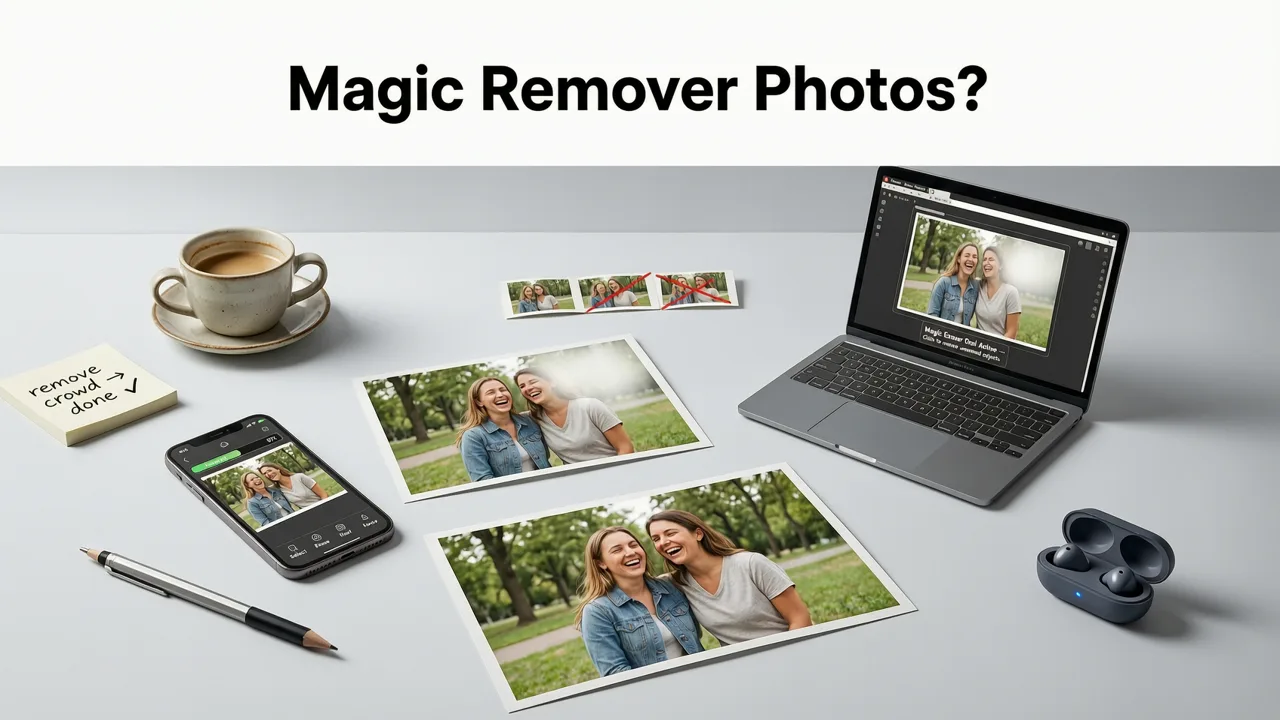
A magic remover for photos is an AI-powered tool that lets you highlight or brush over unwanted elements in an image and watch them disappear. Under the hood, the software uses deep-learning models trained on millions of images to understand context — it knows the difference between a person, a background wall, a patch of grass, or a stretch of sky, and it reconstructs the missing area accordingly.
Unlike older content-aware fill methods that often left blurry smudges or repeated patterns, today's magic removers produce clean, natural-looking results even in complex scenes. You simply paint over the distraction, hit remove, and the AI fills the space with contextually accurate pixels.
Common Uses for Magic Removers
- Removing people from crowded tourist shots or group photos
- Erasing blemishes, stray hairs, or skin imperfections in portraits
- Cleaning up product photos by removing dust, reflections, or background clutter
- Deleting watermarks or text overlays from images you own
- Fixing photobombs and accidental objects in the frame
- Tidying up real-estate listings by removing furniture or personal items
How AI Magic Removal Works in 2026

The technology behind a modern magic remover relies on a combination of computer vision, semantic segmentation, and generative inpainting. Here is a simplified breakdown of the process:
- Selection: You brush or tap over the object you want to remove.
- Segmentation: The AI identifies the boundaries of the selected object and classifies the surrounding scene — sky, wall, foliage, skin, fabric, and so on.
- Inpainting: A generative model predicts what the hidden area should look like based on the surrounding context, lighting direction, and texture patterns.
- Blending: The reconstructed pixels are seamlessly blended with the original image so edges, shadows, and color gradients match perfectly.
- Output: You receive a clean, high-resolution image with no visible trace of the removed object.
In 2026, these models have become dramatically better at handling tricky scenarios like hair strands overlapping a busy background, reflective surfaces, or fine text on patterned fabrics. The result is a tool that feels genuinely magical even to first-time users.
Step-by-Step: How to Use a Magic Remover for Photos
Getting started with a magic remover is straightforward. Here is a practical walkthrough you can follow with Pixelift or any comparable AI removal tool.
Step 1 — Upload Your Image
Open the tool in your browser or app and upload the photo you want to edit. Most magic removers accept JPEG, PNG, and HEIC formats and handle files up to 25 MB or more.
Step 2 — Select the Unwanted Object
Use the brush tool to paint over the distraction. Zoom in for precision around edges. Some tools also offer an automatic selection mode that detects objects for you.
Step 3 — Hit Remove
Click the remove button and let the AI do its work. Processing usually takes two to five seconds depending on image size and complexity.
Step 4 — Review and Refine
Zoom in to check the result. If any artifacts remain, simply brush over them again and re-run the removal. Most tools allow unlimited redo passes.
Step 5 — Download Your Clean Photo
Once you are happy with the result, download the edited image in your preferred resolution. You can then use it for social media, print, or product listings.
Magic Remover vs. Traditional Editing Tools
If you have ever tried to remove an object in Photoshop using the clone stamp or content-aware fill, you know it can be time-consuming and often requires manual touch-ups. Here is how a dedicated magic remover compares to traditional methods.
| Feature | Magic Remover (AI) | Traditional Editing (Photoshop) |
|---|---|---|
| Speed | 2–5 seconds per object | 2–10 minutes per object |
| Skill Required | None — brush and click | Moderate to advanced |
| Handles Complex Backgrounds | Excellent with 2026 AI models | Depends on user skill |
| Cost | Free tier or low-cost subscription | $22.99/month or more |
| Mobile Support | Yes — web and iOS app | Limited mobile experience |
| Batch Processing | Available in select tools | Requires actions or scripts |
For most everyday users, a magic remover delivers professional-quality results in a fraction of the time and at a fraction of the cost. If you need pixel-perfect control for high-end commercial work, Photoshop still has its place — but for 95 percent of use cases, AI removal is more than enough.
Best Practices for Clean, Natural-Looking Results
Even the most advanced magic remover works best when you follow a few simple guidelines. These tips will help you get the cleanest results on the first try.
- Zoom in before brushing. Precise selection around edges prevents the AI from accidentally removing parts of the subject you want to keep.
- Remove one object at a time. Tackling multiple distractions in a single pass can confuse the model. Clear them one by one for the best outcome.
- Start with large objects. Big distractions cast shadows and affect surrounding pixels. Remove them first, then clean up smaller remnants.
- Use high-resolution source images. The more detail in the original file, the better the AI can reconstruct the missing area.
- Check edges in bright areas. Sky, walls, and other uniform backgrounds reveal artifacts more easily, so inspect those zones carefully.
Who Benefits Most from a Magic Remover?
The beauty of a magic remover for photos is that it serves almost anyone who works with images. Here are some of the groups that get the most value.
Content Creators and Social Media Users
If you post regularly on Instagram, TikTok, or Pinterest, you know that even a small distraction can take away from an otherwise stunning image. A magic remover lets you clean up photos in seconds before publishing, keeping your feed polished and professional.
E-Commerce Sellers
Product photos sell. Dust spots, wrinkled backgrounds, or stray items in the frame can hurt conversions. Use a magic remover to keep product images clean and consistent across your store.
Real-Estate Agents
Listing photos often need quick fixes — removing a cluttered countertop, a visible power outlet, or personal belongings from a staged room. AI removal speeds up the editing workflow dramatically.
Everyday Photo Enthusiasts
Maybe you just want to remove an ex-partner from a group photo or clean up a vacation shot ruined by a signpost. No judgment — the magic remover handles it effortlessly.
Combining Magic Removal with Other AI Enhancements
Object removal is powerful on its own, but it becomes even more impactful when paired with other AI editing tools. After cleaning up distractions, you might want to sharpen a blurry face, upscale a low-resolution image for print, or restore color and lighting across the entire photo.
For example, imagine you have an old scanned family photo with a coffee stain in the corner and faded colors. You can first use the magic remover to erase the stain, then apply AI enhancement to restore detail and vibrancy. If the photo is deeply damaged, you might also explore options to restore old family photos online for a complete transformation.
Tools like Pixelift bundle these capabilities together, so you can remove, enhance, and upscale in a single workflow without jumping between apps. You can even edit on the go with the Pixelift iOS app, making it easy to clean up photos right from your phone.
What to Look for in a Magic Remover in 2026
Not all magic removers are created equal. As you evaluate options, keep these criteria in mind to make sure you pick a tool that delivers real results.
- AI model quality: The best tools use the latest generative inpainting models that handle complex textures, hair, and reflective surfaces gracefully.
- Resolution support: Make sure the tool preserves your original resolution or even upscales the result, so you do not lose quality.
- Ease of use: A clean interface with intuitive brush controls matters, especially if you are not a professional editor.
- Platform availability: Web-based tools work everywhere, but a mobile app is a bonus for on-the-go editing.
- Privacy and data handling: Choose tools that process images securely and do not retain your photos longer than necessary.
- Pricing transparency: Look for clear free tiers or affordable plans without hidden credit systems that run out quickly.
If you are exploring options, the best AI photo enhancer online free guide covers several top-rated tools including options with built-in magic removal capabilities.
Magic Remover for Photos: Frequently Asked Questions
Below are answers to the most common questions people ask about using a magic remover for photos.
Can a magic remover work on moving subjects or blurry backgrounds?
Yes, modern AI removers in 2026 handle motion blur and soft backgrounds well. The model uses surrounding sharp areas and contextual clues to reconstruct the removed zone, even when the background is not perfectly crisp. For best results, however, start with the sharpest source image you can.
Is the magic remover free to use?
Many tools offer a free tier that lets you remove a limited number of objects per day or process a set number of images. Pixelift, for instance, provides free access with optional upgrades for higher resolution output and batch processing.
Does removing an object reduce image quality?
No. Quality AI removers reconstruct the missing area at full resolution and blend it seamlessly. You will not notice a drop in sharpness or detail as long as the source image is high quality to begin with.
Can I remove people from group photos?
Absolutely. This is one of the most popular uses. Simply brush over the person you want to remove and the AI will reconstruct the background behind them. For complex scenes with overlapping subjects, zoom in and make a careful selection for the cleanest result.
Final Thoughts: Clean Up Any Photo in Seconds
A magic remover for photos has become an essential part of any quick-edit workflow in 2026. Whether you are tidying up a product shot, erasing a photobomber from a vacation photo, or restoring a cherished family picture, AI-powered removal saves you time and delivers results that look professionally edited — without the learning curve.
Ready to try it yourself? Head over to Pixelift and remove your first distraction in under ten seconds. Your photos — and your followers — will thank you.